
1. Introduction
Thank you for purchasing the Vivitar ViviCam X024 Digital Camera. This manual provides essential information for the safe and effective operation of your camera. Please read it thoroughly before use and keep it for future reference. The ViviCam X024 is designed for capturing high-quality still images and video, featuring a 10.1 Megapixel sensor, 4x digital zoom, and a 2.4-inch preview screen.
2. Safety Information
- Do not expose the camera to water or moisture. This camera is not water resistant.
- Avoid extreme temperatures. Do not leave the camera in direct sunlight or in very cold environments.
- Use only recommended batteries (AAA Alkaline) and memory cards (SD, up to 32GB).
- Keep the camera away from strong magnetic fields.
- Do not attempt to disassemble or repair the camera yourself. Refer to qualified service personnel.
- Clean the camera body with a soft, dry cloth. For the lens, use a specialized lens cleaning cloth.
3. Package Contents
Verify that your package contains the following items:
- Vivitar ViviCam X024 Digital Camera Body
- USB Cable
- Wrist Strap
- User Manual (this document)
4. Camera Parts and Controls
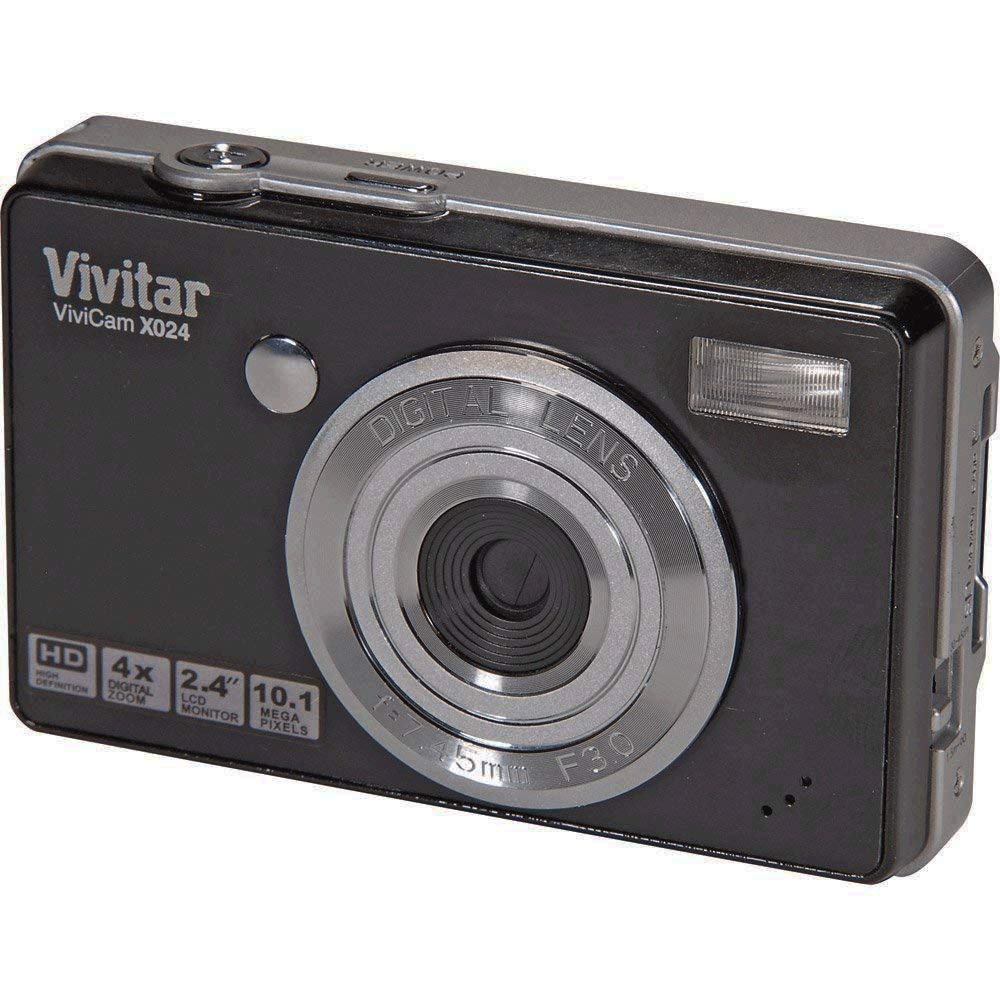
Figure 1: Front view of the Vivitar ViviCam X024 Digital Camera, showing the lens, flash, and body design.
Front View
- Lens: Captures images and video.
- Flash: Provides illumination in low-light conditions.
Top View
- Power Button: Turns the camera on or off.
- Shutter Button: Press halfway to focus, fully to take a picture.
Rear View
- 2.4" LCD Screen: Displays live view, menus, and playback.
- Zoom Buttons: Control digital zoom (Tele/Wide).
- Mode Dial/Buttons: Select shooting modes (e.g., Photo, Video, Playback).
- Menu Button: Access camera settings.
- Navigation Buttons (Up/Down/Left/Right/OK): Navigate menus and settings.
- Delete Button: Erase photos or videos.
Side/Bottom View
- Battery Compartment: Holds AAA batteries.
- SD Card Slot: Insert memory card.
- USB Port: Connects to a computer for data transfer.
5. Setup
5.1. Installing Batteries
- Locate the battery compartment cover on the bottom of the camera.
- Slide the cover latch and open the compartment.
- Insert 3 AAA Alkaline batteries, ensuring correct polarity (+/-) as indicated inside the compartment.
- Close the battery compartment cover securely until it clicks into place.
5.2. Inserting an SD Memory Card
- Locate the SD card slot, usually near the battery compartment or on the side.
- Insert an SD memory card (up to 32GB) with the metal contacts facing the correct direction, as shown by the diagram near the slot.
- Push the card gently until it clicks into place. To remove, push the card again until it springs out.
6. Basic Operation
6.1. Powering On/Off
- To turn on: Press and hold the Power Button until the LCD screen illuminates.
- To turn off: Press and hold the Power Button again until the screen turns off.
6.2. Taking Photos
- Turn on the camera. Ensure it is in Photo mode (check the mode indicator on the screen).
- Frame your shot using the 2.4" LCD screen.
- Press the Shutter Button halfway down to allow the camera to focus. The focus indicator will appear on the screen.
- Press the Shutter Button fully down to capture the image.
6.3. Recording Videos
The Vivitar ViviCam X024 can record video in MP4 format. Please note that this camera does not record audio with video.
- Turn on the camera and switch to Video mode (refer to your camera's specific mode selection method).
- Frame your subject on the LCD screen.
- Press the Shutter Button to start recording. A recording indicator will appear on the screen.
- Press the Shutter Button again to stop recording.
6.4. Playback
- Switch the camera to Playback mode.
- Use the Left/Right Navigation Buttons to scroll through your captured photos and videos.
- To view a video, select it and press the OK Button to start playback.
- To delete a photo or video, select it and press the Delete Button. Confirm deletion when prompted.
7. Advanced Features
7.1. Digital Zoom
The camera features 4x digital zoom. While in Photo or Video mode, use the Zoom Buttons (often marked 'W' for Wide and 'T' for Telephoto) to zoom in or out on your subject.
7.2. Flash Modes
Access flash settings through the camera's menu or a dedicated flash button. Available modes include:
- Auto Flash: The camera automatically determines if flash is needed.
- Red-Eye Reduction: Emits a pre-flash to reduce red-eye effect.
7.3. Anti-Shake (Digital Image Stabilization)
The ViviCam X024 incorporates digital image stabilization to help reduce blur caused by camera shake, especially in challenging shooting conditions. This feature is typically active by default or can be enabled in the camera settings.
7.4. Face Detection
When enabled, Face Detection automatically identifies and focuses on human faces within the frame, optimizing exposure for portraits. This setting can usually be found in the camera's menu.
7.5. Shooting Modes
The camera offers various shooting modes to optimize settings for different scenes:
- Landscape: Ideal for wide outdoor scenes.
- Sports: Optimizes for capturing fast-moving subjects.
- Macro: For close-up photography of small objects.
8. Connecting to a Computer
To transfer photos and videos to your computer:
- Ensure the camera is turned off.
- Connect one end of the supplied USB cable to the camera's USB port.
- Connect the other end of the USB cable to an available USB port on your computer.
- Turn on the camera. Your computer should detect the camera as a removable storage device.
- Access the camera's memory card folder to copy files to your computer.
9. Maintenance and Care
- Cleaning the Lens: Use a soft, lint-free lens cleaning cloth. Do not use abrasive materials or harsh chemicals.
- Cleaning the Body: Wipe the camera body with a soft, dry cloth. For stubborn dirt, slightly dampen the cloth with water.
- Storage: When not in use for extended periods, remove the batteries and store the camera in a cool, dry place, away from dust and direct sunlight.
- Battery Life: Battery performance can decrease in cold environments. Carry spare batteries if shooting in cold conditions.
10. Troubleshooting
| Problem | Possible Cause | Solution |
|---|---|---|
| Camera does not turn on. | Batteries are dead or incorrectly inserted. | Replace with fresh AAA batteries, ensuring correct polarity. |
| Cannot take pictures. | Memory card is full, locked, or not inserted. | Insert an empty SD card, unlock the card, or delete unnecessary files. |
| Images are blurry. | Camera shake, subject movement, or dirty lens. | Hold the camera steady, use Anti-Shake, clean the lens. |
| Video has no sound. | The camera does not have a built-in microphone for video recording. | This is a characteristic of the camera; no solution is available. |
| Computer does not recognize camera. | Incorrect connection or camera not in transfer mode. | Ensure USB cable is securely connected and camera is powered on after connecting. Try a different USB port. |
11. Specifications
| Feature | Specification |
|---|---|
| Model Name | X024 |
| Photo Sensor Resolution | 10.1 Megapixels |
| Sensor Type | CMOS, 1/2.3-inch |
| Digital Zoom | 4x |
| Image Stabilization | Digital (Anti-shake) |
| Screen Size | 2.4 Inches (LCD) |
| Flash Modes | Auto, Red Eye Reduction |
| Shooting Modes | Landscape, Sports, Macro |
| Supported File Format | JPEG (Stills), MP4 (Video) |
| Memory Card Type | SD (up to 32GB) |
| Battery Type | 3 x AAA Alkaline |
| Hardware Interface | USB |
| Item Weight | 0.67 Pounds |
12. Warranty and Support
Vivitar products are designed for reliability and performance. For warranty information or technical support, please refer to the official Vivitar website or contact their customer service department. Keep your purchase receipt as proof of purchase for any warranty claims.
Vivitar Customer Support: Please visit www.vivitar.com/support for the latest support information, FAQs, and contact details.