
ADESSO WKB-3100UB
Contents
Adesso WKB-3100UB 2.4 GHz RF Wireless Mini Trackball Keyboard User Manual
Model: WKB-3100UB
Introduction
This manual provides instructions for the setup, operation, maintenance, and troubleshooting of your Adesso WKB-3100UB 2.4 GHz RF Wireless Mini Trackball Keyboard. Please read this manual thoroughly before using the product to ensure proper functionality and longevity.
Package Contents
- Adesso WKB-3100UB Wireless Mini Trackball Keyboard
- 2.4 GHz USB Receiver
- 2 x AA Batteries
- Quick Start Guide
Key Features
- 2.4GHz RF Wireless Technology with 12 Channels (65,000 IDs per Channel)
- 87-Key US Layout
- Integrated Optical Trackball Sensor (800 DPI)
- Dedicated Mouse Buttons
- Connect Button for Easy Connection
- Power ON/OFF Switch for Energy Saving
- Battery Low LED Indicator
Setup Instructions
1. Install Batteries
- Locate the battery compartment on the underside of the keyboard.
- Open the battery compartment cover.
- Insert the two AA batteries, ensuring correct polarity (+/-).
- Close the battery compartment cover securely.
2. Connect USB Receiver
- Remove the 2.4 GHz USB receiver from its storage slot, typically located in the battery compartment or near it.
- Plug the USB receiver into an available USB port on your computer.
- Your operating system should automatically detect and install the necessary drivers.
3. Power On and Connect
- Locate the Power ON/OFF switch on the keyboard and slide it to the "ON" position.
- Press the "Connect" button on the keyboard. The keyboard should now establish a wireless connection with the USB receiver.
- Test the keyboard and trackball functionality. If they do not respond, ensure the receiver is properly connected and the keyboard is powered on. You may need to press the "Connect" button again.

Image: Top and bottom view of the Adesso WKB-3100UB keyboard, highlighting the mouse buttons, optical trackball, Windows key, embedded numeric keypad, battery compartment, receiver holder, power ON/OFF switch, and connect button.
Operating Instructions
Keyboard Usage
The WKB-3100UB features an 87-key US layout. Standard typing functions apply. Some keys may have secondary functions accessible via the Fn key.
- Numeric Keypad: The embedded numeric keypad can be activated using the Num Lock key. When active, certain keys will function as numbers or mathematical operators.
- Function Keys (F1-F12): These keys perform their standard functions.
Trackball Usage
The integrated optical trackball functions as a mouse. Roll the trackball with your thumb or finger to move the cursor on the screen.
- Left Click: Press the left mouse button, located above the keyboard on the left side.
- Right Click: Press the right mouse button, located above the keyboard on the left side.
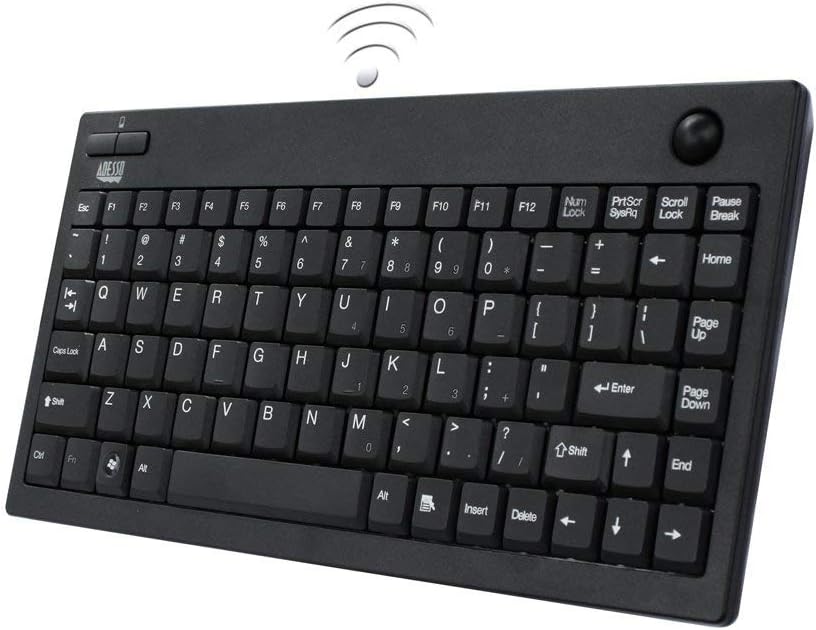
Image: Angled view of the Adesso WKB-3100UB keyboard, showing the full key layout, the optical trackball on the top right, and the left/right mouse buttons on the top left.
Maintenance
Cleaning
- To clean the keyboard surface, use a soft, damp cloth. Avoid abrasive cleaners or solvents.
- For the trackball, ensure it remains free of dust and debris. The optical sensor generally requires no maintenance, but if performance degrades, gently clean around the trackball with a soft, dry cloth.
Battery Replacement
When the Battery Low LED Indicator illuminates, it is time to replace the AA batteries. Follow the battery installation steps in the "Setup Instructions" section.
- Always replace both batteries at the same time.
- Use high-quality alkaline AA batteries for optimal performance.
- Dispose of used batteries according to local regulations.
Troubleshooting
| Problem | Possible Cause | Solution |
|---|---|---|
| Keyboard or trackball not responding. |
|
|
| Trackball movement is erratic or sluggish. |
|
|
| Keyboard types incorrect characters. |
|
|
Specifications
- Model: WKB-3100UB
- Connectivity: 2.4 GHz RF Wireless
- Wireless Channels: 12 (65,000 IDs per channel)
- Keyboard Layout: 87-Key US Layout
- Trackball Sensor: Optical, 800 DPI
- Power: 2 x AA Batteries (included)
- Dimensions: 11.75 x 1 x 6 inches (29.85 x 2.54 x 15.24 cm)
- Weight: 1.25 pounds (0.57 kg)
- Material: Plastic
- Color: Black
- Compatible Operating Systems: Windows 2000, XP, Vista, 7, and later.
Warranty and Support
Adesso products are backed by a limited warranty. For specific warranty terms and conditions, please refer to the warranty card included with your product or visit the official Adesso website. For technical support, product registration, or further assistance, please contact Adesso customer service through their official channels.
Adesso Official Website: www.adesso.com
Ask a question about this manual
Ask about setup, troubleshooting, compatibility, parts, safety, or missing instructions. Manuals+ will review the question and use this page’s manual context to help answer it.