
1. Product Overview
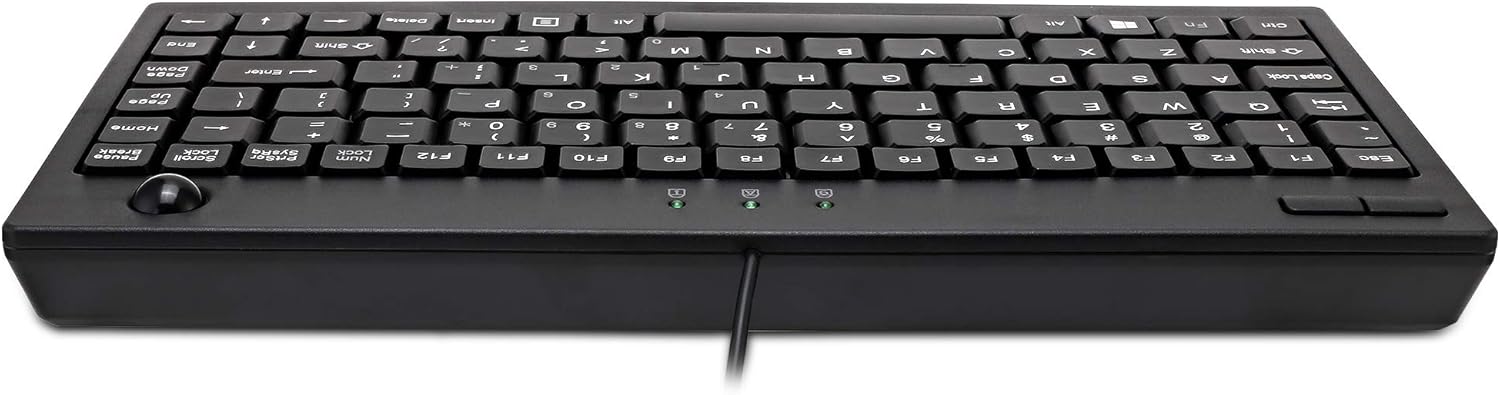
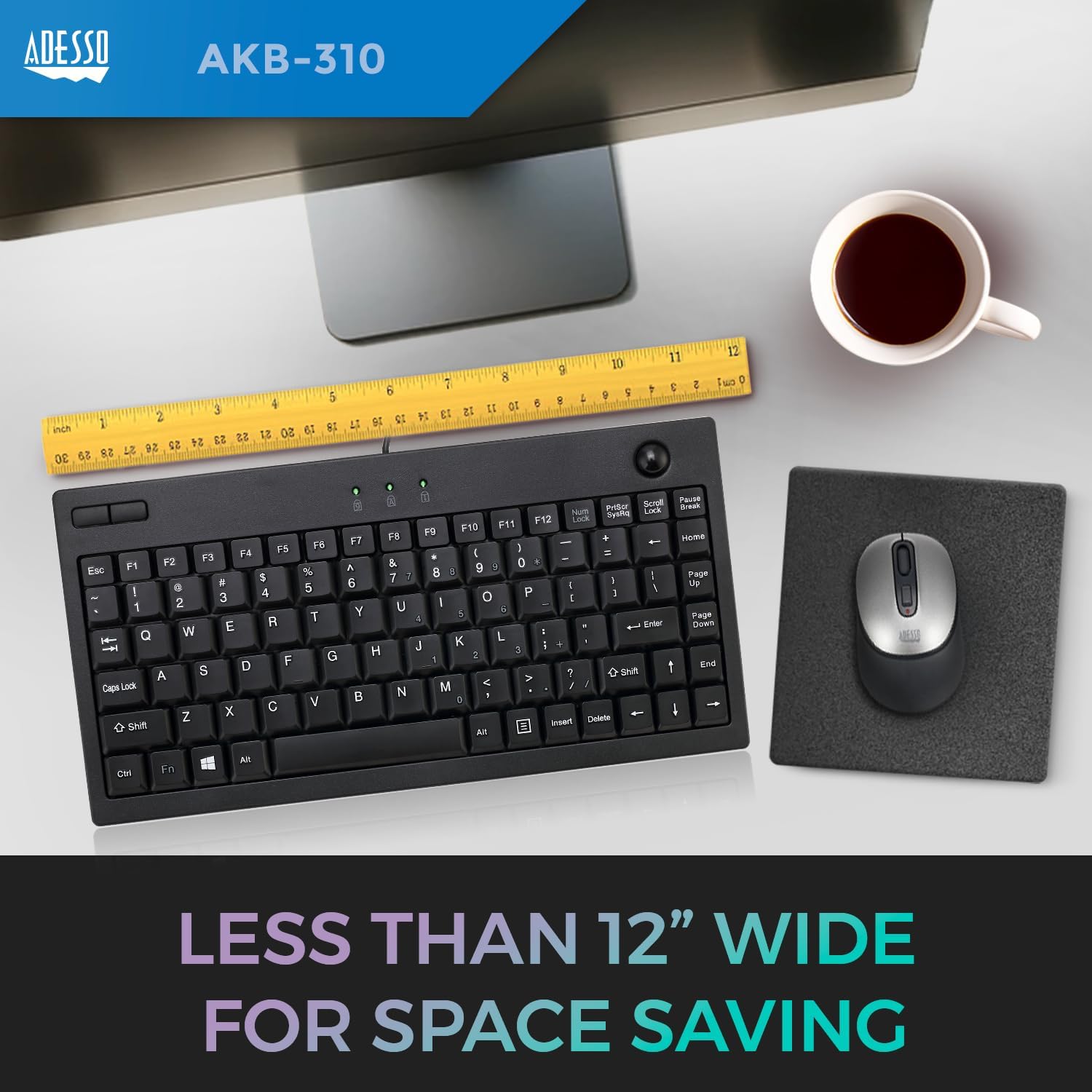
The Adesso Mini Trackball Keyboard offers optimal control without the need for a separate mouse. Its integrated trackball and mouse buttons facilitate quick and efficient screen navigation. The trackball provides superior precision and smooth motion, requiring minimal maintenance. This compact 11.75-inch keyboard is designed for space-constrained environments such as small office cubicles, home offices, and kiosks.
Key Features
- Integrated Optical Trackball: Features an 800 DPI resolution for precise and smooth cursor control, reducing the need for a separate mouse.
- Space-Saving Design: A compact 11.75-inch form factor with a Windows layout and embedded numeric keypad, ideal for limited desk space.
- Quiet Membrane Keys: Designed for a comfortable and efficient typing experience with a lifespan exceeding five million keystrokes.
- Easy USB Connectivity: Plug-and-play functionality with Windows operating systems (2000 to 10) via a reliable USB connection.
- Durable Construction: Weighing 1.2 lbs and measuring 11.75" x 6" x 0.75", built with plastic material for everyday use.
2. Setup Instructions
Connecting the Keyboard
The ADESSO AKB-310UB keyboard connects to your computer via a standard USB cable. Follow these steps for quick setup:
- Locate an available USB port on your computer.
- Plug the USB connector from the keyboard into the USB port.
- The keyboard is designed for plug-and-play functionality and should be automatically recognized by your Windows operating system (Windows 2000 to 10). No additional drivers are typically required.
The compact ADESSO AKB-310UB keyboard, less than 12 inches wide, shown on a desk with a ruler for scale, highlighting its space-saving design.
Adjusting Keyboard Height
For improved ergonomics, you can adjust the tilt of the keyboard using the foldable feet located on the underside.
The underside of the ADESSO AKB-310UB keyboard, illustrating the foldable feet that can be extended to adjust the typing angle.
3. Operating the Keyboard
Keyboard Layout and Functions
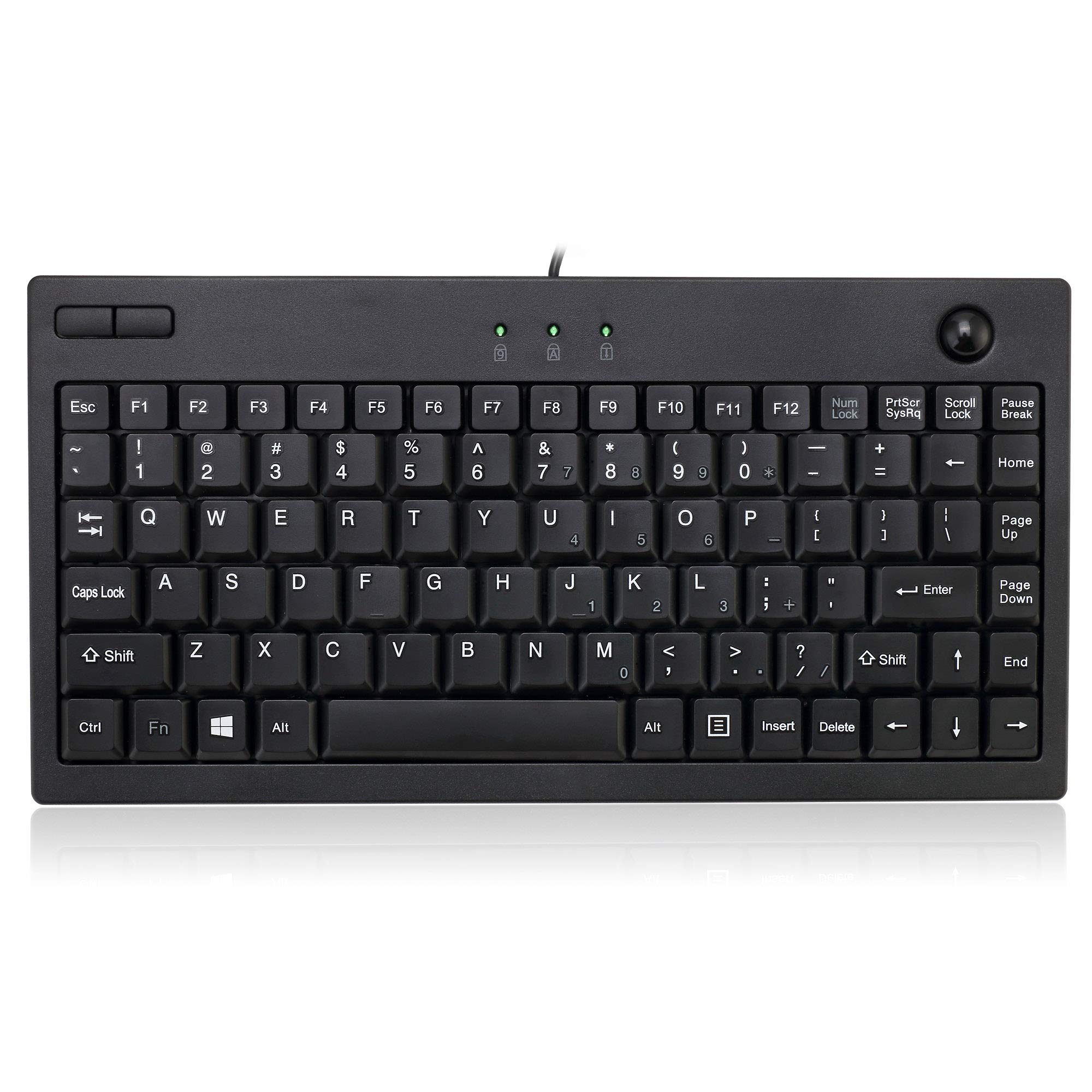
The AKB-310UB features an 87-key US layout, including an embedded numeric keypad and dedicated function keys.
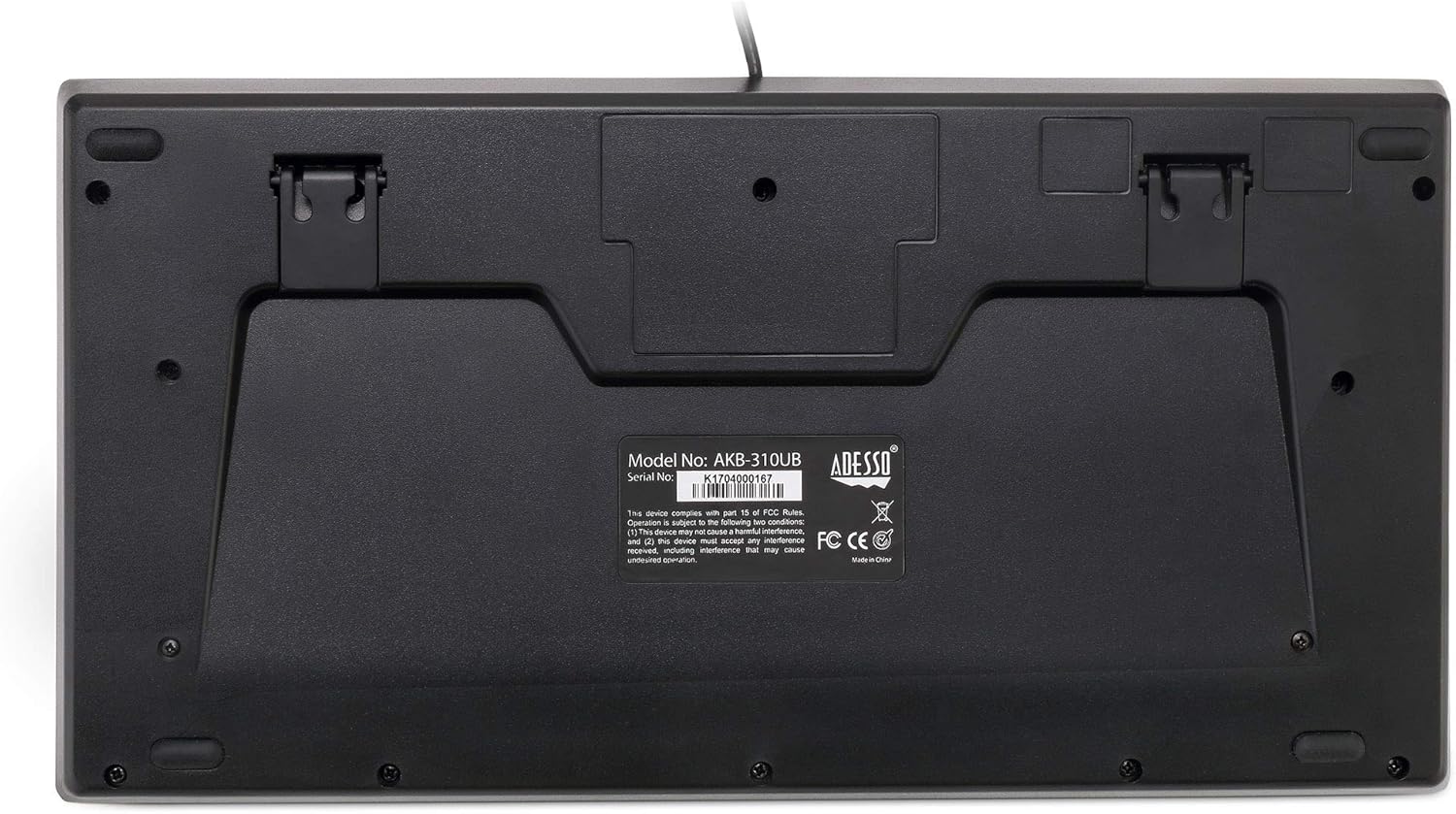
Diagram of the AKB-310UB keyboard layout, indicating the location of function keys, Num Lock, Caps Lock, Scroll Lock indicators, optical trackball, Windows Key, and embedded numeric keypad.
Using the Integrated Trackball
The integrated optical trackball allows for precise cursor control without the need for a separate mouse. Simply use your thumb or finger to roll the trackball to move the cursor on your screen. The trackball has an 800 DPI resolution for smooth and responsive navigation.
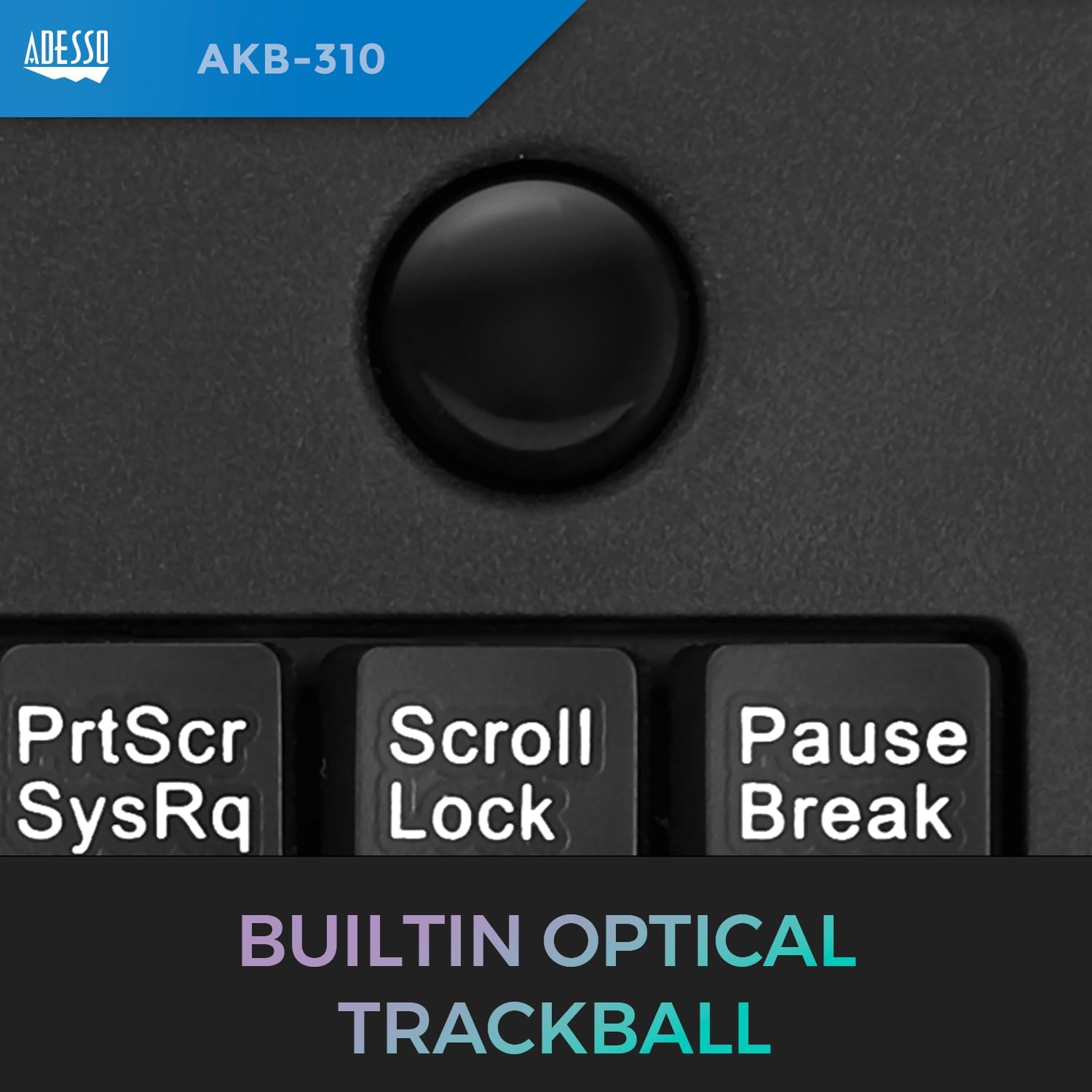
Close-up view of the built-in optical trackball on the ADESSO AKB-310UB keyboard, emphasizing its integrated design for mouse-free navigation.
Typing Experience
The keyboard features quiet membrane keys, providing a comfortable and efficient typing experience. These keys are designed for fast typing speed and have a durable lifespan of over five million keystrokes.
Close-up of the quiet membrane key switches beneath the keycaps of the ADESSO AKB-310UB keyboard, illustrating the mechanism designed for a comfortable typing experience.
4. Maintenance
Cleaning the Trackball
To ensure optimal performance and smooth operation, periodically clean the trackball. Dust and debris can accumulate and affect its movement.
- Turn the keyboard upside down.
- Locate the small opening or hole on the back of the keyboard directly beneath the trackball.
- Gently push the trackball out through this opening.
- Clean the trackball and the trackball cavity (the area where the ball sits) with a soft, lint-free cloth. You may use a small amount of isopropyl alcohol if necessary.
- Reinsert the trackball into its socket, ensuring it clicks securely into place.
This video demonstrates the process of removing and reinserting a trackball for cleaning, a common maintenance procedure for trackball keyboards.
5. Troubleshooting
Keyboard Not Responding
- Ensure the USB cable is securely connected to both the keyboard and an active USB port on your computer.
- Try plugging the keyboard into a different USB port on your computer.
- Restart your computer. This can often resolve minor connectivity issues.
- Test the keyboard on another computer to determine if the issue is with the keyboard itself or your computer's setup.
Trackball Not Moving Cursor Smoothly
- Clean the trackball and its internal mechanism as described in the "Maintenance" section. Accumulated dust or debris is a common cause of erratic movement.
- Adjust the pointer speed settings in your operating system's mouse or trackball settings.
Keys Not Functioning Correctly
- Visually inspect the affected keys for any foreign objects or debris lodged underneath.
- If multiple keys are affected, try reconnecting the keyboard or restarting your computer.
6. Product Specifications
| Feature | Specification |
|---|---|
| Product Dimensions | 11.75"L x 6"W x 0.75"H |
| Item Weight | 1.19 pounds |
| Item Model Number | AKB-310UB |
| Brand | ADESSO |
| Compatible Devices | PC |
| Connectivity Technology | USB |
| Keyboard Description | Multi Functional |
| Recommended Uses | Home |
| Special Feature | Compact keyboard with trackball, Hotkeys and Media Keys |
| Color | Black |
| Material | Plastic |
| Optical Trackball Sensor | Yes |
| Trackball Resolution | 800 DPI |
| Key Layout | 87-key US Layout |
| Operating System Compatibility | Windows 2000, XP, Vista, 7, 8, 10 |
7. Warranty and Support
Warranty Information
Customers are entitled to a 30-day warranty for return and exchange. All products may be like-new or new, with the box opened to verify contents and condition.
Customer Support
For further assistance, technical support, or inquiries regarding your ADESSO AKB-310UB keyboard, please visit the official ADESSO website or contact their customer service department through the contact information provided on their website.


