
Introduction
This manual provides comprehensive instructions for the setup, operation, maintenance, and troubleshooting of your Samsung P2370HD 23-inch Full 1080p HDTV LCD Monitor. This device functions as both a high-definition television and a computer monitor, offering versatile connectivity and display options. Please read this manual thoroughly before using the product to ensure proper and safe operation.
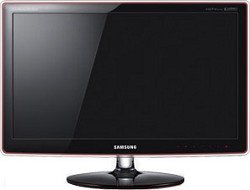
Image: Front view of the Samsung P2370HD monitor, showcasing its slim design and display area.
Setup
1. Unpacking and Component Check
Carefully remove all components from the packaging. Verify that the following items are present:
- Samsung P2370HD Monitor
- Power Cable
- DVI Cable
- PC (VGA) Cable
- Remote Controller
- 2 x AAA Batteries (for remote)
- Instruction Booklet
- Stand Assembly Booklet
- Cable Management Clip
2. Stand Assembly
Refer to the dedicated Stand Assembly Booklet for detailed instructions. The stand is designed for easy and quick assembly. Ensure all parts are securely fastened before placing the monitor on a stable surface.
3. Connecting Cables
Connect the necessary cables to the corresponding ports on the rear of the monitor. Ensure all connections are firm.
- Power Cable: Connect to the monitor's power input and a wall outlet.
- HDMI (High-Definition Multimedia Interface): For high-definition video and audio from devices like Blu-ray players, game consoles (e.g., PS3), or cable boxes. The monitor has one HDMI port.
- PC (VGA) Cable: For connecting to a computer's VGA output.
- DVI (Digital Visual Interface) Cable: For digital video connection to a computer.
- Component Video (YPbPr): For high-quality analog video from devices like DVD players or older game consoles.
- Antenna/Cable Input: For connecting an antenna or cable TV signal.
- Audio Input/Output: For external audio devices or headphones.
Image: Conceptual rear view of the Samsung P2370HD monitor, highlighting the various input ports for connectivity.
4. Powering On
Press the power button on the monitor or the remote control to turn on the device. The monitor's touch-sensitive interface on the bezel can also be used.
Operating Instructions
1. Basic Controls and On-Screen Display (OSD)
The monitor can be controlled using the touch-sensitive buttons on the bezel or the included remote control. The On-Screen Display (OSD) menu allows access to all settings.
Image: Conceptual image of the Samsung P2370HD remote control, used for navigating menus and controlling functions.
2. Input Source Selection
Press the "Source" button on the remote or the monitor's bezel to cycle through available input sources (HDMI, PC, DVI, Component, TV). Select the input corresponding to your connected device.
3. Picture Settings
Access the OSD menu to adjust picture settings for optimal viewing:
- Mode: Select preset picture modes (e.g., Dynamic, Standard, Movie, Custom).
- Brightness: Adjust the overall luminance of the screen.
- Contrast: Control the difference between the brightest and darkest areas.
- Sharpness: Enhance or soften the edges of objects.
- Color: Adjust color saturation.
- Tint (G/R): Fine-tune green and red color balance (for NTSC signals).
- Resolution: The native resolution is 1920x1080. Ensure your connected device outputs at this resolution for the best picture quality.
- Dynamic Contrast: Enable or disable the 50,000:1 dynamic contrast ratio feature for enhanced image depth.
4. Sound Settings
The monitor features integrated speakers. Adjust sound settings via the OSD menu:
- Volume: Control the output level.
- Sound Mode: Select preset sound modes.
- HD Surround: Enable this feature to enhance the audio experience, even with the built-in speakers.
- Balance: Adjust the left/right speaker balance.
- Headphone Jack: Connect headphones for private listening.
5. TV Functionality
If an antenna or cable is connected, perform a channel scan to find available channels. Use the remote control to navigate channels and access TV-specific features.
6. Gaming and Multimedia Use
The P2370HD is suitable for gaming and multimedia consumption due to its 1080p resolution and 5ms response time. Connect game consoles or media players via HDMI or Component inputs. Adjust picture settings for optimal gaming performance.
Maintenance
1. Cleaning the Screen
To clean the screen, gently wipe it with a soft, lint-free cloth. For stubborn marks, lightly dampen the cloth with water or a specialized screen cleaning solution. Do not spray liquid directly onto the screen. Avoid using abrasive cleaners, alcohol, or ammonia-based products.
2. General Care
Keep the monitor in a well-ventilated area, away from direct sunlight, heat sources, and excessive dust. Avoid placing heavy objects on the monitor or its cables. Use the provided cable management clip to keep cables tidy and prevent damage.
Troubleshooting
If you encounter issues with your Samsung P2370HD monitor, refer to the following common problems and solutions:
No Power / Monitor Does Not Turn On
- Ensure the power cable is securely connected to both the monitor and a working electrical outlet.
- Verify the power outlet is functional by plugging in another device.
- Check the power button on the monitor and remote control.
No Signal / Blank Screen
- Confirm that the video cable (HDMI, PC, DVI, Component) is securely connected to both the monitor and the source device.
- Press the "Source" button on the remote or monitor to select the correct input source.
- Ensure the source device (computer, game console, cable box) is powered on and outputting a signal.
- Try a different video cable if available.
Picture Quality Issues
- Uneven Lighting (e.g., bottom right corner): This can sometimes occur with edge-lit displays. It is often less noticeable during normal viewing. Adjust brightness and contrast settings.
- Fuzzy or Distorted Image: Ensure the source device is set to output at the monitor's native resolution (1920x1080). Check cable connections.
- Poor Viewing Angles: The monitor has a viewing angle of 170 degrees. For optimal picture quality, view the screen directly from the front. Adjust the monitor's position if necessary.
Sound Issues
- No Sound: Check the volume level on both the monitor and the source device. Ensure the audio cable (if separate) is connected, or that HDMI is correctly transmitting audio.
- Mono Sound: While the built-in speakers may primarily offer mono output, ensure "HD Surround" is enabled in the sound settings. For stereo sound, external speakers or headphones connected to the audio output may be required.
Monitor Turns Off and On By Itself
- This can indicate a power supply issue or an internal fault. Ensure the power cable is secure. If the problem persists, contact customer support.
HDMI/DVI Port Malfunction
- Repeatedly plugging and unplugging cables can damage ports. Use an HDMI splitter if you frequently switch between multiple HDMI devices to reduce wear on the single HDMI port.
- If a port is confirmed to be non-functional, service may be required.
Specifications
| Feature | Specification |
|---|---|
| Brand | Samsung |
| Model Number | P2370HD |
| Screen Size | 23 Inches |
| Resolution | FHD 1080p (1920 x 1080) |
| Aspect Ratio | 16:9 |
| Display Type | LED |
| Contrast Ratio | 50,000:1 (Dynamic) |
| Refresh Rate | 60 Hz |
| Response Time | 5 Milliseconds |
| Viewing Angle | 170 Degrees |
| Connectivity Technology | HDMI, DVI, VGA (PC), Component |
| Total Number of HDMI Ports | 1 |
| Additional Features | Built-In Speakers, Built-in Full HD 1080p Digital HDTV Tuner |
| Item Dimensions (D x W x H) | 5.1"D x 17.3"W x 5.1"H |
| Item Weight | 12.8 Pounds |
| Color | Black Rose |
| Mounting Type | Wall Mount |
Warranty and Support
Warranty Information
This Samsung P2370HD monitor is covered by a 1-year manufacturer warranty, which includes both parts and labor. Please retain your proof of purchase for warranty claims. The warranty period begins from the date of purchase.
Note: As per user experiences, keeping the original packaging may be beneficial for warranty service, especially for shipping.
Customer Support
For technical assistance, service requests, or further inquiries, please visit the official Samsung support website or contact Samsung customer service. Refer to the contact information provided in your product's original documentation or on the Samsung website for your region.


