
1. Overview
The APC AP9630 UPS Network Management Card 2 provides remote management capabilities for your Uninterruptible Power Supply (UPS) systems. This card allows for secure monitoring and control of your UPS over a network, enhancing power availability and simplifying management tasks. It supports various network protocols and security features to ensure reliable operation.
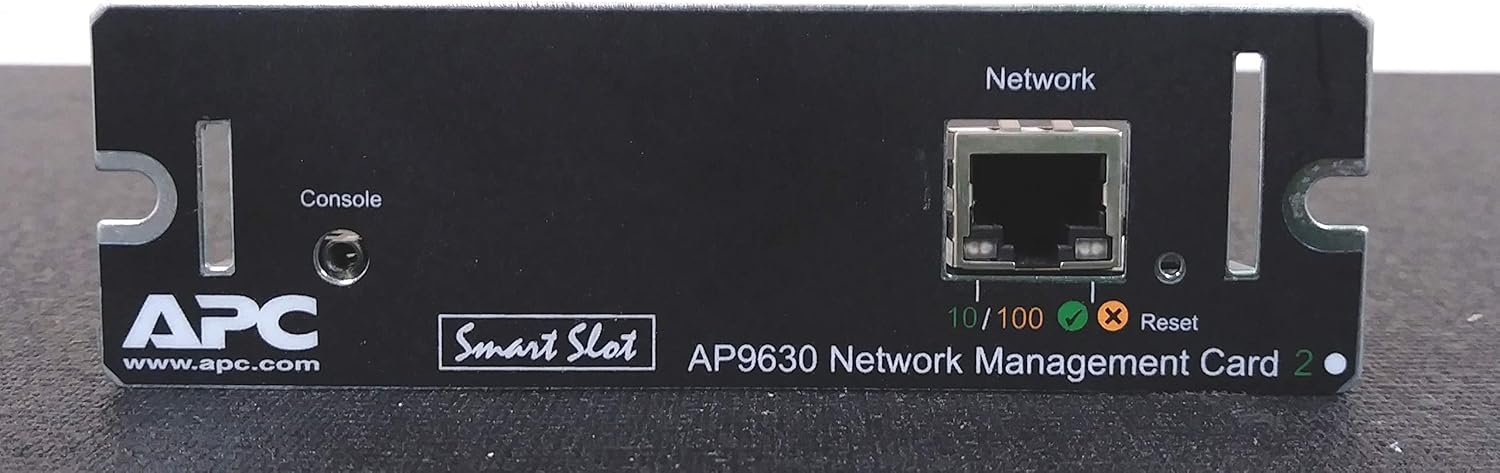
Figure 1: Front view of the APC AP9630 Network Management Card 2. This image displays the network port, console port, and reset button, along with the APC branding and model number.
2. Setup and Installation
Follow these steps to install and initially configure your APC AP9630 Network Management Card 2:
- Physical Installation: Power off the UPS and disconnect it from the main power source. Locate the SmartSlot on your APC UPS. Carefully insert the AP9630 card into the SmartSlot until it is firmly seated. Secure the card with any provided screws or clips.
- Network Connection: Connect a standard Ethernet cable from your network switch or router to the RJ-45 network port on the front of the AP9630 card.
- Power On: Reconnect the UPS to the main power source and power it on. The network management card will initialize.
- Initial Configuration: The card typically obtains an IP address via DHCP by default. Use the APC Device IP Configuration Utility or a serial console connection (via the console port) for initial network settings if DHCP is not available or if a static IP is required. Refer to the APC documentation for detailed IP configuration procedures.
- Accessing the Interface: Once an IP address is assigned, open a web browser and enter the card's IP address to access the web-based management interface. Use the default credentials (typically 'apc' for username and 'apc' for password) to log in. Change default credentials immediately for security.

Figure 2: Top view of the APC AP9630 circuit board. This image shows the various electronic components and the overall layout of the card's internal hardware.
3. Operating Instructions
The AP9630 card provides several methods for managing your UPS:
- Web Interface: The primary method for management. It allows you to monitor UPS status, configure settings, view event logs, and perform controlled shutdowns.
- Command Line Interface (CLI): Accessible via Telnet or SSH, the CLI offers advanced configuration and scripting capabilities. Secure Shell (SSH) provides encrypted communication for enhanced security.
- SNMP (Simple Network Management Protocol): For integration with network management systems. The card supports SNMPv3 for secure communication with encryption.
- Scheduling: Configure schedules for UPS self-tests, battery calibration, and controlled shutdowns or reboots of connected equipment.
- Security: Implement strong password policies and utilize device encryption (HTTPS/SSL, SSH, SNMPv3) to protect against unauthorized access and data interception.
4. Maintenance
Regular maintenance ensures optimal performance and security of your Network Management Card:
- Firmware Updates: Periodically check the APC website for firmware updates. Applying updates can provide new features, security enhancements, and bug fixes.
- Configuration Backup: Regularly back up your card's configuration settings. This allows for quick restoration in case of a reset or replacement.
- Environmental Conditions: Ensure the UPS and the installed card operate within recommended temperature and humidity ranges to prevent hardware degradation.
- Security Review: Periodically review user accounts, passwords, and network security settings to maintain a secure environment.
5. Troubleshooting
If you encounter issues with your AP9630 Network Management Card, consider the following troubleshooting steps:
- No Network Connectivity:
- Verify the Ethernet cable is securely connected to both the card and the network switch.
- Check the network status LEDs on the card's front panel.
- Ensure the network port on your switch is active and configured correctly.
- Confirm the card has a valid IP address. Use the console port or the APC Device IP Configuration Utility if necessary.
- Cannot Access Web Interface:
- Ensure your computer is on the same network segment as the card or has proper routing configured.
- Clear your browser's cache or try a different browser.
- Verify the IP address is correct.
- If you forgot the password, a factory reset might be necessary (refer to APC documentation for specific reset procedures).
- Card Not Responding:
- Power cycle the UPS to restart the card.
- Press the reset button on the front panel of the card (refer to Figure 1).
- Re-seat the card in the SmartSlot.

Figure 3: Bottom view of the APC AP9630 circuit board. This image shows the underside of the card, including the MAC address label and other circuit details.
6. Specifications
| Feature | Specification |
|---|---|
| Model Number | AP9630 |
| Product Dimensions | 4.49 x 4.76 x 1.5 inches |
| Item Weight | 2.82 ounces |
| Manufacturer | APC |
| ASIN | B0028H1G9C |
| Voltage | 230 Volts |
| Color | Black |
| Material | Shell |
7. Warranty and Support
For warranty information, technical support, or further assistance, please refer to the official APC website or contact APC customer service directly. Keep your purchase receipt and product serial number (found on the card's label) handy when contacting support.
APC Official Website: www.apc.com


