
Introduction
Welcome to the user manual for your new LG 410G Flip Phone. This guide provides essential information on setting up, operating, and maintaining your device. The LG 410G is a compact flip phone designed for reliable communication on the TracFone network, featuring Bluetooth connectivity and a built-in camera.
Getting Started: Setup
1. Unboxing and Included Accessories
Upon opening your LG 410G package, verify that all components are present:
- LG 410G Flip Phone
- Battery
- Charger
- Hands-free headset
- Car charger
- Phone case
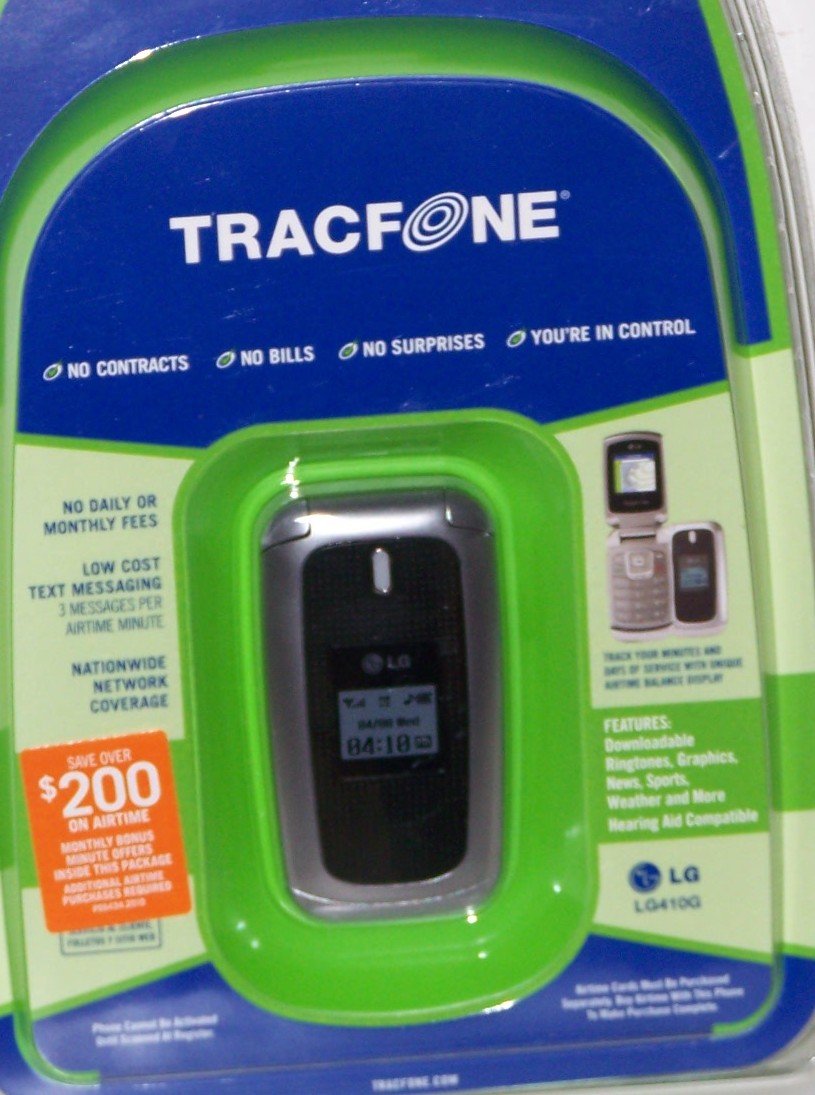
Image: The LG 410G Flip Phone. This image displays the compact design of the phone, highlighting its external screen and the flip mechanism.
2. Inserting the SIM Card and Battery
- Ensure the phone is powered off.
- Remove the back cover of the phone by gently prying it open from the designated notch.
- Locate the SIM card slot. Insert your TracFone SIM card with the gold contacts facing down and the cut corner aligned correctly.
- Insert the battery, ensuring the contacts align with those in the phone compartment.
- Replace the back cover, pressing firmly until it clicks into place.
3. Charging the Phone
Before initial use, fully charge the phone's battery. Connect the charger to the Micro USB port on the phone and plug it into a power outlet. The charging indicator will illuminate. A full charge typically takes a few hours.
4. Activating Your TracFone Service
Your LG 410G operates on the TracFone network. To activate your service and receive your initial 20 minutes of starter airtime, visit the official TracFone website or call TracFone customer service. Follow the on-screen or spoken instructions to complete the activation process.
Basic Operations
1. Powering On and Off
- To Power On: Open the flip and press and hold the End/Power key until the screen illuminates.
- To Power Off: Press and hold the End/Power key until the power-off options appear, then select "Power Off".
2. Making and Receiving Calls
- Making a Call: Open the flip, enter the phone number using the keypad, and press the Send key.
- Receiving a Call: When the phone rings, open the flip or press the Send key to answer.
- Ending a Call: Press the End/Power key.
- Hands-Free Speaker: During a call, press the designated speaker key (often a soft key) to activate the hands-free speaker.
3. Text Messaging
Navigate to the "Messages" menu. Select "Create New Message" or "New Text Message." Enter the recipient's number and type your message using the keypad. Press "Send" when complete.
4. Using the Camera
The LG 410G features a built-in VGA camera. Access the camera from the main menu. Frame your shot using the screen as a viewfinder and press the designated camera button (or center navigation key) to capture the image. Photos are saved to the phone's memory.
5. Bluetooth Connectivity
To connect to Bluetooth devices like the included hands-free headset:
- Go to Menu > Settings > Bluetooth.
- Turn Bluetooth On.
- Select "Search for new devices" or "Add new device".
- Select your desired device from the list and follow the pairing instructions, entering a passcode if prompted (e.g., 0000).
6. Mobile Web Access
Access basic mobile web services through the phone's browser. Navigate to the "Browser" or "Internet" option in the main menu. Data usage will consume airtime minutes or data bundles, depending on your TracFone plan.
7. Flashlight Function
The LG 410G includes a flashlight feature. This can typically be activated via a shortcut key or through the "Tools" or "Utilities" menu.
Maintenance
1. Cleaning Your Phone
Use a soft, lint-free cloth to clean the phone's screen and body. Avoid using harsh chemicals or abrasive materials, which can damage the device. Do not expose the phone to excessive moisture.
2. Battery Care
- Avoid extreme temperatures, as they can reduce battery life.
- Do not puncture or damage the battery.
- If the phone will not be used for an extended period, store it with a partial charge (around 50%) in a cool, dry place.
3. Software Updates
Periodically check for any available software updates through the phone's settings menu, if applicable. Updates can improve performance and security.
Troubleshooting
| Problem | Possible Solution |
|---|---|
| Phone does not power on. | Ensure the battery is correctly inserted and fully charged. Try connecting the charger to see if it responds. |
| Cannot make or receive calls. | Check for network signal strength. Verify that your TracFone service is active and you have sufficient airtime. Ensure the SIM card is properly inserted. |
| Bluetooth device not pairing. | Ensure Bluetooth is enabled on both devices and they are within range. Make sure the other device is in pairing mode. Try restarting both devices. |
| Poor camera image quality. | Ensure the camera lens is clean and free of smudges. Take photos in well-lit environments. |
| Phone freezes or is unresponsive. | Remove the battery, wait a few seconds, and reinsert it to perform a soft reset. |
If problems persist after attempting these solutions, please contact TracFone customer support for further assistance.
Specifications
| Feature | Detail |
|---|---|
| Model Name | LG 410G |
| Brand | LG |
| Wireless Carrier | Tracfone |
| Form Factor | Flip |
| Screen Size | 3.46 Inches |
| Connectivity Technology | Bluetooth, Micro USB |
| Wireless Network Technology | GSM |
| SIM Card Slot Count | Single SIM |
| Battery Description | Lithium-Ion |
| Built-In Media | Camera (VGA) |
| Special Features | Hands-free speaker, Flashlight, Auto redial, Mobile web, Text messaging, Voice mail, Free caller ID, Free call waiting |
Warranty and Support
Warranty Information
Your LG 410G Flip Phone is covered by a limited manufacturer's warranty. Please refer to the warranty card included in your original packaging for specific terms, conditions, and duration. Keep your proof of purchase for warranty claims.
Customer Support
For technical assistance, service inquiries, or warranty support, please contact TracFone Wireless customer service. You can typically find their contact information on the TracFone website or by dialing *611 from your TracFone device.
- TracFone Website: www.tracfone.com
- TracFone Customer Service: Refer to your TracFone documentation or website for the most current contact numbers.