
Introduction
This manual provides essential information for setting up, operating, and maintaining your Sony BRAVIA XBR Series KDL-46XBR9 46-inch LCD HDTV. This television features a 1080p Full HD display, Motionflow 240Hz technology for smooth motion, and BRAVIA Internet Video capabilities for accessing online content.
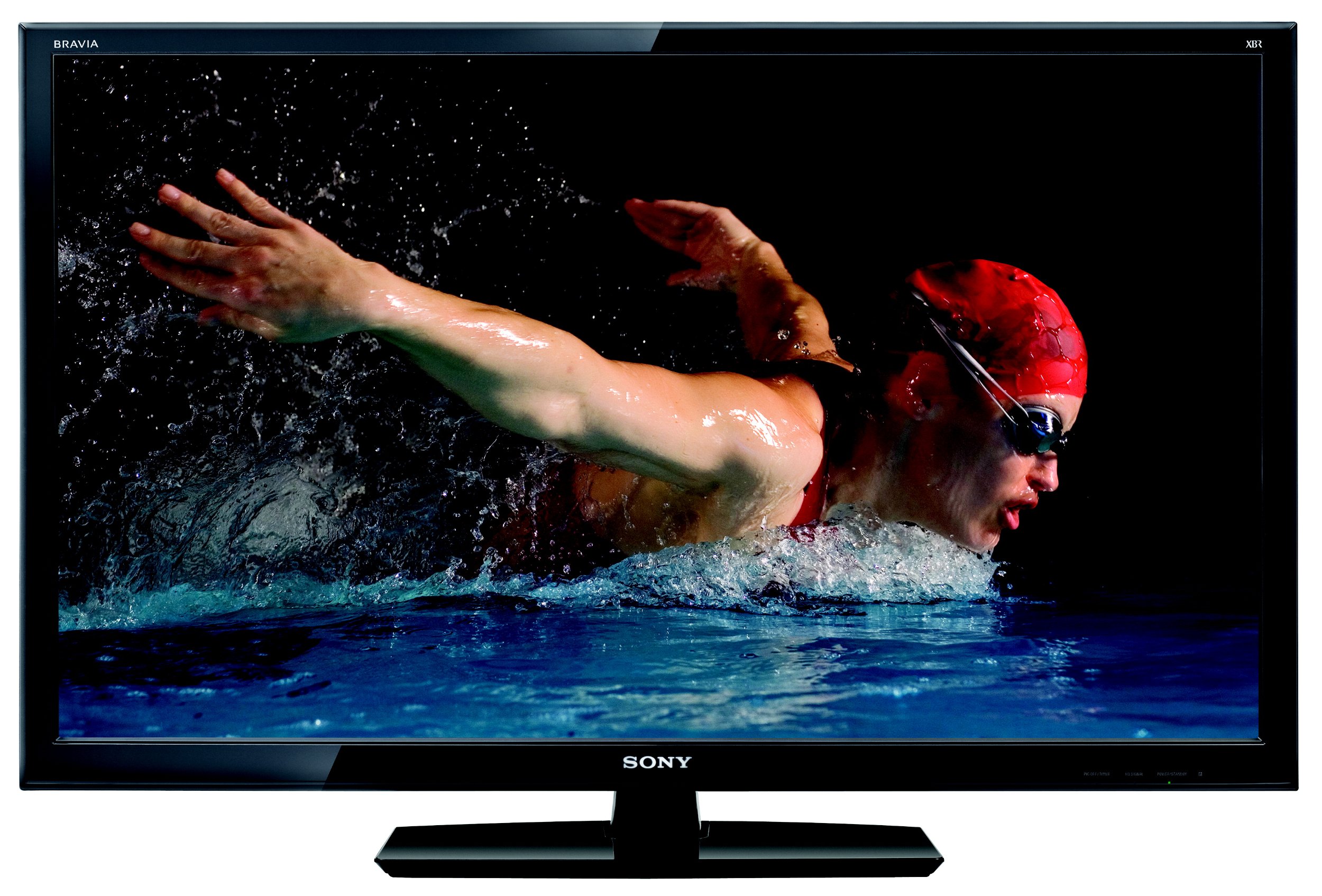
Figure 1: Front view of the Sony BRAVIA KDL-46XBR9 LCD HDTV. This image shows the television screen and the stand.
Setup
Unpacking and Assembly
Carefully remove the television and its components from the packaging. Ensure all included items are present: the TV unit and the stand.
- Place the TV screen face down on a soft, clean surface to prevent scratches.
- Attach the stand to the television using the provided screws, following the instructions in the separate stand assembly guide.
- Carefully lift the TV and place it on a stable, level surface.
Connecting Your TV
Before connecting any devices, ensure the TV and all devices are powered off. Refer to the diagrams below for port locations.

Figure 2: Rear view of the television, highlighting the various input and output ports.
- HDMI Inputs (Total 4): Connect high-definition devices such as Blu-ray players, game consoles, or cable/satellite boxes. Three HDMI ports are located on the side, and one is on the rear.
- Component Video (Y/Pb/Pr) Inputs (2): For connecting devices with component video output.
- Composite Video Inputs (2): For standard definition devices. One is on the side, one on the rear.
- S-Video Input (1): For S-Video compatible devices, located on the side.
- PC Input (D-Sub) + Audio In (Stereo Mini) (1): Connect a computer to display its output on the TV. Located on the side.
- RF Connection Input (1): Connect an antenna or cable TV coaxial cable.
- Ethernet Connection (1): For wired network access to BRAVIA Internet Video and other online features.
- USB 2.0 Port (1): For connecting USB storage devices to view photos, music, or videos. Located on the side.
- Optical Digital Output (1): For connecting to an audio receiver or soundbar for digital audio.
- Analog Audio Inputs (Total 3): For connecting audio from external devices.
- Audio Out (1): For connecting to external audio systems.

Figure 3: Left side view of the television, showing accessible side ports including HDMI, USB, and PC input.
Initial Setup
- After connecting all desired devices, plug the TV's power cord into an electrical outlet.
- Press the POWER button on the TV or remote control.
- Follow the on-screen instructions to complete the initial setup, including language selection, time zone, and channel scanning for over-the-air or cable channels.
Operating Your TV
Remote Control Functions
The supplied remote control allows you to access all TV functions. Familiarize yourself with the button layout.

Figure 4: Layout of the Sony BRAVIA remote control.
- TV Power: Turns the TV on or off.
- Input: Selects the input source (HDMI, Component, etc.).
- Volume (+/-): Adjusts the sound level.
- Channel (+/-): Changes TV channels.
- Home/Menu: Accesses the main menu for settings and features.
- Navigation Buttons (Up/Down/Left/Right) and Enter: Used to navigate menus and confirm selections.
- BRAVIA Internet Video: Direct access to online streaming services.
- Widgets: Accesses customizable on-screen widgets for news, weather, etc.
Basic TV Operation
- Power On/Off: Press the POWER button.
- Changing Channels: Use the CHANNEL +/- buttons or the number pad.
- Adjusting Volume: Use the VOLUME +/- buttons.
- Selecting Input: Press the INPUT button repeatedly to cycle through available sources, or use the HOME menu to select.
Advanced Features
- BRAVIA Internet Video: Connect your TV to the internet via Ethernet to access a variety of online content, including streaming movies, TV shows, and music.
- USB Media Playback: Insert a USB storage device into the side USB 2.0 port to view photos, play music, or watch videos stored on the device. Navigate to the USB media option from the Home menu.
- Picture and Sound Settings: Access the Home menu to customize picture modes (e.g., Standard, Vivid, Cinema), adjust brightness, contrast, color, and fine-tune sound settings like equalizer and surround effects.

Figure 5: Right side view of the television, showing physical control buttons for power, channel, and volume.
Maintenance
Cleaning and Care
- Screen Cleaning: Gently wipe the screen with a soft, dry microfiber cloth. For stubborn smudges, lightly dampen the cloth with water or a specialized screen cleaner (avoid harsh chemicals).
- Cabinet Cleaning: Wipe the TV cabinet with a soft, dry cloth. Do not use abrasive cleaners or solvents.
- Ventilation: Ensure the ventilation openings on the TV are not blocked to prevent overheating.
- Power Cord: Regularly check the power cord for any damage.
Troubleshooting
If you encounter issues with your TV, refer to the following common problems and solutions before contacting support.
- No Power:
- Ensure the power cord is securely plugged into both the TV and a working electrical outlet.
- Check if the power outlet is functional by plugging in another device.
- No Picture or Poor Picture Quality:
- Verify the correct input source is selected (e.g., HDMI 1, Component).
- Check all cable connections between the TV and external devices.
- Adjust picture settings (brightness, contrast, sharpness) in the Home menu.
- If using an antenna, rescan for channels.
- No Sound or Poor Sound Quality:
- Ensure the volume is not muted and is turned up.
- Check audio cable connections if using external speakers.
- If using the TV's internal speakers, adjust sound settings in the Home menu. Note that for optimal audio experience, connecting to an external sound system is recommended.
- Remote Control Not Working:
- Replace the batteries in the remote control.
- Ensure there are no obstructions between the remote and the TV's remote sensor.
- Network Connection Issues:
- Verify the Ethernet cable is securely connected to both the TV and your router/modem.
- Check your router/modem for proper operation.
- Perform a network connection test from the TV's network settings menu.
Technical Specifications
| Feature | Specification |
|---|---|
| Model Name | KDL-46XBR9 |
| Screen Size | 46 Inches |
| Display Technology | LCD |
| Resolution | 1080p (1920x1080) |
| Refresh Rate | 240 Hz |
| Aspect Ratio | 16:9 |
| Contrast Ratio | 100000:1 |
| Connectivity Technology | Wired (Ethernet) |
| Hardware Interface | HDMI (4), Component Video (2), Composite Video (1), Ethernet (1), USB (1), VGA (1) |
| Audio Input | HDMI, USB, Analog Audio |
| Audio Output | Optical Digital Output, Analog Audio Out |
| Power Consumption | 240 watts |
| Item Weight | 45.4 Pounds |
| Included Components | TV, Stand |
| Model Year | 2009 |
Warranty Information
This Sony BRAVIA KDL-46XBR9 television comes with a 1-year limited warranty. Please refer to the warranty card included with your product for full terms and conditions, or visit the official Sony support website for detailed information.
Customer Support
For further assistance, technical support, or service inquiries, please visit the official Sony support website or contact Sony customer service directly. Have your model number (KDL-46XBR9) and serial number ready when contacting support.


