
1. Product Overview
DYMO Embossing Labels are designed for durability and clarity, suitable for both indoor and outdoor applications. This 3-pack includes rolls of 3/8-inch x 9.8-foot tape, featuring white raised lettering on a black background. These labels are engineered to adhere securely to smooth, clean surfaces and can be removed without leaving sticky residue or breaking.
Key Features:
- Durable Construction: Made from plastic with raised lettering for a 3D effect.
- Versatile Use: Ideal for home, office, and outdoor environments.
- Fade Resistant: Labels are designed to maintain their appearance over time.
- Clean Removal: Sticks to most clean surfaces and can be removed without breaking or leaving residue.
- High Contrast: Features bold white print on black tape for enhanced visual impact.

Image 1.1: Packaging of the DYMO Self-Adhesive Embossing Labels, showing the three rolls of black tape.

Image 1.2: Example of labels being used in a scrapbook, demonstrating creative applications.
2. Package Contents
Your DYMO Self-Adhesive Embossing Labels package includes the following items:
- Three (3) rolls of DYMO Embossing Label Tape, white print on black tape.
- Each roll measures 3/8-inch (9mm) in width and 9.8-feet (3 meters) in length.

Image 2.1: The three individual rolls of DYMO embossing tape, ready for use.
3. Compatibility
These DYMO Self-Adhesive Embossing Labels are designed for use with all genuine DYMO embossing label makers. Ensure your label maker is compatible with 3/8-inch (9mm) wide embossing tapes for proper fit and function.
4. Setup: Loading the Tape
To begin creating labels, you must properly load the embossing tape into your compatible DYMO label maker. The exact steps may vary slightly depending on your specific label maker model, but the general procedure is as follows:
- Open the Label Maker: Locate and open the tape compartment on your DYMO embossing label maker. This usually involves pressing a latch or sliding a cover.
- Insert the Tape Roll: Place a new roll of DYMO embossing tape into the designated slot. Ensure the tape feeds from the bottom of the roll and the end of the tape is aligned with the tape guide.
- Feed the Tape: Gently feed the leading edge of the tape through the tape guide until it emerges from the front of the label maker. Some models may require you to press the handle a few times to advance the tape.
- Close the Compartment: Close the tape compartment securely. Ensure it clicks into place, indicating that the tape is properly seated and ready for use.
5. Operating Instructions: Creating Labels
Once the tape is loaded, you can begin creating embossed labels. These instructions describe the general process of using the tape with a DYMO embossing label maker:
- Select Character: Rotate the character dial on your label maker to select the desired letter, number, or symbol. Align the character with the indicator mark.
- Emboss Character: Firmly squeeze the label maker's handle to emboss the selected character onto the tape. Release the handle before selecting the next character.
- Repeat for Text: Continue selecting and embossing characters until your desired text is complete. Ensure consistent pressure for uniform embossing.
- Add Space: To create a space between words, select the blank space character on the dial and squeeze the handle.
- Cut the Label: Once your label is complete, rotate the dial to the scissor icon (or designated cut mark) and squeeze the handle fully to cut the label from the tape roll.
- Peel and Apply: Carefully peel the backing from the embossed label. Apply the label to a clean, smooth, and dry surface, pressing firmly to ensure good adhesion.
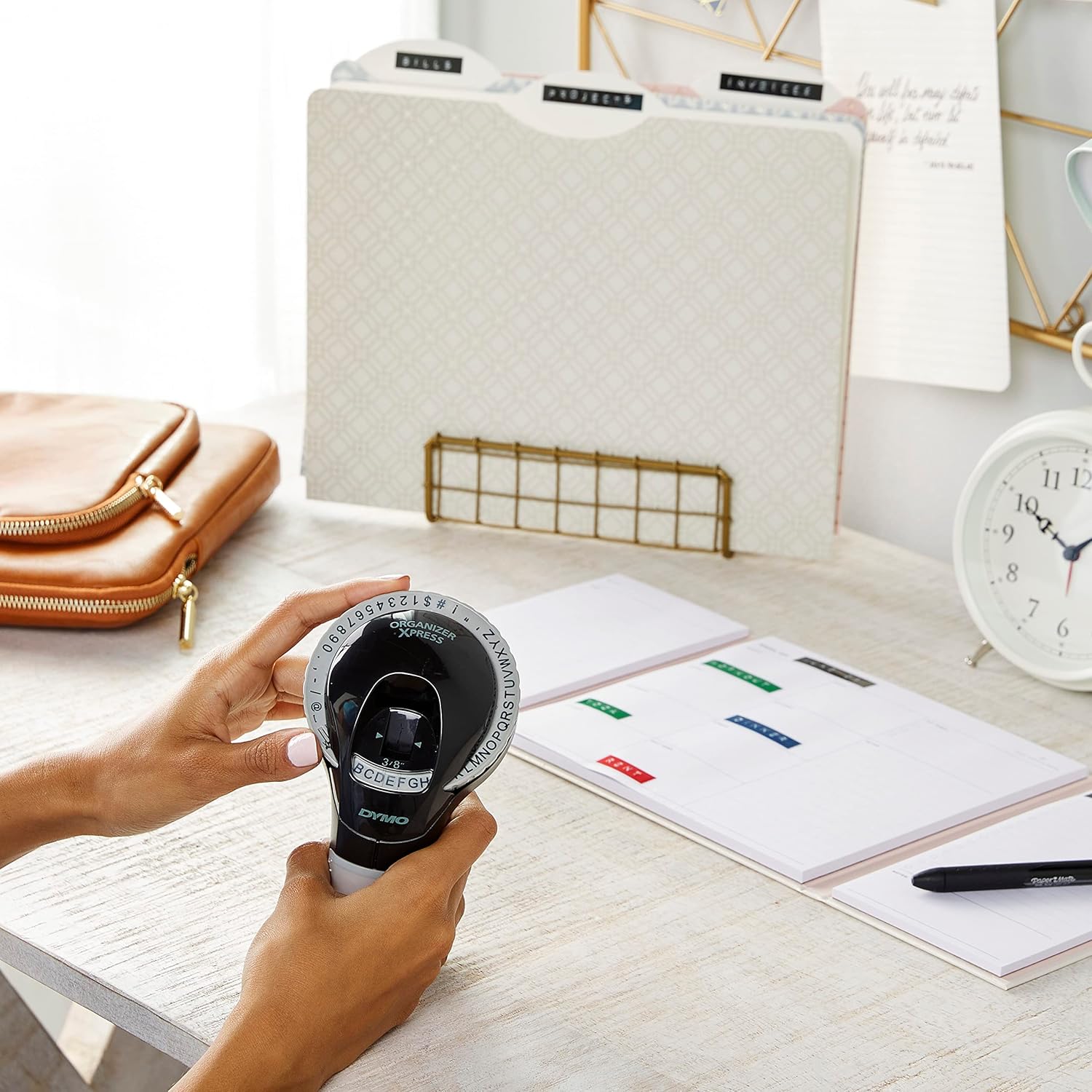
Image 5.1: Demonstrating the application of embossed labels on file folders for organization.
6. Maintenance and Care
Proper care of your DYMO Embossing Labels ensures their longevity and optimal performance:
- Storage: Store unused tape rolls in a cool, dry place away from direct sunlight and extreme temperatures. This helps preserve the adhesive and tape material.
- Surface Preparation: For best adhesion, always apply labels to clean, dry, and smooth surfaces. Oils, dust, or moisture can reduce adhesive effectiveness.
- Cleaning Labels: Once applied, labels can be wiped clean with a damp cloth if they become dirty. Avoid harsh chemical cleaners that may damage the tape material or print.
- Handling: Avoid touching the adhesive side of the label when peeling the backing to maintain its stickiness.
7. Troubleshooting
If you encounter issues while using your DYMO Embossing Labels, consider the following common solutions:
| Problem | Possible Cause | Solution |
|---|---|---|
| Labels not sticking | Surface is dirty, oily, or wet; tape is old or damaged; insufficient pressure during application. | Clean and dry the surface thoroughly. Try a new roll of tape. Apply firm, even pressure when adhering the label. |
| Characters not embossing clearly | Insufficient pressure on label maker handle; worn-out label maker; tape not properly loaded. | Ensure you are squeezing the label maker handle firmly and completely. Check tape loading. If issues persist, the label maker itself may require maintenance or replacement. |
| Tape not feeding smoothly | Tape jammed or improperly loaded; debris in label maker mechanism. | Open the tape compartment and re-load the tape, ensuring it's correctly aligned. Inspect the label maker for any obstructions and carefully remove them. |
| Label breaks when removed | Tape is old or brittle; applied to a rough surface. | Use a fresh roll of tape. Ensure application on smooth surfaces. |
8. Specifications
| Brand | DYMO |
| Model Number | 1741670 |
| Item Weight | 1.41 ounces (approx. 40 grams) |
| Product Dimensions (per roll) | 3/8-inch (9mm) width x 9.8-feet (3 meters) length |
| Color | White print on Black tape |
| Backing Material | Vinyl |
| Material Type | Vinyl |
| Number of Items | 3 rolls per pack |
| Date First Available | June 11, 2009 |
9. Warranty and Support
DYMO products are manufactured to high-quality standards and are backed by a manufacturer's warranty. For specific warranty details, product support, or to inquire about replacement parts, please refer to the official DYMO website or contact their customer service directly.
You can typically find support information, FAQs, and contact details on the official DYMO brand website. Please have your product model number (1741670) ready when contacting support.
For more information, visit the DYMO Store on Amazon.


