
1. Introduction
Thank you for choosing the Vivitar 50-in-1 Card Reader, model VIV-RW-50. This versatile device is designed to provide fast and convenient access to data stored on a wide variety of memory cards. Its compact design and plug-and-play functionality make it an essential accessory for transferring photos, videos, and other files between your memory cards and computer.
This manual provides detailed instructions for setting up, operating, and maintaining your card reader to ensure optimal performance and longevity.
2. Product Features
- High-Speed USB 2.0 Connectivity: Ensures rapid data transfer rates.
- Plug & Play Installation: No drivers required for most operating systems.
- Wide Compatibility: Supports over 50 types of memory cards across 5 distinct ports.
- Universal OS Support: Compatible with both Mac and PC operating systems.
- Compact and Portable Design: Easy to carry and store, featuring a protective USB cap.
3. Package Contents
- Vivitar 50-in-1 Card Reader (VIV-RW-50)
Note: Additional accessories such as USB extension cables may be included depending on the specific product package.
4. Setup Guide
- Unpack the Device: Carefully remove the Vivitar 50-in-1 Card Reader from its packaging.
- Remove USB Cap: If present, remove the protective cap from the USB connector.
- Connect to Computer: Insert the USB connector of the card reader into an available USB 2.0 port on your computer (PC or Mac).
- Automatic Driver Installation: Your operating system should automatically detect and install the necessary drivers. This is a plug-and-play device, so manual driver installation is typically not required. A notification may appear indicating that the device is ready for use.
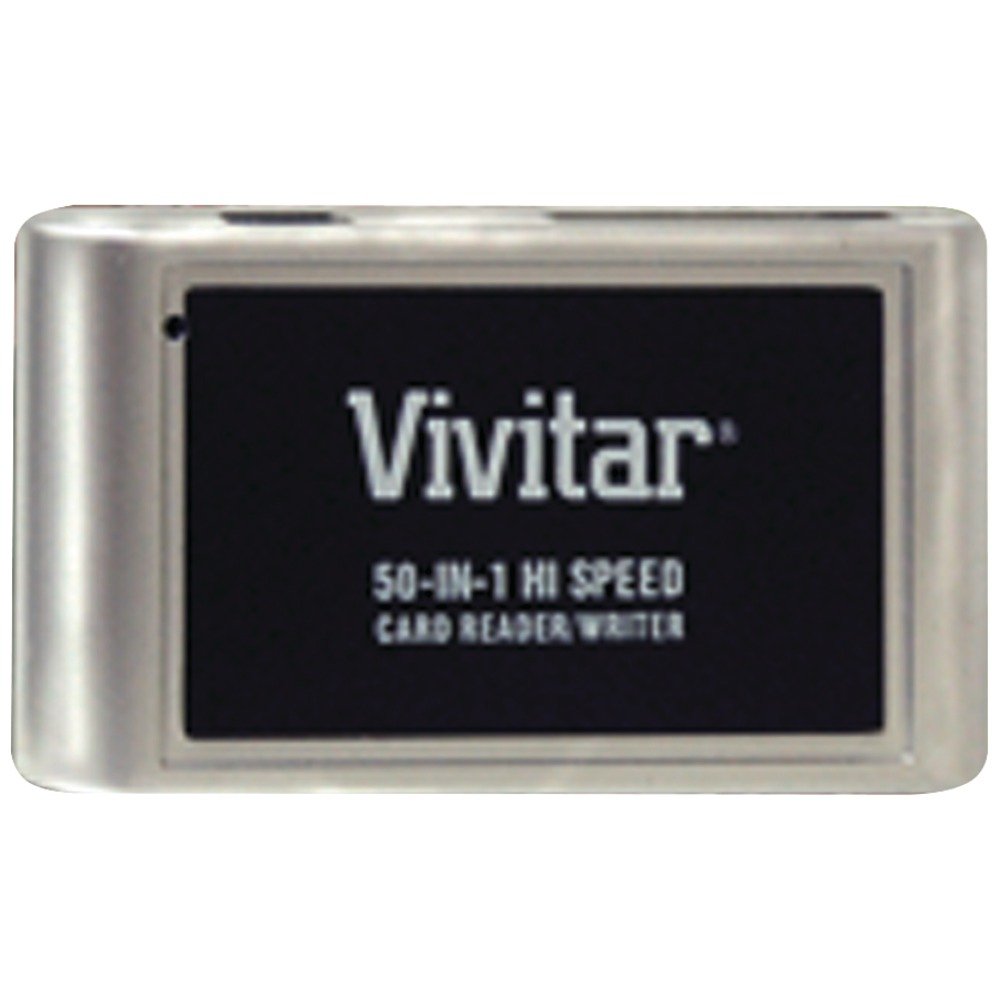
Figure 1: Vivitar 50-in-1 Card Reader in its retail packaging, showing the device and its features.
5. Operating Instructions
The Vivitar 50-in-1 Card Reader features multiple slots designed to accommodate various memory card formats. Identify the correct slot for your memory card before insertion.
5.1 Supported Card Types
This card reader supports a wide range of memory cards, including but not limited to:
- SD (Secure Digital)
- SDHC (Secure Digital High Capacity)
- Micro SD
- CF (CompactFlash)
- MS (Memory Stick)
- XD (xD-Picture Card)
- And many other variations (50+ types in total).
5.2 Inserting a Memory Card
- Locate the appropriate slot on the card reader for your memory card type. The card reader has five distinct physical ports to accommodate various card sizes and formats.
- Gently insert the memory card into the designated slot. Ensure the card is oriented correctly to avoid damage to the card or the reader. Do not force the card.
- Once inserted, your computer's operating system should recognize the card as a removable drive. You can then access its contents through your file explorer (Windows) or Finder (Mac).
5.3 Transferring Files
To transfer files, simply drag and drop them between your memory card's drive and your computer's folders, or use copy-paste functions. Always ensure file transfers are complete before removing the card.
5.4 Removing a Memory Card
Before physically removing a memory card, it is recommended to safely eject it from your operating system to prevent data corruption. For Windows, use the "Safely Remove Hardware and Eject Media" icon in the taskbar. For Mac, drag the drive icon to the Trash or use the Eject command in Finder.
6. Maintenance
- Keep Clean: Regularly clean the card reader's exterior with a soft, dry cloth. Avoid using liquid cleaners.
- Protect Ports: Use the provided USB cap to protect the USB connector from dust and debris when not in use, especially when stored in a computer bag.
- Handle with Care: Avoid dropping the device or subjecting it to strong impacts.
- Storage: Store the card reader in a cool, dry place away from direct sunlight and extreme temperatures.
7. Troubleshooting
| Problem | Possible Cause | Solution |
|---|---|---|
| Card reader not recognized by computer. |
|
|
| Memory card not detected. |
|
|
| Slow data transfer speeds. |
|
|
8. Specifications
| Model Number | VIV-RW-50 |
| Brand | Vivitar |
| Connectivity Technology | USB Type A (USB 2.0) |
| Compatible Devices | Personal Computer (Mac & PC) |
| Supported Media Types | SD, SDHC, Micro SD, CF, MS, XD (50+ variations) |
| Product Dimensions | 3.43 x 1.28 x 0.54 inches |
| Item Weight | 0.8 ounces |
| Special Feature | Plug & Play |
9. Warranty and Support
For warranty information and technical support, please refer to the documentation included with your purchase or visit the official Vivitar website. Keep your proof of purchase for any warranty claims.