
1. Introduction
This manual provides essential instructions for the installation, operation, and maintenance of your Seagate Barracuda 7200.12 ST3500418AS 500GB Hard Drive. Please read this guide thoroughly before proceeding with installation to ensure proper setup and to maximize the lifespan and performance of your drive. This internal hard drive is designed for desktop computer systems, offering reliable storage with a SATA interface.
2. Product Overview
The Seagate Barracuda 7200.12 ST3500418AS is a 3.5-inch internal hard disk drive with a storage capacity of 500GB. It features a Serial ATA (SATA) interface and operates at 7200 RPM, providing efficient data access and transfer speeds for various computing needs. The drive is part of the Barracuda series, known for its robust performance and reliability.

Figure 2.1: Angled view of the Seagate Barracuda 7200.12 ST3500418AS 500GB Hard Drive, showing its metallic casing and SATA connectors.

Figure 2.2: View of the internal components of a Seagate Barracuda hard drive, illustrating the platter and read/write head mechanism.
3. Setup and Installation
Proper installation is crucial for the optimal performance and longevity of your hard drive. Always ensure your computer is powered off and unplugged before beginning any installation procedures. Take precautions against static electricity by using an anti-static wrist strap or by touching a grounded metal object.
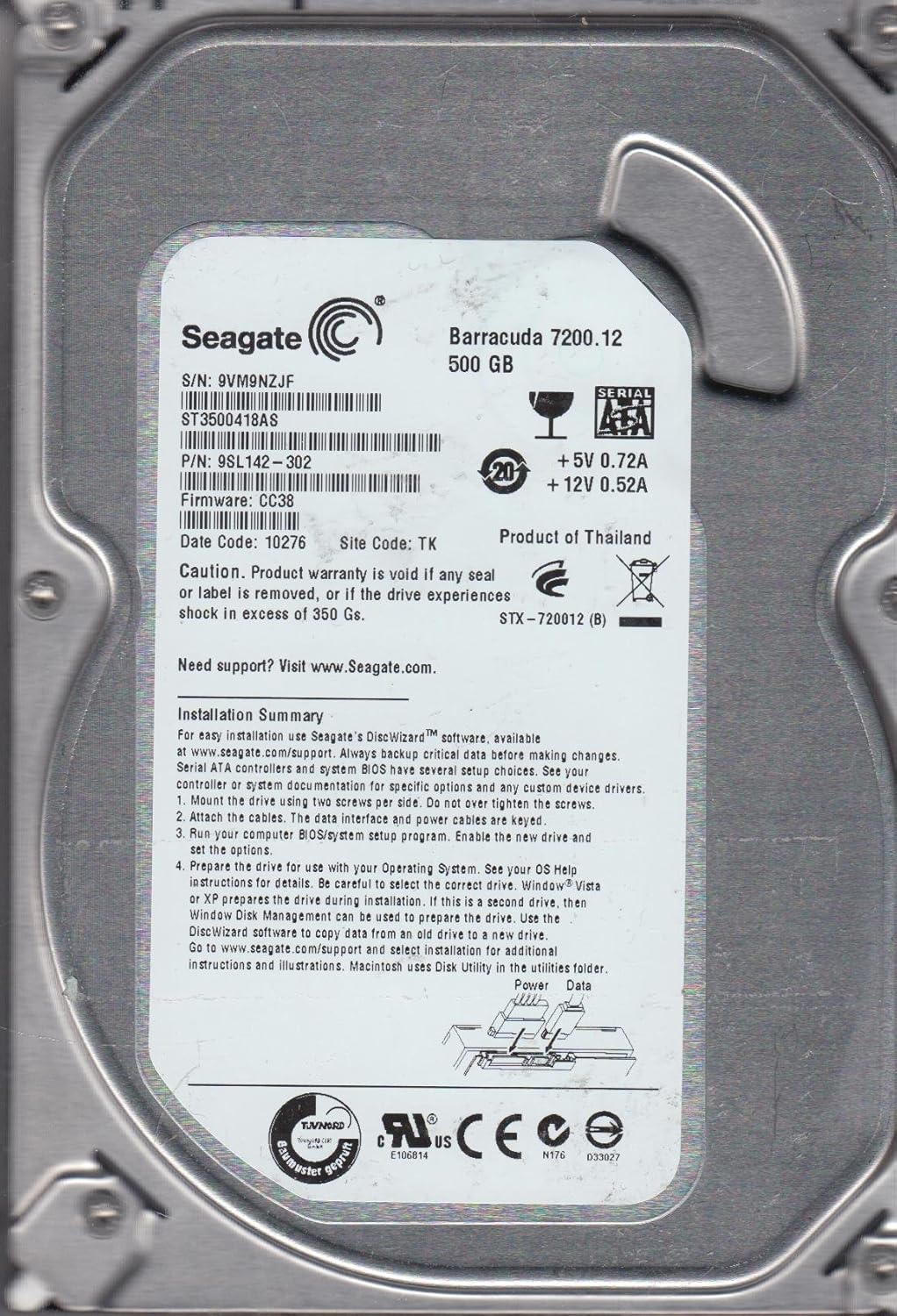
Figure 3.1: Product label of the Seagate Barracuda 7200.12 ST3500418AS, displaying serial number (S/N: 9VM9NZJF), part number (P/N: 9SL142-302), firmware (CC38), and a summary of installation steps.
3.1 Physical Installation
- Mount the drive: Secure the hard drive in an available 3.5-inch drive bay within your computer case using two screws per side. Avoid overtightening the screws.
- Attach the cables: Connect the SATA data cable to the drive's data port and to an available SATA port on your motherboard. Connect the SATA power cable from your power supply unit to the drive's power port. Ensure cables are properly keyed and fully seated.
3.2 Initial Drive Preparation
After physical installation, the drive needs to be prepared for use by your operating system.
- BIOS/System Setup: Power on your computer and enter the BIOS/system setup program. Verify that the new drive is detected and enable it if necessary. Save changes and exit BIOS.
- Operating System Preparation: For new installations, your operating system (e.g., Windows, Linux) will guide you through the partitioning and formatting process during its setup. If this is a secondary drive in an existing system, use your operating system's Disk Management utility (Windows) or Disk Utility (macOS) to partition and format the drive.
- Seagate DiscWizard: For easy installation and data migration, Seagate's DiscWizard™ software is available at www.seagate.com/support. This software can assist with copying data from an old drive to your new Seagate drive.
4. Operating Instructions
Once installed and prepared, your Seagate hard drive functions as a standard storage device. You can save, retrieve, and manage files as you would with any other drive.
4.1 Data Management
- Saving Files: Store documents, media, and applications directly onto the drive.
- Organizing Data: Create folders and subfolders to keep your data organized.
- Performance: For optimal performance, avoid filling the drive to its maximum capacity. Leave some free space for system operations.
5. Maintenance
Regular maintenance helps ensure the reliability and longevity of your hard drive and the safety of your data.
5.1 Data Backup
Regularly back up critical data to an external drive, cloud storage, or another reliable medium. Hard drives are mechanical devices and can fail over time. Data recovery services are available, but prevention through backup is the most effective strategy.
5.2 Drive Health Monitoring
Utilize operating system tools or third-party software to monitor the health of your hard drive. Tools that check S.M.A.R.T. (Self-Monitoring, Analysis and Reporting Technology) status can provide early warnings of potential drive issues.
6. Troubleshooting
If you encounter issues with your Seagate hard drive, consider the following troubleshooting steps:
- Drive Not Detected:
- Ensure all SATA data and power cables are securely connected.
- Check BIOS/UEFI settings to confirm the drive is enabled and detected.
- Try connecting the drive to a different SATA port or using different cables.
- Verify that your power supply unit provides sufficient power.
- Slow Performance:
- Check for sufficient free space on the drive.
- Run disk defragmentation (for HDDs) or optimization tools.
- Scan for malware or viruses that might be impacting system performance.
- Ensure your motherboard's SATA drivers are up to date.
- Unusual Noises:
- Clicking, grinding, or loud whirring noises can indicate a failing drive. Immediately back up any critical data and consider replacing the drive.
For further assistance, visit the Seagate support website at www.seagate.com/support.
7. Specifications
The following table details the technical specifications for the Seagate Barracuda 7200.12 ST3500418AS 500GB Hard Drive:
| Feature | Specification |
|---|---|
| Model Number | ST3500418AS |
| Series | Barracuda 7200.12 |
| Digital Storage Capacity | 500 GB |
| Hard Drive Interface | Serial ATA (SATA) |
| Hard Drive Rotational Speed | 7200 RPM |
| Buffer | 16 MB |
| Form Factor | 3.5 Inches |
| Compatible Devices | Desktop PC |
| Item Weight | 14.6 ounces (approx. 413.9 grams) |
| Product Dimensions (LxWxH) | 5.8 x 3.5 x 0.8 inches (approx. 14.7 x 8.9 x 2.0 cm) |
| Power Requirements | +5V 0.72A, +12V 0.52A |
| Environmental Certification | RoHS |
8. Warranty Information
The Seagate Barracuda 7200.12 ST3500418AS typically comes with a 3-year limited warranty from the manufacturer. Please refer to your purchase documentation for specific warranty terms and conditions.

Figure 8.1: A graphic indicating a 3-year warranty period.
Important: Product warranty is void if any seal or label is removed, or if the drive experiences shock in excess of 350 Gs. Always handle the drive with care.
Optional data recovery plans (e.g., 2-year or 3-year plans) may be available for purchase separately to provide additional protection for your data.
9. Support
For technical support, additional documentation, or to download software like DiscWizard, please visit the official Seagate support website:
When contacting support, please have your drive's model number (ST3500418AS) and serial number (found on the drive label) ready.


