
1. Introduction
The CSM OmniDrive USB2 LF is an external PC Card drive designed for reading and writing various memory media, including Linear Flash, SRAM, ATA Flash Cards, and ATA Hard Disks. With appropriate adapters, it also supports CompactFlash, SmartMedia, Multimedia Cards, and SD Cards. This device provides a reliable solution for accessing and managing data on a wide range of PC Card formats.
2. Key Features
- Universal PC Card Reader for USB 2.0 interface.
- Supports Linear Flash, SRAM, ATA Flash, and ATA Hard Disk PC Cards.
- Compatibility with CompactFlash, SmartMedia, SD Card, and Multimedia Cards via adapter.
- Robust aluminum housing for durability.
- Includes CSM Professional software for Windows.
- Long-term available industrial design.
3. Package Contents
Please verify that all items are present in your package:
- OmniDrive USB2 LF unit (in table housing, 3.5" frame or as PCB version)
- USB cable
- CD with CSM Professional Software (Drivers for Windows 10, 8, 7, Vista, XP, 2000, 98/Me; PC Card Manager utility; API with DeveloControl-Interface; User manual in multi-language)
- Optional: AC adapter (Euro and US)
4. Setup and Installation
4.1 System Requirements
- PC compatible computer
- Operating System: Windows 98/SE/Me, Windows 2000, Windows XP/VISTA, Windows 7, Windows 8, Windows 10. Linux support also available.
- Available USB Port (V1.1/2.0)
4.2 Hardware Connection
- Connect the OmniDrive USB2 LF to your computer using the provided USB cable.
- If using an optional AC adapter, connect it to the device and a power outlet.
4.3 Driver and Software Installation
- Insert the CSM Professional Software CD into your computer's optical drive.
- Follow the on-screen instructions to install the necessary drivers and the PC Card Manager software.
- For Linux users, OmniDrive USB2 LF is plug-and-play for ATA Flash Cards. Refer to the Linux documentation for specific driver installation if needed.
5. Operating Instructions
5.1 Inserting a PC Card
Locate the PC Card slot on the front of the OmniDrive USB2 LF. Gently insert your PC Card (Linear Flash, SRAM, ATA Flash, or ATA Hard Disk) into the slot until it is fully seated. For smaller media like CompactFlash, SmartMedia, SD Card, or Multimedia Cards, ensure they are properly inserted into their respective PCMCIA adapters before inserting the adapter into the OmniDrive unit.

Image: The OmniDrive USB2 LF unit with a PC Card being inserted into the front slot. This image demonstrates the correct orientation for card insertion.
5.2 Using CSM Professional Software (Windows)
The CSM Professional Software suite provides tools for managing your PC Cards:
- PC Card Manager: For general management and access to card contents.
- Flexible DOS Format Utility: To format ATA media.
- Hex Editor and Binary Data Copy Utility: For advanced data manipulation.
- Inspect and Repair Tool: For ATA media diagnostics and repair.
Launch the PC Card Manager from your Start Menu or desktop shortcut. The software will detect the inserted PC Card and allow you to perform read/write operations, format cards, and utilize other utilities.
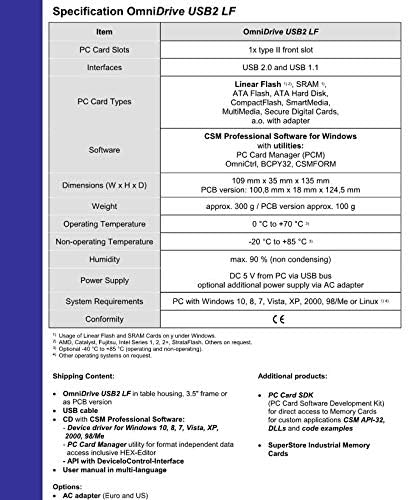
Image: A detailed specification sheet for the OmniDrive USB2 LF, highlighting supported PC Card types, software, and system requirements.
5.3 Data Transfer
Once the card is recognized by your operating system and the CSM software, you can transfer data to and from the card like any other removable storage device. The transfer rate is up to 1 Mbyte/s.
6. Maintenance
- Keep the device clean and free from dust. Use a soft, dry cloth for cleaning.
- Avoid exposing the device to extreme temperatures, humidity, or direct sunlight.
- Do not attempt to open the device casing, as this may void the warranty.
- Ensure proper ventilation around the device during operation.
7. Troubleshooting
7.1 Device Not Recognized
- Ensure the USB cable is securely connected to both the OmniDrive and your computer.
- Try connecting to a different USB port on your computer.
- Verify that the drivers are correctly installed. Reinstall them if necessary.
- Restart your computer.
7.2 Card Not Detected
- Ensure the PC Card is fully and correctly inserted into the slot.
- Check if the card type is supported by the OmniDrive USB2 LF (Linear Flash, SRAM, ATA Flash, ATA Hard Disk).
- If using an adapter for smaller media, ensure the media is correctly seated in the adapter.
- Test with a different PC Card if available to rule out a faulty card.
8. Specifications
| Feature | Detail |
|---|---|
| PC Card Slots | 1x Type II front slot |
| Interface | USB 2.0 and USB 1.1 |
| Supported PC Card Types | Linear Flash, SRAM, ATA Flash, ATA Hard Disk Type II |
| Supported Media (with adapter) | CompactFlash, SmartMedia, Multimedia Cards, SD Cards |
| Software | CSM Professional Software (PC Card Manager, OmniCtrl, SCPY32, CSMFORM) |
| Dimensions (W x H x D) | 109 mm x 35 mm x 135 mm |
| Weight | Approx. 300 g (table housing) |
| Operating Temperature | 0°C to +70°C |
| Non-Operating Temperature | -20°C to +85°C |
| Humidity | Max. 90% (non-condensing) |
| Power Supply | DC 5 V from PC via USB bus; optional additional power supply via AC adapter |
| System Requirements | PC with Windows 10, 8, 7, Vista, XP, 2000, 98/Me or Linux |
9. Warranty and Support
For warranty information and technical support, please refer to the documentation included with your product or visit the SimpTronic Tech official website. Keep your purchase receipt for warranty claims.
Manufacturer: CSM
Brand: SimpTronic Tech