
1. Introduction
The ATEN CE750 USB Console Extender is designed to provide remote access to a computer or USB KVM switch from a distance of up to 150 meters (490 feet) using a Cat 5e/6 cable. This extender supports USB keyboard, mouse, and other USB 1.1 devices, as well as audio transmission and RS-232 serial communication. It is an ideal solution for environments where the computer needs to be kept in a secure or environmentally controlled location, while allowing user access from a convenient remote workstation.
The CE750 consists of two units: a local unit (CE750L) that connects to the computer or KVM switch, and a remote unit (CE750R) that connects to the console (monitor, USB keyboard, USB mouse, audio speakers, microphone, and RS-232 device).
2. Package Contents
Please check to ensure that all components are present and in good condition. If any items are missing or damaged, contact your dealer.
- 1x CE750L USB KVM Extender Local Unit
- 1x CE750R USB KVM Extender Remote Unit
- 1x Custom KVM Cable (USB, VGA, Audio)
- 2x Power Adapters (5V DC)
- 1x Rack Mount Kit
- 1x User Manual (this document)
3. Hardware Requirements
Before installing the CE750, ensure you have the following hardware:
- A computer with a VGA port, USB port, and audio ports (speaker and microphone).
- A USB KVM switch (if extending multiple computers).
- A VGA monitor, USB keyboard, USB mouse, speakers, and microphone for the remote console.
- One Cat 5e/6 UTP cable (up to 150m / 490ft) for connecting the local and remote units.
- Optional: RS-232 serial device (e.g., barcode scanner, touch screen).
4. Setup
Follow these steps to set up your ATEN CE750 USB Console Extender:
4.1 Local Unit (CE750L) Connection
- Ensure the computer or KVM switch is powered off.
- Connect the custom KVM cable to the appropriate ports on the computer/KVM switch (VGA, USB, Audio In/Out).
- Connect the other end of the custom KVM cable to the corresponding ports on the CE750L local unit.
- Connect one of the provided power adapters to the CE750L local unit and plug it into an AC power source.
4.2 Remote Unit (CE750R) Connection
- Connect your VGA monitor to the VGA Out port on the CE750R remote unit.
- Connect your USB keyboard and USB mouse to the USB ports on the CE750R remote unit.
- Connect your speakers and microphone to the Audio Out and Audio In ports on the CE750R remote unit.
- Optional: Connect your RS-232 serial device to the RS-232 port on the CE750R remote unit.
- Connect the second power adapter to the CE750R remote unit and plug it into an AC power source.
4.3 Connecting Local and Remote Units
- Connect one end of the Cat 5e/6 UTP cable to the RJ-45 port on the CE750L local unit.
- Connect the other end of the Cat 5e/6 UTP cable to the RJ-45 port on the CE750R remote unit.
- Power on the computer or KVM switch.
- Power on the CE750L and CE750R units.
- The system should now be operational.
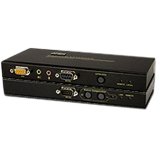
Figure 1: ATEN CE750 USB Console Extender units. This image shows the compact design of both the local and remote units, highlighting their various connection ports for KVM, audio, RS-232, and the Cat 5e/6 cable.
5. Operating Instructions
Once the CE750 is properly set up, the remote console functions identically to a local console connected directly to the computer or KVM switch.
- USB KVM Control: Use the connected USB keyboard and mouse at the remote console to control the computer.
- Audio Transmission: Audio signals from the computer will be transmitted to the speakers connected to the remote unit, and microphone input from the remote unit will be sent to the computer.
- RS-232 Communication: Any RS-232 serial device connected to the remote unit's RS-232 port will communicate with the computer as if it were locally connected.
- Video Display: The video output from the computer will be displayed on the monitor connected to the remote unit. The CE750 automatically adjusts for optimal video quality over the Cat 5e/6 cable.
6. Maintenance
The ATEN CE750 is designed for reliable operation with minimal maintenance. Follow these guidelines to ensure optimal performance:
- Cleaning: Use a soft, dry cloth to clean the exterior of the units. Do not use liquid or aerosol cleaners.
- Ventilation: Ensure that the units have adequate ventilation and that their vents are not blocked.
- Cable Management: Keep all cables neatly organized and avoid sharp bends or kinks, especially for the Cat 5e/6 cable, to prevent signal degradation.
- Power Supply: Use only the power adapters provided with the CE750. Using unauthorized power adapters may damage the device and void the warranty.
7. Troubleshooting
If you encounter issues with your CE750, refer to the following common problems and solutions:
| Problem | Possible Cause | Solution |
|---|---|---|
| No video display at remote console. |
|
|
| Keyboard/Mouse not responding. |
|
|
| No audio. |
|
|
| RS-232 device not communicating. |
|
|
8. Specifications
Technical specifications for the ATEN CE750 USB Console Extender:
| Feature | Detail |
|---|---|
| Model Number | CE750 |
| Brand | ATEN |
| Manufacturer | Aten Corp |
| Connectivity | USB 1.1, VGA, Audio (Speaker/Mic), RS-232 |
| Extension Distance | Up to 150m (490ft) via Cat 5e/6 cable |
| Video Resolution | Up to 1920 x 1200 @ 60Hz (at shorter distances) |
| Power Consumption | 5V DC (via included power adapters) |
9. Warranty and Support
ATEN products are backed by a limited warranty. For detailed warranty information, including terms and conditions, please refer to the warranty card included with your product or visit the official ATEN website.
For technical support, product registration, or to download the latest drivers and firmware, please visit the ATEN support portal or contact your local ATEN dealer. You can find more information at the ATEN Store on Amazon or the official ATEN website.


