
X-Acto 1612
X-ACTO ProX Classroom Electric Pencil Sharpener
Model: 1612 - Instruction Manual
Product Overview
The X-ACTO ProX Classroom Electric Pencil Sharpener is engineered for durability and precision in high-volume environments. It features advanced sharpening technology to deliver consistently sharp pencil tips. This sharpener is designed for continuous use and incorporates safety features to ensure reliable operation.

Figure 1: X-ACTO ProX Classroom Electric Pencil Sharpener, front-side view.
Key Features:
- Commercial grade pencil sharpener suitable for high-volume environments.
- Dual helical cutters for precise and efficient sharpening.
- Powerful and quiet electric motor for reliable performance.
- SmartStop LED technology indicates when a pencil is fully sharpened, preventing over-sharpening.
- Auto Reset and SafeStart features enhance safety and protect the sharpener from damage.
Setup
Before initial use, ensure the sharpener is placed on a stable, flat surface. The unit is designed to be heavy for stability during operation.
Unpacking and Placement:
- Carefully remove the sharpener from its packaging.
- Verify that all components are present: one electric pencil sharpener unit.
- Place the sharpener on a sturdy, level surface near a standard electrical outlet.
- Ensure the shaving receptacle is securely in place before plugging in the unit. The sharpener will not operate if the receptacle is removed.

Figure 2: The X-ACTO ProX Classroom Electric Pencil Sharpener as packaged.
Power Connection:
Plug the power cord into a compatible electrical outlet. The unit is now ready for operation.
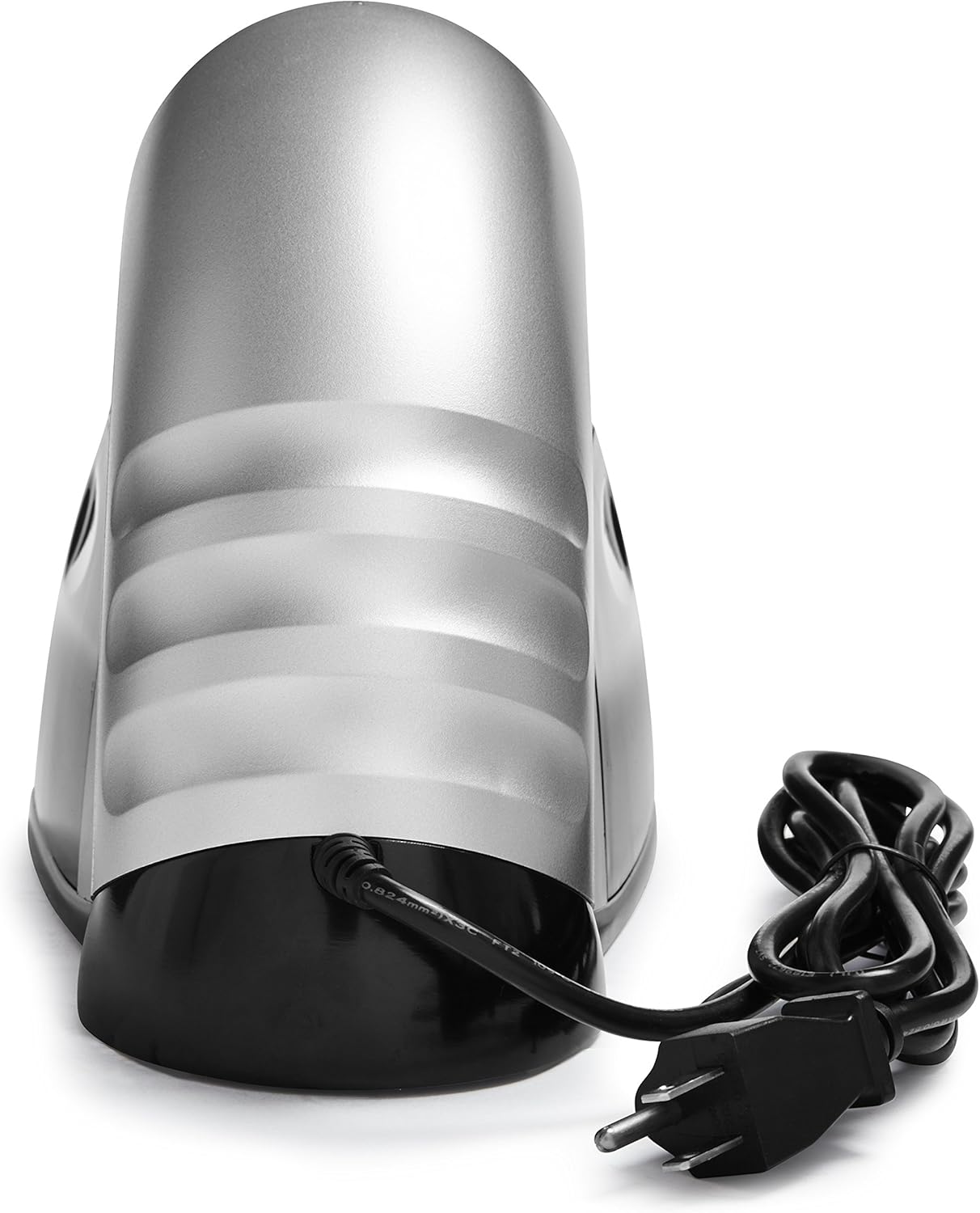
Figure 3: Rear view of the sharpener showing the power cord connection.
Operating Instructions
The X-ACTO ProX sharpener is designed for ease of use and consistent results.
Sharpening a Pencil:
- Select the appropriate hole size on the sharpening dial for your pencil. The sharpener accommodates various pencil sizes and shapes, including triangular pencils.
- Insert the pencil into the selected opening. Apply gentle, steady pressure. The motor will activate automatically.
- Maintain consistent pressure until the SmartStop LED illuminates (a blue light on top of the unit) and the motor automatically stops. This indicates the pencil is sharpened to a fine point.
- Remove the sharpened pencil.

Figure 4: Front view of the sharpener, highlighting the multi-size sharpening dial.
Important Notes:
- Avoid excessive force when inserting the pencil, as this can damage the cutters or lead.
- The SmartStop feature prevents over-sharpening, preserving pencil life.
- The Auto-Reset feature protects the motor from overheating during prolonged use.
Maintenance
Regular maintenance ensures optimal performance and longevity of your X-ACTO ProX sharpener.
Emptying the Shaving Receptacle:
- Unplug the sharpener from the electrical outlet before cleaning.
- Carefully pull the shaving receptacle away from the main unit.
- Empty the pencil shavings into a waste bin.
- Wipe the inside of the receptacle and the sharpener's base with a dry cloth to remove any residual dust or shavings.
- Reinsert the receptacle firmly until it clicks into place. The sharpener will not operate if the receptacle is not properly seated.

Figure 5: Side view of the sharpener, showing the clear shaving receptacle.
Cleaning the Cutters:
Periodically, use a soft brush or a cotton swab to gently clean any lead residue or debris from the helical cutters. Do not use water or liquid cleaners on the cutters.
Troubleshooting
Refer to the following table for common issues and their solutions.
| Problem | Possible Cause | Solution |
|---|---|---|
| Sharpener does not turn on. | Not plugged in; shaving receptacle not seated; power outage; motor overheating. | Ensure unit is plugged in. Securely reinsert shaving receptacle. Check power supply. Allow unit to cool down if Auto-Reset has activated. |
| Pencil not sharpening properly. | Dull cutters; incorrect hole size; broken lead inside. | Ensure correct hole size is used. Clear any broken lead from the opening. If issues persist, cutters may need professional servicing or replacement. |
| SmartStop LED does not illuminate. | Pencil not fully inserted; sensor obstruction. | Ensure pencil is fully inserted and making contact with the sensor. Check for and remove any debris obstructing the sensor. |
Specifications
| Attribute | Detail |
|---|---|
| Brand | X-Acto |
| Model Number | 1612 |
| Power Source | Electric |
| Material | Alloy Steel |
| Color | Gray/Black |
| Item Weight | 1 pounds |
| Product Dimensions | 9.8 x 3.4 x 6.3 inches |
| Point Type | Fine |
Warranty and Support
For warranty information or technical support, please refer to the official X-Acto website or contact their customer service department. Keep your purchase receipt for warranty claims.
For detailed warranty terms and conditions, please visit the X-Acto Store on Amazon or the manufacturer's official website.
Related Documents - 1612
 |
X-ACTO School Pro Electric Pencil Sharpener 1670X/1670XT - User Manual and Instructions User manual for the X-ACTO School Pro Electric Pencil Sharpener (Model 1670X/1670XT). This heavy-duty, quiet sharpener is designed for high-volume classroom use, featuring an Automatic Pencil Stop™, multiple diameter settings, and an extra-large shavings receptacle. Includes detailed instructions for operation, maintenance, safety, and cutter clearing. |
 |
PARKSIDE PSGA 20-Li B2 20V Cordless Chainsaw Sharpener User Manual User manual for the PARKSIDE PSGA 20-Li B2 20V Cordless Chainsaw Sharpener. Learn about safe operation, assembly, maintenance, and technical specifications for efficient chainsaw chain sharpening. |
 |
MOON METEOR-X AUTO PRO LED Headlight User Guideline and Specifications Comprehensive user guideline for the MOON METEOR-X AUTO PRO LED headlight, covering specifications, operation, installation, charging, maintenance, and warranty information. |
 |
eip Pencil X Stylus Pen: Features, Compatibility, and User Guide Comprehensive guide to the eip Pencil X stylus pen, covering its features, Bluetooth pairing, charging methods, battery indicator, tip replacement, and compatibility with various iPad models. Download the companion app for enhanced functionality. |
 |
DIY Unicorn Night Light: Step-by-Step Craft Guide Learn how to create a beautiful DIY Unicorn Night Light using cardstock, neon paper, and LED lights. This guide provides materials, cutting templates, and assembly instructions for a magical craft project. |