
Introduction
This manual provides detailed instructions for the setup, operation, and maintenance of your TomTom GO 740 Live GPS Navigator. Please read this manual thoroughly to ensure proper use and to maximize the benefits of your device.

Image: The TomTom GO 740 Live device showing a detailed map view with navigation information, including street names, distance, and estimated time of arrival.
What's in the Box
Verify that all components are present in the packaging:
- TomTom GO 740 Live device
- Windshield mount
- USB cable
- Adhesive disk
- Car charger
- User guide (this document)
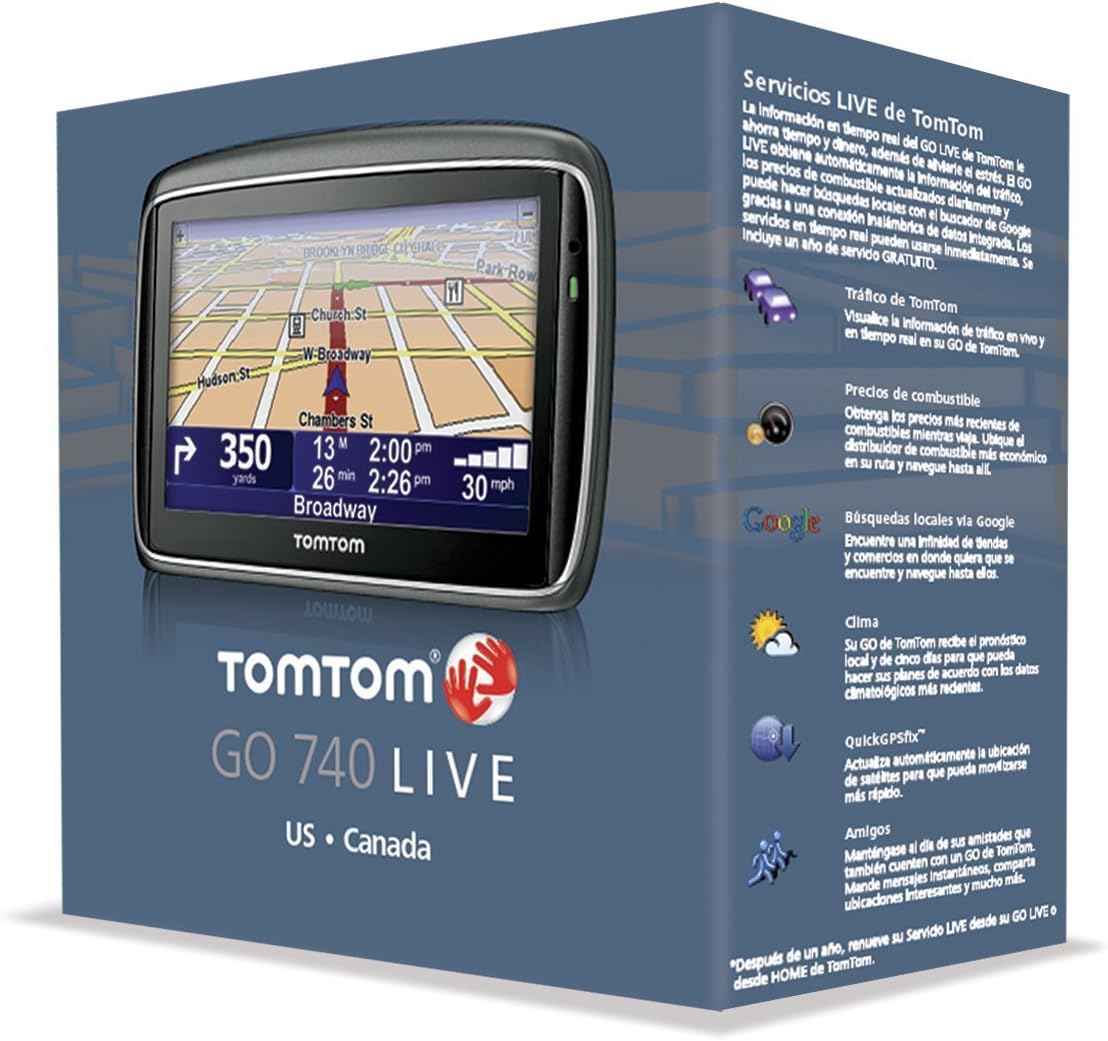
Image: The TomTom GO 740 Live retail packaging, illustrating the device and highlighting its main features.
Setup
1. Charging the Device
Before initial use, fully charge your TomTom GO 740 Live using the provided car charger or USB cable connected to a computer. The device will indicate when charging is complete.
2. Mounting the Device
Attach the windshield mount to a clean, smooth surface on your windshield. Ensure the device is securely attached and does not obstruct your view of the road. The adhesive disk can be used for dashboard mounting if preferred.
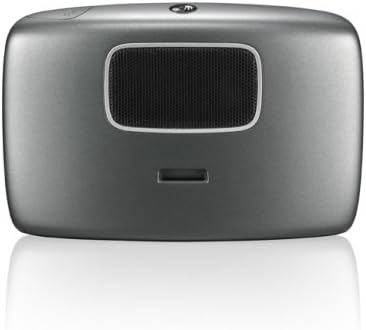
Image: Rear view of the TomTom GO 740 Live, highlighting the speaker and the slot for attaching the mounting bracket.
3. Initial Power On
Press and hold the power button until the TomTom logo appears. Follow the on-screen prompts to select your language and region settings.
Operating Instructions
Basic Navigation
- Enter Destination: From the main menu, select "Navigate to..." and choose your preferred method (e.g., Address, Point of Interest).
- Voice Recognition: Speak your destination address or command clearly when prompted.
- Touchscreen Input: Use the on-screen keyboard to enter details.
- Start Driving: Once the route is calculated, the device will guide you with turn-by-turn spoken instructions, including street names.
TomTom LIVE Services
The GO 740 Live provides real-time information via a built-in wireless data connection. Three months of service are typically included. Services are available in the United States only.
- TomTom Traffic: Access live traffic feeds to avoid delays and find faster routes.
- Fuel Prices: View updated fuel prices to find the most economical options nearby.
- Local Search powered by Google: Search for local businesses and points of interest.
- Weather: Get real-time weather updates for your route or destination.
- Buddies: Connect with other TomTom users.

Image: The TomTom GO 740 Live user interface showing the main menu for TomTom LIVE Services, including options for traffic, local search, fuel prices, and weather.
Key Navigation Features
- IQ Routes Technology: Calculates the fastest route based on actual average speeds of travel, considering time of day and day of week, rather than just posted speed limits.
- TomTom Map Share: Allows you to make corrections to your map (e.g., street names, direction, POIs) and benefit from verified changes made by other TomTom users.
- Advanced Lane Guidance: Provides clear visual instructions for complex junctions, showing which lane to take.
- Bluetooth Hands-Free Calling: Connect your compatible mobile phone to make and receive calls safely while driving.
- Preloaded Points of Interest (POIs): Easily find millions of gas stations, restaurants, hotels, and other useful locations.
- Help Me! Emergency Menu: Provides quick access to local emergency services information, such as police, fire stations, and hospitals.
Maintenance
Map Updates
To ensure your navigation is always accurate, regularly update your maps. Connect your TomTom GO 740 Live to your computer and use the TomTom HOME software. The device includes a 30-Day Latest Map Guarantee.
For more information and to download the software, visit the official TomTom website: TomTom HOME
General Care
- Keep the screen clean using a soft, lint-free cloth.
- Avoid exposing the device to extreme temperatures or direct sunlight for extended periods.
- Do not attempt to open or disassemble the device, as this will void the warranty.
Troubleshooting
If you encounter issues with your TomTom GO 740 Live, consider the following common solutions:
- Device Not Responding: Try performing a soft reset by pressing and holding the power button for 15-20 seconds until the device restarts.
- GPS Signal Loss: Ensure the device has a clear view of the sky. Move away from tall buildings or dense foliage.
- Inaccurate Routing: Verify that your maps are up to date using TomTom HOME. Ensure IQ Routes is enabled in settings.
- LIVE Services Not Working: Check your subscription status. Ensure you are in a supported region (United States for this model).
For further assistance, refer to the support section on the official TomTom website or contact TomTom customer service.
Specifications
| Feature | Detail |
|---|---|
| Model Name | GO 740 LIVE |
| Item Model Number | 1CF7.052.00 |
| Screen Size | 4.3 Inches |
| Resolution | 480 x 272 |
| Product Dimensions | 3.4 x 5 x 0.9 inches |
| Item Weight | 1 pound |
| Connectivity Technology | Bluetooth |
| Human Interface Input | Touchscreen |
| Map Type | Street |
| Mounting Type | Dashboard Mount, Windshield Mount |
| Manufacturer | TomTom |
Warranty and Support
For warranty information, product registration, and technical support, please visit the official TomTom website. Keeping your device updated via TomTom HOME is recommended for optimal performance and access to the latest features and map data.
Official TomTom Support: www.tomtom.com/support


