
1. Introduction
Welcome to the Coby DVD209BK Ultra-Compact DVD Player user manual. This guide provides essential information for setting up, operating, and maintaining your new DVD player. Please read these instructions carefully before using the device to ensure proper functionality and to maximize your viewing experience. Keep this manual for future reference.
2. Safety Information
To prevent fire, electric shock, and injury, observe the following safety precautions:
- Power Source: Use only the specified power supply (AC 110 – 240V, 50/60Hz Auto Switching). Ensure the power cord is not damaged or pinched.
- Ventilation: Do not block any ventilation openings. Allow adequate space around the unit for proper airflow to prevent overheating.
- Water and Moisture: Do not expose the unit to rain, moisture, or dripping/splashing liquids. Do not place objects filled with liquids, such as vases, on the apparatus.
- Disc Handling: Handle discs by their edges. Avoid touching the playing surface. Do not use cracked, scratched, or warped discs.
- Cleaning: Unplug the unit from the power outlet before cleaning. Use a soft, dry cloth. Do not use liquid cleaners or aerosol cleaners.
- Servicing: Do not attempt to service this product yourself. Refer all servicing to qualified service personnel.
3. Package Contents
Verify that all items are present in the package:
- Coby DVD209BK Ultra-Compact DVD Player
- Remote Control (requires 2 AAA batteries, not included)
- AV Cable (RCA type)
- AC Power Adapter
- Display Stand
- User Manual (this document)
4. Product Overview
The Coby DVD209BK is an ultra-compact DVD player designed for versatile media playback. It supports DVD, DVD±R/RW, CD, CD-R/RW, and JPEG formats, offering digital and analog AV outputs for home theater integration.
4.1 Front Panel and Controls
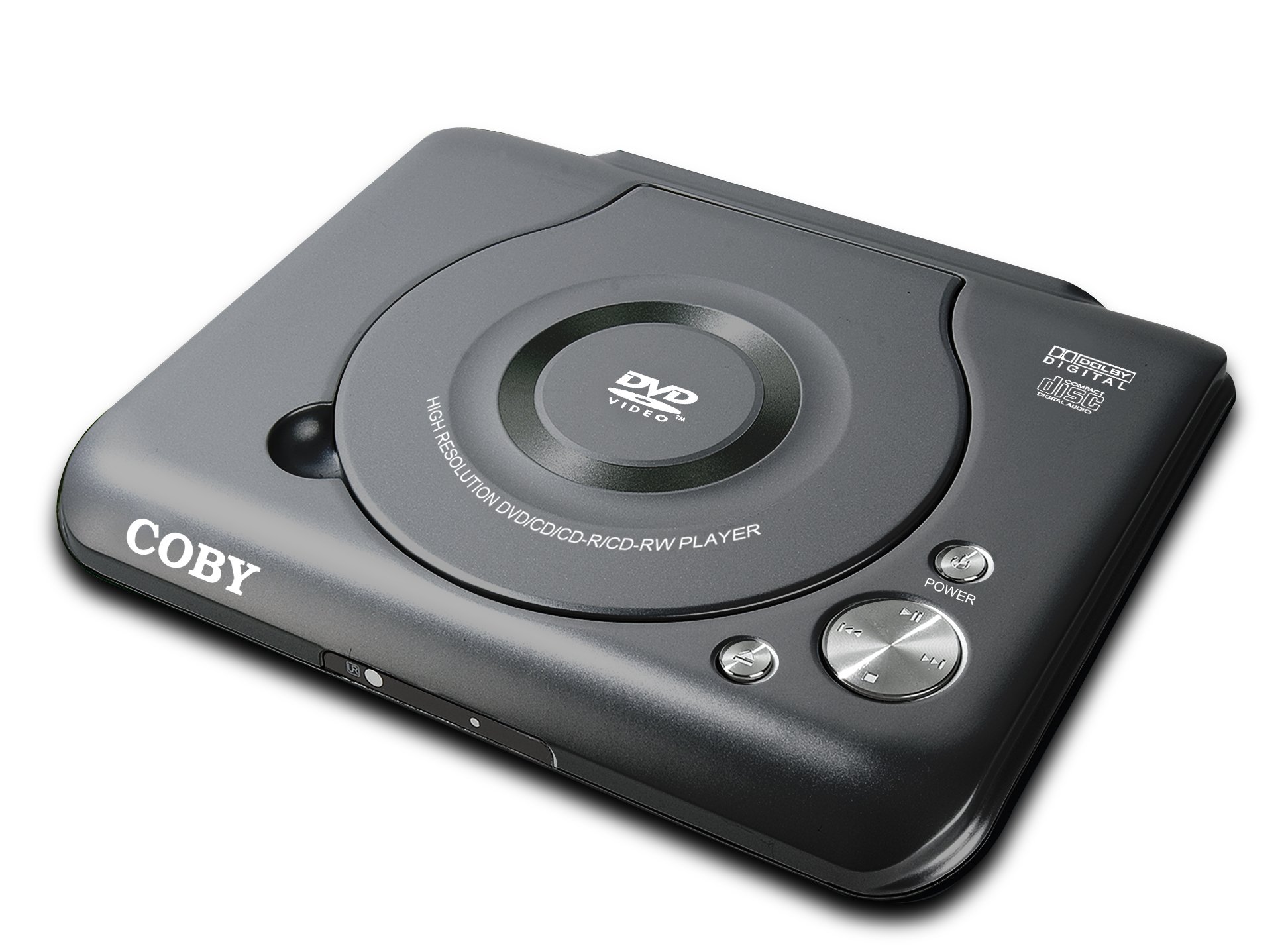
This image displays the top and front view of the Coby DVD209BK DVD Player, highlighting its compact design and accessible controls. The disc compartment is centrally located, labeled 'DVD VIDEO' and 'HIGH RESOLUTION DVD/CD/CD-R/CD-RW PLAYER'. On the right side, you can see the 'POWER' button, along with playback controls such as Play/Pause, Stop, and Skip/Search buttons. The 'COBY' brand logo is visible on the left side of the unit. The unit also features 'DOLBY DIGITAL' and 'disc' logos, indicating its audio and disc compatibility.
- Disc Compartment: Top-loading area for inserting DVDs and CDs.
- Power Button: Turns the unit on or off.
- Play/Pause Button: Starts or pauses disc playback.
- Stop Button: Stops disc playback.
- Skip/Search Buttons: Skips to the next/previous track or chapter, or fast-forwards/rewinds during playback.
- Open/Close Button: Opens or closes the disc compartment lid.
4.2 Rear Panel Connections
The rear panel houses the necessary ports for connecting the DVD player to your television or audio system.
- AV Output (RCA): Red, White, and Yellow jacks for analog audio and video connection to a TV.
- Power Input: Connects the AC power adapter.
5. Setup
5.1 Connecting to a Television
Follow these steps to connect your DVD player to a television using the included AV cable:
- Ensure both the DVD player and your television are turned off and unplugged from the power outlet.
- Connect the yellow plug of the AV cable to the yellow 'VIDEO OUT' jack on the DVD player.
- Connect the red and white plugs of the AV cable to the red 'AUDIO OUT R' and white 'AUDIO OUT L' jacks on the DVD player, respectively.
- Connect the other end of the AV cable (yellow, red, white plugs) to the corresponding 'VIDEO IN' and 'AUDIO IN' jacks on your television.
- Plug in the power cords for both the DVD player and the television.
5.2 Power Connection
Connect the AC power adapter to the 'POWER IN' port on the rear of the DVD player, then plug the adapter into a standard wall outlet.
6. Operating Instructions
6.1 Loading a Disc
- Press the 'OPEN/CLOSE' button to open the disc compartment lid.
- Carefully place a DVD or CD onto the disc spindle with the label side facing up. Ensure the disc is seated correctly.
- Close the disc compartment lid firmly until it clicks into place. The player will begin reading the disc.
6.2 Basic Playback
- Turn on your television and select the correct AV input source.
- Press the 'POWER' button on the DVD player or remote control to turn it on.
- Once the disc is loaded and recognized, playback should start automatically. If not, press the 'PLAY' button.
- Use the 'PAUSE' button to temporarily stop playback and 'PLAY' to resume.
- Press the 'STOP' button to end playback.
- Use the 'SKIP' buttons (◀◀ / ▶▶) to navigate between chapters or tracks.
- Use the 'SEARCH' function (often by holding the skip buttons) for fast-forward or rewind.
6.3 Advanced Features
- Parental Lock: Access the system setup menu to configure parental control settings, restricting playback of certain content based on rating.
- Picture Zoom: During playback, use the zoom function (typically via the remote control) to enlarge a portion of the screen.
- NTSC/PAL Compatibility: The player is compatible with both NTSC and PAL video systems, automatically adjusting to the disc's format.
- On-Screen Display: Utilize the on-screen display for convenient navigation and setting adjustments.
7. Maintenance
Proper maintenance ensures the longevity and optimal performance of your DVD player.
- Cleaning the Unit: Wipe the exterior of the player with a soft, dry, lint-free cloth. Do not use abrasive cleaners, waxes, or solvents.
- Cleaning Discs: Clean discs with a soft, dry cloth, wiping gently from the center outwards. Avoid using solvents or abrasive materials.
- Storage: When not in use, store the DVD player in a cool, dry place away from direct sunlight and extreme temperatures.
- Disc Storage: Store discs in their cases to protect them from dust and scratches.
8. Troubleshooting
If you encounter issues with your DVD player, refer to the following table for common problems and solutions.
| Problem | Possible Cause | Solution |
|---|---|---|
| No power | Power cord not connected; Power outlet not active. | Ensure power cord is securely connected. Test the outlet with another device. |
| No picture | AV cable not connected correctly; Incorrect TV input selected. | Check AV cable connections. Select the correct AV input on your TV. |
| No sound | Audio cables not connected; TV volume too low or muted. | Check red and white audio cable connections. Adjust TV volume or unmute. |
| Disc does not play | Disc inserted incorrectly; Disc is dirty or damaged; Incorrect disc format. | Re-insert disc correctly. Clean or replace disc. Ensure disc is compatible (DVD, CD, JPEG). |
| Remote control not working | Batteries are dead or inserted incorrectly; Obstruction between remote and player. | Replace batteries (2 AAA). Ensure line of sight to the player's sensor. |
9. Specifications
Technical specifications for the Coby DVD209BK Ultra-Compact DVD Player:
| Feature | Detail |
|---|---|
| Model Number | DVD209BK |
| Dimensions (L x W x H) | 7.8 x 3.35 x 9.06 inches |
| Item Weight | 1.9 pounds |
| Power Requirements | AC 110 – 240V, 50/60Hz Auto Switching |
| Supported Media Types | DVD, DVD±R/RW, CD, CD-R/RW, JPEG |
| Video Output | Composite Video (RCA) |
| Audio Output | Stereo Audio (RCA), Dolby Digital Decoder |
| Video System Compatibility | NTSC/PAL |
| Special Features | Ultra-compact design, Picture Zoom, Parental Lock Control, On-screen display |
10. Warranty and Support
Coby products are manufactured to the highest quality standards. For information regarding warranty coverage, please refer to the warranty card included with your purchase or visit the official Coby website. For technical support or customer service inquiries, please contact Coby customer support through their official channels.
Please retain your proof of purchase for warranty claims.
