
1. Introduction
The AKAI Professional EWI USB is an electronic wind instrument designed for musicians seeking an intuitive and expressive controller. It leverages computer software to generate sounds, offering plug-and-play connectivity for seamless integration with nearly any Mac or PC. This instrument provides a comprehensive collection of wind instrument sounds through its included software, enabling users to practice, perform, create, and record with exceptional control.
The EWI USB incorporates decades of experience in wind and electronic music instrument design, making it a user-friendly and accessible option for both aspiring and professional wind players. Its design focuses on allowing musicians to concentrate on playing music rather than navigating complex technology.
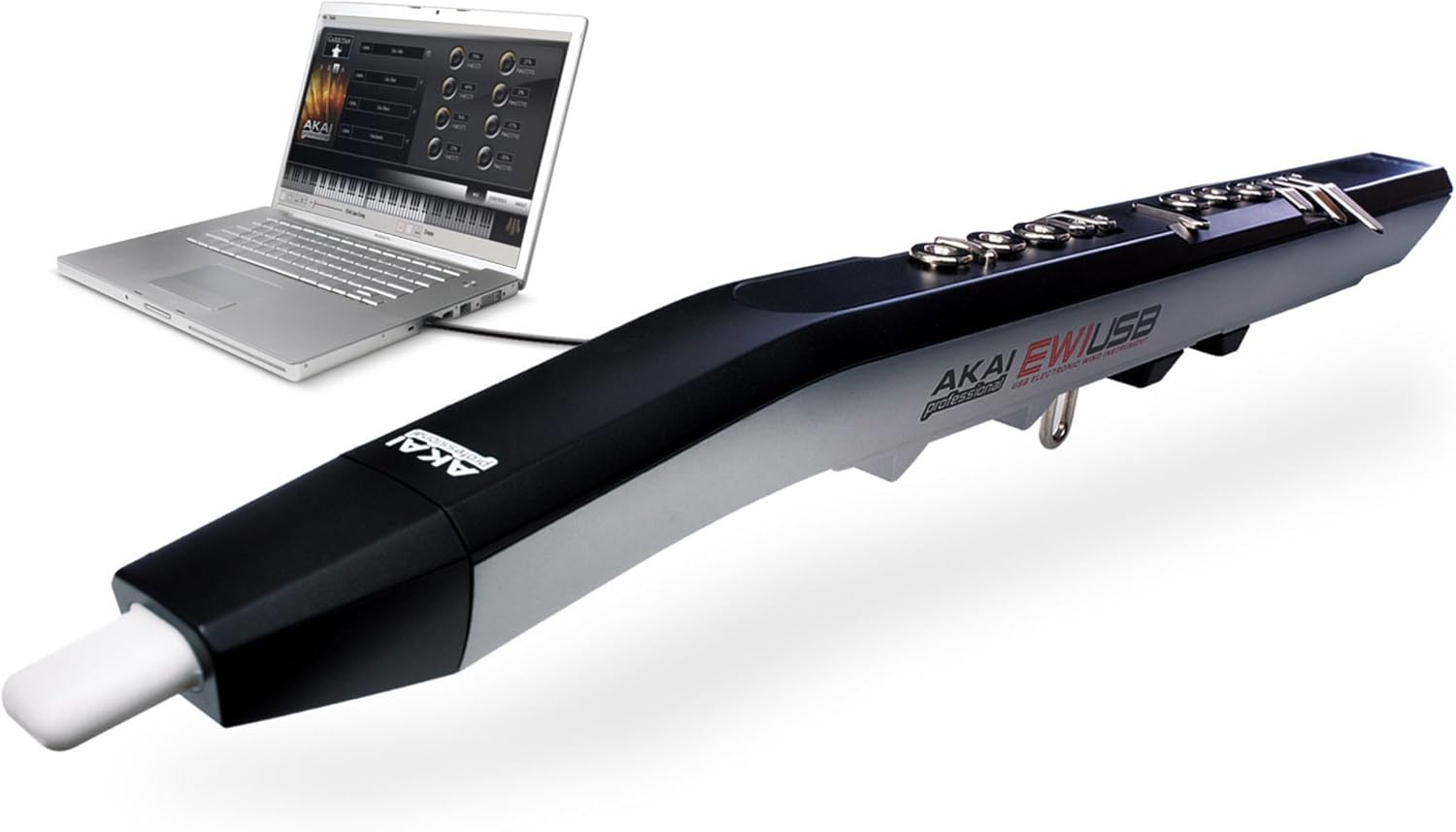
Figure 1: The AKAI Professional EWI USB connected to a laptop, demonstrating its plug-and-play functionality with the accompanying software interface visible on the screen.
2. Box Contents
Upon unboxing your AKAI Professional EWI USB, please ensure all the following items are present:
- EWI USB Instrument
- USB Cable (9.8 feet)
- Neckstrap
- Cleaning cloth
- Software DVD (containing Aria Player software)
- Quickstart Manual
- Safety & Warranty Information Booklet
3. Setup
3.1. Connectivity
To begin using your EWI USB, connect it to an available USB port on your computer. The Status LED located on the rear panel of the EWI USB will illuminate upon successful connection.
Important Tips:
- For optimal performance, it is recommended to connect the EWI USB directly to your computer, avoiding the use of multi-port USB hubs.
- Whenever possible, connect to a USB port located on the back of your computer.
- Plugging in the EWI USB automatically recalibrates its keys, rollers, and plates. To prevent interference with this process, which could lead to the instrument playing out of tune, hold the EWI USB only by its plastic casing near the top while plugging it in.
3.2. Audio & MIDI Preferences
The EWI USB controller itself does not produce sound. To translate your playing into audible output, it is essential to select the appropriate audio device within the software. Follow these steps:
- Navigate to the Tools menu (on PC) or the EWI USB menu (on Mac), then select Preferences.
- Under the audio settings, select the audio device currently in use for your setup. If you are using your computer's built-in speakers, choose "Built In Output" or "Speakers". If you experience any noticeable delay in sound (latency) or reduced audio quality, you can adjust the latency settings of the audio device in this section.
- Under MIDI Devices, check the appropriate box:
- For Windows XP: Check “USB Audio Device.”
- For Windows Vista or Mac: Check “EWI USB.”
4. Operating the EWI USB
The EWI USB offers a highly expressive playing experience, combining traditional wind instrument feel with modern digital control. It features multiple fingering modes to accommodate various playing styles and backgrounds.
4.1. Fingering Modes
The instrument supports switchable fingering modes, including:
- Traditional EWI
- Saxophone
- Flute
- Oboe
- EVI (brass instrument fingering)
These modes make the EWI USB accessible whether you are a woodwind student or an experienced wind player.
4.2. Expressive Control
The EWI USB is equipped with advanced sensors for nuanced control:
- Mouthpiece: Features an air-pressure level sensor and a bite sensor, allowing for precise control over pitch, tone, and volume based on breath intensity and mouth pressure.
- Note Keys: 13 touch sensors provide responsive playing.
- Octave Rollers: Two mobile and two fixed touch sensors offer a 5-octave range for rapid octave shifts.
- Bend Plates: Two touch sensors enable pitch bending.
- Ground Plates: Two touch sensors contribute to overall control.
These features allow for a natural and responsive performance, capturing every subtlety and nuance of your playing.
4.3. Software Integration (Aria Player)
The EWI USB harnesses your computer to generate sounds, primarily through the custom-designed Aria Player software. This software provides an unprecedented level of expressive control for wind players and includes over 75 different orchestral, concert band, jazz band, and synthesizer sound sets expertly recorded and programmed by Garritan.
The EWI USB also functions as a full-featured MIDI controller, allowing you to expand your sound palette by using it with any computer-based plugin designed to receive MIDI data.
Video 1: An overview of the AKAI Professional EWI USB, showcasing its features, connectivity, and the expressive capabilities it offers to musicians. This video highlights the instrument's design and its integration with software for sound generation.
5. Technical Specifications
| Feature | Specification |
|---|---|
| Item Weight | 1.3 pounds |
| Product Dimensions | 23.2 x 2.75 x 2.75 inches (58.9 x 6.98 x 6.98 cm) |
| Item Model Number | EWI USB |
| Color Name | Black |
| Compatible Devices | Devices with USB MIDI connectivity, including computers (Mac or PC) and various MIDI devices |
| Connector Type | USB |
| Hardware Interface | USB |
| Supported Software | Aria |
| Material Type | Brass (referring to internal components/sound emulation) |
| Musical Style | Electronic |
| Instrument Key | Any (via software configuration) |
| Mixer Channel Quantity | 1 |
| Hardware Platform | x86 (PC), ARM (Mac) |
| Terminals | 1 slave connector (MIDI over USB) |
| Power | ~100mA, 5V via USB |
6. Maintenance
To ensure the longevity and optimal performance of your EWI USB, regular maintenance is recommended:
- Cleaning: Use the provided cleaning cloth to gently wipe the surface of the instrument after each use. Avoid abrasive cleaners or solvents.
- Storage: Store the EWI USB in a dry, cool place, away from direct sunlight and extreme temperatures. If possible, use a protective case to prevent dust accumulation and physical damage.
- Handling: Handle the instrument with care. Avoid dropping it or subjecting it to strong impacts, as this can damage internal components or sensors.
7. Troubleshooting
If you encounter issues with your EWI USB, consider the following common troubleshooting steps:
- No Sound/Incorrect Sound:
- Ensure the EWI USB is properly connected to a USB port.
- Verify that the correct audio output device is selected in the Aria Player software preferences.
- Check that the correct MIDI input device (EWI USB) is selected in the Aria Player software preferences.
- Confirm that the volume levels in the Aria Player and your computer's system are not muted or set too low.
- Unresponsive Keys/Sensors:
- Disconnect and reconnect the EWI USB to allow it to recalibrate its sensors.
- Ensure your hands are making proper contact with the ground plates for accurate sensor readings.
- Check for any debris or moisture on the touch sensors and clean if necessary.
- Software Not Launching/Crashing:
- Ensure your computer meets the minimum system requirements for the Aria Player software.
- Try reinstalling the Aria Player software from the provided DVD or the latest version from the Akai Professional website.
- Close other demanding applications that might be consuming system resources.
For more detailed troubleshooting or persistent issues, please refer to the official user manual or contact Akai Professional support.
8. Warranty and Support
The AKAI Professional EWI USB comes with a manufacturer's warranty. Please refer to the included Safety & Warranty Information Booklet for specific details regarding warranty coverage, terms, and conditions. Retain your proof of purchase for warranty claims.
For additional support, including frequently asked questions, software updates, and further documentation, please visit the official Akai Professional website or consult the comprehensive user manual:
- Official User Manual (PDF): Download PDF
- Akai Professional Store: Visit Store


