
Introduction
This manual provides essential information for setting up, operating, maintaining, and troubleshooting your Lenovo TopSeller SL400 laptop, Model 27439YU. Please read this guide thoroughly to ensure proper use and longevity of your device.
1. Setup
1.1 Unboxing and Initial Inspection
Carefully remove your laptop and all accessories from the packaging. Verify that all components are present:
- Lenovo TopSeller SL400 Laptop
- AC Power Adapter and Power Cord
- Battery Pack
- Documentation (this manual, warranty information)
Inspect the laptop for any physical damage. If any components are missing or damaged, contact your vendor immediately.
1.2 Connecting Power and Charging the Battery
Before first use, it is recommended to fully charge the battery. Connect the AC power adapter to the laptop's power input port and then plug the power cord into a wall outlet.
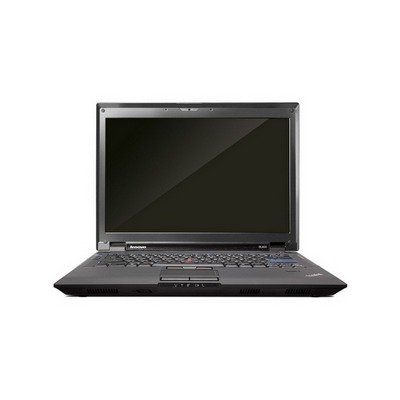
Image: The Lenovo TopSeller SL400 laptop shown with its power adapter connected, illustrating the charging process.
The battery indicator light will show the charging status. A full charge typically takes several hours when the laptop is off.
1.3 Initial Boot-Up and Operating System Setup
Press the power button to turn on your laptop. The first boot-up may take longer as the operating system initializes. Follow the on-screen instructions to complete the operating system setup, which typically includes:
- Language and region selection
- Accepting license agreements
- Creating a user account and password
- Connecting to a Wi-Fi network
2. Operating Your Laptop
2.1 Keyboard and Touchpad
The laptop features a full-sized keyboard and a multi-touch touchpad. Familiarize yourself with the function keys (Fn) which provide quick access to system settings like volume, brightness, and wireless toggles.
- Touchpad Gestures:
- Tap: Single-finger tap for left-click, two-finger tap for right-click.
- Scroll: Two-finger drag up or down.
- Zoom: Pinch in or out with two fingers.
2.2 Power Management
To conserve battery life and manage system performance:
- Sleep Mode: Closes open applications and puts the laptop into a low-power state. Press the power button or close the lid to enter sleep mode.
- Shutdown: Completely powers off the laptop. Use the operating system's shutdown option for a proper shutdown.
- Restart: Shuts down and then immediately restarts the laptop. Useful for applying updates or resolving minor issues.
2.3 Connecting to a Wireless Network (Wi-Fi)
To connect to the internet:
- Click the Wi-Fi icon in the system tray (usually bottom-right of the screen).
- Select your desired network from the list of available networks.
- Enter the network security key (password) if prompted.
- Click "Connect".
Your laptop supports 802.11bgn and 802.11n wireless standards.
3. Maintenance
3.1 Cleaning Your Laptop
Regular cleaning helps maintain performance and appearance:
- Screen: Use a soft, lint-free cloth slightly dampened with water or a screen cleaner. Do not spray liquid directly onto the screen.
- Keyboard and Chassis: Use a soft cloth. For stubborn dirt, a slightly damp cloth with mild soap solution can be used, ensuring no liquid enters openings.
- Vents: Use compressed air to clear dust from cooling vents to prevent overheating.
3.2 Battery Care
To maximize battery lifespan:
- Avoid extreme temperatures.
- Do not fully discharge the battery frequently.
- If storing the laptop for an extended period, charge the battery to about 50-60%.
3.3 Software Updates and Data Backup
Keep your operating system and drivers updated to ensure optimal performance and security. Regularly back up your important data to an external drive or cloud storage to prevent data loss.
4. Troubleshooting
This section addresses common issues you might encounter.
4.1 Laptop Does Not Power On
- Ensure the AC adapter is securely connected to both the laptop and a working power outlet.
- Verify the power outlet is functional by plugging in another device.
- If using battery power, ensure the battery is charged.
- Try removing the battery (if removable) and powering on with only the AC adapter.
4.2 No Display on Screen
- Check if the laptop is powered on (listen for fan noise, check indicator lights).
- Adjust screen brightness using the function keys (e.g., Fn + F5/F6).
- Connect an external monitor to see if a display appears there. This can help determine if the issue is with the laptop's internal display or the graphics card.
4.3 Wi-Fi Connection Issues
- Ensure Wi-Fi is enabled on your laptop (check function keys or operating system settings).
- Restart your wireless router/modem.
- Forget the network and reconnect, re-entering the password.
- Update your wireless adapter drivers.
4.4 Slow Performance
- Close unnecessary applications running in the background.
- Check for and remove any malware or viruses.
- Ensure your operating system and drivers are up to date.
- Free up disk space.
- Consider adding more RAM or upgrading to a Solid State Drive (SSD) if applicable (consult a professional).
If these steps do not resolve your issue, please refer to the Warranty and Support section for further assistance.
5. Specifications
The following table outlines the key technical specifications for the Lenovo TopSeller SL400 (Model 27439YU) laptop:
| Feature | Specification |
|---|---|
| Model Name | Lenovo Thinkpad SL400 (27439YU) |
| Standing Screen Display Size | 14.1 Inches |
| Screen Resolution | 1366 x 768 pixels (Max: 1920x1080) |
| Processor | Intel Core i5-2430M |
| Graphics Card Description | Integrated |
| Computer Memory Type | DDR4 SDRAM |
| Wireless Type | 802.11bgn, 802.11n, Bluetooth |
| Item Weight | 6 pounds (approx. 2.72 kg) |
| Product Dimensions (LxWxH) | 16.75 x 6.25 x 13 inches (approx. 42.5 x 15.9 x 33 cm) |
| Special Features | Webcam, Wifi |
6. Warranty and Support
6.1 Product Warranty
Your Lenovo TopSeller SL400 laptop is covered by a manufacturer's warranty. Please refer to the warranty card included in your product packaging for specific terms, conditions, and duration. Keep your proof of purchase for warranty claims.
Optional protection plans may be available for extended coverage, such as 2-Year or 4-Year plans. Consult your retailer for details.
6.2 Technical Support
For technical assistance, driver downloads, or further troubleshooting not covered in this manual, please visit the official Lenovo support website or contact Lenovo customer service. Have your laptop's model number (27439YU) and serial number ready when contacting support.
You can typically find support resources at: support.lenovo.com
6.3 Return Policy
If purchased from Amazon, this product typically has a 30-day return policy for refund or replacement, subject to Amazon's terms and conditions.