1. Product Overview
The Polaroid JXM122 is a portable AM/FM weather band radio designed for reliable reception and ease of use. It features a digital display, programmable station presets, and an integrated NOAA All Hazards Alert System. This manual provides instructions for proper setup, operation, and maintenance of your radio.
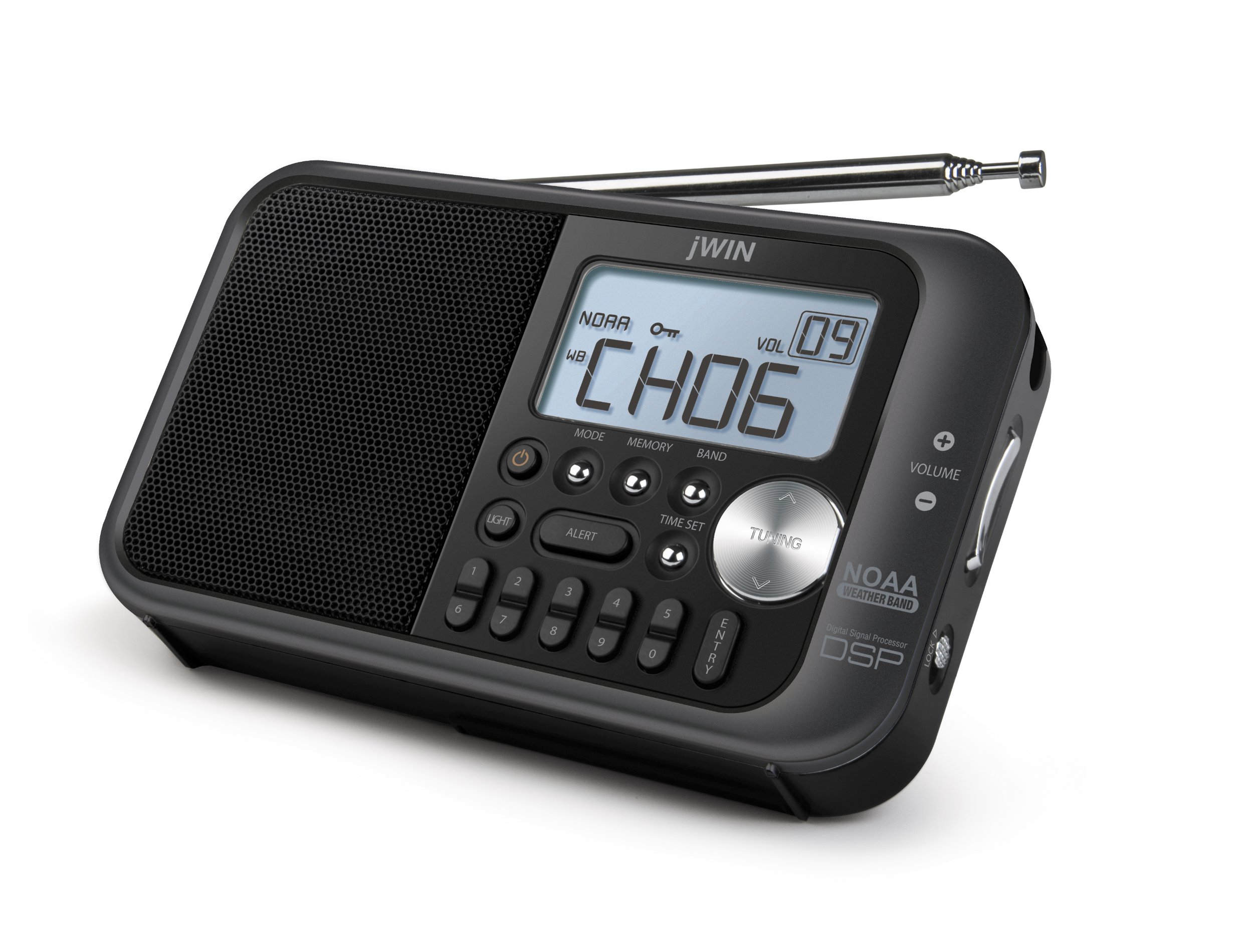
Figure 1: Front view of the Polaroid JXM122 radio, highlighting the speaker, digital display, control buttons, and telescopic antenna.
Key Components:
- Speaker: Located on the left side of the front panel.
- Digital LCD Display: Shows frequency, time, band, and other indicators.
- Telescopic Antenna: Extendable for improved reception.
- Control Buttons: Including MODE, MEMORY, BAND, TIME SET, TUNING, LIGHT, ALERT.
- Volume Controls: '+' and '-' buttons for adjusting audio output.
- Lock Switch: Prevents accidental button presses.
- Built-in Stand: For upright positioning.
- Hand Strap: For portability.
2. Setup
2.1 Powering the Unit
The JXM122 radio can be powered by either an AC adapter or 3 AA batteries.
2.1.1 Battery Installation
- Locate the battery compartment cover on the back of the radio.
- Slide or unclip the cover to open.
- Insert 3 AA-size batteries, ensuring correct polarity (+/-) as indicated inside the compartment.
- Replace the battery compartment cover securely.
Note: When replacing batteries, it is recommended to keep the unit connected to AC power if possible to retain saved settings.
2.1.2 AC Power Adapter Connection
- Locate the DC IN jack on the side of the radio.
- Insert the small plug of the supplied AC power adapter into the DC IN jack.
- Plug the other end of the AC power adapter into a standard wall outlet.
2.2 Antenna Adjustment
For optimal reception, extend the telescopic antenna fully. Adjust its angle and direction to achieve the clearest signal for FM and Weather Band broadcasts. For AM reception, the radio uses an internal antenna; rotating the entire unit may improve signal quality.
3. Operating Instructions
3.1 Power On/Off
Press the POWER button (often integrated with the MODE button or a separate button) to turn the radio on or off.
3.2 Band Selection
Press the BAND button repeatedly to cycle through available bands: AM, FM, and Weather Band (WB).
3.3 Tuning Stations
Use the TUNING up (∧) or down (∨) buttons to manually adjust the frequency. Press and hold the TUNING buttons for automatic scanning to the next available station.
3.4 Setting and Recalling Presets
The radio allows for 10 AM and 10 FM programmable presets.
3.4.1 Saving Presets
- Tune to the desired station using the TUNING buttons.
- Press the MEMORY button. The preset number on the display will flash.
- Use the TUNING buttons to select the desired preset number (0-9).
- Press the MEMORY button again or the ENTRY button to confirm and save the station.
3.4.2 Recalling Presets
Press the PRESET buttons (numbered 0-9, or use MEMORY and TUNING) to cycle through or directly select saved stations.
3.5 Volume Control
Use the VOLUME + button to increase the volume and the VOLUME - button to decrease it.
3.6 NOAA All Weather/Hazards Alert System
When in Weather Band (WB) mode, press the ALERT button to activate or deactivate the NOAA alert function. When active, the radio will automatically switch to a NOAA weather alert broadcast if a warning is issued.
3.7 Setting the Clock
Press and hold the TIME SET button. While the time is flashing, use the TUNING buttons to adjust the hours and minutes. Press TIME SET again to confirm.
3.8 Display Backlight
Press the LIGHT button to illuminate the LCD display. The backlight may have a timed duration or can be set to stay on, depending on the model's specific settings.
3.9 Lock Function
Slide the LOCK switch (located on the side of the radio) to the 'Lock' position to disable all buttons and prevent accidental operation. Slide it back to the 'Unlock' position to resume normal function.
4. Maintenance
4.1 Cleaning
Wipe the radio's exterior with a soft, dry cloth. Do not use abrasive cleaners, waxes, or solvents, as these can damage the finish. Avoid getting moisture into any openings.
4.2 Battery Care
If the radio will not be used for an extended period, remove the batteries to prevent leakage and potential damage to the unit.
5. Troubleshooting
- No Power:
- Ensure batteries are correctly installed and not depleted.
- Verify the AC adapter is securely connected to both the radio and a working power outlet.
- Check if the LOCK switch is engaged.
- Poor Reception:
- Fully extend and adjust the telescopic antenna for FM/WB.
- Rotate the entire radio for better AM reception.
- Move the radio away from other electronic devices that may cause interference.
- Display Not Working/Garbled:
- Replace batteries or ensure stable AC power.
- If the issue persists, contact customer support.
- No Sound or Low Volume:
- Increase the volume using the VOLUME + button.
- Ensure no headphones are connected if you intend to use the built-in speaker.
6. Specifications
- Model Number: JXM122
- Product Dimensions: 8.5 x 2 x 4 inches
- Item Weight: 8 ounces
- Radio Bands Supported: AM, FM, Weather Band (NOAA)
- Display Technology: LCD with white backlight
- Power Source: 3 x AA batteries or Corded Electric (AC Adapter included)
- Special Features: Portable, Digital Clock Display, Programmable Presets (10 AM, 10 FM)
- Color: White
7. Warranty and Support
This product typically includes a warranty card with purchase. Please refer to the warranty card for specific terms and conditions regarding coverage and duration. For technical support or service inquiries, please contact the manufacturer or your retailer.


