1. Introduction
This manual provides comprehensive instructions for the setup, operation, maintenance, and troubleshooting of your Dell UltraSharp 2408WFP 24-inch TFT LCD monitor. Please read this manual thoroughly before using your monitor to ensure proper installation and optimal performance. Keep this manual for future reference.
2. Safety Information
Observe the following safety precautions to prevent damage to the monitor and to ensure your personal safety:
- Always place the monitor on a stable, flat surface.
- Do not block ventilation openings.
- Do not expose the monitor to rain or moisture.
- Disconnect the power cable from the wall outlet before cleaning.
- Refer all servicing to qualified service personnel.
3. Package Contents
Verify that all components are present in your package:
- Dell UltraSharp 2408WFP 24-inch Monitor
- Monitor Stand
- Power Cable
- DVI Cable
- VGA Cable
- USB Upstream Cable
- Documentation (User Manual, Drivers CD)
4. Setup
4.1 Attaching the Stand
- Carefully remove the monitor and stand from the packaging.
- Align the stand base with the monitor's mounting slot.
- Press firmly until the stand clicks into place. Ensure it is securely attached.

Figure 4.1: Front view of the Dell UltraSharp 2408WFP monitor, illustrating its design and attached stand.
4.2 Connecting Cables
Connect the necessary cables to the corresponding ports on the back of the monitor and your computer.
- Power Cable: Connect one end of the power cable to the monitor's AC power inlet and the other end to a grounded electrical outlet.
- Video Cable: Choose one of the following video connections:
- DVI: Connect the DVI cable from your computer's DVI port to one of the DVI-D ports on the monitor.
- HDMI: Connect an HDMI cable from your computer's HDMI port to the HDMI port on the monitor.
- VGA: Connect the VGA cable from your computer's VGA port to the VGA port on the monitor.
- DisplayPort: Connect a DisplayPort cable from your computer's DisplayPort to the DisplayPort on the monitor.
- Component Video: For compatible devices, connect component video cables (Red, Green, Blue) to the corresponding ports.
- S-Video: For compatible devices, connect an S-Video cable to the S-Video port.
- USB Upstream Cable: Connect the square end of the USB upstream cable to the monitor's upstream USB port and the rectangular end to an available USB port on your computer. This enables the monitor's USB downstream ports.
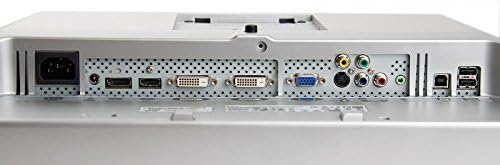
Figure 4.2: Rear view of the Dell UltraSharp 2408WFP monitor, highlighting the various input ports including DVI, HDMI, VGA, DisplayPort, Component, S-Video, and USB.
4.3 Powering On
After connecting all cables, press the power button on the front of the monitor to turn it on. Power on your computer. The monitor should automatically detect the input signal.
5. Operating the Monitor
5.1 On-Screen Display (OSD) Menu
The OSD menu allows you to adjust various monitor settings. Use the buttons on the front panel to navigate and select options.
- Menu Button: Opens the OSD menu.
- Up/Down Buttons: Navigate through menu options.
- Select Button: Confirms a selection or enters a sub-menu.
- Exit Button: Exits the current menu or OSD.
5.2 Common Adjustments
- Brightness/Contrast: Adjust the overall luminance and difference between light and dark areas.
- Input Source: Manually select the active video input (DVI, HDMI, VGA, etc.).
- Color Settings: Fine-tune color temperature, gamma, and individual RGB levels.
- Picture-in-Picture (PIP)/Picture-by-Picture (PBP): Configure multiple input sources to display simultaneously.
6. Key Features
- 24-Inch WUXGA 1920 x 1200 Display: Offers approximately 30% more on-screen content compared to Dell 20-inch monitors.
- 6 Millisecond Response Time (typical): Reduces ghosting and motion blur for fluid motion in videos and games.
- 3000:1 Dynamic Contrast Ratio: Provides deep blacks, sharp images, crisp text, brilliant color saturation, and enhanced detail.
- 110% Color Gamut (CIE 1976) with Dell TrueColor Technology: Delivers a wider range of colors than monitors with a typical 72% color gamut.
- Full HD 1080p Support: Compatible with higher definition content than standard HD television, offering a wide array of HD connection options.
7. Maintenance
7.1 Cleaning the Monitor
To clean your monitor, follow these steps:
- Turn off the monitor and unplug the power cord.
- Use a soft, lint-free cloth lightly dampened with water or a non-abrasive screen cleaner.
- Gently wipe the screen and exterior surfaces. Avoid spraying liquid directly onto the screen or into openings.
- Do not use benzene, thinner, ammonia-based cleaners, or abrasive cleaning agents.
8. Troubleshooting
If you encounter issues with your monitor, refer to the table below for common problems and solutions.
| Problem | Possible Cause | Solution |
|---|---|---|
| No image on screen | Power cable disconnected; Video cable disconnected; Incorrect input source selected. | Ensure power and video cables are securely connected. Select the correct input source via the OSD menu. |
| Image too dark/bright | Brightness/Contrast settings are incorrect. | Adjust Brightness and Contrast settings in the OSD menu. |
| Fuzzy or blurry image | Incorrect resolution; Loose video cable. | Set the display resolution to 1920x1200. Ensure the video cable is firmly connected. |
| No sound (if using monitor speakers/soundbar) | Audio cable not connected; Volume too low; Incorrect audio output selected on computer. | Ensure audio cables are connected (if applicable). Adjust monitor volume. Check computer's audio output settings. |
9. Specifications
| Feature | Specification |
|---|---|
| Model | Dell UltraSharp 2408WFP |
| Screen Size | 24 Inches |
| Panel Type | TFT LCD |
| Native Resolution | 1920 x 1200 (WUXGA) |
| Aspect Ratio | 16:10 |
| Response Time | 6 ms (typical) |
| Dynamic Contrast Ratio | 3000:1 |
| Color Gamut | 110% (CIE 1976) |
| Connectivity | 2x DVI-D, 1x HDMI, 1x VGA, 1x DisplayPort, Component Video, S-Video, USB 2.0 (1 upstream, 4 downstream) |
| Dimensions (with stand) | 22 x 8.17 x 15.62 inches (LxWxH) |
| Weight (with stand) | 22 pounds |
| Color | Black |
10. Warranty and Support
Your Dell UltraSharp 2408WFP monitor comes with a Dell 1-Year Warranty. For technical support, warranty claims, or further assistance, please visit the official Dell support website or contact Dell customer service. Ensure you have your monitor's serial number available when seeking support.
For additional resources, you may visit the Dell Store on Amazon.
11. Recycling Information
Please dispose of your monitor and its components responsibly. Many electronic devices contain materials that can be recycled. For information on proper recycling and disposal, contact your local waste management authority or visit Dell's environmental responsibility website.


