
1. Introduction
This manual provides detailed instructions for the installation, operation, and maintenance of your Thermaltake Spedo VI9001N2Z Full Tower Gaming Case. Please read this manual thoroughly before beginning installation to ensure proper setup and to maximize the performance and longevity of your system components.
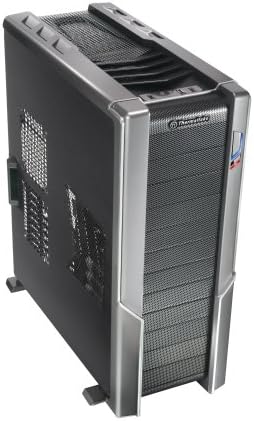
An angled view of the Thermaltake Spedo VI9001N2Z Full Tower Gaming Case, showcasing its black and silver design with mesh front and top panels for optimal airflow.
2. Safety Information
Observe the following safety precautions during installation and operation:
- Always disconnect the power supply from the wall outlet before installing or removing any components.
- Wear an anti-static wrist strap to prevent electrostatic discharge (ESD) damage to sensitive components.
- Handle components carefully to avoid physical damage.
- Ensure all cables are routed properly and do not obstruct airflow or fan blades.
- Keep the case in a well-ventilated area to prevent overheating.
3. Package Contents
Verify that all items are present in your package:
- Thermaltake Spedo VI9001N2Z Full Tower Gaming Case
- Accessory box (containing screws, standoffs, cable ties, etc.)
- User Manual (this document)
Note: Specific quantities of screws and accessories may vary. Refer to the accessory box for exact contents.
4. Key Features
The Thermaltake Spedo VI9001N2Z case is designed for high-performance gaming systems with a focus on superior airflow and user-friendly installation:
- Max Airflow Design: Engineered for superior air circulation, supporting up to 8 fans. Includes five standard fans, with two oversized 230mm ultra-quiet fans for efficient cooling.
- Easy Drive Installation: Features user-friendly mechanisms for optical disk drive (ODD) and hard disk drive (HDD) installation.
- Advanced Cable Management (CRM3): Provides ample space behind the motherboard tray for routing and storing excessive cables, significantly improving internal airflow and thermal efficiency.
- Wireless Plug & Play Side-Panel Fan: A 230mm side-panel fan simplifies cable management and enhances cooling without complex wiring.
- HDD Relocation Canister: Offers flexibility in drive placement.
5. Setup and Installation
Follow these steps for proper component installation:
5.1. Pre-Installation
- Unpack the case and remove all packaging materials.
- Place the case on a stable, flat surface.
- Remove the side panels by unscrewing the thumbscrews at the rear and sliding them backward.
5.2. Motherboard Installation
- Install the I/O shield into the opening at the rear of the case.
- Align the motherboard with the pre-installed standoffs. If necessary, install additional standoffs according to your motherboard's form factor.
- Carefully place the motherboard onto the standoffs.
- Secure the motherboard with the appropriate screws from the accessory box.
5.3. Drive Installation (Optical and Hard Drives)
The case features tool-less installation mechanisms for drives:
- Optical Disk Drives (ODD): Remove the desired 5.25-inch bay cover from the front panel. Slide the ODD into the bay until it clicks into place.
- Hard Disk Drives (HDD): Utilize the HDD relocation canister. Slide the 3.5-inch HDD into a drive bay. Secure it using the provided tool-less clips or screws if preferred.
5.4. Power Supply Installation
- Position the power supply unit (PSU) in its designated bay, typically at the bottom rear of the case.
- Secure the PSU with screws from the rear of the case.
5.5. Expansion Card Installation (e.g., Graphics Cards)
- Remove the necessary expansion slot covers from the rear of the case.
- Insert the expansion card into the appropriate PCIe or PCI slot on the motherboard.
- Secure the card with the retention clip or screw.
5.6. Fan Installation and Configuration
The case supports up to 8 fans. Five fans are pre-installed, including two 230mm ultra-quiet fans. The 230mm side-panel fan features a wireless plug & play design.
- Connect all fan power cables to the appropriate headers on your motherboard or a fan controller.
- Ensure fans are oriented to provide optimal airflow (intake for front/side, exhaust for rear/top).
5.7. Cable Management
Utilize the CRM3 system by routing cables through the cutouts and behind the motherboard tray. Use cable ties to bundle and secure cables, preventing obstruction of airflow.
5.8. Final Assembly
- Connect all front panel cables (USB, audio, power/reset switches, LEDs) to the motherboard headers according to your motherboard manual.
- Replace the side panels and secure them with the thumbscrews.
6. Operating
After completing the installation, connect your monitor, keyboard, mouse, and power cable to the system. Press the power button on the front panel to start your computer. Monitor system temperatures and fan noise during initial operation to ensure all components are functioning correctly and airflow is adequate.
7. Maintenance
Regular maintenance helps ensure optimal performance and longevity of your system:
- Dust Cleaning: Periodically clean dust filters (if present) and internal components using compressed air. Ensure the system is powered off and unplugged before cleaning.
- Fan Inspection: Check fans for dust buildup or unusual noise. Clean or replace fans as necessary.
- Cable Management Check: Occasionally verify that cables remain neatly routed and do not impede airflow.
8. Troubleshooting
If you encounter issues, consider the following common troubleshooting steps:
- No Power: Ensure the power supply is properly connected to the wall outlet and the motherboard. Check all power cables inside the case.
- Fans Not Spinning: Verify that all fan power cables are securely connected to the motherboard or fan controller.
- Overheating: Check for proper fan orientation and ensure no cables or dust are obstructing airflow. Consider adding more fans if temperatures remain high.
- Front Panel Issues: Double-check the connections of the front panel headers (power switch, reset switch, USB, audio) to the motherboard.
9. Specifications
| Feature | Specification |
|---|---|
| Brand | Thermaltake |
| Model Name | VI9001N2Z |
| Case Type | Full Tower |
| Color | Black |
| Material | Alloy Steel |
| Cooling Method | Air |
| Recommended Uses | Gaming |
| Special Feature | High Airflow |
| Hard Disk Form Factor | 3.5 Inches |
| Product Dimensions (L x W x H) | 13 x 25 x 27 inches |
| Item Weight | 32 pounds |
10. Warranty and Support
For warranty information and technical support, please refer to the official Thermaltake website or contact their customer service department. Keep your purchase receipt as proof of purchase.
Thermaltake Official Website: www.thermaltake.com


