
1. Introduction
This manual provides essential information for the safe and efficient use of your Lexmark E260D Monochrome Laser Printer. Please read these instructions carefully before operating the device and retain them for future reference. The Lexmark E260D is designed for fast, high-quality black and white document printing, featuring automatic two-sided printing for efficiency.
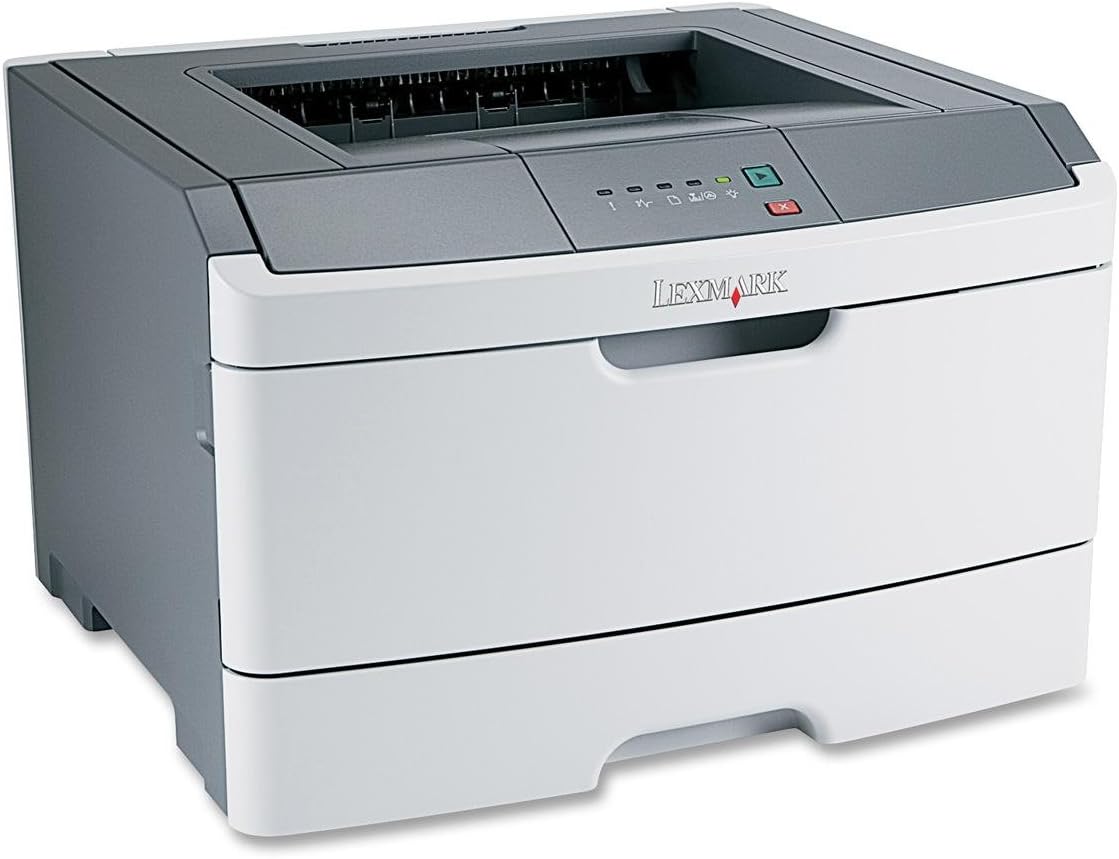
Figure 1: Lexmark E260D Monochrome Laser Printer. This image shows the printer from a front-right angle, highlighting its compact design with a white body and a dark gray top cover. The output tray is visible on top, and the Lexmark logo is displayed on the front panel above the paper input tray.
2. Safety Information
- Always connect the printer to a grounded power outlet.
- Do not block ventilation openings.
- Keep the printer away from water or excessive moisture.
- Use only specified power cords and accessories.
- Avoid touching the fuser area, as it can be hot.
3. Package Contents
Verify that all items are present in the package:
- Lexmark E260D Monochrome Laser Printer
- Power Cord
- Starter Toner Cartridge (may vary by region)
- Setup Guide or Documentation
- USB Cable (may be sold separately)
4. Setup
4.1 Unpacking the Printer
- Remove the printer from its packaging.
- Remove all packing materials, tapes, and protective films from the exterior and interior of the printer.
- Place the printer on a stable, level surface with adequate ventilation.
4.2 Connecting the Printer
- Connect the power cord to the printer and then to a grounded electrical outlet.
- Connect one end of the USB cable to the printer's USB port and the other end to your computer.
4.3 Installing the Toner Cartridge
- Open the front access door of the printer.
- Carefully remove the toner cartridge from its packaging and shake it gently to distribute the toner.
- Insert the toner cartridge into the printer until it clicks into place.
- Close the front access door securely.
4.4 Loading Paper
- Pull out the paper tray.
- Adjust the paper guides to match the size of the paper you are loading.
- Load paper into the tray, ensuring it is flat and not exceeding the maximum fill line.
- Push the paper tray back into the printer until it locks.
4.5 Driver Installation
After connecting the printer, your operating system may automatically detect and install the necessary drivers. If not, follow these steps:
- Insert the driver CD (if included) into your computer's CD/DVD drive, or download the latest drivers from the official Lexmark support website.
- Follow the on-screen instructions to complete the driver installation.
- Restart your computer if prompted.
5. Operating the Printer
5.1 Basic Printing
- Ensure the printer is powered on and connected to your computer.
- Open the document you wish to print on your computer.
- Select File > Print (or the equivalent command in your application).
- Choose the Lexmark E260D from the list of available printers.
- Adjust print settings as needed (e.g., number of copies, page range).
- Click Print.
5.2 Duplex Printing (Two-Sided)
The Lexmark E260D supports automatic two-sided printing.
- When sending a print job, access the printer properties or preferences.
- Look for an option related to Duplex Printing or Print on Both Sides.
- Select the desired duplex option (e.g., long-edge binding, short-edge binding).
- Confirm your settings and click Print.
6. Maintenance
6.1 Cleaning the Printer
- Exterior: Wipe the exterior surfaces with a soft, damp, lint-free cloth. Do not use abrasive cleaners or solvents.
- Interior: Periodically open the front access door and gently remove any loose toner dust with a dry, lint-free cloth. Avoid touching sensitive components.
6.2 Toner Cartridge Replacement
When the toner level is low, the printer's control panel will indicate it. Replace the toner cartridge as follows:
- Ensure the printer is powered on.
- Open the front access door.
- Carefully remove the old toner cartridge by pulling it straight out.
- Unpack the new Lexmark E260D compatible toner cartridge and shake it gently.
- Insert the new cartridge into the printer until it locks into place.
- Close the front access door.
7. Troubleshooting
7.1 Paper Jams
If a paper jam occurs, the printer's control panel will display an error. Follow these general steps:
- Turn off the printer and unplug it from the power outlet.
- Open all accessible covers (front door, rear door, etc.).
- Carefully remove any jammed paper, pulling it in the direction of the paper path to avoid tearing.
- Close all covers securely.
- Plug in and turn on the printer.
7.2 Print Quality Issues
- Faded or Light Prints: The toner cartridge may be low. Try shaking the cartridge gently or replace it.
- Streaks or Smudges: Clean the interior of the printer, especially around the toner cartridge area. Ensure the paper type setting matches the loaded paper.
- Blank Pages: Ensure the toner cartridge is properly installed and has toner. Check printer drivers and print settings.
7.3 Connectivity Problems
- Printer Not Detected: Ensure the USB cable is securely connected to both the printer and the computer. Try a different USB port or cable. Reinstall printer drivers if necessary.
- Print Jobs Stuck: Clear the print queue on your computer. Restart both the printer and the computer.
7.4 Envelope Printing on Mac
Users printing envelopes on macOS may encounter issues with incorrect print orientation or partial printing. To resolve this:
- In the print dialogue box, locate the menu that initially reads 'Layout'.
- Select 'Paper Feed' from this menu.
- Change the 'Auto Select' option to 'Manual Envelope'.
- Proceed with printing.
8. Specifications
| Feature | Specification |
|---|---|
| Model Name | E260D |
| Printing Technology | Laser |
| Printer Output | Monochrome |
| Max Print Speed (Monochrome) | 35 ppm |
| Max Print Resolution (Black & White) | 1200 dpi |
| Duplex Printing | Automatic |
| Connectivity Technology | USB 2.0 |
| Max Input Sheet Capacity | 250 sheets |
| Supported Print Media | Envelopes, Labels, Paper (plain), Transparencies |
| Memory Storage Capacity | 32 MB |
| Product Dimensions | 16.5 x 18.1 x 14 inches |
| Item Weight | 29.8 pounds (13.53 kg) |
| Power Consumption (On-mode) | 16 Watts |
9. Warranty Information
The Lexmark E260D Monochrome Laser Printer comes with an Exchange Warranty. For specific terms, conditions, and duration of your warranty, please refer to the warranty documentation included with your product or visit the official Lexmark support website.
10. Customer Support
For further assistance, technical support, or to order replacement parts and supplies, please contact Lexmark Customer Support. You can find contact information and additional resources on the official Lexmark website:
- Lexmark Support Website: www.lexmark.com/support (Please note: This is a placeholder URL. Refer to your product documentation for the exact support link.)


