
Logitech 910-000806
Logitech Trackman Marble Trackball User Manual
Model: 910-000806
Introduction
The Logitech Trackman Marble Trackball is a wired USB ergonomic mouse designed for comfortable and precise cursor control. Its ambidextrous design and advanced optical technology provide smooth tracking and superior precision, making it suitable for extended use and various computing tasks.
This manual provides instructions for setting up, operating, maintaining, and troubleshooting your Trackman Marble Trackball.
Package Contents
- Logitech Trackman Marble Trackball Mouse (Wired, Dark Gray)
- Product Information Guide
Setup
System Requirements
- Windows Vista, Windows 7, Windows 8, Windows 10
- Mac OS X 10.4 or later
- Available USB port
- CD-ROM drive (for optional software installation, though plug-and-play functionality is standard)
Connecting Your Trackball
The Logitech Trackman Marble Trackball features flexible wired connectivity, supporting both USB and PS/2 ports. It is designed for plug-and-play operation, meaning it works right out of the box without requiring additional driver installation for basic functionality.
- Locate an available USB port on your computer.
- Insert the USB connector of the Trackman Marble Trackball into the USB port.
- Your operating system should automatically detect and install the necessary drivers. This process may take a few moments.
- Once installation is complete, the trackball is ready for use.
For advanced customization of the programmable buttons, you may download and install the Logitech Options software from the official Logitech website.
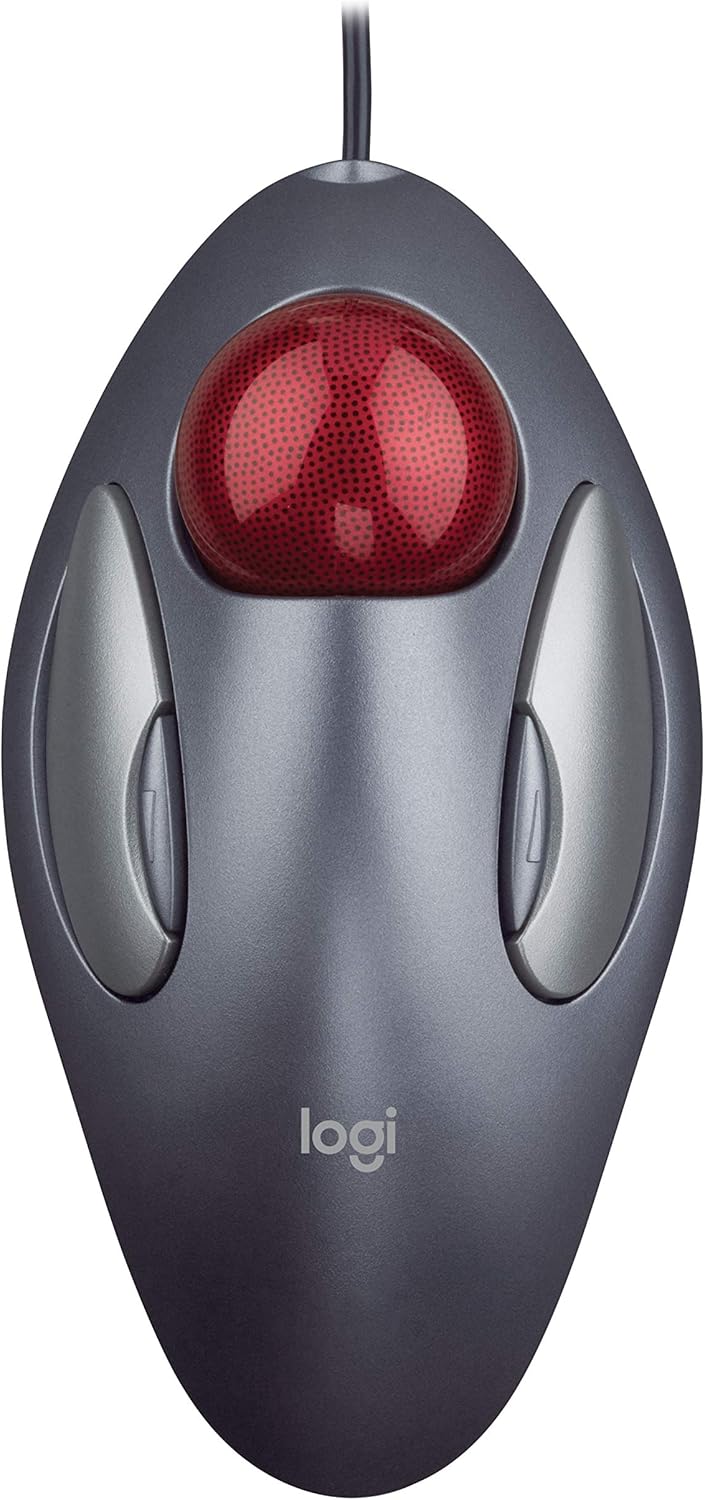
Figure 1: Top-down view of the Logitech Trackman Marble Trackball.
Operating Instructions
Basic Functionality
- Trackball: Use your fingers (typically index, middle, or ring finger) to roll the red trackball to move the cursor on the screen. The trackball remains stationary, allowing cursor movement without moving your arm or wrist.
- Left Click Button: The large silver button on the left side of the trackball. Used for selecting items, opening files, and primary interactions.
- Right Click Button: The large silver button on the right side of the trackball. Used for accessing context menus and secondary interactions.
Programmable Buttons
The Trackman Marble features four programmable buttons. The two main large buttons function as left and right click by default. The two smaller, inner silver buttons (often referred to as Back/Forward buttons) can be customized using Logitech Options software.
- Default Functionality: The smaller inner buttons typically function as "Back" and "Forward" for web browsing or navigating folders.
- Customization: With Logitech Options software, you can configure these buttons to perform various functions, such as:
- Switching applications
- Opening browser windows
- Jumping to full screen mode in videos
- Copy/Paste functions
- And many more, depending on your needs.
To download Logitech Options software, visit Logitech's official website.

Figure 2: Ergonomic use of the Trackman Marble Trackball.
Product Overview Video
Video 1: An official product video showcasing the Logitech Trackman Marble Trackball from various angles, highlighting its design and features.
Maintenance
Regular cleaning of your Trackman Marble Trackball ensures optimal performance and longevity. Dust and debris can accumulate around the trackball, affecting its smooth movement.
Cleaning the Trackball
- Remove the Trackball: Gently push the trackball from the underside of the device through the opening. The trackball should pop out easily.
- Clean the Trackball: Wipe the red trackball with a soft, lint-free cloth. If necessary, dampen the cloth slightly with water or a mild, non-abrasive cleaner. Ensure the trackball is completely dry before reinserting.
- Clean the Sensor Area: Inside the trackball cavity, you will see three small white support points and the optical sensor. Use a dry cotton swab or a can of compressed air to carefully remove any dust, lint, or debris from these points and the sensor. Avoid touching the sensor directly with your fingers.
- Reinsert the Trackball: Place the clean trackball back into its cavity, ensuring it sits securely and can roll freely.
Perform this cleaning routine periodically, or whenever you notice the cursor movement becoming less smooth or erratic.
Troubleshooting
| Problem | Possible Cause | Solution |
|---|---|---|
| Cursor does not move or moves erratically. |
|
|
| Buttons are not responding. |
|
|
| Programmable buttons not working as expected. |
|
|
Specifications
| Feature | Detail |
|---|---|
| Brand | Logitech |
| Model Number | 910-000806 |
| Connectivity Technology | Wired (USB / PS/2 compatible) |
| Movement Detection Technology | Optical Trackball |
| Number of Buttons | 4 (Programmable) |
| Ergonomic Design | Ambidextrous |
| Color | Dark Gray with Red Trackball |
| Product Dimensions | 9 x 3 x 8 inches |
| Item Weight | 3.14 ounces |
| Date First Available | December 13, 2006 |
Warranty and Support
For information regarding product warranty, technical support, and additional resources, please visit the official Logitech support website.
Logitech Support: https://support.logi.com/
You can also refer to the User Manual (PDF) for further details.
Related documents910-000806


Ask a question about this manual
Ask about setup, troubleshooting, compatibility, parts, safety, or missing instructions. Manuals+ will review the question and use this page’s manual context to help answer it.