
1. Introduction
This manual provides essential instructions for the setup, operation, and maintenance of your Optelec Clearview+ Basic Features Pack. This accessory enhances the functionality of your Clearview+ video magnifier system, offering a position indicator and a selection of 16 alternate color palettes for improved viewing comfort and clarity.
The Basic Features Pack is designed for compatibility with Optelec Clearview+ 17", 19", and 22" color CRT or TFT (LCD Flat Panel) monitors.
2. Components
The Optelec Clearview+ Basic Features Pack includes the necessary hardware and software to enable its features. The primary component is the feature module, which integrates with your existing Clearview+ system.
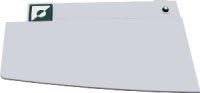
Image 1: The Optelec Clearview+ Basic Features Pack module. This image displays a rectangular, light-colored module with a dark green square logo in the upper left corner and a small circular element in the upper right. This module is an integral part of the Clearview+ system, enabling enhanced features.
3. Setup Instructions
Before proceeding, ensure your Clearview+ video magnifier system is powered off and unplugged from the electrical outlet.
- Locate the Expansion Port: Identify the designated expansion port on your Clearview+ main unit. Refer to your Clearview+ main unit's user manual for the exact location.
- Insert the Features Pack Module: Carefully align the Basic Features Pack module with the expansion port. Gently push the module into place until it is securely seated. Do not force the module.
- Reconnect Power: Once the module is securely installed, plug your Clearview+ system back into the electrical outlet.
- Power On: Turn on your Clearview+ system. The system should recognize the new features automatically.
- Initial Configuration (if prompted): Some systems may require a brief initial configuration or calibration after installing new hardware. Follow any on-screen prompts that may appear.
If you encounter any difficulties during installation, consult the troubleshooting section or contact customer support.
4. Operating Instructions
4.1. Using the Position Indicator
The position indicator helps users accurately locate the camera's viewing area on the material placed under the Clearview+ camera. This feature is particularly useful for precise reading or task execution.
- Activation: The position indicator typically activates automatically or can be toggled via a dedicated button on your Clearview+ control panel. Refer to your Clearview+ main unit's user manual for specific button functions.
- Interpretation: The indicator provides a visual cue on the screen, corresponding to the exact area the camera is currently capturing.
- Adjustment: Move the reading table or the material to align the desired content with the position indicator on the screen.
4.2. Selecting Color Palettes
The Basic Features Pack offers 16 alternate color palettes to optimize contrast and readability for various visual conditions and preferences. These "color backgrounds" can significantly improve comfort during extended use.
- Accessing Palettes: Locate the "Color Mode" or "Palette" button on your Clearview+ control panel. Pressing this button will cycle through the available color combinations.
- Cycling Through Options: Each press of the button will switch to the next available color palette. Continue pressing until you find a combination that offers the best contrast and comfort for your current viewing material.
- Common Palettes: Examples of palettes include black on white, white on black, yellow on blue, blue on yellow, black on yellow, and various high-contrast combinations.
Experiment with different palettes to determine which ones are most effective for different types of documents or lighting conditions.
5. Maintenance
The Optelec Clearview+ Basic Features Pack module requires minimal maintenance. Follow these guidelines to ensure its longevity and optimal performance:
- Cleaning: Ensure the Clearview+ system is powered off and unplugged. Use a soft, dry, lint-free cloth to gently wipe the exterior of the module. Do not use liquid cleaners, aerosols, or abrasive materials, as these can damage the device.
- Storage: When not in use for extended periods, store the Clearview+ system and its components in a clean, dry environment, away from extreme temperatures and direct sunlight.
- Handling: Handle the module with care to avoid physical damage. Avoid dropping or subjecting it to strong impacts.
6. Troubleshooting
If you experience issues with your Basic Features Pack, refer to the following common problems and solutions:
| Problem | Possible Cause | Solution |
|---|---|---|
| Features not available after installation. | Module not properly seated. | Power off the Clearview+ system, unplug it, and re-seat the module firmly into the expansion port. Power on again. |
| Position indicator not visible. | Feature not activated or system error. | Ensure the feature is activated via the control panel. Restart the Clearview+ system. Consult the main Clearview+ manual. |
| Cannot change color palettes. | Incorrect button pressed or software issue. | Verify you are pressing the correct "Color Mode" or "Palette" button. Restart the Clearview+ system. |
If the problem persists after attempting these solutions, please contact customer support for further assistance.
7. Specifications
- Product Name: Optelec Clearview+ Basic Features Pack
- Model Number: Clearview+ Basic Features Pack (Part No. 100728)
- Features: Position Indicator, 16 Alternate Color Palettes
- Compatibility: Optelec Clearview+ 17", 19", and 22" color CRT or TFT (LCD Flat Panel) monitors
- Manufacturer: MAGNIFYING AIDS
- ASIN: B001DVUPT6
- Date First Available: August 5, 2008
8. Warranty and Support
For information regarding the warranty of your Optelec Clearview+ Basic Features Pack, please refer to the warranty documentation provided with your original Clearview+ system or contact the manufacturer, MAGNIFYING AIDS, directly.
For technical support, troubleshooting assistance beyond what is covered in this manual, or inquiries about replacement parts, please contact MAGNIFYING AIDS customer service. Contact details can typically be found on the manufacturer's website or in the original product packaging.