
Introduction
The Iomega Prestige Desktop Hard Drive USB 2.0 offers a simple and reliable solution for expanding your storage capacity. This manual provides essential information for setting up, operating, and maintaining your device.

Image: The Iomega Prestige 500 GB External Hard Drive, silver, standing upright on a desk with its included stand, positioned next to a computer monitor, lamp, and keyboard.
Package Contents
- Iomega Prestige 500 GB USB 2.0 Desktop External Hard Drive
- USB 2.0 Cable
- Power Adapter
- Desktop Stand
- Quick Start Guide
Product Features
- Capacity: 500 GB for ample data storage.
- Interface: USB 2.0 for broad compatibility.
- Design: Stylish dark silver brushed aluminum construction with included stand for vertical placement.
- Ease of Use: Plug-and-play functionality.
- Power: External power adapter for stable operation.
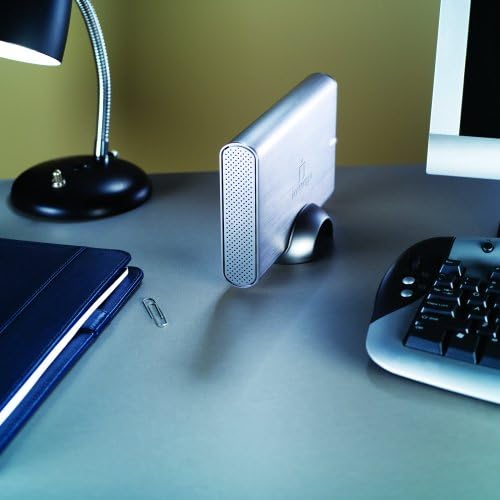
Image: Front view of the Iomega Prestige External Hard Drive, showcasing its brushed silver finish and the Iomega logo, with the stand visible at the bottom.
Setup
1. Physical Connection
- Place the hard drive on a stable, flat surface, or use the included stand for vertical orientation. Ensure adequate ventilation.
- Connect the power adapter to the hard drive's power input port and then plug it into a wall outlet.
- Connect one end of the USB 2.0 cable to the USB port on the hard drive.
- Connect the other end of the USB 2.0 cable to an available USB port on your computer.
- Press the power button on the hard drive to turn it on. The power indicator light should illuminate.
2. Initial Setup (Windows/macOS)
The drive is pre-formatted for Windows. For macOS, reformatting is required.
For Windows:
The drive should be automatically detected and appear as a new drive letter in "My Computer" or "This PC". No additional drivers are typically required.
For macOS:
- Connect the drive as described above.
- Open "Disk Utility" (Applications > Utilities > Disk Utility).
- Select the Iomega drive from the sidebar.
- Click "Erase".
- Choose a format (e.g., "Mac OS Extended (Journaled)") and a scheme (e.g., "GUID Partition Map").
- Click "Erase" again to confirm. Warning: This will delete all data on the drive.
Operating the Device
1. Data Transfer
To transfer files, simply drag and drop them to and from the Iomega drive icon on your computer. You can also use copy and paste functions.
2. Safe Removal
Always safely eject the hard drive before disconnecting it or turning off its power to prevent data corruption.
For Windows:
- Click the "Safely Remove Hardware and Eject Media" icon in the system tray.
- Select the Iomega drive from the list.
- Wait for the "Safe to Remove Hardware" message before disconnecting.
For macOS:
- Drag the Iomega drive icon from your desktop to the Trash icon in the Dock (the Trash icon will change to an Eject icon).
- Alternatively, right-click (or Control-click) the drive icon and select "Eject".
Maintenance
- Physical Care: Keep the drive in a clean, dry environment. Avoid extreme temperatures and direct sunlight.
- Ventilation: Ensure the drive's ventilation holes are not obstructed to prevent overheating.
- Data Backup: Regularly back up critical data from your external drive to another location to prevent data loss.
- Firmware Updates: Check the official Iomega support website for any available firmware updates for your model.
Troubleshooting
Drive Not Detected:
- Ensure the power adapter is securely connected and the drive is powered on.
- Verify the USB cable is firmly connected to both the drive and the computer.
- Try a different USB port on your computer.
- Test with a different USB cable if available.
- Restart your computer.
Slow Transfer Speeds:
- Ensure you are using a USB 2.0 port on your computer.
- Avoid transferring many small files simultaneously; compressing them into an archive can improve speed.
- Close other applications that might be using system resources.
Drive Makes Unusual Noises:
A slight hum is normal. However, if you hear clicking, grinding, or loud scraping sounds, immediately back up any accessible data and discontinue use. Contact support if necessary.
Specifications
| Model Number | 34270 |
| Digital Storage Capacity | 500 GB |
| Hard Disk Interface | USB 2.0 |
| Connectivity Technology | USB |
| Hard Disk Form Factor | 3.5 Inches |
| Hard Disk Rotational Speed | 7200 RPM |
| Data Transfer Rate | Up to 480 Megabytes Per Second (USB 2.0) |
| Cache Memory Installed Size | 8 MB |
| Compatible Devices | Desktop PC |
| Color | Silver |
| Item Weight | 2.45 Pounds (approx. 1.11 kg) |
Warranty and Support
The Iomega Prestige Hard Drive comes with a 3-year warranty with product registration. For technical support, warranty claims, or further assistance, please visit the official Iomega support website or contact their customer service.
For the most up-to-date support information, please refer to www.iomega.com/support (Note: This is a placeholder URL, please refer to your product's official documentation for the correct support link.)