1. Introduction
This manual provides instructions for the Insignia 7" Widescreen LCD Digital Photo Frame, model NS-DPF7WA-09. This device allows you to display digital photos from memory cards or its internal memory, offering various slideshow options and display settings. It features a 7-inch TFT-LCD screen with a 16:9 widescreen aspect ratio, 800 x 480 resolution, and 500:1 contrast ratio for clear image presentation.
Please read this manual thoroughly before operating your digital photo frame to ensure proper use and to maximize its features.
2. Package Contents
Verify that all items are present in the package:
- Insignia 7" Widescreen LCD Digital Photo Frame
- Remote Control
- Power Adapter
- Owner's Manual (this document)
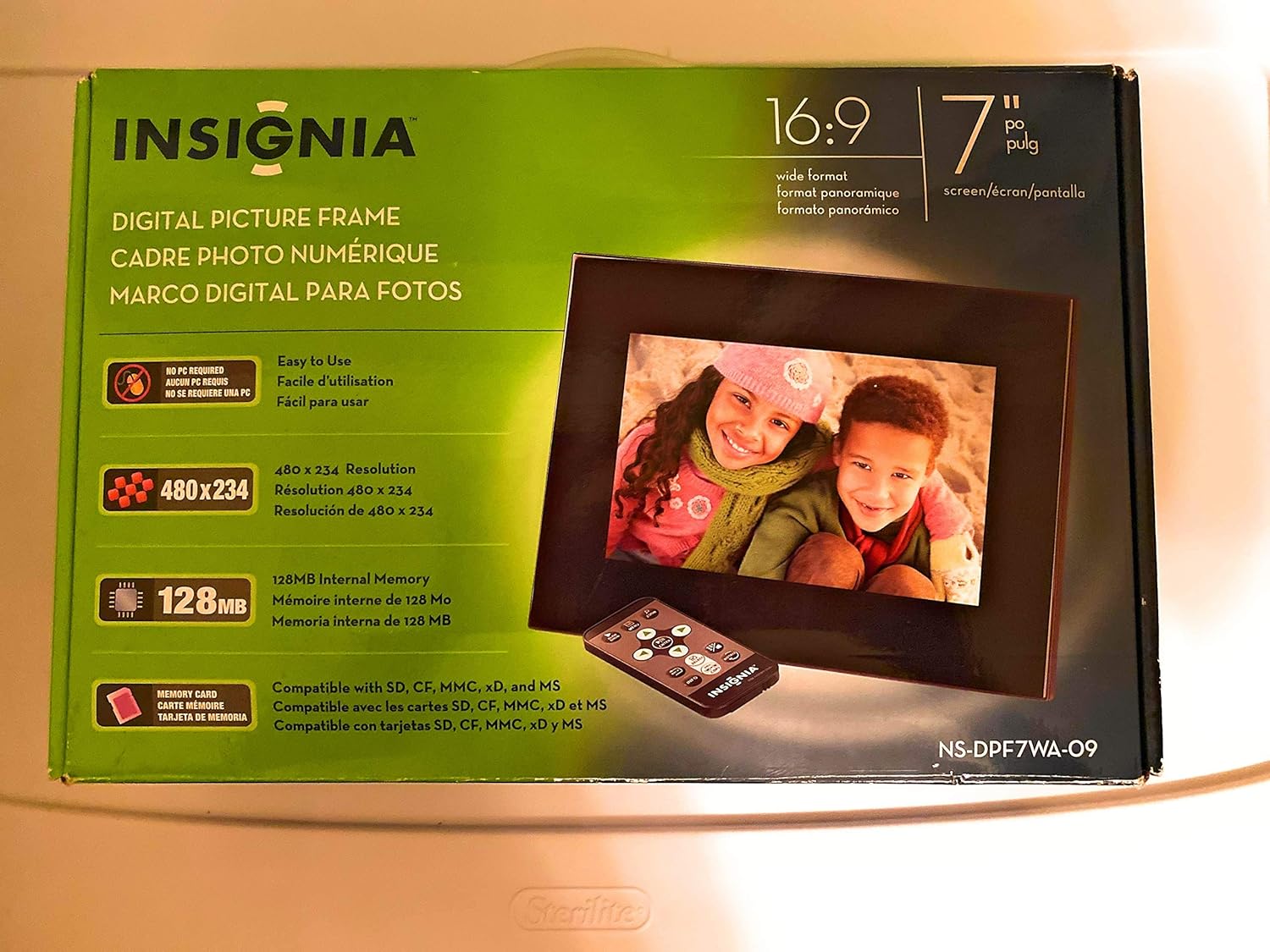
Image 1: Retail packaging of the Insignia 7" Widescreen LCD Digital Photo Frame, highlighting key features like screen size, resolution, internal memory, and supported memory card types.
3. Setup
3.1 Positioning the Frame
The digital photo frame includes a multiple-position adjustable stand. Adjust the stand to achieve an optimal viewing angle for your desired location.
3.2 Power Connection
- Connect the power adapter to the DC IN port on the back of the digital photo frame.
- Plug the other end of the power adapter into a standard electrical outlet.
- The frame will typically power on automatically or enter standby mode.
3.3 Inserting Memory Cards
The frame supports various memory card formats. Locate the memory card slot(s) on the side or back of the frame.
- Supported formats include: Secure Digital (SD), Secure Digital High Capacity (SDHC), microSD, Memory Stick (MS), Memory Stick PRO Duo, MultiMediaCard (MMC), and xD-Picture Card.
- Insert the memory card gently into the appropriate slot until it clicks into place. Ensure the card is inserted in the correct orientation.

Image 2: The Insignia 7" Widescreen LCD Digital Photo Frame unboxed, showing the frame, remote control, and a portion of the manual. This view helps identify the physical components.
4. Operating Instructions
4.1 Remote Control Overview
The included remote control provides full functionality for navigating menus and controlling playback. Ensure the remote's battery is functional. A small tray on the back of the digital photo frame is provided for remote storage.
4.2 Playing a Slideshow
The digital photo frame can play slideshows from either an inserted memory card or its 128MB internal memory.
- Select Source: Use the remote control to navigate to the main menu and select your desired photo source (e.g., "Memory Card" or "Internal Memory").
- Start Slideshow: Once the source is selected, the frame will typically begin a slideshow automatically.
- Slideshow Settings: Access the settings menu to customize slideshow options, including:
- Transitional Styles: Choose from multiple visual effects between photos.
- Variable Speed: Adjust the duration each photo is displayed.
4.3 Adjusting Photo View
Within the slideshow or photo browsing mode, you can often adjust how individual photos are displayed. Options may include zoom, rotate, or fit-to-screen. Refer to the on-screen menu for specific controls.
4.4 Changing Display Settings
The frame's settings menu allows you to modify various display parameters:
- Brightness/Contrast: Adjust screen brightness and contrast for optimal viewing in different lighting conditions.
- Aspect Ratio: Configure how images are scaled to fit the 16:9 widescreen display.
- Auto Power Off: Enable or disable the auto power off feature, which conserves energy by turning off the frame after a period of inactivity.
- Date/Time: Set the current date and time.
5. Maintenance
- Cleaning the Screen: Use a soft, lint-free cloth to gently wipe the LCD screen. For stubborn smudges, slightly dampen the cloth with water or a screen-cleaning solution designed for electronics. Avoid harsh chemicals or abrasive materials.
- Cleaning the Frame: Wipe the exterior of the frame with a soft, dry cloth.
- Storage: When not in use for extended periods, store the frame in a cool, dry place, away from direct sunlight and extreme temperatures.
- Power Adapter: Ensure the power adapter cable is not bent or damaged.
6. Troubleshooting
If you encounter issues with your Insignia digital photo frame, refer to the following common solutions:
| Problem | Solution |
|---|---|
| Frame does not power on. |
|
| Remote control is unresponsive. |
|
| Photos are not displaying or appear distorted. |
|
| Slideshow transitions are slow or clumpy. |
|
7. Specifications
| Feature | Detail |
|---|---|
| Model Number | NS-DPF7WA-09 |
| Screen Size | 7 Inches |
| Display Type | TFT-LCD |
| Aspect Ratio | 16:9 Widescreen |
| Resolution | 800 x 480 (SVGA) |
| Contrast Ratio | 500:1 |
| Internal Memory | 128MB |
| Supported Memory Cards | Secure Digital (SD), Secure Digital High Capacity (SDHC), microSD, Memory Stick (MS), Memory Stick PRO Duo, MultiMediaCard (MMC), xD-Picture Card |
| Product Dimensions | 2.2 x 9.2 x 6.5 inches |
| Item Weight | 1.2 pounds |
| Power Source | Power Adapter (included) |
| Remote Control Battery | 1 Lithium Metal battery (required) |
8. Warranty and Support
For warranty information or technical support, please refer to the warranty card included with your product or visit the official Insignia support website. Keep your purchase receipt for warranty claims.
Online Support: www.insigniaproducts.com/support


