
1. Introduction
This manual provides detailed instructions for the safe and efficient use of your iRiver T7 Volcano 4 GB USB MP3 Player. Please read this manual thoroughly before operating the device to ensure proper functionality and to prevent damage.
Key Features:
- Integrated USB 2.0 connector for direct connection to a computer.
- 4 GB internal flash memory for music storage.
- Up to 11 hours of continuous audio playback.
- Monochrome Blue OLED display (64x128 pixels) for clear navigation.
- Built-in voice recorder for memos and audio notes.
- FM radio tuner with recording capability.
- Supports MP3, WMA, ASF, and OGG Q10 audio formats.
- Multiple equalizer settings including SRS WOW HD.
2. Setup
2.1 Package Contents
Verify that all items are present in the package:
- iRiver T7 Volcano MP3 Player
- USB Extension Cable (if included)
- Earphones
- Quick Start Guide
2.2 Charging the Device
The iRiver T7 Volcano charges via its integrated USB connector.
- Carefully remove the cap from the USB connector located at the top of the device.
- Plug the USB connector directly into an available USB port on your computer.
- The device will begin charging automatically. The display will indicate the charging status.
- A full charge typically takes approximately 2-3 hours.
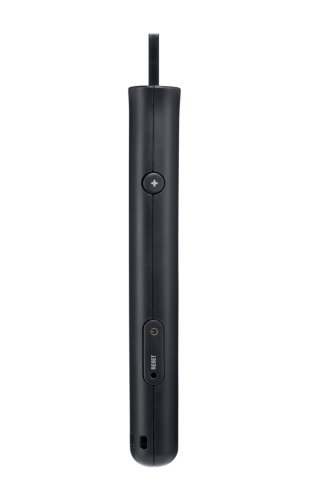
Figure 1: Side view of the iRiver T7 Volcano, illustrating the USB connector cap at the top and the power/reset buttons on the side.
2.3 Connecting to a Computer and Transferring Files
The iRiver T7 Volcano can connect to your computer in two modes: MSC (Mass Storage Class) and MTP (Media Transfer Protocol).
- Connect the device to your computer's USB port as described in Section 2.2.
- The device will prompt you to select a connection mode.
- MSC Mode: Allows the device to function as a standard USB flash drive. You can drag and drop audio files directly into the device's folders using your computer's file explorer. This mode is generally recommended for ease of use.
- MTP Mode: Used for transferring DRM-protected content or for synchronization with specific media management software.
- To switch between MSC and MTP modes, a format of the device's storage may be required. Back up any important data before switching modes.
- Once connected, you can transfer MP3, WMA, ASF, and OGG files from your computer to the player's storage.
The device is compatible with Windows 2000, XP, and Vista operating systems.
3. Operating Instructions
3.1 Device Layout and Controls
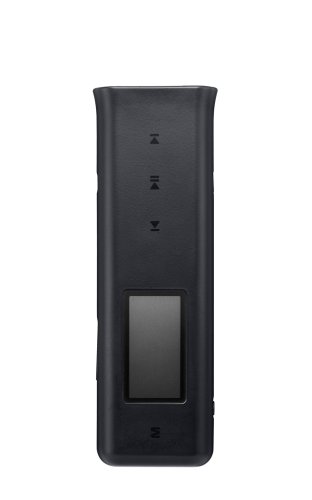
Figure 2: Front view of the iRiver T7 Volcano, highlighting the OLED display and primary control buttons.
- Play/Pause Button (►⏸): Press to play or pause audio.
- Next Track/Fast Forward Button (►►): Press to skip to the next track. Hold to fast forward.
- Previous Track/Rewind Button (◄◄): Press to go to the previous track. Hold to rewind.
- Volume Up/Down Buttons (+/-): Located on the side (refer to Figure 1). Press to adjust volume.
- Menu/Mode Button (M): Located at the bottom front. Press to access the main menu or change modes (Music, FM Radio, Voice Recorder).
- Power Button: Located on the side (refer to Figure 1). Press and hold to power on/off.
3.2 Music Playback
- Ensure audio files are loaded onto the device (see Section 2.3).
- Power on the device by pressing and holding the Power button.
- Navigate to the "Music" mode using the Menu button.
- Browse your music library using the Next/Previous track buttons.
- Press the Play/Pause button to start playback.
- Adjust volume using the side buttons.
- To access equalizer settings (6EQ, User EQ, SRS WOW HD), press the Menu button during playback and navigate to the audio settings.
Note: Browsing the music library while music is playing may cause the current track to stop.
3.3 Voice Recording
- From the main menu, select "Voice Recorder" mode.
- Press the Play/Pause button to start recording. The display will show the recording time.
- Press the Play/Pause button again to stop and save the recording.
- Recordings are saved internally and can be accessed via the "Recordings" folder in Music mode or when connected to a computer.
3.4 FM Radio
- From the main menu, select "FM Radio" mode.
- The device will automatically scan for available stations (76.0MHz to 108MHz).
- Use the Next/Previous track buttons to tune between stations.
- To record FM radio, press the Play/Pause button during radio playback. Press again to stop recording.
4. Maintenance
- Cleaning: Use a soft, dry cloth to clean the device. Do not use liquid cleaners or solvents.
- Storage: Store the device in a cool, dry place away from direct sunlight and extreme temperatures.
- Battery Care: To prolong battery life, avoid fully discharging the battery frequently. Charge the device regularly, even if not in use for extended periods.
- USB Connector: Always replace the USB connector cap when not in use to protect it from dust and damage.
5. Troubleshooting
5.1 Common Issues and Solutions
- Device does not power on:
- Ensure the battery is charged. Connect the device to a USB port for charging.
- Press and hold the Power button for several seconds.
- Locate the small "RESET" button on the side (refer to Figure 1) and press it gently with a thin, pointed object (e.g., a paperclip). This will restart the device without erasing data.
- Computer does not recognize the device:
- Ensure the USB connector is fully inserted into the computer's USB port.
- Try a different USB port or a different computer.
- Ensure you are using a compatible operating system (Windows 2000, XP, Vista).
- If prompted, select the correct connection mode (MSC is generally more compatible).
- No sound from earphones:
- Check if the earphones are properly plugged into the headphone jack.
- Ensure the volume is not set to minimum or muted.
- Test with a different pair of earphones to rule out faulty earphones.
- Music playback stops when browsing:
- This is a characteristic of the device. To avoid interruption, complete browsing before starting playback or use shuffle mode if available (consult advanced settings).
6. Specifications
| Feature | Detail |
|---|---|
| Model Name | T7 Volcano (1T074BLK) |
| Memory Storage Capacity | 4 GB |
| Connectivity Technology | USB 2.0 (Integrated) |
| Display | Mono Blue OLED (64x128) |
| Audio File Support | MPEG 1/2/2.5 Layer 3 (MP3), WMA, ASF, OGG (Up to Q10) |
| MP3/WMA Bit Rate | 8Kbps to 320Kbps |
| Audio Frequency Range | 20Hz to 20KHz |
| Signal-to-Noise Ratio (SNR) | 90 dB |
| Headphone Output Power | 15mW(R) - 15mW(L) (16-Ohms) at Max Volume |
| Equalizer | 6EQ, User EQ, SRS WOW HD |
| FM Tuner Frequency Range | 76.0MHz to 108MHz |
| Special Feature | Voice Recorder, FM Radio Recorder |
| Battery Life | Up to 11 hours (MP3, 128kbps, 44.1kHz, EQ Normal, Volume 20, LCD Off) |
| Operating System Compatibility | Windows 2000, XP, Vista |
| Dimensions (LxWxH) | 84.0 x 26.0 x 11.0 mm (3.31 x 1.02 x 0.43 inches) |
| Weight | 26.3 grams (0.93 oz) |
| Color | Black |

Figure 3: Rear view of the iRiver T7 Volcano, displaying the iRiver logo, model information, and regulatory markings.
7. Warranty and Support
For warranty information and technical support, please refer to the warranty card included with your product or visit the official iRiver website. Keep your proof of purchase for warranty claims.