
NETGEAR WNR2000-100NAS
Contents
NETGEAR Wireless Router - N300 (WNR2000) User Manual
Model: WNR2000-100NAS | Brand: NETGEAR
Introduction
This manual provides comprehensive instructions for setting up, operating, and maintaining your NETGEAR N300 Wireless Router (WNR2000). Designed for home and small office use, this router offers reliable wireless connectivity for various devices, including gaming consoles, personal computers, smartphones, and tablets. Its compact design and user-friendly features make it an excellent choice for establishing a fast and efficient internet connection.

Figure 1: Front view of the NETGEAR N300 Wireless Router (WNR2000).
Key Features
- Supports Windows 8 for broad compatibility.
- Fast downloads and online gaming with speeds up to 300 Mbps.
- NETGEAR Genie App: Easy-to-use dashboard to monitor, control, and repair home networks.
- Live Parental Controls: Centralized parental control for all connected devices.
- Wireless security with the highest grade protection (WPA/WPA2—PSK and WEP).
- Equipped with a Wi-Fi on/off button and Power on/off button for convenience.
- Features a wireless repeater mode for extending network range.
- Guest network access provides separate and secure access for visitors.
- Broadband Usage Meter monitors Internet traffic and sends customized reports.
Package Contents
Ensure all items are present in the package before proceeding with installation:
- N300 Wireless Router (WNR2000v3)
- Stand
- Ethernet cable
- Power adapter (localized to country of sale)
System Requirements
To ensure proper functionality, your network environment should meet the following requirements:
- Broadband (cable, DSL) Internet service and modem with Ethernet connection.
- 802.11 b/g/n 2.4 GHz wireless adapter or Ethernet adapter and cable for each computer.
- Operating System: Microsoft Windows 7, Vista, XP, 2000, Mac OS, UNIX, or Linux.
- Web Browser: Microsoft Internet Explorer 5.0, Firefox 2.0 or Safari 1.4 or higher.
- For maximum performance, use with an N300 Wireless USB Adapter (WNA3100).
Setup Guide
Follow these steps to set up your NETGEAR N300 Wireless Router:
- Unpack and Place: Carefully remove the router and its components from the packaging. Place the router in a central location in your home or office for optimal Wi-Fi coverage. Ensure it is placed on a flat, stable surface and has adequate ventilation.
- Connect to Power: Connect the power adapter to the router's power port and then plug it into a wall outlet. Press the Power On/Off button if the router does not power on automatically.
- Connect to Modem: Connect one end of the provided Ethernet cable to the yellow "Internet" port on the back of your router. Connect the other end to an available Ethernet port on your broadband modem.
- Connect Devices:
- Wired Connection: For wired devices, connect an Ethernet cable from one of the four LAN ports (1-4) on the back of the router to your computer or other network device.
- Wireless Connection: For wireless devices, locate the Wi-Fi network name (SSID) and password, usually found on a label on the router. Connect your device to this network.
- Access Router Settings: Open a web browser on a connected computer or device. Type http://www.routerlogin.net into the address bar. The default username is "admin" and the default password is "password". Follow the on-screen instructions from the NETGEAR Genie setup wizard to configure your internet connection and Wi-Fi settings.

Figure 2: Rear view of the NETGEAR N300 Wireless Router showing Ethernet and Internet ports.
Operating Your Router
Once set up, your NETGEAR N300 router provides various features to manage your network:
- Wi-Fi Protected Setup (WPS): Use the Push 'N' Connect button on the router to easily connect WPS-compatible devices without manually entering the password.
- Guest Network Access: Create a separate Wi-Fi network for guests. This keeps your main network secure and private while providing internet access to visitors. Configure this feature via the NETGEAR Genie interface.
- Live Parental Controls: Manage and filter internet content for all devices connected to your network. This feature helps ensure a safe online experience for children and can be customized through the NETGEAR Genie.
- Broadband Usage Meter: Monitor your internet data consumption. This tool can help you track usage against your ISP's data caps and generate customized reports.
- Wireless Repeater Mode: The router can be configured to extend the range of an existing wireless network, improving coverage in larger areas.
- Physical Buttons: The router includes dedicated Power On/Off and Wi-Fi On/Off buttons for quick control over the device and its wireless signal.
Maintenance
Regular maintenance helps ensure optimal performance and longevity of your router:
- Keep Clean: Periodically clean the exterior of the router with a soft, dry cloth. Ensure ventilation holes are free from dust and obstructions.
- Proper Ventilation: Do not place the router in an enclosed space or cover its ventilation openings. Overheating can affect performance and lifespan.
- Firmware Updates: Check the NETGEAR support website regularly for firmware updates. Keeping your router's firmware up-to-date can improve performance, add new features, and enhance security.
- Secure Placement: Place the router in a secure location where it is unlikely to be knocked over or damaged.
Troubleshooting
If you encounter issues with your NETGEAR N300 Wireless Router, try the following common troubleshooting steps:
- No Internet Connection:
- Verify that your modem is working correctly and has an active internet connection.
- Check all Ethernet cable connections between the modem and router, and between the router and your devices.
- Restart your modem, then your router, and finally your computer/device. Wait a few minutes after each restart.
- Log into the NETGEAR Genie (routerlogin.net) to check the internet status and run diagnostics.
- Slow Wi-Fi Speed:
- Ensure the router is placed centrally and away from obstructions or interference sources (e.g., cordless phones, microwaves).
- Check if too many devices are simultaneously using the network, especially for high-bandwidth activities like streaming or gaming.
- Update your device's wireless adapter drivers.
- Consider changing the Wi-Fi channel in the router settings to avoid interference from neighboring networks.
- Cannot Connect to Wi-Fi:
- Ensure the Wi-Fi On/Off button on the router is enabled.
- Double-check the Wi-Fi network name (SSID) and password. Passwords are case-sensitive.
- Try restarting both the router and the device you are trying to connect.
- If using WPS, ensure your device supports it and follow the WPS connection procedure correctly.
- Forgotten Password: If you forget your router's login password or Wi-Fi password, you can perform a factory reset. Locate the reset button (often a small pinhole) on the router, press and hold it for about 10 seconds while the router is powered on. This will restore the router to its factory default settings, including the default login credentials and Wi-Fi password (usually printed on a label on the router).
For more detailed troubleshooting or persistent issues, refer to the official NETGEAR support website or the full user manual PDF.
Specifications
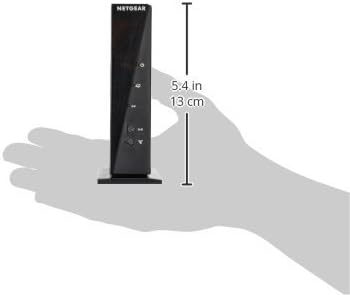
Figure 3: Dimensions of the NETGEAR N300 Wireless Router.
| Attribute | Value |
|---|---|
| Product Dimensions | 10.24 x 8.98 x 2.56 inches |
| Item Weight | 5.8 ounces |
| ASIN | B001AZP8EW |
| Item Model Number | WNR2000-100NAS |
| Batteries Required | 1 Lithium Ion batteries (not included, for internal clock/memory if applicable) |
| Is Discontinued By Manufacturer | No |
| Date First Available | July 7, 2004 |
| Manufacturer | Netgear |
| Language | English |
| Brand | NETGEAR |
| Model Name | WNR2000 |
| Frequency Band Class | Dual-Band (Note: Product description mentions 2.4GHz, but spec says Dual-Band. Sticking to spec.) |
| Wireless Communication Standard | 802.11n |
| Compatible Devices | Gaming Console, Personal Computer, Smartphone, Tablet |
| Frequency | 2.4 GHz |
| Recommended Uses For Product | Security |
| Connectivity Technology | WiFi, Wired |
| Color | Black |
| Antenna Type | Internal |
| Ethernet Ports | Five (5) (1 WAN, 4 LAN) Fast Ethernet ports |
| Security | Wi-Fi Protected Access (WPA/WPA2—PSK) and WEP, Double firewall protection (SPI and NAT firewall), Denial-of-service (DoS) attack prevention, Exposed Host (DMZ) for secure gaming |
Warranty Information
The NETGEAR N300 Wireless Router (WNR2000) comes with a Lifetime Warranty. This warranty is limited to hardware only for as long as the original buyer owns the product. External power supply is excluded. For full warranty details, please visit the official NETGEAR website: www.netgear.com/lifetimewarranty.
Support
For additional assistance, technical support, or to download the full user manual in PDF format, please visit the official NETGEAR support resources:
- Official User Manual (PDF): Download PDF
- NETGEAR Support Website: www.netgear.com/support
- NETGEAR Genie App: Available for download to manage your network.
Ask a question about this manual
Ask about setup, troubleshooting, compatibility, parts, safety, or missing instructions. Manuals+ will review the question and use this page’s manual context to help answer it.