
1. Introduction
The EVGA UV-16 UV Plus+ is a USB 2.0 to DVI adapter designed to expand your computer's display capabilities. It allows you to connect an additional monitor (CRT, LCD, or projector) to your computer using a standard USB 2.0 port, providing a convenient solution for multi-monitor setups without requiring an additional video card. The device is USB powered and utilizes lossless compression for video signal transfer, ensuring clear display quality. A retractable USB cable is included for ease of connection.

Image: The EVGA UV Plus+ 16 adapter shown alongside its product packaging.
2. Package Contents
Verify that all items are present in the package:
- EVGA UV Plus+ 16 USB 2.0 to DVI Adapter (Black)
- Retractable USB cable
- DVI-to-VGA adapter
- Quick Install Guide
- Driver CD (Note: Always check the manufacturer's website for the latest drivers.)

Image: Contents of the EVGA UV Plus+ 16 package, showing the adapter, cables, and documentation.
3. Features
- Hi-speed USB 2.0 to DVI-I adapter (USB 1.1 compatible)
- Retractable USB cable for convenient connection
- Blue LED power indicator
- Stackable design with magnetic surface for organized multi-unit setups
- DisplayLink certified technology
- Supports various resolutions up to 1680 x 1050
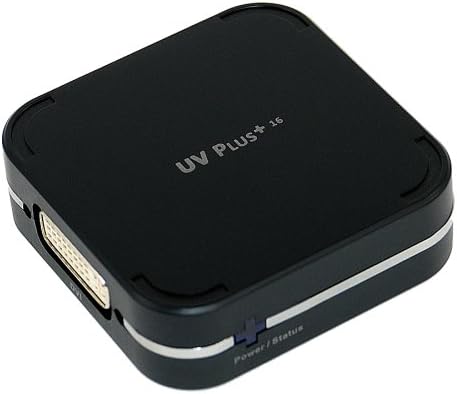
Image: Close-up view of the EVGA UV Plus+ 16 adapter, highlighting its DVI-I port.

Image: Multiple EVGA UV Plus+ 16 units stacked, illustrating the magnetic, stackable design.
4. Setup Instructions
- Install Drivers: Before connecting the UV Plus+ 16 adapter, install the necessary drivers. It is recommended to download the latest drivers from the official EVGA website or DisplayLink website for optimal performance and compatibility. Insert the provided driver CD or navigate to the support section of the EVGA website.
- Connect to Monitor: Connect one end of a DVI cable (not included) to the DVI-I port on the UV Plus+ 16 adapter. Connect the other end of the DVI cable to the DVI input on your external monitor. If your monitor only has a VGA input, use the included DVI-to-VGA adapter.
- Connect to Computer: Extend the retractable USB cable from the UV Plus+ 16 adapter and connect it to an available USB 2.0 port on your computer. The device is USB powered, so no external power adapter is required.
- Power On: Power on your computer and the external monitor. The blue LED power indicator on the UV Plus+ 16 adapter should illuminate.
- Configure Display Settings: Once connected, your operating system should detect the new display. You may need to adjust display settings (e.g., resolution, orientation, extended desktop mode) through your computer's display control panel. Refer to your operating system's documentation for specific instructions on configuring multiple displays.
5. Operating Instructions
The EVGA UV Plus+ 16 operates as an extension of your computer's display system. After successful driver installation and physical connection, the adapter will enable an additional display output.
- Extended Desktop Mode: This is the most common usage, allowing you to have separate applications open across multiple screens, increasing your workspace.
- Mirror Mode (Duplicate Displays): This mode duplicates your primary display onto the connected external monitor, useful for presentations.
- Primary Display: You can set the external monitor connected via the UV Plus+ 16 as your primary display, though it is generally recommended for secondary or tertiary displays due to potential performance differences compared to dedicated graphics card outputs.
Adjust these modes and resolutions via your operating system's display settings. For Windows, right-click on the desktop and select "Display settings" or "Screen resolution." For macOS, go to "System Preferences" > "Displays."
6. Supported Resolutions
The EVGA UV Plus+ 16 supports the following display resolutions:
- 800 x 600
- 1024 x 768
- 1152 x 864
- 1280 x 720
- 1280 x 1024
- 1440 x 900
- 1400 x 1050
- 1600 x 1200
- 1680 x 1050
7. Maintenance
The EVGA UV Plus+ 16 requires minimal maintenance. Keep the device clean and free from dust. Use a soft, dry cloth for cleaning. Avoid exposing the device to extreme temperatures, humidity, or direct sunlight. Ensure proper ventilation if stacking multiple units.
8. Troubleshooting
- No Display on External Monitor:
- Ensure the UV Plus+ 16 is securely connected to both the monitor and the computer's USB port.
- Verify that the monitor is powered on and set to the correct input source (DVI or VGA).
- Check if the blue LED power indicator on the UV Plus+ 16 is illuminated. If not, try a different USB port.
- Reinstall or update the DisplayLink drivers from the official website.
- Restart your computer.
- Display is Laggy or Stuttering:
- The UV Plus+ 16 uses USB 2.0, which has bandwidth limitations. It is best suited for static content, web browsing, and office applications. High-motion video, 3D applications, or gaming may experience lag.
- Ensure your computer meets the minimum system requirements for multi-display setups.
- Close unnecessary applications to free up system resources.
- Incorrect Resolution or Display Settings:
- Adjust the display settings through your operating system's control panel.
- Ensure the monitor supports the selected resolution.
- Device Not Recognized by Computer:
- Try connecting the UV Plus+ 16 to a different USB port on your computer.
- Ensure the drivers are correctly installed. Check Device Manager (Windows) or System Information (macOS) for any driver-related issues.
- Restart your computer.
9. Specifications
| Model Number | 100-U2-UV16-A1 |
| Interface | USB 2.0 (compatible with USB 1.1) |
| Video Output | DVI-I (with included DVI-to-VGA adapter) |
| Supported Resolutions | Up to 1680 x 1050 |
| Power Source | USB Powered |
| Dimensions (L x W x H) | 1.18 x 1.18 x 0.39 inches |
| Item Weight | 7.1 ounces |
| Manufacturer | EVGA |
| Date First Available | April 2, 2004 |
10. Warranty and Support
For warranty information and technical support, please refer to the official EVGA website or contact EVGA customer service directly. Product registration may be required to activate your warranty.
- EVGA Official Website: www.evga.com
- Driver Downloads: Always check the EVGA support page for the latest drivers and software updates.


