
1. Introduction
The TRENDnet TK-204UK is a 2-Port DVI USB KVM Switch designed to manage two computers using a single set of console controls. This device allows users to control two computers equipped with DVI and USB ports from one DVI monitor, USB keyboard, USB mouse, and a set of microphone/speakers. It simplifies your workspace by eliminating the need for multiple peripherals for each computer. The switch supports high-definition DVI video resolutions and includes two additional USB 2.0 ports for sharing peripherals like printers or storage drives.
2. Package Contents
- TRENDnet TK-204UK 2-Port DVI USB KVM Switch
- 2 x DVI-DVI/Audio Cable Kits
- 2 x USB A to B Cables
- Power Adapter
- Quick Installation Guide
3. Product Features
- Manages two PCs or Macs with one set of console controls.
- Shares an HD DVI monitor with two computers.
- Features two bonus USB 2.0 ports for networking printers, storage devices, and other peripherals.
- Allows listening to music on one computer while working on the other, thanks to independent audio switching.
- Includes all required cables for immediate setup.
- Supports 2 x USB keyboard and mouse ports.
- Provides 2-way audio support for an uninterrupted multimedia experience across multiple platforms.
- Offers advanced keyboard and mouse support.
- Multi-platform support for Windows, Mac, and Linux operating systems.
- Supports hot-plugging PCs without powering down the KVM switch (Windows OS).
- Digital video resolution up to 1920 x 1200 and analog video resolution up to 2048 x 1536.
- Integrated High-Bandwidth Digital Content Protection (HDCP) and Transition Minimized Differential Signaling (TDMS).
- No CD installation required; plug and play functionality.
4. System Requirements
- Two computers with DVI video output, USB ports, and 3.5mm audio jacks.
- One DVI monitor.
- One USB keyboard.
- One USB mouse.
- Speakers and/or microphone (optional).
- Supported Operating Systems: Windows, Mac, Linux.
5. Hardware Installation
Follow these steps to properly install your TRENDnet TK-204UK KVM switch. Ensure all computers are powered off before beginning the installation process.
- Connect Console Peripherals: Connect your DVI monitor, USB keyboard, USB mouse, and optional microphone/speakers to the corresponding ports on the front panel of the KVM switch.
- Connect Computers to KVM Switch: Use the provided DVI-DVI/Audio cable kits and USB A to B cables to connect your two computers to the KVM switch.
- Connect the DVI connector from the cable kit to the DVI output of your computer and the corresponding DVI input on the rear of the KVM switch.
- Connect the USB A connector from the USB cable to a USB port on your computer and the USB B connector to the corresponding USB input on the rear of the KVM switch.
- Connect the 3.5mm audio jacks (microphone and speaker) from the cable kit to the audio ports on your computer and the corresponding audio inputs on the rear of the KVM switch.
- Connect Power Adapter: Plug the included power adapter into the DC 5V port on the rear of the KVM switch and then into a power outlet.
- Power On: Power on your computers. The KVM switch will automatically detect the active computer.
- Optional USB 2.0 Device Connection: Connect any additional USB 2.0 devices (e.g., printer, flash drive) to the two bonus USB ports on the front of the KVM switch.

Figure 5.1: Front panel connections for console peripherals including DVI monitor, keyboard/mouse, and audio jacks.
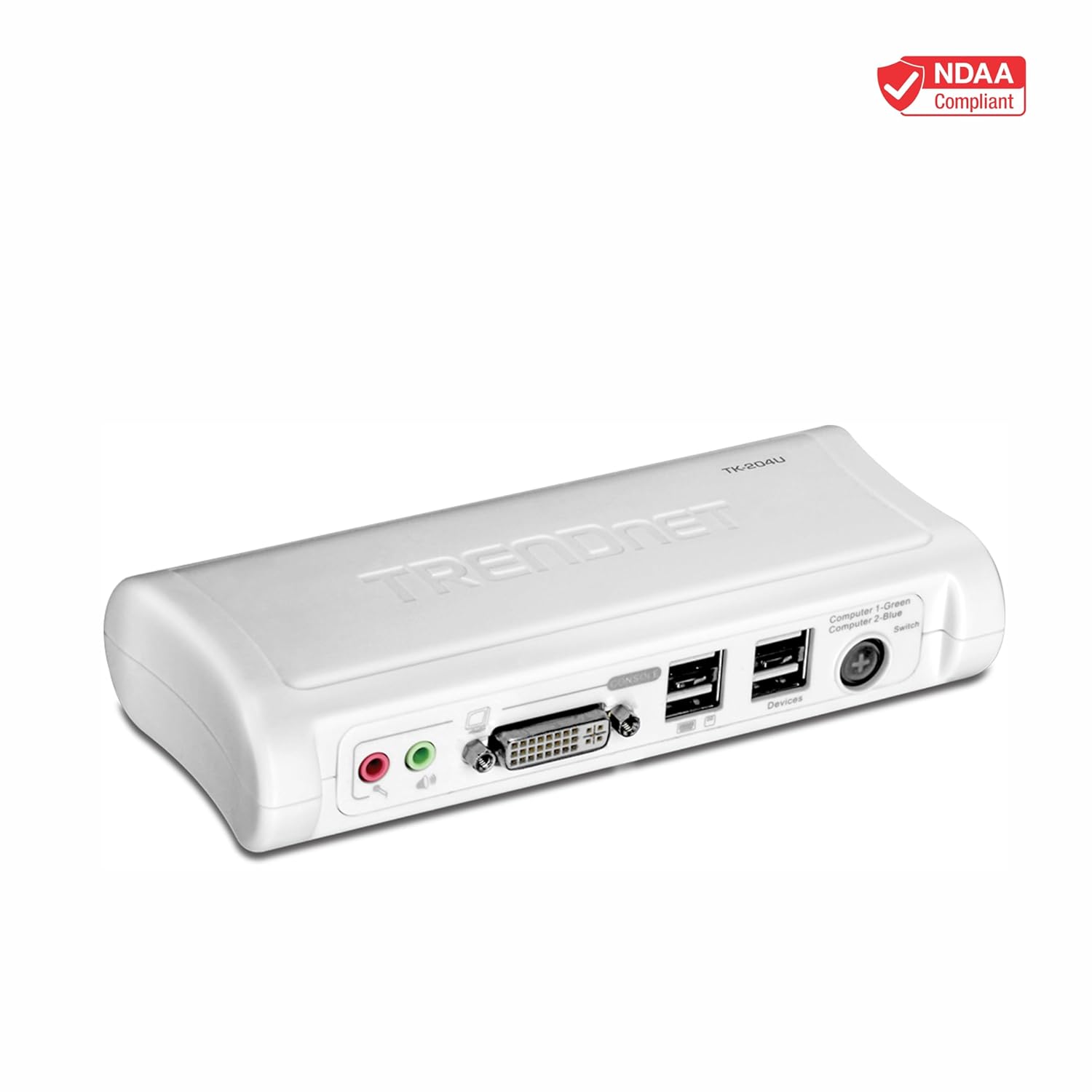
Figure 5.2: Rear panel connections for Computer 1 and Computer 2, including power, DVI, USB, and audio inputs.

Figure 5.3: A visual guide demonstrating the complete connection setup for the KVM switch, linking a monitor, keyboard, mouse, microphone, speakers, and a USB hub to the KVM switch and then to two PCs.
6. Operation
The TRENDnet TK-204UK KVM switch offers two primary methods for switching between connected computers:
6.1 Switching Methods
- Front Panel Button: Press the 'Switch' button located on the front panel of the KVM switch to toggle between Computer 1 and Computer 2. An LED indicator will show which computer is currently active (Green for Computer 1, Blue for Computer 2).
- Keyboard Hotkeys: You can switch between computers using keyboard hotkey commands. The default hotkey sequence is typically Scroll Lock, Scroll Lock followed by 1 or 2 to select the desired computer. Refer to the full user manual for advanced hotkey configurations.

Figure 6.1: Illustration of switching methods, including the physical switch button and keyboard hotkey commands.
6.2 Independent Audio Switching
The KVM switch supports independent simultaneous switching of both PC and audio channels. This means you can listen to audio from one computer while controlling the other, providing flexibility for multimedia tasks.
6.3 USB 2.0 Port Usage
The two bonus USB 2.0 ports on the front of the KVM switch allow you to share additional USB devices between the connected computers. Simply plug your USB device into one of these ports, and it will be accessible by the currently selected computer.
7. Maintenance
To ensure optimal performance and longevity of your TRENDnet TK-204UK KVM switch, follow these maintenance guidelines:
- Cleaning: Use a soft, dry cloth to clean the exterior of the device. Avoid using liquid cleaners or aerosols, which may damage the unit.
- Ventilation: Ensure the KVM switch is placed in a well-ventilated area to prevent overheating. Do not block any ventilation openings.
- Environmental Conditions: Operate the device within its specified temperature and humidity ranges. Avoid exposing it to extreme temperatures, direct sunlight, or high moisture.
- Cable Management: Keep cables organized and free from kinks or excessive bending to prevent damage and ensure reliable connections.
8. Troubleshooting
If you encounter issues with your KVM switch, refer to the following troubleshooting tips:
- No Video Display:
- Ensure all DVI cables are securely connected between the monitor, KVM switch, and computers.
- Verify that the correct input source is selected on your monitor.
- Try connecting the monitor directly to the computer to rule out cable or monitor issues.
- Check the video resolution settings on your computer to ensure they are within the KVM switch's supported range (up to 1920x1200 digital, 2048x1536 analog).
- Keyboard/Mouse Not Responding:
- Ensure USB cables are firmly connected from the keyboard/mouse to the KVM switch, and from the KVM switch to the computers.
- Try connecting the keyboard/mouse directly to the computer to confirm they are functional.
- Some advanced gaming or multimedia keyboards/mice may require direct connection to the computer or may not be fully compatible with KVM switches due to specialized drivers or power requirements.
- If using hotkeys, ensure the hotkey sequence is correctly entered.
- No Audio:
- Check all 3.5mm audio cables for secure connections.
- Verify audio output settings on your computer.
- Ensure speakers/microphone are powered on and functioning correctly.
- Bonus USB Ports Not Working:
- Ensure the KVM switch is powered on and the active computer is selected.
- Try connecting the USB device directly to the computer to confirm functionality.
- Some high-power USB devices may require an external power source or may not be supported through the KVM's bonus ports.
- KVM Switch Not Powering On:
- Verify the power adapter is securely connected to the KVM switch and a working power outlet.
- Ensure the power outlet is active.
If problems persist after following these steps, please contact TRENDnet technical support.
9. Specifications
| Model Number | TK-204UK |
| Brand | TRENDnet |
| Ports | 2 x DVI, 2 x USB (Keyboard/Mouse), 2 x USB 2.0 (Bonus), 2 x Audio (Mic/Speaker) |
| Video Resolution (Digital) | Up to 1920 x 1200 |
| Video Resolution (Analog) | Up to 2048 x 1536 |
| Audio Support | 2-way (Microphone/Speaker) |
| USB Ports | 4 (2 for K/M, 2 for Devices) |
| Switching Methods | Front Panel Button, Keyboard Hotkeys |
| Multi-platform Support | Windows, Mac, Linux |
| Dimensions (L x W x H) | 6 x 2.6 x 1.06 inches (152.4 x 66 x 26.9 mm) |
| Weight | 1.1 Pounds (0.5 kg) |
| Power | DC 5V |
10. Warranty and Technical Support
TRENDnet stands by the quality of its products. The TK-204UK 2-Port DVI USB KVM Switch Kit with Audio is backed by a 2-year manufacturer protection.
For technical assistance, our team of English-speaking advisors and support experts are available during normal business hours. Please visit the official TRENDnet website for the most current support information, FAQs, and contact details.
Online Resources: TRENDnet Support Page


