1. Introduction
The Mattel Girl Tech Stylin Studio is an interactive digital creativity toy designed to allow users to create virtual makeovers. It connects to a computer, enabling the application of various digital effects for make-up, hair, clothing, and accessories using a touchpad console and a built-in digital camera.
2. Safety Information
- Adult supervision is recommended during initial setup and use.
- Keep the device away from water and excessive moisture.
- Do not attempt to open or repair the device yourself. Refer to qualified service personnel.
- Ensure all cables are connected securely to prevent tripping hazards.
- Use only with compatible computer systems as specified in the software requirements.
3. Package Contents
Verify that all items are present in your Stylin Studio package:
- Stylin Studio Touchpad Console with Built-in Digital Camera
- USB Connection Cable
- Software Installation CD (if applicable, or download instructions)

Image: The Stylin Studio product box, illustrating the main components and connectivity.
4. Setup
4.1 System Requirements
Before installation, ensure your computer meets the minimum requirements for the Stylin Studio software. These typically include:
- Compatible operating system (e.g., Windows XP/Vista/7, specific versions may vary).
- Available USB port.
- Sufficient hard drive space for software installation.
- Minimum processor speed and RAM (refer to software packaging for details).
- Display resolution compatibility (some users reported issues with certain screen resolutions; adjust as needed for optimal camera function).
4.2 Software Installation
- Insert the Stylin Studio software CD into your computer's CD-ROM drive. If no CD is provided, follow instructions for digital download.
- Follow the on-screen prompts to install the software. This may include accepting license agreements and choosing an installation directory.
- Restart your computer if prompted after installation is complete.
4.3 Connecting the Stylin Studio
- Locate an available USB port on your computer.
- Connect the USB cable from the Stylin Studio touchpad console to the USB port on your computer.
- The computer should automatically detect the device. Allow any necessary drivers to install.

Image: The Stylin Studio device, showing its design and USB connection point.
5. Operating Instructions
5.1 Launching the Software
After successful installation and connection, launch the Stylin Studio software from your computer's desktop shortcut or Start Menu.
5.2 Taking a Picture
The Stylin Studio features a built-in digital camera. To take a picture:
- Position yourself or the subject in front of the Stylin Studio camera.
- Ensure the camera is held steady and the subject is centered for best results.
- Follow the on-screen prompts within the software to capture the image.
Note: Some users may find it challenging to hold the camera perfectly steady. Practice may be required to achieve clear, well-centered images.
5.3 Using the Touchpad Console
The touchpad console and stylus are used to interact with the software. Use the stylus to select options, draw, and apply effects on the screen.

Image: Two users engaging with the Stylin Studio and its software interface on a laptop.
5.4 Creating Digital Makeovers
The software provides various tools for digital styling:
- Hair: Experiment with different hairstyles, colors, and lengths.
- Makeup: Apply virtual makeup such as eyeshadow, lipstick, and blush.
- Clothing & Accessories: Choose from a selection of tops, hats, scarves, glasses, jackets, and jewelry to customize your look.

Image: Software interface displaying a digital makeover in progress.
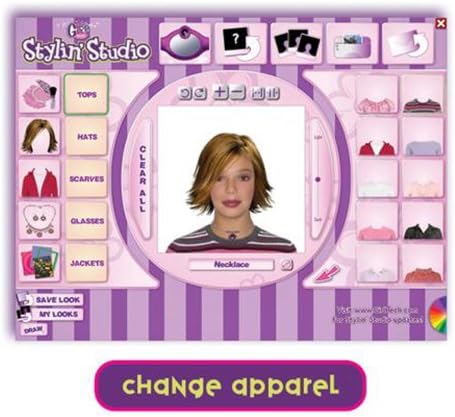
Image: Software interface demonstrating apparel selection options.
5.5 Saving, Printing, and Sharing
- Save Look: Use the software's save function to store your creations on your computer.
- Print: Connect your computer to a printer to print out your new looks.
- Email: The software allows you to email your styled images to friends and family.
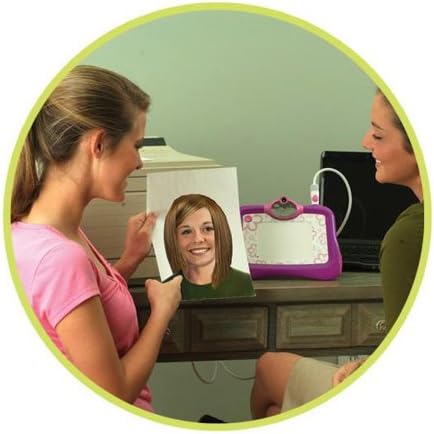
Image: A printed styled image, showcasing the output capability.
6. Maintenance
- Cleaning: Wipe the touchpad console and stylus with a soft, dry cloth. Do not use abrasive cleaners or solvents.
- Storage: Store the Stylin Studio in a clean, dry place away from direct sunlight when not in use.
- Cable Care: Avoid bending or crimping the USB cable excessively to prevent damage.
7. Troubleshooting
- Camera Not Working / Upside Down Image: Check your computer's display settings. Some users have reported that adjusting screen resolution can resolve camera functionality or orientation issues. You may need to change the resolution, use the Stylin Studio, then revert to your preferred resolution.
- Difficulty Capturing Clear Pictures: Ensure the Stylin Studio camera is held steady and the subject is well-lit and centered. Practice may improve results.
- Software Not Launching / Crashing: Verify that your computer meets all system requirements. Reinstall the software if necessary. Ensure all drivers for the Stylin Studio are correctly installed.
- Device Not Recognized: Ensure the USB cable is securely connected to both the Stylin Studio and your computer. Try a different USB port. Restart your computer.
8. Specifications
| Product Dimensions | 2.75 x 14 x 12.15 inches |
| Item Weight | 1.9 pounds |
| Model Number | N0504 |
| ASIN | B0017U03L8 |
| Manufacturer Recommended Age | 8 - 15 years |
| Release Date | August 1, 2008 |
| UPC | 027084637397 |
9. Warranty Information
Specific warranty details for the Mattel Girl Tech Stylin Studio (Model N0504) are not provided in the available product information. Please refer to the product packaging or contact Mattel customer service for current warranty terms and conditions.
10. Customer Support
For further assistance, technical support, or inquiries regarding the Mattel Girl Tech Stylin Studio, please visit the official Mattel website or refer to the contact information provided on the product packaging. Specific customer support contact details are not available in this document.


