
1. Introduction
This manual provides comprehensive instructions for the installation, operation, and maintenance of your LogiLink ID0011 Optical USB Mouse. Please read this manual thoroughly before using the product to ensure proper functionality and to prevent damage. Keep this manual for future reference.
2. Product Overview
The LogiLink ID0011 is a wired optical mouse designed for reliable and precise computer navigation. It features an 800 DPI optical sensor, three function keys, and a vertical scroll wheel. Its ambidextrous design ensures comfortable use for both right-handed and left-handed individuals.
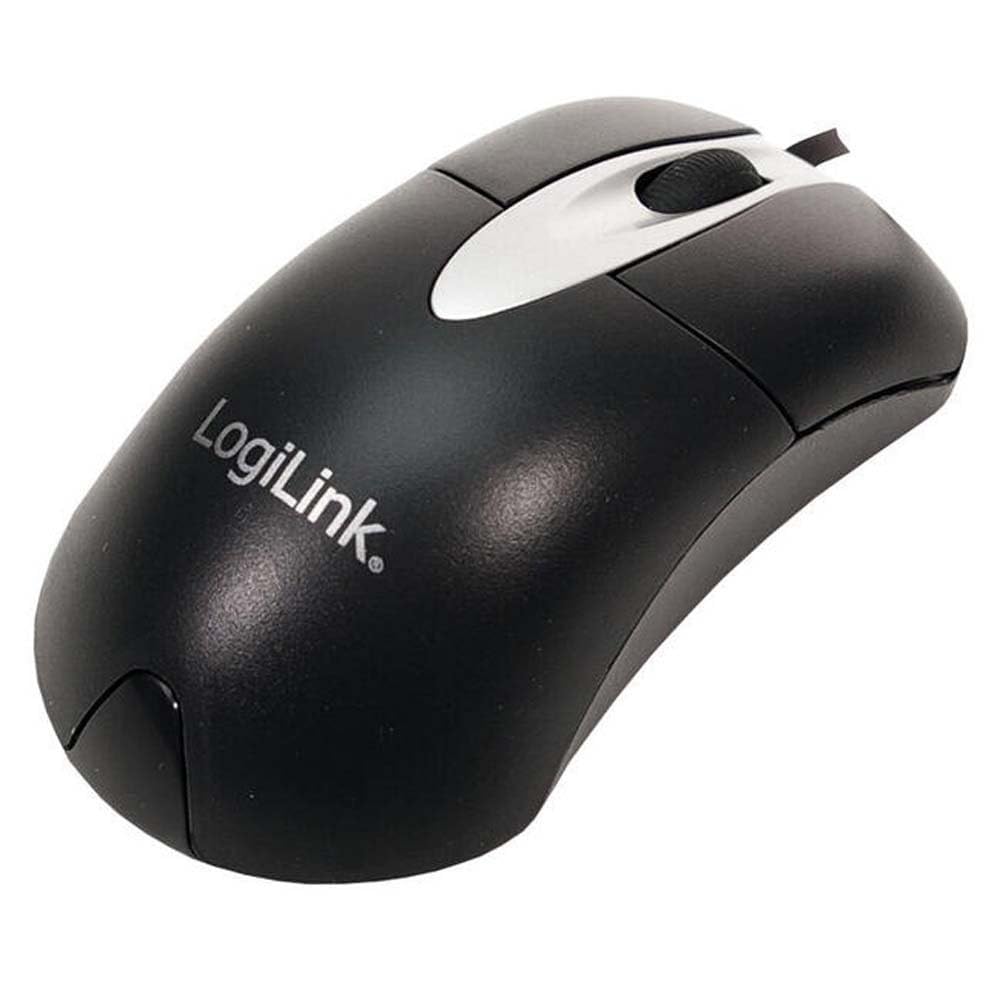
Figure 1: LogiLink ID0011 Optical USB Mouse. This image shows the mouse from a top-down perspective, highlighting its ergonomic shape, left and right click buttons, and the scroll wheel.
2.1 Package Contents
- LogiLink ID0011 Optical USB Mouse
- User Manual (this document)
Note: Please check the package contents upon unboxing. If any items are missing or damaged, contact your retailer.
3. Setup
The LogiLink ID0011 mouse is a Plug and Play device, requiring no additional software installation for basic functionality.
3.1 Connecting the Mouse
- Locate an available USB-A port on your computer.
- Insert the USB connector of the LogiLink ID0011 mouse into the USB-A port.
- Your operating system will automatically detect and install the necessary drivers. This process may take a few moments.
- Once the installation is complete, the mouse is ready for use.

Figure 2: LogiLink ID0011 Mouse in its retail packaging. This image displays the product box, which includes information about the mouse's features like 800dpi optical sensor and USB connectivity.
4. Operation
The LogiLink ID0011 mouse provides standard functionality for navigating your computer's interface.
4.1 Basic Functions
- Left Button: Used for selecting items, opening files, and executing commands.
- Right Button: Used for accessing context menus and special functions.
- Scroll Wheel: Used for scrolling through documents and web pages vertically. Pressing the scroll wheel may also activate a middle-click function, depending on your operating system settings.
4.2 Surface Compatibility
The optical sensor is designed to work effectively on a wide range of surfaces. For optimal performance, use the mouse on a clean, non-reflective, and uniformly colored surface. Avoid highly reflective or transparent surfaces like glass, as these may interfere with tracking accuracy.
5. Maintenance
Proper care and maintenance will extend the lifespan of your LogiLink ID0011 mouse.
5.1 Cleaning
- Disconnect the mouse from your computer before cleaning.
- Use a soft, slightly damp, lint-free cloth to wipe the exterior of the mouse.
- For stubborn dirt, a small amount of mild soap solution can be applied to the cloth, ensuring no liquid enters the mouse.
- Do not use harsh chemicals, abrasive cleaners, or solvents, as these can damage the surface.
- Clean the optical sensor opening on the underside of the mouse with a dry cotton swab to remove any dust or debris that might affect tracking.
5.2 Storage
When not in use for extended periods, store the mouse in a clean, dry environment, away from direct sunlight and extreme temperatures.
6. Troubleshooting
If you encounter issues with your LogiLink ID0011 mouse, refer to the following common problems and solutions.
| Problem | Possible Cause | Solution |
|---|---|---|
| Mouse not responding | Loose USB connection, faulty USB port, driver issue. |
|
| Erratic cursor movement | Dirty optical sensor, unsuitable surface, software interference. |
|
| Scroll wheel not working | Dust/debris in scroll mechanism, software issue. |
|
If the problem persists after trying these solutions, please contact LogiLink customer support or your retailer for further assistance.
7. Specifications
| Model Number | ID0011 |
| Brand | LogiLink |
| Connectivity Technology | Wired USB (USB-A) |
| Movement Detection Technology | Optical |
| DPI Resolution | 800 DPI |
| Number of Buttons | 3 (Left, Right, Scroll Wheel) |
| Hand Orientation | Ambidextrous (Right/Left) |
| Color | Black |
| Material | Plastic |
| Dimensions (L x W x H) | 110 x 60 x 32 mm (approximate) |
| Weight | 1 Gram (Note: This value may refer to packaging weight or be a placeholder. Actual product weight may vary.) |
| Operating System Compatibility | Windows, macOS (Plug and Play) |
8. Warranty and Support
For warranty information and technical support, please refer to the documentation provided with your purchase or visit the official LogiLink website. Specific warranty terms may vary by region and retailer.
Manufacturer: LogiLink


