
Introduction
The Sperry Instruments PD6902 is a versatile 5-in-1 multi-scanner and electrical tester designed to assist in various home improvement and professional tasks. This device integrates stud finding, metal scanning, non-contact AC voltage detection, and GFCI test functionality into a single, easy-to-use tool. It helps users safely locate hidden objects behind walls and verify electrical wiring conditions.
Safety Information
WARNING: Always exercise caution when working with electrical systems. Failure to follow these safety instructions may result in electric shock, fire, or serious injury.
- Read and understand all instructions before using this device.
- Do not assume an area is free of live wires, even after scanning. Always verify with additional testing methods if necessary.
- Wear appropriate personal protective equipment (PPE), such as safety glasses and insulated gloves, when working with electrical circuits.
- This device is intended for detecting objects behind common wall materials. Its accuracy may vary with different wall compositions (e.g., plaster and lath with metal mesh).
- Keep the device dry and clean. Do not use in wet or damp conditions.
- Do not attempt to open or modify the device. There are no user-serviceable parts inside.
Product Features
- Combined Multi-Scanner and Electrical Tester: Simplifies installation tasks by integrating multiple detection functions.
- Three Selectable Modes: Offers stud scan, metal scan, and AC voltage detection.
- Stud Detection: Scans and locates wood or metal studs up to 0.75 inches deep.
- Metal Detection: Detects metal pipes or objects up to 2.5 inches deep in drywall.
- Non-Contact AC Voltage Detection: Identifies live AC voltage (50-600VAC) up to 3.5 inches deep.
- Durable Design: Features heavy-duty construction with over-molded rubber grips for enhanced durability and handling.
- Integrated 3-Wire Circuit Analyzer: Includes GFCI test functionality for checking receptacle wiring.
- Built-in Metal Tip: Allows for marking stud edges, pipe locations, or desired mounting points.
Package Contents
The Sperry Instruments PD6902 5-In-1 Multi-Scanner & Electrical Tester package includes:
- 1 x Sperry Instruments PD6902 5-In-1 Multi-Scanner
- User Manual (this document)
Setup
Battery Installation
The PD6902 requires a 9V battery (not included) for operation. To install the battery:
- Locate the battery compartment cover on the back of the device.
- Slide or unclip the cover to open it.
- Insert a new 9V alkaline battery, ensuring correct polarity (+/-).
- Replace the battery compartment cover securely.
Initial Calibration
Before each use, the device must be calibrated for accurate readings. Hold the device in the air, away from any surfaces or electrical fields, and press the 'Press to Scan' button. The device will emit an audible signal and/or visual indication during calibration. Wait for the calibration process to complete before placing the device against a wall.
Operating Instructions
The PD6902 features three primary scanning modes and an integrated GFCI tester. Select the desired mode using the slide switch on the front of the device.
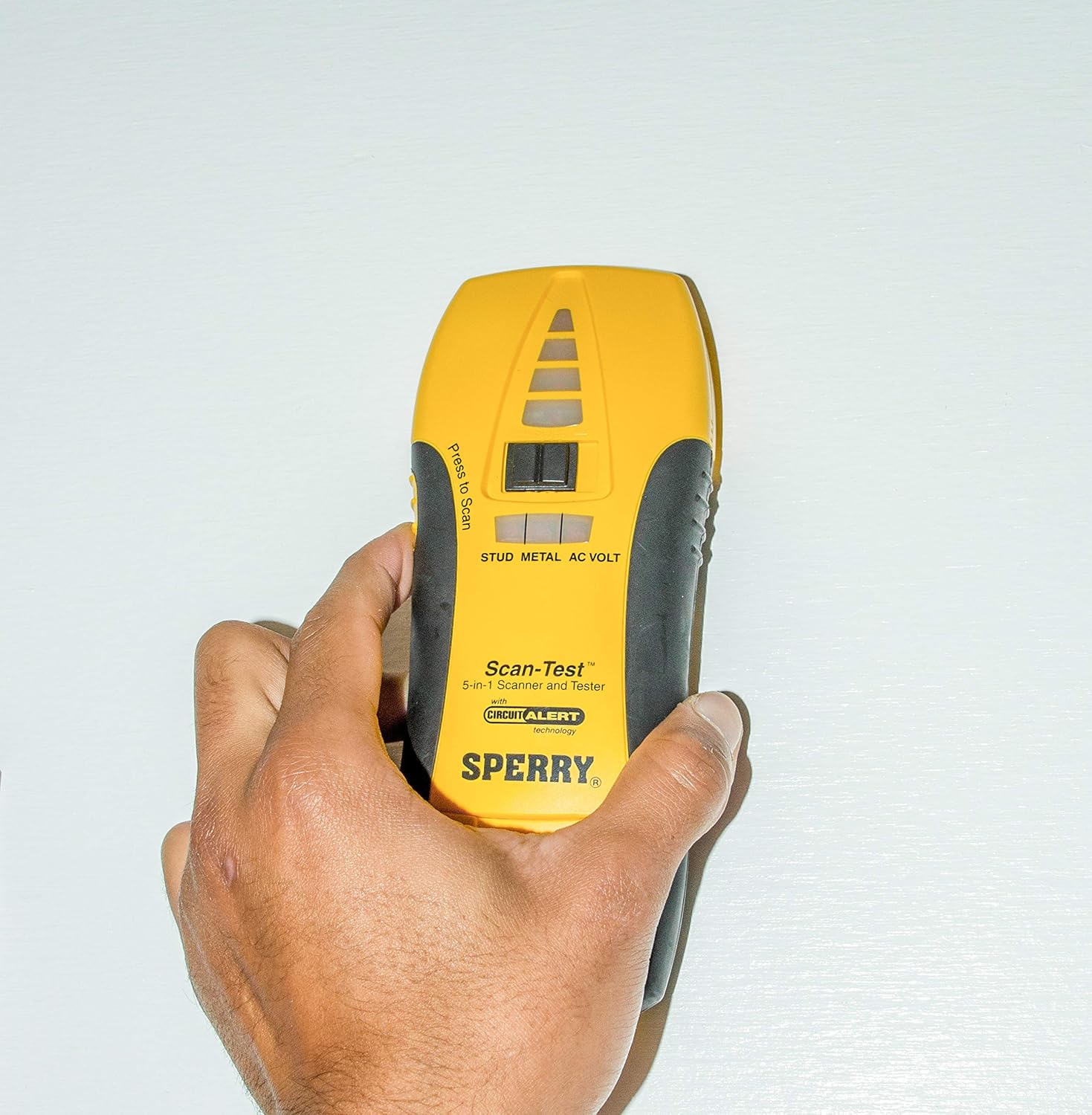
Image: The Sperry Instruments PD6902 5-In-1 Multi-Scanner, showing its yellow and black casing with mode selection switch and 'Press to Scan' button.
1. Stud Scan Mode
Use this mode to locate wood or metal studs behind drywall.
- Slide the mode switch to 'STUD'.
- Place the device flat against the wall surface where you wish to begin scanning.
- Press and hold the 'Press to Scan' button. Ensure the device calibrates successfully.
- Slowly slide the device horizontally across the wall.
- When a stud is detected, the visual indicators will illuminate, and an audible tone will sound. Mark the edges of the stud using the built-in metal tip.
2. Metal Scan Mode
Use this mode to detect metal pipes, conduit, or other metallic objects behind walls.
- Slide the mode switch to 'METAL'.
- Place the device flat against the wall surface.
- Press and hold the 'Press to Scan' button and allow it to calibrate.
- Slowly slide the device horizontally across the wall.
- When metal is detected, the visual indicators will illuminate, and an audible tone will sound.
3. AC Volt Mode (Non-Contact AC Voltage Detection)
Use this mode to detect live AC voltage in wires behind walls, helping to avoid drilling or cutting into live circuits.
- Slide the mode switch to 'AC VOLT'.
- Place the device flat against the wall surface.
- Press and hold the 'Press to Scan' button and allow it to calibrate.
- Slowly slide the device horizontally across the wall.
- When live AC voltage is detected, the visual indicators will illuminate, and an audible tone will sound. The intensity of the indication may increase as you get closer to the live wire.

Image: A hand holding the Sperry PD6902 multi-scanner against a wall, near an open electrical box, demonstrating its use in detecting elements behind surfaces.
4. GFCI Test Functionality
The integrated GFCI tester is located on the bottom of the device and is used to check the wiring of 3-wire receptacles and test GFCI outlets.
- Plug the tester into a standard 120V AC 3-prong receptacle.
- Observe the indicator lights on the tester. Refer to the legend on the device for wiring status (e.g., correct, open ground, open neutral, hot/neutral reverse).
- To test a GFCI outlet, press the 'Press for GFCI Test' button on the tester. A correctly wired GFCI outlet should trip, cutting power to the receptacle.
- Reset the GFCI outlet after testing.
Video: An official product video from ECM Industries LLC, showcasing various specialty testers, including the Sperry PD6902, and their functionalities such as stud-finding and electrical testing.
Maintenance
- Cleaning: Wipe the device with a dry, soft cloth. Do not use abrasive cleaners or solvents.
- Storage: Store the device in a cool, dry place, away from direct sunlight and extreme temperatures. Remove the battery if the device will not be used for an extended period to prevent leakage.
- Battery Replacement: Replace the 9V battery when the low battery indicator appears or if the device's performance degrades.
Troubleshooting
| Problem | Possible Cause | Solution |
|---|---|---|
| Inaccurate or inconsistent readings | Improper calibration, low battery, wall material interference, user error. | Ensure proper calibration before each scan. Replace battery if low. Scan slowly and consistently. Be aware that certain wall materials (e.g., plaster and lath) can affect accuracy. |
| Device does not turn on | Dead or incorrectly installed battery. | Check battery polarity. Replace with a fresh 9V battery. |
| AC Voltage detection is too sensitive or always on | Strong ambient electrical fields, proximity to ungrounded wiring. | Ensure proper calibration away from electrical sources. Note that ungrounded or knob-and-tube wiring may cause continuous alarms due to high sensitivity. |
| GFCI tester does not fit into outlet | Ground pin too wide. | Carefully and gently adjust the ground pin width if necessary. |
Specifications
- Model: PD6902
- Detection Modes: Stud Scan, Metal Scan, AC Volt (Non-Contact)
- Stud Detection Depth: Up to 0.75 inches (wood/metal studs)
- Metal Detection Depth: Up to 2.5 inches (in drywall)
- AC Voltage Detection: 50-600VAC, up to 3.5 inches deep
- Power Source: 9V Battery (not included)
- Item Weight: 8 ounces
- Item Dimensions: 1 x 2.5 x 7.25 inches
- Included Components: 5-in-1 Scanner
Warranty and Support
Sperry Instruments products are manufactured to high-quality standards. For warranty information, technical support, or service inquiries, please refer to the official Sperry Instruments website or contact their customer service department. Keep your purchase receipt as proof of purchase.
Online Support: Visit the SPERRY Store on Amazon for product information and resources.


