
1. Introduction
This manual provides essential information for the safe and efficient use of your Hama USB 7.1 Surround Sound Card, Model 00051620. Please read these instructions carefully before using the device and keep them for future reference. This external sound card allows you to connect headphones, microphones, or speakers with a 3.5mm jack to your computer or tablet via a USB-A port, enhancing your audio experience with simulated 7.1 surround sound.
2. Safety Instructions
- Do not open the device. Opening the device voids the warranty and may lead to electric shock.
- Protect the product from dirt, moisture, and overheating.
- Use the product only for its intended purpose.
- Do not drop the product or expose it to severe shocks.
- Keep this product, as all electrical products, out of the reach of children.
- Dispose of packaging material immediately according to locally applicable regulations.
3. Package Contents
Verify that your package contains the following items:
- 1x Hama USB 7.1 Surround Sound Card (Model 00051620)
- 1x Instruction Manual
4. Product Overview
The Hama USB 7.1 Surround Sound Card is a compact audio adapter designed to provide enhanced sound capabilities for your computer or tablet. It features a USB-A connector for easy plug-and-play functionality and includes dedicated ports for audio input and output.
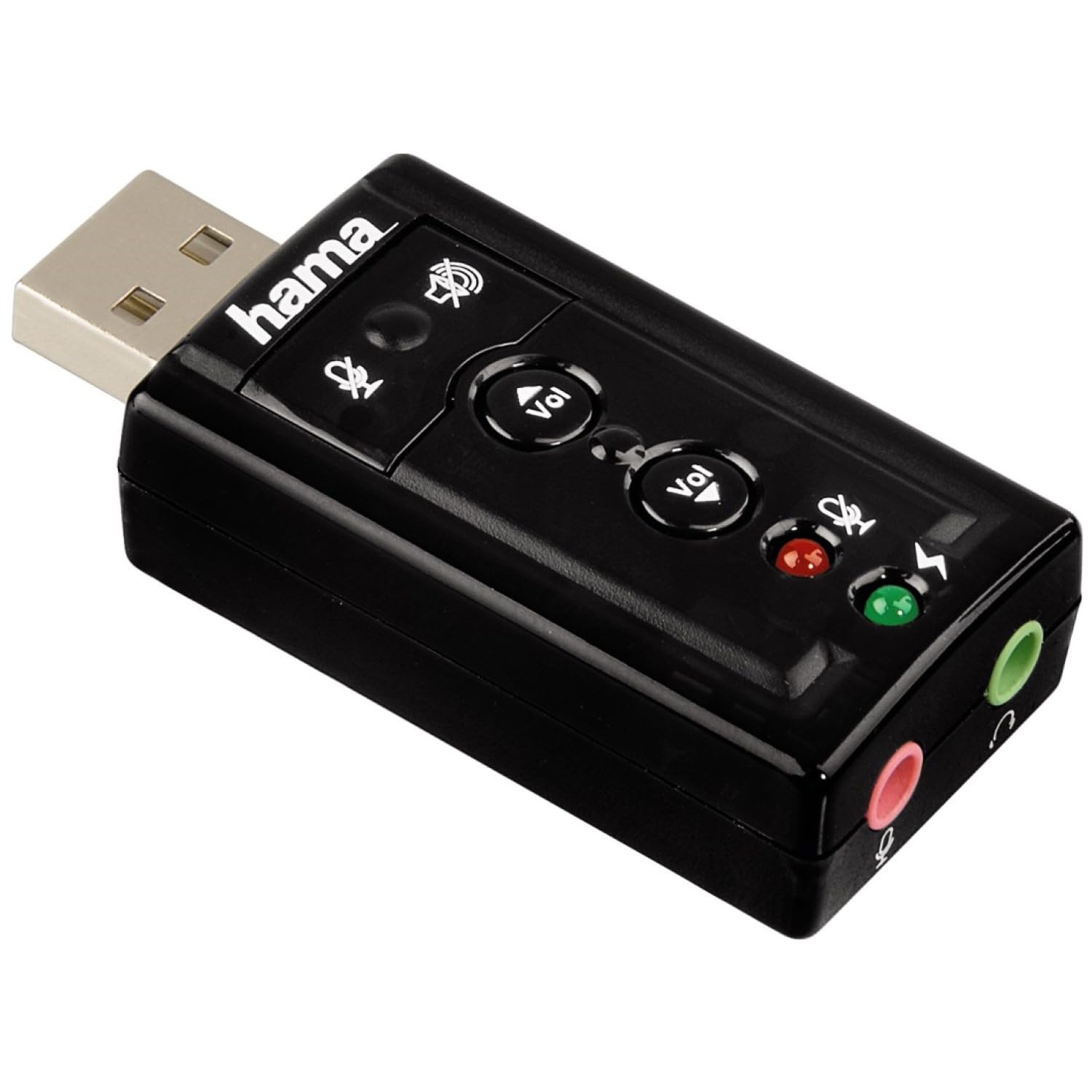
Image 1: Top view of the Hama USB 7.1 Surround Sound Card, showing the USB-A connector, volume control buttons, and mute indicators.
Controls and Ports:
- USB-A Connector: For connecting to your computer or tablet.
- Volume Up/Down Buttons: Adjusts the audio output volume.
- Microphone Mute Button: Mutes or unmutes the connected microphone.
- Speaker Mute Button: Mutes or unmutes the audio output to headphones/speakers.
- 3.5mm Microphone Jack (Red): For connecting an external microphone.
- 3.5mm Headphone/Speaker Jack (Green): For connecting headphones or speakers.

Image 2: End view of the Hama USB 7.1 Surround Sound Card, highlighting the red microphone input jack and the green headphone/speaker output jack.
5. System Requirements
- Operating System: Windows, macOS, or compatible tablet OS.
- Available USB-A port.
- Headphones, microphone, or speakers with a 3.5mm jack connector.
6. Installation and Setup
- Connect the Sound Card: Plug the USB-A connector of the Hama USB 7.1 Surround Sound Card into an available USB-A port on your computer or tablet.
- Driver Installation: The device is typically plug-and-play, and your operating system should automatically detect and install the necessary drivers. If prompted, follow the on-screen instructions.
- Connect Audio Devices:
- For headphones or speakers, connect the 3.5mm jack into the green port on the sound card.
- For a microphone, connect the 3.5mm jack into the red port on the sound card.
- Configure Audio Settings: Access your operating system's sound settings to ensure the Hama USB 7.1 Surround Sound Card is selected as the default playback and recording device.
- Software Installation (Optional): For advanced features like XeaR-Sound 7.1 surround simulation, 10-band equalizer, and karaoke functions, install the dedicated software. Refer to the manufacturer's website for software downloads and installation instructions.
7. Operation
Basic Audio Control:
- Volume Adjustment: Use the 'Vol +' and 'Vol -' buttons on the sound card to increase or decrease the output volume.
- Mute Audio Output: Press the speaker mute button to temporarily silence the audio output. Press again to unmute.
- Mute Microphone Input: Press the microphone mute button to temporarily disable microphone input. Press again to enable.
Advanced Software Features:
If you have installed the optional software, you can access the following features:
- XeaR-Sound Technology: Enables simulated 7.1 crystal-clear surround sound for stereo speakers or headsets.
- 10-Band Equalizer: Customize your audio experience with various presets (e.g., Jazz, Rock, Classic) or create your own.
- Additional Sound Effects: Apply various sound effects to your audio.
- Adjustable Room Acoustics: Modify the perceived acoustic environment.
- Karaoke Recording: Record karaoke performances with original voice suppression and tone adjustment capabilities.
8. Maintenance
The Hama USB 7.1 Surround Sound Card requires minimal maintenance.
- Clean the device only with a slightly damp, lint-free cloth. Do not use aggressive cleaning agents.
- Ensure the USB port and audio jacks are free from dust and debris.
9. Troubleshooting
No Sound Output:
- Ensure the sound card is securely plugged into a USB port.
- Check if your headphones/speakers are correctly connected to the green jack.
- Verify that the speaker mute button on the sound card is not active.
- Confirm that the Hama USB 7.1 Surround Sound Card is selected as the default playback device in your operating system's sound settings.
- Adjust the volume using the sound card's buttons and your computer's volume controls.
Microphone Not Working:
- Ensure your microphone is correctly connected to the red jack.
- Verify that the microphone mute button on the sound card is not active.
- Confirm that the Hama USB 7.1 Surround Sound Card is selected as the default recording device in your operating system's sound settings.
- Check microphone privacy settings in your operating system.
Sound Quality Issues:
- Ensure all connections are secure.
- Try connecting the sound card to a different USB port.
- If using the optional software, check equalizer settings and disable any sound effects that might be causing distortion.
10. Specifications
| Feature | Detail |
|---|---|
| Brand | Hama |
| Model Number | 00051620 (also known as 51620) |
| Color | Black |
| Connector | USB A male |
| USB Standard | USB 2.0 |
| Speaker Connection | 3.5mm female jack |
| Headphone Connection | 3.5mm female jack |
| Volume Control | Yes, with mute function |
| Audio Output Mode | Surround |
| Surround Sound Channel Configuration | 7.1 (simulated with software) |
| Maximum Sampling Rate | 48 kHz |
| Compatible Devices | USB (PC, Laptop, Tablets) |
| Manufacturer | Hama EURL |
11. Disposal Information
Observe the applicable local regulations for the disposal of electronic devices. The product must not be disposed of with normal household waste. Dispose of the product according to the European Directive 2012/19/EU on waste electrical and electronic equipment (WEEE) at a designated collection point for electrical and electronic equipment.
12. Warranty
Hama GmbH & Co KG provides a limited warranty for this product. For detailed warranty terms and conditions, please refer to the official Hama website or contact your local retailer. Keep your proof of purchase for warranty claims.
13. Customer Support
If you have any questions about this product or require technical assistance, please contact Hama customer support. You can find contact information on the official Hama website (www.hama.com) or through your local retailer.


