
1. Introduction
Welcome to the user manual for your Samsung LN40A550 40-Inch 1080p LCD HDTV. This guide provides essential information for setting up, operating, maintaining, and troubleshooting your television. The Samsung LN40A550 delivers a stunning 1080p Full HD resolution and a high contrast ratio for a realistic viewing experience. It features advanced picture quality enhancements and versatile connectivity options to integrate seamlessly into your home entertainment system.
Key features include:
- Full HD 1080p Resolution for detailed images.
- Wide Color Enhancer for vibrant and natural colors.
- DNle+ (Digital Natural Image engine) for optimized picture quality.
- 3 HDMI Inputs for connecting multiple high-definition devices.
- USB 2.0 port for easy media playback from external storage.
- Anynet+ (HDMI-CEC) for simplified control of compatible devices.
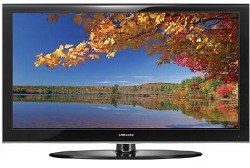
Figure 1: Samsung LN40A550 40-Inch 1080p LCD HDTV.
2. What's in the Box
Please check that all the following items are included with your television:
- Samsung LN40A550 40-Inch LCD HDTV
- TV Stand
- Remote Control with Batteries
- Power Cord
- User Manual (this document)
- Quick Setup Guide
3. Setup
3.1 Unpacking and Placement
Carefully remove the TV from its packaging. It is recommended to have two people for this process. Place the TV on a stable, flat surface or prepare for wall mounting. Ensure adequate ventilation around the TV.
3.2 Stand Assembly
If using the included stand:
- Place the TV screen face down on a soft cloth or cushion to prevent scratches.
- Align the stand neck with the mounting holes on the back of the TV.
- Secure the stand neck to the TV using the provided screws.
- Attach the base to the stand neck and secure it with screws.
- Carefully lift the TV and place it in your desired viewing location.
3.3 Connecting Devices
Connect your external devices to the TV using the appropriate ports. Ensure the TV and all devices are powered off before making connections.
- HDMI: For high-definition video and audio. The TV has 3 HDMI inputs. Use HDMI cables for Blu-ray players, game consoles, and set-top boxes.
- Component (YPbPr): For high-definition video from older devices. The TV has 2 component inputs.
- VGA (PC Input): For connecting a computer. The TV has 1 VGA input.
- USB 2.0: For connecting USB storage devices to play photos and music.
- Antenna/Cable: Connect your antenna or cable TV signal to the ANT IN port.
3.4 Power Connection
Once all devices are connected, plug the power cord into the TV's power inlet and then into a wall outlet.
3.5 Initial Power On
Press the Power button on the remote control or the TV. Follow the on-screen instructions to complete the initial setup, including language selection, channel scanning, and time zone settings.
4. Operating Your TV
4.1 Remote Control Functions
Use the remote control to navigate menus and control your TV. Common buttons include:
- Power: Turns the TV on or off.
- Source: Selects the input source (HDMI, Component, TV, etc.).
- Volume (+/-): Adjusts the volume level.
- Channel (CH +/-): Changes TV channels.
- Menu: Accesses the main menu for settings.
- Directional Pad (Up/Down/Left/Right) & Enter: Navigates menus and confirms selections.
4.2 Picture and Sound Settings
Access the TV's menu to customize picture and sound settings. Adjust brightness, contrast, sharpness, color, and tint to your preference. Sound modes like Standard, Music, Movie, and Clear Voice are available.
The Samsung LN40A550 features several technologies to enhance your viewing experience:
- DNle+ (Digital Natural Image engine): Samsung's proprietary picture quality enhancing engine that optimizes contrast, detail, and color.
- Wide Color Enhancer: Delivers a wider range of colors for a more vibrant and lifelike picture.
- Contrast Enhancer: Dynamically adjusts contrast for deeper blacks and brighter whites.
- Detail Enhancer: Sharpens edges and fine details in the image.
- Color Optimizer: Fine-tunes color reproduction for accuracy.
- Clear Panel / FilterBright: Improves contrast ratio and clarity, especially in bright viewing conditions.
- Digital Noise Reduction: Reduces visual noise in the picture for a cleaner image.
4.3 Entertainment Mode
The Entertainment Mode feature optimizes picture and sound settings for specific content types. Select from modes like Sports, Cinema, and Game to automatically adjust the TV for the best viewing experience for that content.
Video 1: This video demonstrates various features of the Samsung Series 5 LCD HDTVs, including Entertainment Mode, Full HD 1080p, DNle+, Contrast Enhancer, Detail Enhancer, Color Optimizer, Clear Panel/FilterBright, and Anynet+. While the video title mentions a 52-inch model, the features are applicable to the Series 5 line, including the LN40A550.
4.4 Anynet+ (HDMI-CEC)
Anynet+ is an HDMI-CEC (Consumer Electronics Control) feature that allows you to control all connected Samsung devices (and some compatible non-Samsung devices) with a single remote control. When connected via HDMI, you can power on/off and control basic functions of devices like Blu-ray players or home theater systems directly from your TV remote.
4.5 USB Media Playback
Connect a USB storage device (e.g., USB flash drive, external hard drive) to the USB 2.0 port on your TV. You can then browse and play supported photo and music files directly on your television. Use the remote control to navigate the media browser.
5. Maintenance
5.1 Cleaning the TV
- Screen: Gently wipe the screen with a soft, dry microfiber cloth. For stubborn marks, lightly dampen the cloth with water or a specialized screen cleaner (avoid harsh chemicals).
- Cabinet: Wipe the TV cabinet with a soft, dry cloth. Do not use abrasive cleaners or solvents.
- Always unplug the TV before cleaning.
5.2 Software Updates
Periodically check the Samsung support website for any available software updates for your TV model. Updates can improve performance and add new features. Follow the instructions provided with the update carefully.
6. Troubleshooting
If you encounter issues with your TV, try the following common troubleshooting steps:
- No Power: Ensure the power cord is securely plugged into both the TV and the wall outlet. Try a different outlet.
- No Picture/Sound: Check that the correct input source is selected. Verify all cables (HDMI, component, antenna) are securely connected.
- Remote Control Not Working: Replace the batteries. Ensure there are no obstructions between the remote and the TV's IR sensor.
- Poor Picture Quality: Check antenna/cable connections. Adjust picture settings in the TV menu. Ensure the source device is outputting a high-quality signal.
- "No Signal" Message: Confirm the input source matches the connected device. Ensure the device is powered on.
For more detailed troubleshooting, refer to the comprehensive user manual available on the Samsung support website or contact Samsung customer support.
7. Specifications
| Feature | Specification |
|---|---|
| Model Name | LN-40A550 |
| Screen Size | 40 Inches |
| Display Technology | LCD |
| Resolution | 1080p (Full HD) |
| Refresh Rate | 120 Hz |
| Connectivity Technology | HDMI, USB |
| Total Number of HDMI Ports | 3 |
| USB Ports | 1 (USB 2.0) |
| Number of Component Inputs | 2 |
| Number of VGA Inputs | 1 |
| Tuner Type | ATSC |
| Color | Black |
| Item Weight | 52.6 Pounds |
| Model Year | 2008 |
8. Warranty and Support
Your Samsung LN40A550 LCD HDTV comes with a 1 Year parts and 1 Year Labor warranty. Please retain your proof of purchase for warranty claims.
For technical support, service, or further inquiries, please visit the official Samsung support website or contact their customer service line. You may need your model number (LN-40A550) and serial number (found on the back of the TV) when contacting support.


