
Introduction
This manual provides detailed instructions for the proper setup, operation, and maintenance of your Kodak EasyShare M893IS Digital Camera. Please read this manual thoroughly before using your camera to ensure optimal performance and longevity.
1. Setup
1.1. Battery Installation and Charging
The Kodak EasyShare M893IS uses a rechargeable Lithium-Ion battery. Ensure the battery is fully charged before first use.
- Locate the battery compartment door on the bottom or side of the camera.
- Slide the latch to open the compartment.
- Insert the Li-Ion battery with the contacts facing inward, ensuring it clicks into place.
- Close the battery compartment door securely.
- Connect the camera to a power source using the provided USB cable for in-camera charging. The charging indicator light will show the charging status.

Figure 1.1: Side view of the camera, indicating the general location of the battery compartment.
1.2. Memory Card Installation
The camera supports SD/SDHC memory cards (not included). A memory card is required to store photos and videos.
- Open the battery compartment door. The memory card slot is usually located next to the battery.
- Insert the SD/SDHC card into the slot with the metal contacts facing the correct direction (refer to the diagram inside the compartment). Push until it clicks into place.
- Close the battery compartment door.
2. Operating Your Camera
2.1. Camera Controls Overview
Familiarize yourself with the main controls of your Kodak EasyShare M893IS camera.

Figure 2.1: Front view of the camera. Key components include the lens, flash, and microphone.
- Power Button: Located on the top panel, turns the camera on/off.
- Shutter Button: Press halfway to focus, fully to capture a photo.
- Zoom Lever: Controls the 3x optical zoom and 5x digital zoom.
- Mode Dial/Button: Selects shooting modes (e.g., Auto, Program, Scene modes).
- LCD Screen: 2.7-inch display for framing shots, reviewing images, and navigating menus.
- Directional Pad/OK Button: Used for menu navigation and selection.
- Menu Button: Accesses camera settings and options.
- Review/Playback Button: Displays captured photos and videos.
- Delete Button: Removes unwanted images or videos.
- Share Button: For easy sharing options (if configured).
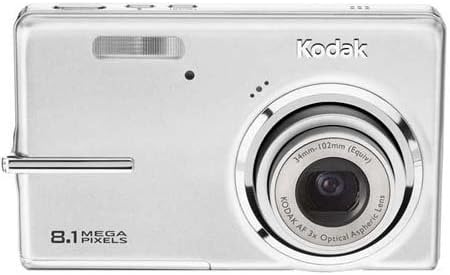
Figure 2.2: Rear view of the camera, showing the 2.7-inch LCD and control buttons.
2.2. Taking Photos
- Turn on the camera by pressing the Power button.
- Select your desired shooting mode using the Mode dial/button. Common modes include:
- Auto: Camera automatically adjusts settings for most situations.
- Scene Modes: Specific settings for various scenarios like 'Night mode' or 'Sports'.
- Frame your shot using the LCD screen. Use the zoom lever to adjust the 3x optical zoom or 5x digital zoom.
- Press the Shutter button halfway down to allow the camera to focus (Contrast Detection Auto Focus, Multi-zone, Center Spot options available). A green frame indicates focus lock.
- Press the Shutter button fully to capture the image. The camera features optical image stabilization to reduce blur.
- For low-light conditions, adjust the flash mode (Auto, On, Off, Slow Synch) or utilize the High ISO (up to 1600) setting.
2.3. Recording Videos
- Switch the camera to video recording mode (refer to your camera's mode dial/menu for the video icon).
- Frame your subject on the LCD screen.
- Press the Shutter button to start recording. Press it again to stop.
- Videos are recorded in VGA resolution (640 x 480 at 15 fps or 320 x 240 at 30 fps) in MJPEG format.
2.4. Reviewing and Managing Media
- Press the Review/Playback button to view your photos and videos.
- Use the directional pad to scroll through your media.
- To delete an unwanted item, select it and press the Delete button. Confirm deletion when prompted.
- Connect the camera to a computer via USB to transfer files.
3. Maintenance
3.1. Cleaning the Camera
- Lens: Use a soft, lint-free cloth specifically designed for camera lenses. Gently wipe in a circular motion. Avoid using harsh chemicals.
- LCD Screen: Wipe with a soft, dry microfiber cloth. For stubborn smudges, slightly dampen the cloth with water or a screen cleaner.
- Camera Body: Use a soft, dry cloth to wipe away dust and fingerprints.
3.2. Battery Care
- Store the battery in a cool, dry place when not in use.
- Avoid fully discharging the battery frequently to prolong its lifespan.
- If storing the camera for an extended period, remove the battery.
3.3. Storage
Store the camera in a protective case or bag to prevent scratches and damage from dust or moisture. Avoid extreme temperatures.
4. Troubleshooting
| Problem | Possible Cause | Solution |
|---|---|---|
| Camera does not turn on. | Battery is discharged or incorrectly inserted. | Charge the battery. Ensure the battery is inserted correctly with contacts aligned. |
| Photos are blurry. | Camera shake, subject movement, or incorrect focus. | Hold the camera steady. Ensure the subject is within the camera's focus range. Use optical image stabilization. Increase ISO in low light. |
| "Memory Card Error" message. | Memory card is full, corrupted, or incorrectly inserted. | Insert a new or empty SD/SDHC card. Reinsert the card. Format the card (this will erase all data). |
| Flash does not fire. | Flash is set to "Off" or battery is low. | Change flash mode to "Auto" or "On". Charge the battery. |
| Cannot transfer photos to computer. | Incorrect USB connection or driver issues. | Ensure USB cable is securely connected to both camera and computer. Try a different USB port. Check computer's device manager for driver issues. |
5. Specifications
| Feature | Detail |
|---|---|
| Model Name | Easyshare M893IS |
| Photo Sensor Resolution | 8.1 MP |
| Optical Zoom | 3x |
| Digital Zoom | 5x |
| Image Stabilization | Optical |
| Screen Size | 2.7 Inches LCD |
| Supported File Format | JPEG (Stills), MJPEG (Video) |
| Video Resolution | 640 x 480 (15 fps), 320 x 240 (30 fps) |
| ISO Sensitivity | Expanded ISO Minimum 80, Expanded ISO Maximum 1600 |
| Minimum Shutter Speed | 4 seconds |
| Maximum Shutter Speed | 1/2000 Seconds |
| Flash Modes | Auto, On, Off, Slow Synch |
| Battery Type | Lithium Ion |
| Connectivity | USB |
| Compatible Flash Memory | SD, SDHC (up to 32 GB) |
| Item Weight | 0.35 Pounds |
| Color | Silver |
6. Warranty Information
Your Kodak EasyShare M893IS Digital Camera is covered by a 1-Year Limited Warranty from the date of purchase. This warranty covers manufacturing defects and workmanship under normal use. It does not cover damage caused by misuse, accidents, unauthorized modifications, or external causes.
Please retain your proof of purchase for warranty claims. For detailed terms and conditions, refer to the warranty card included with your product or visit the official Kodak support website.
7. Customer Support
If you encounter any issues not covered in the troubleshooting section or require further assistance, please contact Kodak Customer Support.
- Online Support: Visit the official Kodak support website for FAQs, drivers, and software downloads.
- Telephone Support: Refer to your product packaging or the Kodak website for regional contact numbers.
- When contacting support, please have your camera model (M893IS) and serial number ready.


