Introduction
This manual provides essential instructions for the safe and effective use of your Sony Cybershot DSCW170 digital camera. Please read this manual thoroughly before operating the camera and retain it for future reference. The Sony DSCW170 is a 10.1-megapixel digital camera featuring a Carl Zeiss 5x optical zoom lens and Super SteadyShot optical image stabilization, designed for capturing high-quality photos and videos.
Safety Information
- Battery Safety: Use only specified batteries and chargers. Do not expose batteries to excessive heat or dispose of them in fire. Keep batteries out of reach of children.
- Water and Moisture: This camera is not waterproof. Avoid exposing it to rain, moisture, or high humidity to prevent damage.
- Handling: Do not drop the camera or subject it to strong impacts. Avoid pointing the lens directly at the sun or other intense light sources.
- Cleaning: Use a soft, dry cloth for cleaning. Do not use organic solvents.
- Disassembly: Do not attempt to disassemble or modify the camera. Refer all servicing to qualified personnel.
Package Contents
Verify that all items are present in the package:
- Sony Cybershot DSCW170 Digital Camera
- Rechargeable Battery
- Battery Charger
- USB Cable
- Wrist Strap
- Software CD-ROM
- Instruction Manual (this document)
Setup
1. Charging the Battery
- Insert the supplied rechargeable battery into the battery charger.
- Plug the charger into a wall outlet. The charging indicator light will illuminate.
- Charging is complete when the indicator light turns off. A full charge typically takes approximately 2-3 hours.
2. Inserting the Battery and Memory Card
Open the battery/memory card cover on the bottom of the camera.

Image: Rear view of the Sony Cybershot DSCW170 camera, displaying the LCD screen and various control buttons, including the mode dial and navigation pad.
- Insert the charged battery into the battery compartment with the correct orientation, ensuring it clicks into place.
- Insert a Memory Stick Duo or Memory Stick PRO Duo media card into the memory card slot until it clicks. The camera also has 15 MB of internal memory for limited storage.
- Close the battery/memory card cover securely.
3. Initial Power On and Date/Time Settings
- Press the POWER button to turn on the camera.
- If this is the first time using the camera or after the battery has been removed for an extended period, the date and time setting screen will appear.
- Use the control buttons to set the correct date, time, and time zone. Press the MENU or OK button to confirm.
Operating the Camera
1. Basic Photography (Auto Mode)
For simple point-and-shoot operation, use the Auto mode.
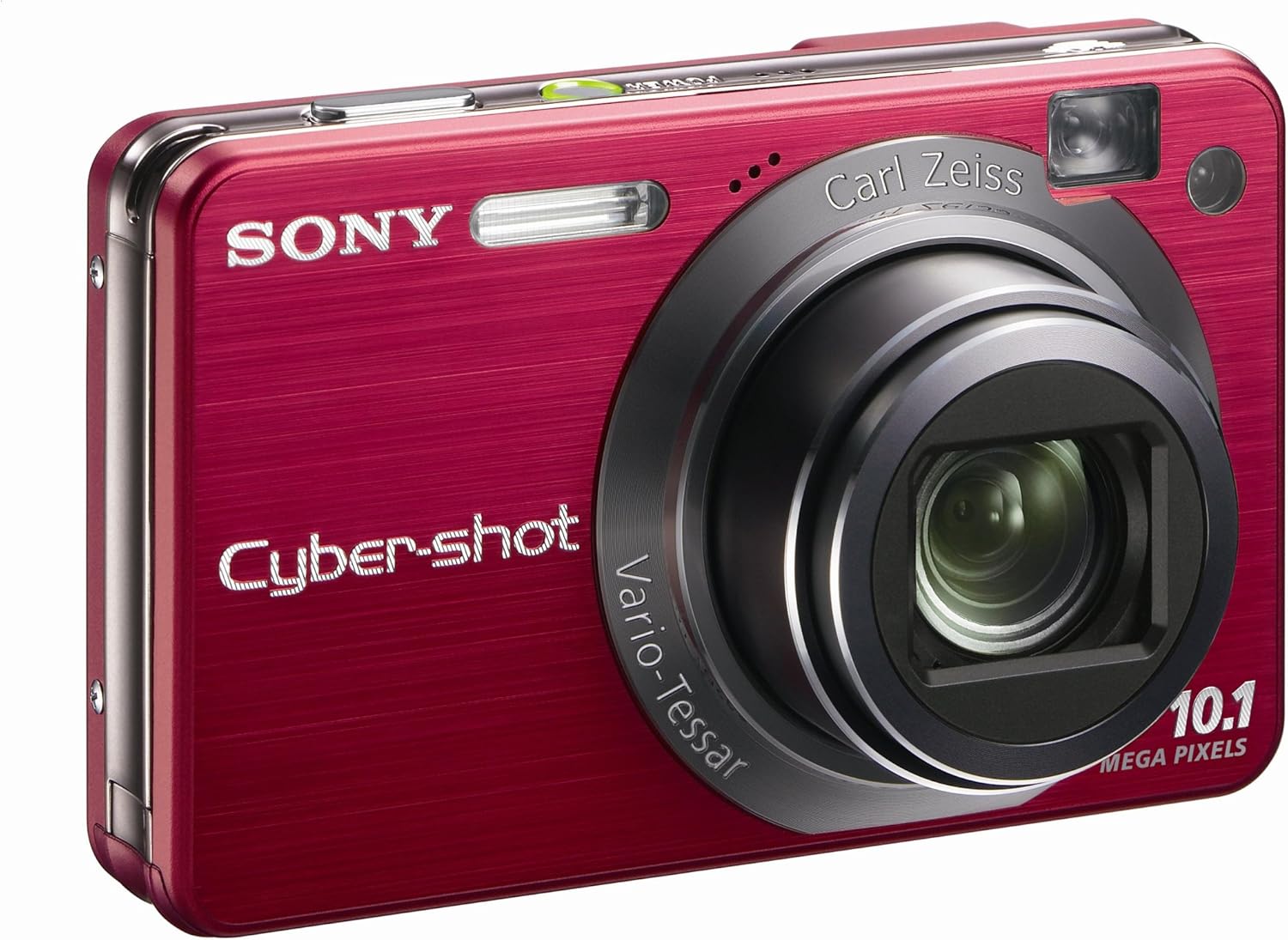
Image: Front view of the Sony Cybershot DSCW170 camera, showing the Carl Zeiss lens, flash, and optical viewfinder.
- Turn the mode dial to AUTO.
- Frame your subject using the 2.7-inch Clear Photo LCD display or the optical viewfinder.
- Press the shutter button halfway down to focus. The camera will automatically adjust focus, exposure, and white balance.
- Press the shutter button fully to take the picture.
2. Using Zoom
The camera features a 5x optical zoom and a Smart Zoom feature.
- To zoom in, push the zoom lever towards W (Wide).
- To zoom out, push the zoom lever towards T (Telephoto).
- The Smart Zoom feature allows for additional digital zoom without significant image degradation by intelligently cropping the image.
3. Shooting Modes and Features
Rotate the mode dial to select various shooting modes:
- Program Auto (P): Allows more control over settings while the camera sets exposure.
- Scene Selection (SCN): Choose from preset scenes like Twilight, Landscape, Soft Snap, Snow, High Sensitivity, and Beach for optimized settings in specific conditions.
- Easy Shooting Mode: Simplifies camera operation with easy-to-read on-screen instructions and limited settings, ideal for beginners.
- Movie Mode: Records VGA (640 x 480) audio/video clips at 30 frames per second.
4. Advanced Features
- Face Detection: Automatically detects faces in the frame and adjusts focus, exposure, and flash for optimal results.
- Smile Shutter: Automatically captures a photo when a smile is detected in the subject's face.
- Super SteadyShot Optical Image Stabilization: Reduces blur caused by camera shake, especially in low light or with zoom.
- Dynamic Range Optimization (DRO): Preserves detail in both bright highlights and dark shadows.
- In-camera Retouching: Apply various effects and corrections to photos after shooting, such as Red-Eye adjustment, Soft Focus, and Happy Face.
5. Viewing and Managing Images
- Press the Playback button to view your photos and videos.
- Use the control buttons to navigate through images.
- HD Slide Show with Music: Enjoy your photos with visual effects and background music on the camera's LCD or connected HDTV.
- Photo TV HD: Connect the camera to a PhotoTV HD-compatible Sony Bravia HDTV for high-definition image display.
- Transferring to PC: Connect the camera to your computer using the supplied USB cable. Use the Picture Motion Browser software to upload, organize, and search photos.
Maintenance
- Cleaning the Camera Body: Wipe the camera body with a soft, dry cloth. For stubborn dirt, use a cloth lightly dampened with water and then wipe dry.
- Cleaning the Lens: Use a lens brush or a blower to remove dust. For smudges, use a lens cleaning cloth and lens cleaning fluid. Do not touch the lens surface with your fingers.
- Cleaning the LCD Screen: Gently wipe the LCD screen with a soft, lint-free cloth. Avoid pressing hard on the screen.
- Battery Care: Store batteries in a cool, dry place when not in use. Do not leave depleted batteries in the camera for extended periods.
- Storage: When storing the camera for a long time, remove the battery and memory card. Store the camera in a dry, well-ventilated area, away from direct sunlight and extreme temperatures.
Troubleshooting
| Problem | Solution |
|---|---|
| Camera does not turn on. | Ensure the battery is fully charged and correctly inserted. Try charging the battery again. |
| Pictures are blurry. | Check if Super SteadyShot is enabled. Ensure sufficient lighting. Hold the camera steady or use a tripod. Clean the lens. |
| Red-eye in photos. | Use the Red-Eye Reduction flash mode. Utilize the in-camera retouching function to correct red-eye after shooting. |
| Cannot record videos. | Ensure there is enough free space on the memory card. Check the selected shooting mode. |
| Memory card error. | Reinsert the memory card. Try a different, compatible Memory Stick Duo/PRO Duo card. Format the card (this will erase all data). |
| Battery drains quickly. | Reduce LCD brightness. Turn off the camera when not in use. Limit video recording. Ensure the battery is fully charged. |
Specifications
| Feature | Detail |
|---|---|
| Model Name | DSCW170 |
| Photo Sensor Resolution | 10.1 MP |
| Optical Zoom | 5x |
| Image Stabilization | Optical (Super SteadyShot) |
| Lens Type | Carl Zeiss Vario-Tessar |
| Display | 2.7-inch Clear Photo LCD (230,000 dots) |
| Internal Memory | 15 MB |
| Compatible Memory Media | Memory Stick Duo, Memory Stick PRO Duo |
| Video Resolution | VGA (640 x 480) at 30 fps |
| ISO Sensitivity | Auto, 100, 200, 400, 800, 1600, 3200 |
| Connectivity | USB 2.0, Video Out (HDMI compatible with optional cable) |
| Power Source | Rechargeable Lithium-Ion Battery |
| Dimensions (Approx.) | 93.7 x 58.0 x 24.0 mm (W x H x D) |
| Weight (Approx.) | 172 g (including battery and Memory Stick Duo) |
Warranty and Support
Your Sony Cybershot DSCW170 camera is covered by a limited warranty. Please refer to the warranty card included in your package for specific terms and conditions. For technical support, service, or additional information, please visit the official Sony support website or contact your local Sony customer service center. Keep your proof of purchase for warranty claims.


