
1. Introduction
This manual provides detailed instructions for the safe and effective use of your Olympus SP-570UZ 10MP Digital Camera. Please read this manual thoroughly before using the camera to ensure optimal performance and to prevent damage. Keep this manual in a safe place for future reference.
Key Features:
- 10-megapixel image sensor for high-resolution photos.
- 20x optical zoom (26-520mm equivalent) for versatile shooting.
- Dual Image Stabilization (Sensor-Shift and Digital) to reduce blur.
- 2.7-inch HyperCrystal LCD with wide viewing angle.
- Manual controls (Manual, Aperture Priority, Shutter Priority) and automatic scene modes.
- Face Detection and Shadow Adjustment Technology for optimized images.
- High-Speed Sequential Shooting and Pre-Capture capabilities.
- Hotshoe for external flash units.

Figure 1.1: Front view of the Olympus SP-570UZ Digital Camera.
2. Setup
2.1 Battery Installation
The Olympus SP-570UZ uses NiMH batteries. Ensure batteries are fully charged before installation.
- Open the battery compartment cover located on the bottom of the camera.
- Insert the NiMH batteries according to the polarity indicators (+/-) inside the compartment.
- Close the battery compartment cover securely until it clicks into place.
2.2 Memory Card Installation
The camera supports xD Picture Cards. A memory card is required to store images and videos.
- Locate the memory card slot, typically adjacent to the battery compartment.
- Insert the xD Picture Card with the label facing the correct direction, as indicated by the diagram near the slot. Push until it clicks into place.
- To remove, push the card gently inward until it springs out.
2.3 Initial Power On and Settings
After installing batteries and a memory card:
- Turn the power switch to the 'ON' position.
- The camera will prompt you to set the date, time, and language. Follow the on-screen instructions using the directional pad and 'OK' button.
- It is recommended to format a new memory card in-camera before first use. Navigate to the 'Menu' > 'Setup' > 'Format' option and confirm. This erases all data and prepares the card for optimal performance with your camera.
3. Operating the Camera
3.1 Camera Controls Overview

Figure 3.1: Rear view of the Olympus SP-570UZ showing the LCD and control buttons.
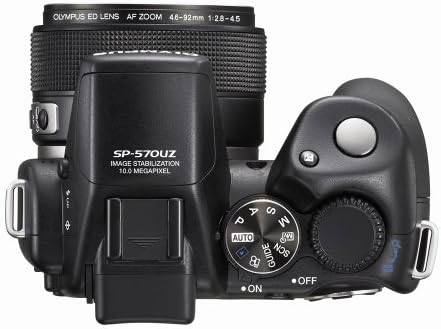
Figure 3.2: Top view of the Olympus SP-570UZ showing the mode dial and shutter button.
3.2 Basic Photography (Auto Mode)
For simple point-and-shoot operation:
- Turn the mode dial (Figure 3.2) to 'AUTO'.
- Frame your subject using the 2.7-inch HyperCrystal LCD or the electronic viewfinder.
- Press the shutter button halfway to focus. The camera will automatically adjust exposure and focus.
- Press the shutter button fully to capture the image.
3.3 Advanced Shooting Modes
The SP-570UZ offers various modes for creative control:
- Program Auto (P): Camera sets aperture and shutter speed, but you can adjust other settings like ISO and white balance.
- Aperture Priority (A): You set the aperture (f-stop), and the camera selects the appropriate shutter speed. Ideal for controlling depth of field.
- Shutter Priority (S): You set the shutter speed, and the camera selects the appropriate aperture. Useful for controlling motion blur or freezing action.
- Manual (M): You control both aperture and shutter speed for complete creative freedom.
- Scene Modes (SCN): Select from 31 pre-set scene modes (e.g., Portrait, Landscape, Night Scene, Multi-Fireworks) for optimized settings in specific situations.
3.4 Zoom Functionality
The camera features a 20x optical zoom (26-520mm equivalent) and 5x digital zoom.
- Use the zoom ring around the lens or the zoom lever (if available) to adjust the focal length.
- Optical zoom provides high-quality magnification. Digital zoom further extends the range but may result in reduced image quality.
3.5 Image Stabilization
The Dual Image Stabilization system combines Sensor-Shift Image Stabilization and Digital Image Stabilization to minimize blur from camera shake and subject movement.
- Sensor-Shift Image Stabilization physically adjusts the CCD to compensate for camera movement, especially useful at longer focal lengths or in low light.
- Digital Image Stabilization uses higher ISO sensitivities and faster shutter speeds to freeze motion.
3.6 Face Detection and Shadow Adjustment
- Face Detection: Automatically detects faces in the frame, optimizes focus and exposure for sharp, well-exposed portraits.
- Shadow Adjustment Technology: Compensates for extreme contrast in scenes, preserving detail in both highlights and shadows to produce more balanced images.
3.7 Perfect Shot Preview
This feature allows you to preview various photographic effects (e.g., zoom, exposure compensation, white balance) on a multi-window screen before capturing the shot. This helps in understanding the impact of different settings.
3.8 High-Speed Sequential Shooting and Pre-Capture
Capture fast-moving action with these features:
- High-Speed Sequential Shooting: Captures images at up to 13.5 frames per second (at 3-megapixel resolution).
- Pre-Capture: When enabled with High-Speed Sequential Shooting, the camera records five frames into its buffer memory *before* the shutter button is fully pressed, ensuring you don't miss critical moments.
3.9 Video Recording
The SP-570UZ can record videos at VGA (640x480) or qVGA (320x240) resolution at 15 or 30 frames per second.
- Turn the mode dial to the video camera icon.
- Press the shutter button to start recording.
- Press the shutter button again to stop recording.
3.10 Flash Usage
The camera has a built-in flash and a hotshoe for external flash units.
- Built-in Flash: Access flash modes (Auto, Red-Eye Reduction, Fill-in, Off) via the flash button on the control panel.
- External Flash: Attach a compatible Olympus external flash to the hotshoe for enhanced lighting control and wireless flash capabilities.
3.11 LCD and Viewfinder
The 2.7-inch HyperCrystal LCD offers a wide viewing angle (176 degrees) and anti-glare technology for clear viewing in bright conditions. The electronic viewfinder includes a diopter adjustment for users with varying eyesight.
4. Image Management
4.1 In-Camera Editing (Perfect Fix)
The Perfect Fix feature allows for basic image adjustments directly on the camera:
- Lighting Fix: Adjusts underexposed areas.
- Red-Eye Fix: Reduces the red-eye effect caused by flash.
- Additional functions include resizing, trimming, adding frames, text options, black and white conversion, and sepia tones.
4.2 Transferring Images (Olympus Master 2 Software)
Use the included Olympus Master 2 software for managing and transferring images to your computer.
- Connect the camera to your computer using a USB cable.
- Launch Olympus Master 2 software.
- Follow the software's instructions to download, organize, and edit your images.
- Alternatively, use a USB xD-Picture Card reader for direct transfer.
5. Maintenance
5.1 Cleaning
- Camera Body: Wipe with a soft, dry cloth. For stubborn dirt, use a slightly damp cloth and then dry thoroughly. Avoid harsh chemicals.
- Lens: Use a lens brush or blower to remove dust. For smudges, use a specialized lens cleaning cloth and lens cleaning solution. Do not touch the lens surface with your fingers.
- LCD Screen: Gently wipe with a soft, lint-free cloth.
5.2 Storage
- Store the camera in a cool, dry place away from direct sunlight and extreme temperatures.
- If storing for an extended period, remove the batteries to prevent leakage.
- Use a camera case to protect against dust and physical damage.
6. Troubleshooting
| Problem | Possible Cause | Solution |
|---|---|---|
| Camera does not power on. | Batteries are dead or incorrectly inserted. | Replace or recharge batteries. Check polarity. |
| Images are blurry. | Camera shake, subject movement, or incorrect focus. | Ensure Image Stabilization is active. Use a faster shutter speed. Re-focus. Use a tripod if necessary. |
| Memory card error. | Card is full, corrupted, or incompatible. | Delete unnecessary files, format the card (after backing up data), or try a different xD Picture Card. |
| Flash does not fire. | Flash mode is set to 'Off' or batteries are low. | Check flash settings. Ensure batteries have sufficient charge. |
For further assistance, please refer to the support section or contact Olympus customer service.
7. Specifications
- Image Sensor: 10 Megapixel CCD (1/2.3-inch)
- Lens: 20x Optical Zoom (26-520mm equivalent), f/2.8-4.5
- Digital Zoom: 5x
- Image Stabilization: Dual Image Stabilization (Sensor-shift)
- LCD Monitor: 2.7-inch HyperCrystal LCD (230,000 dots)
- Viewfinder: Electronic Viewfinder
- Storage Media: xD Picture Card, Internal Memory
- File Format: JPEG, RAW
- Video Recording: 640x480 (VGA) / 320x240 (qVGA) at 15/30 fps, MP4 format
- ISO Sensitivity: Auto, 100-3200 (Expanded)
- Shutter Speed: 4 seconds to 1/2000 seconds
- Flash: Built-in, Hotshoe for external flash
- Power Source: NiMH Batteries
- Dimensions (approx.): 116 x 83.5 x 81 mm (4.57 x 3.29 x 3.19 inches)
- Weight (approx.): 404g (14.24 oz) without batteries/card
- Connectivity: USB 2.0
8. Warranty and Support
8.1 Warranty Information
Please refer to the warranty card included with your product for specific warranty terms and conditions. Typically, Olympus products come with a limited manufacturer's warranty covering defects in materials and workmanship for a specified period from the date of purchase.
8.2 Customer Support
For technical support, service, or inquiries regarding your Olympus SP-570UZ camera, please visit the official Olympus support website or contact their customer service department. Contact information can usually be found on the Olympus website or in your product packaging.
Online resources may include:
- FAQs
- Driver and software downloads (e.g., Olympus Master 2 updates)
- Service center locator


