
Linksys WRT310N
Contents
Linksys WRT310N Wireless-N Gigabit Router Instruction Manual
Product Overview
The Linksys WRT310N Wireless-N Gigabit Router is a networking device designed to provide wireless connectivity and wired network capabilities. It integrates a Wireless Access Point, a 4-port full-duplex 10/100 Gigabit Switch, and a router function to share a high-speed internet connection. This device supports Wireless-N technology for enhanced speed and range, while also being compatible with Wireless-G and Wireless-B devices. It incorporates MIMO technology for robust signals and includes security features such as industrial-strength encryption and a powerful SPI firewall.
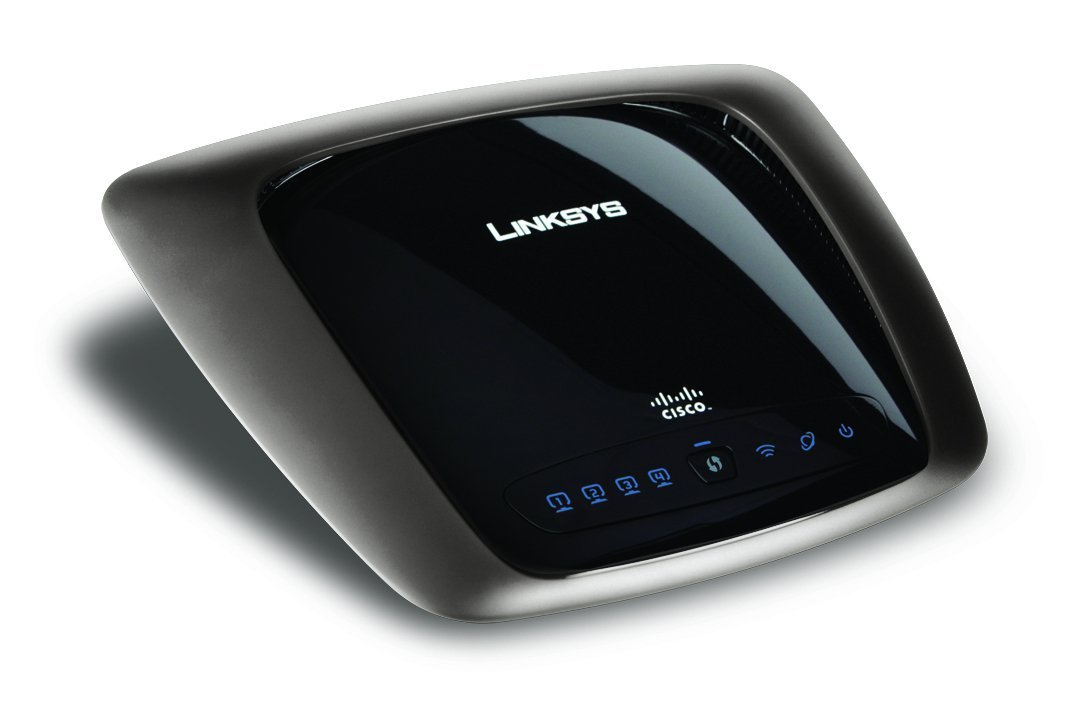
Image: Front view of the Linksys WRT310N Wireless-N Gigabit Router.
Setup
Follow these steps to set up your Linksys WRT310N Wireless-N Gigabit Router:
- Unpack the Router: Carefully remove the router and all accessories from the packaging.
- Connect to Power: Plug the power adapter into the router's power port and then into an electrical outlet.
- Connect to Modem: Connect one end of an Ethernet cable to the Internet (WAN) port on the router and the other end to your cable or DSL modem.
- Connect to Computer (Optional for initial setup): For wired setup, connect one end of an Ethernet cable to any of the numbered LAN ports on the router and the other end to your computer's Ethernet port.
- Power On: Power on your modem first, wait for it to stabilize, then power on your router.
- Install Software: Insert the setup CD (if provided) into your computer and follow the on-screen instructions to install the necessary software, such as Cisco Network Magic Pro.
- Configure Wireless Settings: Access the router's web-based setup page or use the provided software to configure your wireless network name (SSID) and security settings.
Software Installation and Device Addition
The Cisco Network Magic software assists in loading the necessary software and adding new devices to your network.
Video: Instructions on how to load the Network Magic software for your Cisco-Linksys router.
Video: Guide on adding a new device to your network using Network Magic.
Operating Instructions
Once your router is set up, you can manage and utilize your network effectively:
- Accessing the Network: Devices can connect wirelessly using the configured SSID and password, or via Ethernet cables to the LAN ports.
- Internet Sharing: All connected devices will share the single high-speed internet connection provided by your modem.
- Network Map: Use the Cisco Network Magic Pro software to view a visual map of all connected devices on your network.
- Wireless Printing: If you have a network-enabled printer, you can configure it to be accessible wirelessly to all devices on your network.
Viewing Your Network and Wireless Printing
Understand how to visualize your network and enable wireless printing capabilities.
Video: Demonstrates how to view your network using Network Magic.
Video: Explains how to set up and use wireless printing in your home network.
Maintenance and Security
Regular maintenance and proper security settings are crucial for optimal network performance and protection:
- Firmware Updates: Periodically check the Linksys support website for firmware updates to ensure your router has the latest features and security patches.
- Password Management: Regularly change your router's administrative password and your wireless network password (WPA/WPA2 key) to strong, unique combinations.
- Network Lock: Utilize the Network Lock feature to prevent unauthorized intruders from joining your wireless network.
- Firewall: The built-in SPI firewall protects your network from internet attacks. Ensure it is active.
Setting Up Network Security
Learn how to configure and enhance the security of your wireless network.
Video: Demonstrates how to set up security features for your network using Network Magic.
Troubleshooting
If you encounter issues with your router, consider the following troubleshooting steps:
- No Internet Connection:
- Check all cable connections between the modem, router, and computer.
- Restart your modem and router by unplugging them for 30 seconds and then plugging them back in, modem first.
- Verify your Internet Service Provider (ISP) connection status.
- Slow Wireless Speed:
- Ensure your devices are within range of the router.
- Reduce interference by moving the router away from other electronic devices.
- Check for firmware updates for your router.
- Cannot Connect to Wireless Network:
- Confirm you are using the correct wireless network name (SSID) and password.
- Ensure the wireless adapter on your device is enabled.
- Temporarily disable security on the router to test connectivity (re-enable immediately after testing).
Getting Back Online
A video guide to help you restore your internet connection if you encounter issues.
Video: Troubleshooting steps to help you get back online.
Specifications
| Feature | Detail |
|---|---|
| Brand | Linksys |
| Model Name | WRT310N |
| Special Feature | Access Point Mode, WPS |
| Frequency Band Class | Dual-Band |
| Wireless Communication Standard | 802.11n |
| Compatible Devices | Personal Computer |
| Recommended Uses For Product | Home |
| Connectivity Technology | Wireless |
| Item Weight | 12 ounces |
| Operating System | Cisco IOS |
| Wireless Compatibility | 802.11n |
| Security Protocol | WPS |
| Number of Ports | 4 |
| Control Method | Touch |
| Data Transfer Rate | 0.3 gigabits_per_second |
| LAN Port Bandwidth | 10/100 megabits_per_second |
| Maximum Upstream Data Transfer Rate | 300 megabits_per_second |
| Router Firewall Security Level | Advanced |
| Wi-Fi Generation | Wi-Fi 4 |
| Router Network Type | Wireless |
| Connectivity Protocol | Ethernet |
| Controller Type | Switch |
| Coverage | Wide |
| Frequency | 2.4 GHz |
Warranty and Support
The Linksys WRT310N Wireless-N Gigabit Router comes with a 1-year warranty from the manufacturer. For technical support, additional resources, or to check for the latest firmware updates, please visit the official Linksys support website. Ensure you have your product model number (WRT310N) and serial number ready when contacting support.
Documents and downloads
Ask a question about this manual
Ask about setup, troubleshooting, compatibility, parts, safety, or missing instructions. Manuals+ will review the question and use this page’s manual context to help answer it.