
Introduction
This manual provides essential information for the installation, operation, and maintenance of your SmartLink SL1800 V.92 56K Data/Fax PCI Modem. Please read these instructions carefully before proceeding with installation or use to ensure proper functionality and longevity of the device.
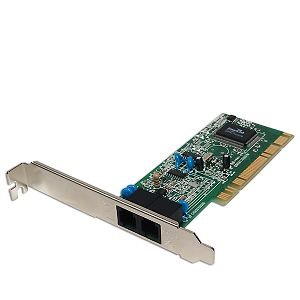
Image: The SmartLink SL1800 V.92 56K Data/Fax PCI Modem, showing its circuit board and connectors.
Setup and Installation
Follow these steps to install your SmartLink SL1800 PCI Modem into your computer system.
- Power Off and Disconnect: Before opening your computer case, ensure the computer is completely powered off and disconnected from the main power supply.
- Open Computer Case: Carefully open your computer's side panel to access the internal components.
- Locate PCI Slot: Identify an available PCI expansion slot on your motherboard. These are typically white or cream-colored slots, distinct from shorter PCIe slots.
- Insert Modem: Align the modem's PCI connector with the chosen slot. Apply gentle, even pressure to firmly seat the modem into the slot until it clicks into place. Secure the modem with a screw to the computer case if a bracket is provided.
- Close Computer Case: Replace the computer's side panel and reconnect the power supply.
- Connect Phone Lines: Locate the two RJ-11 jacks on the modem's bracket. The jack labeled 'LINE' should be connected to your telephone wall jack using a standard phone cable. The jack labeled 'PHONE' is an optional pass-through port for connecting a telephone handset, allowing you to use the same phone line for both voice calls and modem activity.
- Power On and Driver Installation: Power on your computer. The operating system (e.g., Windows XP) should detect new hardware. Insert the driver CD (if provided) or download the latest drivers from the SmartLink website. Follow the on-screen prompts to complete the driver installation.
Upon successful installation, the modem will typically be assigned a COM port (e.g., COM3) and may display a connection icon in the system tray, indicating its readiness for use.
Operating Instructions
The SmartLink SL1800 modem facilitates data and fax communication over a standard telephone line.
Internet Connection
To connect to the internet using a Dial-Up Internet Service Provider (ISP):
- Ensure your modem drivers are correctly installed.
- Configure your operating system's dial-up networking settings with your ISP's phone number, username, and password.
- Initiate a dial-up connection. The modem supports V.92 protocol for download speeds up to 56 Kbps, depending on line conditions and ISP support.
Fax Functionality
The modem supports fax communication at speeds up to 14,400 bps.
- Use fax software compatible with your operating system (e.g., Windows Fax and Scan).
- Configure the fax software to use the SmartLink SL1800 modem.
- Prepare your document for faxing and enter the recipient's fax number.
- Send the fax. The modem will dial the number and transmit the document.
Data Compression (V.44)
The modem supports V.44 data compression, which can improve data throughput by compressing data before transmission, potentially leading to faster effective speeds for compressible data.
Maintenance
The SmartLink SL1800 modem requires minimal maintenance to ensure reliable operation.
- Keep Clean: Ensure the modem and the interior of your computer case are free from dust and debris. Use compressed air to gently clean components if necessary.
- Avoid Moisture: Do not expose the modem to liquids or excessive humidity.
- Temperature Control: Operate the computer in a well-ventilated area to prevent overheating, which can affect modem performance.
- Cable Integrity: Periodically check phone cables for damage or loose connections.
Troubleshooting
If you encounter issues with your SmartLink SL1800 modem, consider the following troubleshooting steps:
- No Dial Tone or Connection:
- Verify that the phone cable is securely connected to the 'LINE' jack on the modem and the wall jack.
- Test the phone line with a standard telephone to ensure there is a dial tone.
- Check if the modem is properly seated in the PCI slot.
- Modem Not Detected:
- Ensure the modem is correctly installed in a PCI slot.
- Check Device Manager in your operating system to see if the modem is listed without errors. Reinstall drivers if necessary.
- Try installing the modem in a different PCI slot.
- Slow Connection Speeds:
- Line quality can significantly impact dial-up speeds. Ensure there are no other devices causing interference on the phone line.
- Confirm your ISP supports V.92 connections.
- Check for updated modem drivers.
- Fax Transmission Failures:
- Verify the recipient's fax number is correct and their fax machine is ready to receive.
- Ensure your fax software is correctly configured and not conflicting with other applications.
Specifications
| Chipset | SmartLink SL1800 |
| Interface | PCI |
| Data Transfer Rate (Download) | Up to 56 Kbps (V.92) |
| Fax Speed | 14,400 bps |
| Data Compression | V.44 |
| Jacks | Phone and Line (RJ-11) |
| Compatible Devices | Personal Computer |
| Regulatory Approvals | FCC, CE, UL, TUV |
| Package Dimensions | 7.7 x 6.2 x 1.6 inches |
| Item Weight | 2.4 ounces |
| UPC | 683728111076 |
Warranty and Disclaimer
Please note the following regarding product warranty and liability:
- The manufacturer is not responsible for any injuries related to the product that occur during the shipping process.
- For this reason, no refunds are provided for such incidents.
- Users are advised to inspect the product upon receipt for any shipping damage.
Support
For further assistance or technical support regarding your SmartLink SL1800 modem, please consider the following options:
- Manufacturer's Website: Visit the official SmartLink website for updated drivers, FAQs, and support resources.
- Online Forums: Consult online technical forums or communities for solutions to common issues.
- System Integrator: If the modem was part of a pre-built computer system, contact your system integrator or computer manufacturer for support.