
1. Introduction
This manual provides detailed instructions for the installation, operation, and maintenance of your ROLINE 4-Channel Network Video Recorder (NVR), Model 21197310. Please read this manual thoroughly before using the product to ensure proper setup and functionality. Keep this manual for future reference.
1.1. Package Contents
Verify that all items listed below are included in your package. If any items are missing or damaged, please contact your retailer.
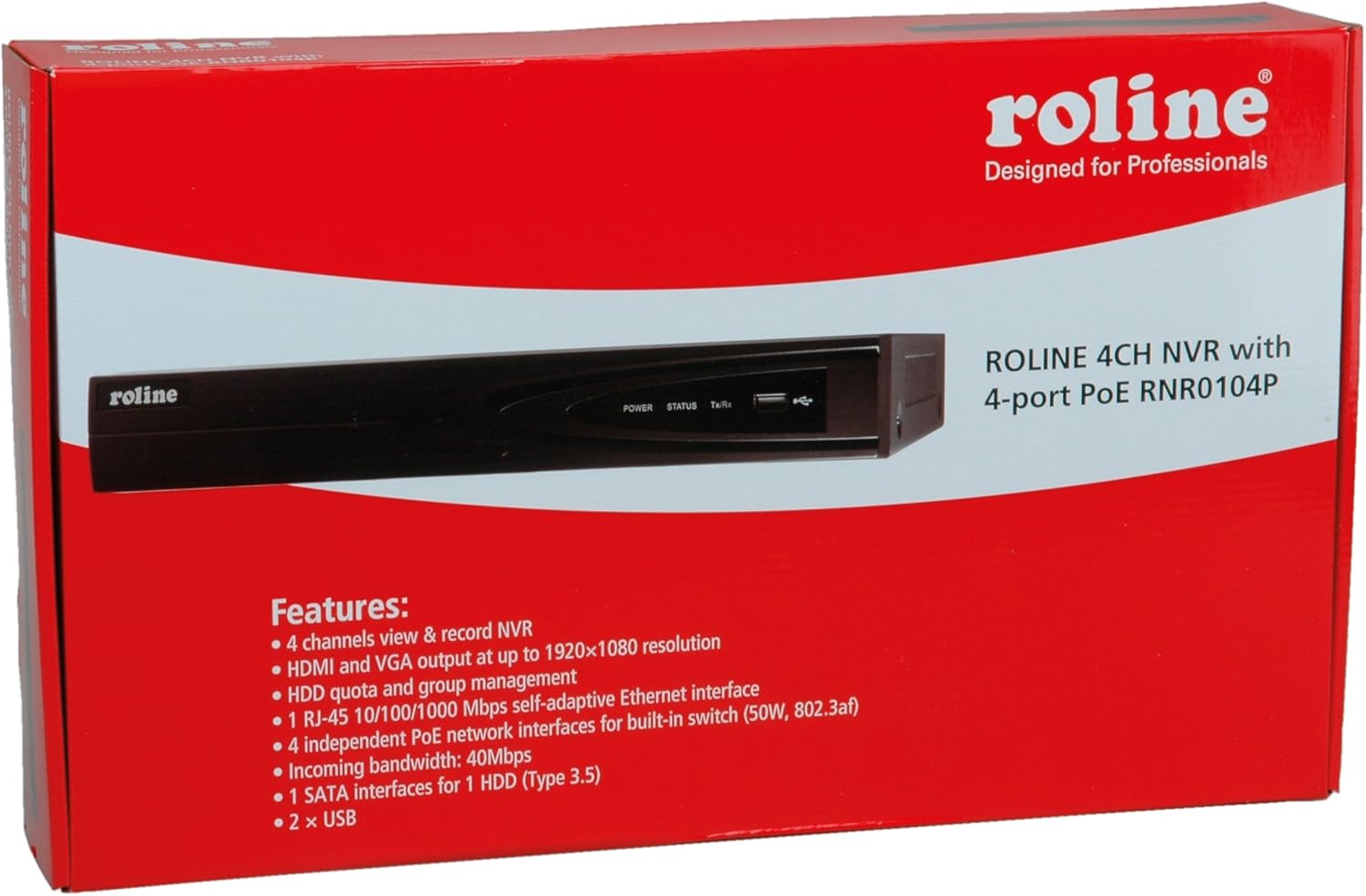
Figure 1: ROLINE NVR 21197310 and included accessories. This image shows the NVR unit, power adapter, power cable, USB mouse, Ethernet cable, SATA data and power cables, mounting screws, and a software CD.
- ROLINE 4-Channel NVR Unit (Model 21197310)
- Power Adapter and Cable
- USB Mouse
- Ethernet Cable
- SATA Data and Power Cables (for HDD installation)
- Mounting Screws (for HDD installation)
- Software CD (may include utility tools and documentation)
2. Product Overview
The ROLINE 21197310 NVR is a Linux-based network video recorder designed to manage up to 4 network cameras. It features an integrated 4-port Power over Ethernet (PoE) switch, allowing direct power supply to PoE-compatible cameras. With HDMI and VGA outputs, you can connect a local display for direct operation and configuration using a mouse, eliminating the need for an additional PC for video playback.
2.1. Key Features
- 4-channel network video recording capability
- HDMI and VGA video output with resolutions up to 1920 x 1080
- 1x RJ-45 10/100/1000 Mbps adaptive Ethernet interface
- 4 independent PoE network interfaces with integrated switch (50W total, 802.3af/at compliant)
- Support for locking and unlocking recorded data
- 1 SATA interface for 1 HDD (Type 3.5")
- 2x USB ports
2.2. Front Panel

Figure 2: Front Panel of ROLINE NVR 21197310. This image displays the Roline branding, LED indicators for power, status, and data transmission/reception, and a convenient front-facing USB port.
- ROLINE Logo: Brand identification.
- POWER LED: Indicates power status.
- STATUS LED: Indicates system operational status.
- Tx/Rx LED: Indicates network activity.
- USB Port: For connecting a USB mouse or external storage devices.
2.3. Rear Panel

Figure 3: Rear Panel of ROLINE NVR 21197310. This image highlights the various connectivity options including four PoE ports for cameras, audio input and output jacks, VGA and HDMI video outputs, a main LAN port, a USB port, the DC power input, and the main power switch.
- PoE Ports (1-4): RJ-45 ports for connecting IP cameras and providing power via PoE.
- AUDIO IN (RCA): For connecting an external audio input device.
- AUDIO OUT (RCA): For connecting to an external speaker or audio system.
- VGA Port: For connecting a VGA monitor.
- HDMI Port: For connecting an HDMI monitor or TV.
- LAN Port: RJ-45 port for connecting the NVR to your local network/router.
- USB Port: For connecting a USB mouse or external storage devices.
- 48V DC Power Input: Connect the provided power adapter here.
- POWER Switch: Main power on/off switch for the NVR.
- Grounding Terminal: For optional grounding connection.
3. Setup
3.1. Hard Drive Installation
The NVR requires a 3.5-inch SATA hard drive (not included) for recording video. Follow these steps to install it:
- Unscrew and remove the top cover of the NVR chassis.
- Connect the SATA data cable and power cable (provided) to the hard drive.
- Align the hard drive with the mounting holes inside the NVR and secure it with the provided screws.
- Connect the other end of the SATA data cable to the SATA port on the NVR's motherboard.
- Connect the other end of the SATA power cable to the power connector on the NVR's motherboard.
- Carefully replace the top cover and secure it with screws.
Note: Ensure the NVR is powered off and unplugged before performing any internal installations.
3.2. Connecting Peripherals
- Display: Connect a monitor to the NVR's HDMI or VGA port.
- Mouse: Connect the USB mouse to any available USB port (front or rear).
- Network: Connect an Ethernet cable from your router/network switch to the NVR's LAN port.
- Cameras: Connect your IP cameras to the NVR's PoE ports (1-4) using Ethernet cables. The NVR will provide power to PoE-compatible cameras.
3.3. Powering On
- Connect the power adapter to the NVR's 48V DC Power Input.
- Plug the power adapter into a suitable power outlet.
- Flip the POWER switch on the rear panel to the 'ON' position.
- The NVR will boot up, and you should see the ROLINE logo on the connected display.
4. Operating Instructions
4.1. Initial Setup Wizard
Upon first boot, the NVR may guide you through an initial setup wizard. Follow the on-screen prompts to configure basic settings such as language, date/time, network settings, and hard drive initialization. It is crucial to format the newly installed hard drive through this wizard or the system settings before recording can begin.
4.2. User Interface Navigation
The NVR's interface is primarily controlled using the connected USB mouse. Right-click anywhere on the live view screen to access the main menu. Use the mouse to navigate through menus, select options, and input text.
4.3. Camera Management
To add and manage IP cameras:
- From the main menu, navigate to Camera Management or IP Camera settings.
- The NVR should automatically detect cameras connected to its PoE ports.
- If cameras are not detected, you may need to manually add them by entering their IP address, port, username, and password. Refer to your camera's manual for these details.
- Ensure cameras are enabled and configured for recording.
4.4. Recording Configuration
To set up recording schedules and modes:
- Access the Record Settings or Schedule menu from the main interface.
- Configure recording modes (e.g., continuous, motion detection, alarm-triggered) for each camera.
- Set recording schedules based on your requirements.
- Ensure the hard drive is formatted and has sufficient space.
4.5. Video Playback
To review recorded footage:
- From the main menu, select Playback.
- Choose the camera(s) and date/time range you wish to review.
- Use the playback controls (play, pause, fast forward, rewind) to navigate through the footage.
- The NVR supports locking and unlocking recorded data to prevent accidental deletion of important events. This option is typically found within the playback or file management interface.
5. Maintenance
5.1. Hard Drive Management
Regularly check the status of your hard drive through the NVR's system settings. If the hard drive is full, the NVR will typically overwrite the oldest recordings (circular recording). You can also manually format the hard drive if needed, which will erase all recorded data.
5.2. Firmware Updates
Periodically check the ROLINE official website for firmware updates. Firmware updates can improve performance, add new features, or fix bugs. Follow the instructions provided with the firmware update package carefully to avoid damaging the device.
5.3. Cleaning
Keep the NVR unit clean and free from dust. Use a soft, dry cloth to wipe the exterior. Ensure ventilation openings are not blocked to prevent overheating. Do not use liquid cleaners or aerosols directly on the unit.
6. Troubleshooting
6.1. No Power
- Ensure the power adapter is securely connected to both the NVR and a working power outlet.
- Check if the power switch on the rear panel is in the 'ON' position.
- Test the power outlet with another device to confirm it is functional.
6.2. No Video Output on Display
- Verify that the HDMI or VGA cable is securely connected to both the NVR and the monitor.
- Ensure the monitor is powered on and set to the correct input source (HDMI/VGA).
- Try connecting to a different display or using a different cable.
6.3. Cameras Not Displaying/Recording
- Check if the cameras are properly connected to the NVR's PoE ports.
- Ensure the Ethernet cables are functional.
- Verify that the cameras are powered on (if not using PoE, ensure external power is supplied).
- In the NVR's Camera Management settings, ensure the cameras are detected, enabled, and configured correctly.
- Confirm that the hard drive is installed, formatted, and has available space for recording.
6.4. Network Connection Issues
- Ensure the Ethernet cable is securely connected to the NVR's LAN port and your router/switch.
- Check the network settings in the NVR's interface to ensure correct IP address configuration (DHCP or static IP).
- Verify that your router/network is functioning correctly.
7. Specifications
| Feature | Detail |
|---|---|
| Model Number | 21197310 |
| Manufacturer | ROLINE |
| Number of Channels | 4 |
| Video Output | 1x HDMI, 1x VGA (up to 1920x1080 resolution) |
| Ethernet Interface | 1x RJ-45 10/100/1000 Mbps Adaptive Ethernet |
| PoE Ports | 4 independent PoE interfaces with integrated switch (50W, 802.3af/at) |
| USB Ports | 2x USB |
| Audio Input/Output | 1x Audio In (RCA), 1x Audio Out (RCA) |
| HDD Interface | 1x SATA for 3.5" HDD |
| Power Supply | AC/DC Adapter (48V DC input) |
| Dimensions | 21.6 x 15.2 x 4.2 cm |
| Weight | 60 g (NVR unit only, without HDD) |
| Operating System | Linux-based |
8. Warranty and Support
ROLINE products are designed for reliability and performance. This product comes with a standard manufacturer's warranty. For specific warranty terms and conditions, please refer to the warranty card included with your product or visit the official ROLINE website.
For technical support, troubleshooting assistance, or service inquiries, please contact your local ROLINE distributor or visit the ROLINE support portal online. Please have your product model number (21197310) and purchase information ready when seeking support.
ROLINE is a registered trademark. All rights reserved. Specifications are subject to change without notice.

