
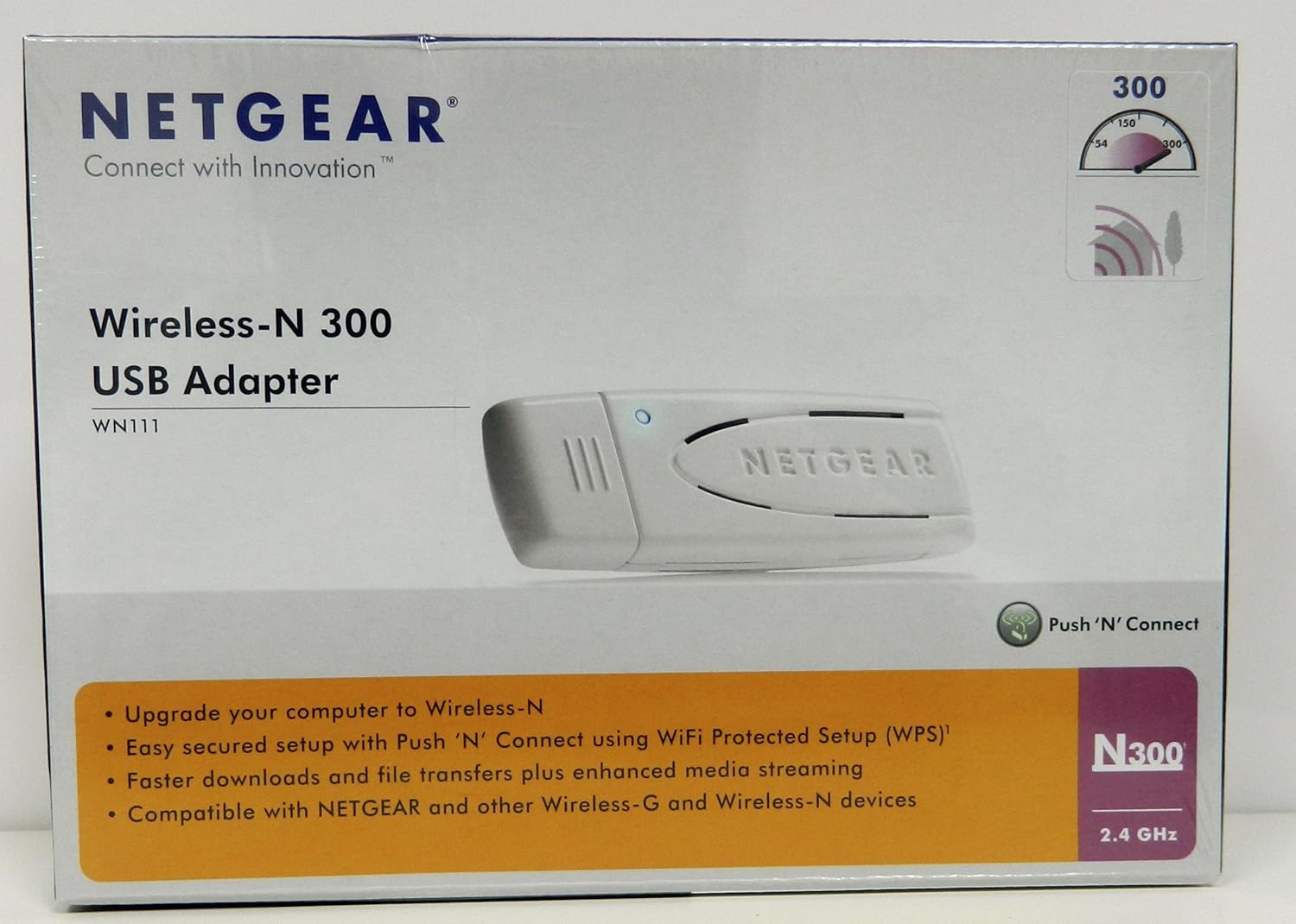
1. Product Overview
The NETGEAR WN111 Wireless-N 300 USB Adapter provides wireless network connectivity for desktop and notebook computers. It utilizes the Wireless-N protocol to deliver enhanced speed and range for internet activities such as web browsing, email, music streaming, and online gaming.
Key Features:
- Wireless-N protocol for data transfer rates up to 300 Mbps.
- Compact and portable design.
- Backward compatibility with 802.11g and 802.11b wireless networks.
- Supports Wi-Fi Protected Setup (WPS) for simplified secure connections.
- USB 2.0 interface for broad compatibility.

Image: A close-up view of the NETGEAR WN111 Wireless-N 300 USB Adapter, showcasing its compact form factor and USB connector.
2. Installation and Setup
System Requirements:
- Desktop or notebook PC with an available USB 1.1 or USB 2.0 slot.
- Microsoft Windows Vista, XP, or 2000 SP4.
- CD-ROM drive (for driver installation from included CD) or internet access (for driver download).
Package Contents:
- WN111 RangeMax Next Wireless-N USB 2.0 Adapter
- Installation Guide
- Setup CD
- Warranty/Support Information Card
Driver Installation:
- Insert the Setup CD: Place the included Setup CD into your computer's CD-ROM drive. The installation wizard should start automatically. If it does not, navigate to the CD drive in 'My Computer' and run the setup executable.
- Follow On-Screen Instructions: The Smart Wizard setup utility will guide you through the driver installation process. Follow the prompts to complete the installation.
- Download Drivers (Optional): If you do not have a CD-ROM drive or encounter issues, visit the official NETGEAR support website to download the latest drivers for the WN111 adapter. Ensure you select the correct drivers for your operating system (e.g., WN111v2_NA_SW2.0_setup for North America, or specific Windows 7 drivers if applicable).
Connecting the Adapter:
- After driver installation is complete, plug the NETGEAR WN111 USB Adapter into an available USB port on your computer.
- The operating system should detect the new hardware and configure it using the installed drivers.
Connecting to a Wireless Network:
There are two primary methods to connect to a wireless network:
- Using Push 'N' Connect (WPS):
- Ensure your wireless router supports WPS (Wi-Fi Protected Setup).
- Press the 'Push 'N' Connect' button on your NETGEAR WN111 adapter.
- Within two minutes, press the WPS button on your wireless router. The adapter and router will automatically establish a secure connection.
- Manual Connection:
- Open your computer's wireless network utility (e.g., Windows Wireless Zero Configuration).
- Scan for available wireless networks.
- Select your desired network (SSID) from the list.
- Enter the network security key or passphrase when prompted. This is typically found on a label on your router.
- Click 'Connect' to establish the wireless connection.

Image: A diagram illustrating the Push 'N' Connect (WPS) setup process for the NETGEAR WN111 adapter, showing the steps to connect securely with a compatible router.
3. Operation
Network Connection Management:
Once installed, the adapter will allow your computer to detect and connect to wireless networks. You can manage your connections through your operating system's network settings:
- Viewing Available Networks: Access your network settings to see a list of all wireless networks within range.
- Connecting/Disconnecting: Select a network to connect or disconnect.
- Profile Management: The included software allows you to create and manage profiles for different wireless networks, storing their security settings for quick reconnection.
Security Settings:
The WN111 adapter supports various security protocols to protect your wireless communication:
- WPA2-PSK (Wi-Fi Protected Access II - Pre-Shared Key): Provides strong encryption and authentication.
- WPA-PSK (Wi-Fi Protected Access - Pre-Shared Key): An earlier, still secure, encryption method.
- 64-bit and 128-bit WEP (Wired Equivalent Privacy): Older encryption methods, less secure but supported for compatibility with legacy devices.
It is recommended to use WPA2-PSK encryption for the highest level of security.
4. Maintenance
To ensure optimal performance and longevity of your NETGEAR WN111 adapter, consider the following maintenance tips:
- Keep Drivers Updated: Periodically check the NETGEAR support website for the latest driver updates. Updated drivers can improve performance, stability, and compatibility.
- Physical Cleaning: Gently clean the adapter with a soft, dry cloth to remove dust and debris. Avoid using liquid cleaners directly on the device.
- Protect the USB Connector: When not in use, utilize the removable port cover to protect the USB connector from dust, dirt, and physical damage.
- Proper Storage: Store the adapter in a cool, dry place away from direct sunlight and extreme temperatures.
5. Troubleshooting
If you encounter issues with your NETGEAR WN111 adapter, refer to the following common troubleshooting steps:
- Adapter Not Detected:
- Ensure the adapter is firmly plugged into a working USB port.
- Try a different USB port on your computer.
- Verify that the drivers are correctly installed in Device Manager. Reinstall drivers if necessary.
- Cannot Connect to Network:
- Confirm that your wireless router is powered on and broadcasting a signal.
- Double-check the network security key (passphrase) for accuracy.
- Ensure your router's wireless settings (SSID broadcast, security type) are compatible.
- Restart your computer and wireless router.
- Slow Connection Speed or Frequent Disconnections:
- Ensure the adapter is within optimal range of your wireless router. Obstacles like walls and large appliances can degrade signal quality.
- Minimize interference from other electronic devices (e.g., cordless phones, microwaves).
- Update the adapter's drivers to the latest version.
- If using an older 802.11g/b network, performance will be limited by those standards.
- Driver Installation Issues on Older OS:
- For Windows 7 or older systems, specific driver versions may be required. Refer to the NETGEAR support website for compatibility and installation instructions.
- Manual driver installation via Device Manager might be necessary if the automated setup fails.
If problems persist, consult the NETGEAR support website or contact their customer service for further assistance.
6. Technical Specifications
| Feature | Specification |
|---|---|
| Model Number | WN111-100NAS |
| Product Dimensions | 8.75 x 6.5 x 2 inches (22.23 x 16.51 x 5.08 cm) |
| Item Weight | 0.8 ounces (22.68 g) |
| Hardware Interface | USB 2.0 |
| Data Link Protocol | 300N (802.11n draft) |
| Data Transfer Rate | Up to 300 Mbps (Wireless-N), 1, 2, 5.5, 11 Mbps (802.11b) |
| Compatible Operating Systems | Microsoft Windows Vista, XP, 2000 SP4 |
| Wireless Security | WPA2-PSK, WPA-PSK, 64-bit/128-bit WEP |
| Color | White |
7. Warranty and Support
Warranty Information:
The NETGEAR WN111 RangeMax Next Wireless-N USB 2.0 Adapter is backed by a 1-year warranty. Please refer to the warranty/support information card included in your product package for specific terms and conditions applicable to your region.
Technical Support:
For technical assistance, driver downloads, or further product information, please visit the official NETGEAR support website. You may also find helpful resources and FAQs there.
- NETGEAR Support Website: www.netgear.com/support
- Customer Service: Contact information for customer service may vary by region. Refer to your product documentation or the NETGEAR website for local support numbers.