
Introduction
The Cricut Personal Electronic Cutter is a versatile and portable machine designed for crafting enthusiasts. It allows you to precisely cut letters, shapes, and phrases from various materials, making it ideal for scrapbooking, card making, and other paper crafts. This machine operates independently, without the need for a computer, using small, lightweight cartridges that contain complete font or shape sets.
Its user-friendly design ensures that even beginners can quickly learn to operate it. Simply place your desired material on the cutting mat, load it into the machine, insert the appropriate cartridge, select your cutting preferences, and initiate the cut. The machine offers simple controls to adjust the size and style of your cuts, providing flexibility for your creative projects.
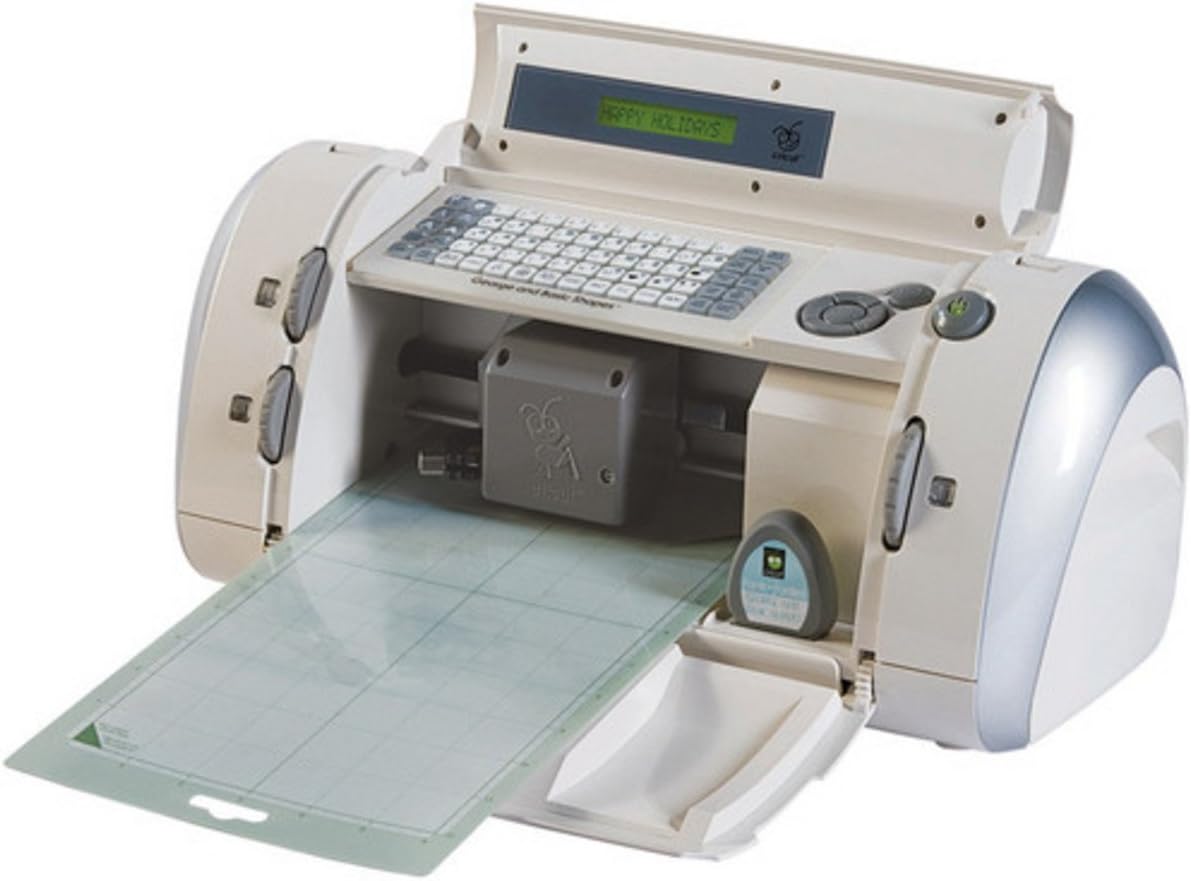
The Cricut Personal Electronic Cutting Machine, showcasing its compact design and integrated keyboard for easy operation.
Key Features
- Portable electronic cutting machine for greeting cards, scrapbooks, and other paper crafts.
- Cuts letters, shapes, or phrases; works with vellum, paper, cardstock, and vinyl.
- Cuts from 1 inch up to 5-1/2 inches tall.
- Cartridge-based system; no computer required; George and Basic Shapes cartridge included.
- Measures 17-4/5 by 9-2/3 by 12-8/9 inches; weighs approximately 9 pounds.
Setup Guide
Unpacking
Carefully remove all components from the packaging. Ensure you have the Cricut machine, the George and Basic Shapes cartridge, one 6x12 inch cutting mat, and the power adapter. Retain the packaging for future storage or transport.
Power Connection
Connect the power adapter to the machine's power port and then plug it into a standard electrical outlet. Press the power button to turn on the machine. The display screen will illuminate, indicating it is ready for use.
Loading the Cutting Mat
Place your desired material (paper, cardstock, vellum, or vinyl) onto the adhesive surface of the 6x12 inch cutting mat. Align the material with the grid lines on the mat. Gently slide the cutting mat into the machine's loading slot until it is properly seated.
Inserting a Cartridge
Open the cartridge slot cover on the machine. Insert the desired Cricut cartridge firmly into the slot until it clicks into place. Close the cover. The machine will recognize the cartridge and display available designs or fonts.
Operating Your Cricut Machine
Basic Operation
- Select Design: Use the machine's integrated keyboard and display to browse and select the desired letter, shape, or phrase from the inserted cartridge.
- Adjust Size: Utilize the size adjustment controls to set the height of your cut, ranging from 1 inch to 5-1/2 inches.
- Set Style: Choose any specific style options available for your selected design.
- Press Cut: Once your material is loaded and settings are confirmed, press the 'Cut' button to begin the cutting process.
- Unload Mat: After the cut is complete, press the 'Unload Mat' button to release the cutting mat. Carefully remove your cut material from the mat.
Adjusting Settings
The Cricut machine features intuitive controls for adjusting various parameters. Dials on the side of the machine allow for fine-tuning of pressure and speed, which can be adjusted based on the thickness and type of material being cut. Experiment with these settings to achieve optimal cut quality for different materials.
Material Compatibility
The Cricut Personal Electronic Cutter is designed to work with a variety of common crafting materials. These include:
- Vellum
- Paper
- Cardstock
- Vinyl
Always perform a test cut on a small piece of your material to ensure the settings are appropriate before cutting your final project.
Maintenance
Regular maintenance ensures the longevity and optimal performance of your Cricut machine.
Blade Care
The cutting blade is a consumable part and will dull over time, especially with frequent use or cutting thicker materials. Replace the blade when you notice a decrease in cut quality, such as ragged edges or incomplete cuts. Always handle blades with care.
Cleaning the Cutting Mat
The adhesive on the cutting mat can accumulate dust and material fibers, reducing its stickiness. Gently clean the mat with a lint-free cloth and mild soap and water, or use specialized mat cleaning products. Allow the mat to air dry completely before reuse.
General Cleaning
Keep the exterior of your machine clean by wiping it with a soft, dry cloth. Periodically check the internal mechanisms for any debris or paper scraps and carefully remove them to prevent interference with the cutting process.
Troubleshooting Common Issues
If you encounter problems with your Cricut machine, refer to the following common issues and their solutions:
Machine Not Powering On
- Ensure the power adapter is securely connected to both the machine and a working electrical outlet.
- Verify that the power outlet is functional by plugging in another device.
Poor Cut Quality
- Check if the cutting blade is dull and replace it if necessary.
- Ensure the cutting mat is clean and the material is firmly adhered to it.
- Adjust the pressure and speed settings according to the material being cut.
Paper Jams
- Turn off the machine immediately.
- Carefully remove the cutting mat and any jammed material.
- Inspect the rollers and cutting area for any remaining debris before restarting.
Product Specifications
| Attribute | Value |
|---|---|
| Brand | Cricut |
| Model Number | 29-0001 |
| Material | Plastic with Steel blades |
| Color | Silver |
| Product Dimensions (D x W x H) | 9.6"D x 17.8"W x 12.8"H |
| Item Weight | 10.03 Pounds |
| Operation Mode | Automatic |
| Print Media Compatibility | Card stock, Vellum, Paper, Vinyl |
| Manufacturer | Provo Craft & Novelty |
| Date First Available | April 21, 2004 |
Warranty and Support
Warranty Information
The Cricut Personal Electronic Cutting Machine comes with a 1-year limited warranty. Please refer to the warranty card included in your product packaging for full terms and conditions regarding coverage and claims.
Legal Disclaimer
Please note: This product is sold as described. No returns are accepted for this item. It is brand new and still sealed in its original box, purchased from Michaels.
Contact Support
For technical assistance, troubleshooting beyond this manual, or warranty claims, please contact Cricut customer support directly. Visit the official Cricut website for the most up-to-date contact information and support resources.