
1. Product Overview
The Epson PictureMate Dash PM260 is a compact photo inkjet printer designed for easy, high-quality 4x6 inch photo printing. It features Advanced MicroPiezo technology for durable prints and supports PC-free printing from memory cards, digital cameras, or USB flash drives.

Figure 1.1: Front view of the Epson PictureMate Dash PM260 printer.
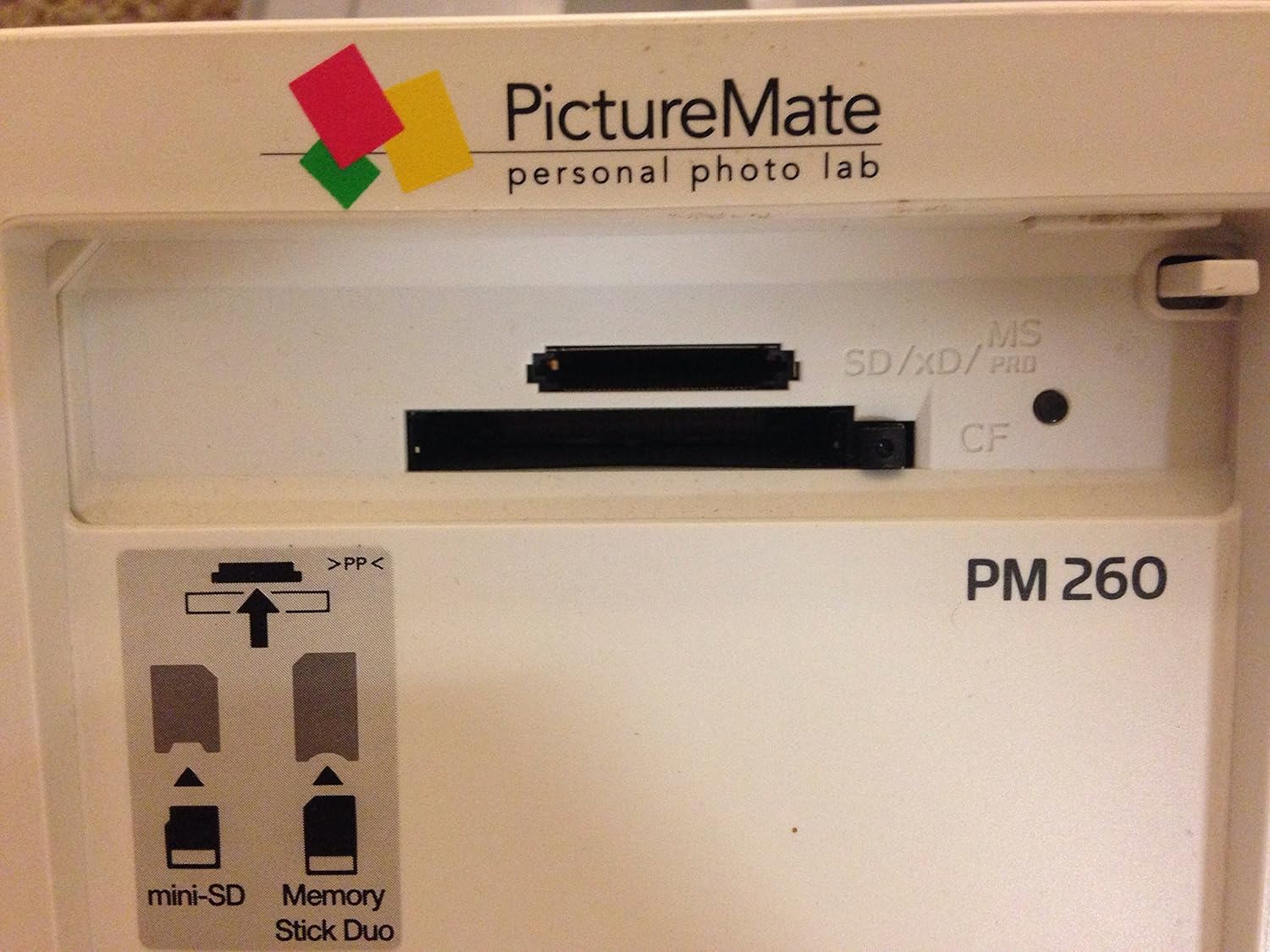
Figure 1.2: Top view of the printer with the cover open, revealing the control panel and LCD display.

Figure 1.3: Detail of the memory card slots, supporting SD, xD, MS, and CF formats.
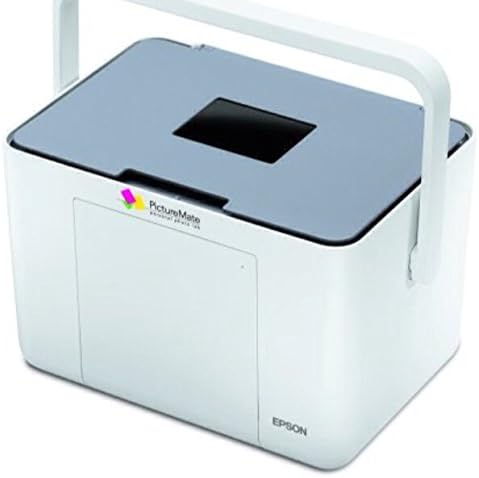
Figure 1.4: The printer shown with its integrated carrying handle, highlighting its portability.
2. Setup
2.1 Unpacking
Carefully remove the printer and all accessories from the packaging. Ensure all protective tapes and packing materials are removed from the printer's exterior and interior.
2.2 Power Connection
- Connect the power adapter to the printer's power input port.
- Plug the power cord into a standard electrical outlet.
- Press the On button to power on the printer.
2.3 Ink Cartridge Installation
The PictureMate Dash PM260 uses a single photo ink cartridge (Epson T5846). Follow these steps to install it:
- Open the printer's top cover.
- Locate the cartridge slot.
- Unpack the new Epson T5846 Photo Cartridge.
- Insert the cartridge into the slot, ensuring it clicks firmly into place. The label on the cartridge indicates the correct orientation.
- Close the printer's top cover.

Figure 2.1: Epson PictureMate Photo Cartridge T5846.

Figure 2.2: Installing the T5846 cartridge into the printer.
2.4 Paper Loading
Load 4x6 inch glossy photo paper into the paper tray. Ensure the paper is aligned correctly and does not exceed the maximum input sheet capacity of 10 sheets.
3. Operating Instructions
3.1 PC-Free Printing (Memory Card / USB Flash Drive)
- Insert your memory card into the appropriate slot or connect a USB flash drive to the printer's USB port.
- The printer's LCD screen will display detected images. Use the navigation buttons (Up, Down, Left, Right) and OK button to browse and select photos.
- Use the Zoom button to enlarge images for closer inspection.
- Press the Display button to change viewing options or access print settings.
- Once your selection is complete, press the Print button to start printing.
3.2 Printing from a Computer
- Connect the printer to your computer using a USB 2.0 cable.
- Install the printer drivers from the included CD-ROM or download them from the official Epson support website.
- Open the photo or document you wish to print on your computer.
- Select the Epson PictureMate Dash PM260 as your printer from the print dialog box.
- Adjust print settings (e.g., paper type, print quality) as needed.
- Initiate the print job from your computer.
4. Maintenance
4.1 Cleaning
- Exterior Cleaning: Wipe the exterior of the printer with a soft, damp cloth. Avoid using abrasive cleaners or solvents.
- Interior Cleaning: Refer to the on-screen menu for options like Nozzle Check and Head Cleaning to maintain print quality. Perform these routines if print quality degrades (e.g., streaks, missing colors).
4.2 Ink Cartridge Replacement
When the ink cartridge is low or empty, the printer will display a message. Replace the cartridge by following the installation steps in Section 2.3. Dispose of used cartridges according to local regulations.
5. Troubleshooting
| Problem | Possible Cause | Solution |
|---|---|---|
| Printer does not power on. | Power cord not connected properly. | Ensure power cord is securely connected to the printer and a working electrical outlet. |
| Poor print quality (streaks, faded colors). | Low ink, clogged nozzles, or incorrect paper type. | Check ink level and replace cartridge if low. Perform a nozzle check and head cleaning from the printer's menu. Ensure you are using glossy photo paper. |
| "Paper is out or not loaded correctly" message. | Paper tray empty or paper misaligned. | Load paper into the tray, ensuring it is properly aligned and not exceeding capacity. Press OK. |
| Printer not recognized by computer. | USB cable issue or missing/corrupt drivers. | Ensure USB cable is securely connected. Reinstall printer drivers. Try a different USB port or cable. |
6. Specifications
| Feature | Detail |
|---|---|
| Model Name | Dash PM 260 |
| Item Model Number | C11C694201 |
| Printing Technology | Inkjet (Advanced MicroPiezo) |
| Maximum Print Resolution | 300 x 300 dpi |
| Maximum Media Size | 4x6 inches |
| Max Input Sheet Capacity | 10 sheets |
| Connectivity Technology | USB 2.0 |
| Compatible Devices | PC |
| Item Weight | 5.29 pounds |
| Product Dimensions | 6.5 x 9.1 x 8.7 inches |
| Included Components | Photo cartridges, Photo paper |

Figure 6.1: Product label with serial number K94E119240.
7. Warranty and Support
The Epson PictureMate Dash PM260 comes with a 1-year limited manufacturer's warranty. For warranty claims, technical support, or to download the latest drivers and software, please visit the official Epson support website or contact Epson customer service.
For additional information and support, you may visit the Epson Store on Amazon.


