
1. Introduction
This manual provides comprehensive instructions for the installation, operation, and maintenance of your Chieftec Mesh MidiTower LCX-01SL-SL-B PC case. Please read this manual thoroughly before beginning any installation to ensure proper setup and safe handling of your components.
2. Product Overview
The Chieftec Mesh MidiTower LCX-01SL-SL-B is a versatile computer chassis designed for ATX 2.0 power supplies and Micro ATX motherboards. It features a mesh design for optimal airflow and includes multiple drive bays for storage and optical devices. The case provides convenient front panel connectivity with two USB 2.0 ports and two USB 3.0 ports.

Image: Internal view of the Chieftec Mesh MidiTower LCX-01SL-SL-B PC case, highlighting the drive bays and general layout.
3. Setup and Installation
3.1 Safety Precautions
- Always disconnect the power supply from the wall outlet before installing or removing any components.
- Wear an anti-static wrist strap to prevent electrostatic discharge (ESD) damage to sensitive components.
- Handle components carefully to avoid physical damage.
3.2 Opening the Case
- Place the case on a flat, stable surface.
- Locate and remove the thumbscrews or standard screws securing the side panel(s) at the rear of the case.
- Gently slide the side panel(s) backward and lift them away from the chassis.
3.3 Motherboard Installation
- Install the I/O shield into the opening at the rear of the case.
- Align the motherboard with the pre-installed standoffs. If necessary, install additional standoffs according to your motherboard's form factor.
- Carefully place the motherboard onto the standoffs, ensuring the I/O ports align with the I/O shield.
- Secure the motherboard with the provided screws. Do not overtighten.
3.4 Power Supply Installation
- Position the ATX 2.0 power supply unit (PSU) in the designated bottom-mount bay.
- Align the screw holes on the PSU with those on the case's rear panel.
- Secure the PSU with the provided screws.
3.5 Hard Drive Installation
The Chieftec Mesh MidiTower features tool-less drive trays for easy installation of 3.5-inch hard drives.
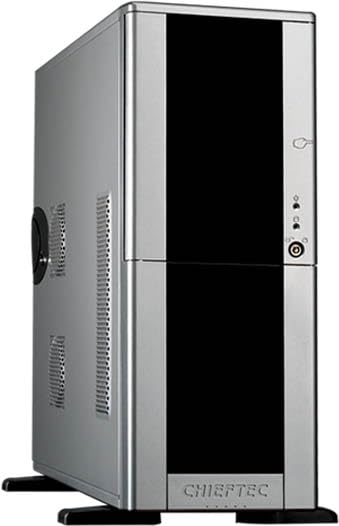
Image: Installation of a 3.5-inch hard drive into a tool-less drive bay.
- Gently pull out an empty drive tray from the drive cage.
- Flex the sides of the tray to fit the 3.5-inch hard drive, aligning the screw holes on the drive with the pins on the tray.
- Once the drive is secured in the tray, slide the tray back into the drive cage until it clicks into place.
- Connect the SATA data and power cables to the installed hard drive.
3.6 Optical Drive Installation (5.25-inch bays)
- Remove the desired 5.25-inch bay cover from the front panel.
- Slide the optical drive into the bay from the front of the case until it is flush with the front panel.
- Secure the drive using the provided tool-less clips or screws on both sides.
- Connect the SATA data and power cables to the optical drive.
3.7 Expansion Card Installation
- Remove the appropriate expansion slot cover(s) from the rear of the case.
- Insert the expansion card (e.g., graphics card, sound card) into the corresponding PCIe slot on the motherboard.
- Secure the card with a screw or the case's retention mechanism.
3.8 Cable Management
Utilize the cable routing cutouts and tie-down points behind the motherboard tray to organize cables. This improves airflow and aesthetics.
3.9 Closing the Case
- Ensure all components are securely installed and all necessary cables are connected.
- Slide the side panel(s) back into place and secure them with the thumbscrews or standard screws.
4. Operating
Once all internal components are installed and the case is closed, connect your monitor, keyboard, mouse, and other peripherals to the appropriate ports on your motherboard's I/O panel. Connect the power cable to the power supply unit and then to a wall outlet. Press the power button on the front of the case to start your system.
5. Maintenance
5.1 Cleaning
- Regularly clean dust filters (if present) to maintain optimal airflow.
- Use compressed air to remove dust from inside the case and components. Ensure the system is powered off and unplugged before cleaning.
- Wipe the exterior of the case with a soft, damp cloth. Avoid harsh chemicals.
5.2 Airflow
Ensure the case has adequate clearance around its intake and exhaust vents to allow for proper airflow and cooling of internal components.
6. Troubleshooting
6.1 System Does Not Power On
- Verify that the power cable is securely connected to both the power supply and the wall outlet.
- Ensure the power switch on the back of the power supply is in the 'ON' position.
- Check that the front panel power button cable is correctly connected to the motherboard.
- Confirm all internal power connections (24-pin ATX, 8-pin CPU, PCIe power) are firmly seated.
7. Specifications
| Feature | Specification |
|---|---|
| Model Name | Mesh MidiTower LCX-01SLSLB |
| Item Model Number | LCX-01SL-SL-B |
| Case Type | MidiTower |
| Motherboard Compatibility | Micro ATX |
| Power Supply Compatibility | ATX 2.0 (Bottom Mount) |
| Dimensions (LxWxH) | 21.26 x 8.07 x 20.63 inches |
| Item Weight | 11.66 pounds |
| USB 2.0 Ports | 2 |
| USB 3.0 Ports | 2 |
| 5.25" Drive Bays | 4 |
| Cooling Method | Air |
| Color | Black |
| Material | Metal |
8. Warranty and Support
For warranty information and technical support, please refer to the official Chieftec website or contact your local retailer. Warranty terms and conditions may vary by region and product. Keep your proof of purchase for warranty claims.