
1. Introduction
The ADESSO AKB-410UB SlimTouch Mini USB Keyboard with Built-in Touchpad is a compact input device designed for environments where space is limited. It integrates a full-function keyboard with an embedded touchpad, offering a versatile solution for various computing needs.

Image: Top-down view of the ADESSO AKB-410UB SlimTouch Mini USB Keyboard, showcasing its compact design and integrated touchpad.
2. Key Features
- Easy to use, simply glide your finger over the touchpad.
- Small and lightweight, fits anywhere, extremely portable.
- Low-profile keys for quieter typing with a laptop key feel to it.
- Ideal for your LCD monitor, Plasma TV, Tablet PC, Notebook or Presentation environment.
- Includes embedded numeric keypad and 12 function keys.

Image: A pair of hands typing on the compact ADESSO AKB-410UB keyboard, highlighting its small and portable design.
3. Package Contents
The package includes the following items:
- ADESSO AKB-410UB SlimTouch Mini USB Keyboard with Built-in Touchpad

Image: The retail packaging for the ADESSO SlimTouch Mini Touchpad Keyboard, indicating its contents.
4. Setup Instructions
- Connect the Keyboard: Locate an available USB port on your computer. Insert the USB connector of the AKB-410UB keyboard into the USB port.
- Driver Installation: The keyboard is plug-and-play. Your operating system (Windows 7, Vista, XP, 2000, or newer) should automatically detect and install the necessary drivers. No additional software installation is typically required.
- Verification: Once connected, the keyboard and touchpad should be immediately functional. Test by typing and moving the cursor with the touchpad.
5. Operating Instructions
5.1. Keyboard Layout Overview

Image: Detailed diagram of the AKB-410UB keyboard, labeling the Windows Key, Embedded Numeric Keypad, LED indicators, Glidepoint Touchpad, and TouchPad Buttons.
5.2. Using the Touchpad
- Cursor Movement: Gently glide your finger across the touchpad surface to move the cursor on the screen.
- Left Click: Tap once on the touchpad surface or press the left touchpad button.
- Right Click: Tap with two fingers on the touchpad surface or press the right touchpad button.
- Scrolling: The touchpad includes a dedicated scrolling area on the right side. Glide your finger up or down this area to scroll through documents or web pages.

Image: A hand demonstrating the use of the built-in touchpad on the ADESSO AKB-410UB keyboard, showing finger placement for cursor control.

Image: A close-up view of the integrated touchpad, clearly showing the scroll bar on the right side and the two physical buttons below.
5.3. Embedded Numeric Keypad
The keyboard features an embedded numeric keypad, accessible by pressing the Num Lock key. When Num Lock is active, certain keys on the main keyboard will function as a numeric keypad.
- To activate the numeric keypad, press the Num Lock key. The corresponding LED indicator will illuminate.
- To deactivate, press Num Lock again.

Image: A close-up of the keyboard layout, with a blue rectangle highlighting the keys that form the embedded numeric keypad when Num Lock is active.
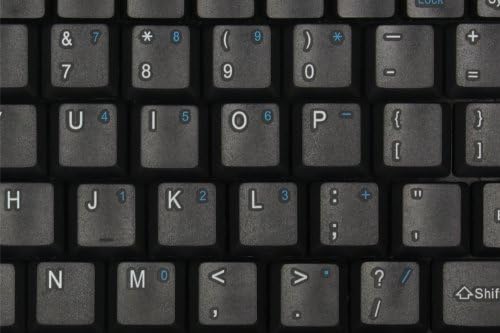
Image: A detailed view of the keys that comprise the embedded numeric keypad, showing the secondary numeric functions printed on them.
5.4. Function Keys (F1-F12)
The keyboard includes 12 function keys (F1-F12) that perform various tasks depending on the application or operating system. Some keys may have secondary functions accessible by holding down the Fn key.
5.5. LED Indicators
The keyboard features LED indicators for Num Lock, Caps Lock, and Scroll Lock, located in the upper right corner.
- Num Lock LED: Illuminates when the embedded numeric keypad is active.
- Caps Lock LED: Illuminates when Caps Lock is active, indicating that all typed letters will be uppercase.
- Scroll Lock LED: Illuminates when Scroll Lock is active. Its function varies by application.
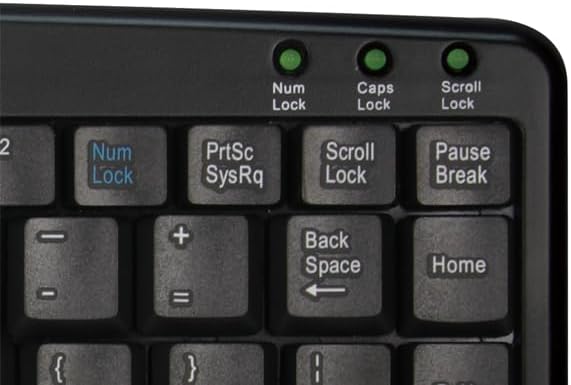
Image: A close-up view of the three green LED indicators for Num Lock, Caps Lock, and Scroll Lock, located in the top right corner of the keyboard.
6. Maintenance
- Cleaning: Use a soft, lint-free cloth slightly dampened with water or a mild cleaning solution to wipe the keyboard and touchpad surface. Avoid harsh chemicals or abrasive materials.
- Dust Removal: Use compressed air to remove dust and debris from between the keys.
- Storage: Store the keyboard in a cool, dry place away from direct sunlight and extreme temperatures when not in use.
- Liquid Exposure: Avoid spilling liquids on the keyboard. If liquid exposure occurs, immediately disconnect the keyboard from the computer and allow it to dry completely before reconnecting.
7. Troubleshooting
- Keyboard or Touchpad is not responding:
- Ensure the USB cable is securely connected to both the keyboard and the computer's USB port.
- Try connecting the keyboard to a different USB port on your computer.
- Restart your computer.
- Test the keyboard on another computer to determine if the issue is with the keyboard or the computer's USB port/drivers.
- Cursor movement is erratic or unresponsive:
- Ensure the touchpad surface is clean and free of dirt or moisture.
- Check for any obstructions on the touchpad.
- Adjust touchpad sensitivity settings in your operating system's mouse/touchpad settings.
- Embedded numeric keypad is not working:
- Press the Num Lock key to activate the numeric keypad. The Num Lock LED should illuminate.
8. Specifications
| Feature | Detail |
|---|---|
| Model Number | AKB-410UB |
| Connectivity Technology | USB |
| Keyboard Description | Integrated |
| Compatible Devices | PC (Windows 7, Vista, XP, 2000, or newer) |
| Product Dimensions | 11.75"L x 8.25"W x 0.5"H (29.85 x 20.96 x 1.27 cm) |
| Item Weight | 14.1 ounces (400 grams) |
| Color | Black |
| Special Feature | Portable, Built-in Touchpad, Embedded Numeric Keypad |
9. Warranty and Support
For warranty information and technical support, please visit the official ADESSO website or contact their customer service department. Keep your purchase receipt for warranty claims.
ADESSO Official Website: www.adesso.com


