1. Introduction
This manual provides detailed instructions for the installation, operation, and maintenance of your ASUS DRW-1814BLT SATA DVD+/-RW Burner with LightScribe technology. Please read this manual thoroughly before using the device to ensure proper functionality and to prevent damage.
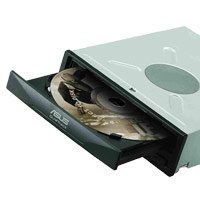
Figure 1: ASUS DRW-1814BLT Internal Optical Drive
2. Safety Information
Observe the following safety precautions to prevent injury and damage to the device:
- Static Electricity: Always discharge static electricity from your body before handling the drive by touching a grounded metal object.
- Power Supply: Ensure the computer's power supply is disconnected before installation or removal.
- Ventilation: Do not block the ventilation openings of your computer case, as this can lead to overheating.
- Laser Radiation: This product contains a laser diode. Do not attempt to open the drive casing or look directly into the laser beam.
- Handling: Handle the drive carefully. Avoid dropping or subjecting it to strong impacts.
3. Package Contents
Verify that all items are present in the package:
- ASUS DRW-1814BLT SATA DVD+/-RW Burner
- SATA Data Cable
- Mounting Screws
- Quick Installation Guide
- Software/Driver CD (may vary by region)
4. Setup and Installation
Follow these steps to install your optical drive:
- Prepare your computer: Turn off your computer and disconnect the power cord. Open the computer case.
- Locate an available drive bay: Identify an empty 5.25-inch drive bay. Remove the front panel cover if necessary.
- Install the drive: Slide the ASUS DRW-1814BLT into the drive bay from the front of the computer case until the mounting holes align.
- Secure the drive: Use the provided mounting screws to secure the drive to the computer case.
- Connect cables:
- Connect one end of the SATA data cable to the drive's SATA data port and the other end to an available SATA port on your motherboard.
- Connect a SATA power connector from your power supply unit (PSU) to the drive's SATA power port.
- Close the case: Replace the computer case cover and reconnect the power cord.
- Power on and verify: Turn on your computer. The operating system should automatically detect and install the necessary drivers for the drive. If not, install drivers from the provided CD or ASUS support website.
Figure 2: Illustrative image of an internal optical drive installation (actual product may vary slightly)
5. Operating Instructions
5.1. Loading and Ejecting Discs
- To Load: Press the eject button on the drive's front panel. The disc tray will open. Place the disc label-side up in the tray and gently push the tray back in until it clicks.
- To Eject: Press the eject button on the drive's front panel, or right-click the drive icon in 'My Computer' (Windows) or 'Finder' (macOS) and select 'Eject'.
5.2. Reading Discs
Once a disc is loaded, your operating system will typically prompt you with options for how to handle the disc (e.g., play a movie, open files, install software). If no prompt appears, navigate to 'My Computer' or 'Finder' and double-click the drive icon.
5.3. Burning Discs
The ASUS DRW-1814BLT supports burning various disc formats, including DVD+/-R, DVD+/-RW, DVD-RAM, CD-R, and CD-RW. Burning software (e.g., Nero, Roxio, or built-in OS tools) is required.
- Insert a blank, recordable disc into the drive.
- Open your preferred disc burning software.
- Select the type of project (e.g., Data Disc, Audio CD, Video DVD).
- Add the files you wish to burn to the project.
- Follow the software's prompts to start the burning process. Ensure the computer is not interrupted during burning.
6. LightScribe Technology
LightScribe is a technology that allows you to burn silkscreen-quality labels directly onto the surface of LightScribe-enabled discs using the same laser that burns data. This eliminates the need for sticky labels or markers.
6.1. Requirements for LightScribe
- LightScribe-enabled drive: Your ASUS DRW-1814BLT supports LightScribe.
- LightScribe-enabled discs: These discs have a special coating on the label side. Look for the LightScribe logo on the disc packaging.
- LightScribe System Software: This software is typically included with your burning application or can be downloaded from the official LightScribe website.
- LightScribe Labeling Software: A compatible application to design and print your labels.
6.2. Creating a LightScribe Label
- Burn your data to the disc as usual (if desired).
- Flip the disc over and insert it into the drive with the label side facing down.
- Open your LightScribe labeling software.
- Design your label using text, images, and graphics.
- Select the desired print quality (e.g., Best, Normal, Draft). Higher quality takes longer.
- Start the labeling process. The drive will use its laser to etch the design onto the disc surface.
Figure 3: Example of a LightScribe disc being labeled (actual process is internal)
7. Maintenance
Proper maintenance ensures the longevity and performance of your optical drive.
- Keep it Clean: Regularly clean the exterior of the drive and the computer case to prevent dust buildup.
- Disc Handling: Always handle discs by their edges. Avoid touching the recording surface. Store discs in protective cases.
- Lens Cleaning: If you experience frequent read errors, the drive's laser lens might be dirty. Use a specialized optical drive cleaning disc (available separately) to clean the lens. Do not attempt to clean the lens manually with cotton swabs or other objects.
- Firmware Updates: Periodically check the ASUS support website for firmware updates for your drive. Firmware updates can improve compatibility and performance.
8. Troubleshooting
If you encounter issues with your ASUS DRW-1814BLT, refer to the following common problems and solutions:
| Problem | Possible Cause | Solution |
|---|---|---|
| Drive not detected by OS | Loose cables, incorrect BIOS settings, driver issue | Check SATA data and power cable connections. Verify BIOS settings for SATA ports. Reinstall or update drivers. |
| Disc read errors | Dirty or scratched disc, dirty laser lens, incompatible disc format | Clean the disc. Use a drive cleaning disc. Try a different disc. Ensure disc format is supported. |
| Burning failures | Poor quality media, burning speed too high, background processes, insufficient disk space | Use high-quality blank media. Try a lower burning speed. Close unnecessary applications. Ensure sufficient hard drive space for temporary files. |
| Tray does not open/close | Mechanical obstruction, power issue | Check for obstructions. Ensure power cable is securely connected. Use the emergency eject hole (small pinhole on front panel) if necessary. |
9. Specifications
Key technical specifications for the ASUS DRW-1814BLT:
- Device Type: DVD±RW (±R DL) / DVD-RAM drive / LightScribe
- Enclosure Type: Internal
- Interface: Serial ATA (SATA 3.0 Gb/s)
- Dimensions (WxDxH): 5.9 in x 6.8 in x 1.7 in (150 mm x 173 mm x 43 mm)
- Weight: 1.8 lb (0.82 kg)
- Optical Storage: 5.25" x 1/2H
- Optical Storage Read Speed: 16X DVD
- Optical Storage Write Speed: High Speed (exact speed varies by media type)
- Special Feature: LightScribe Direct Disc Labeling
- Model Number: 90-D4064B-UAN8W
10. Warranty and Support
Your ASUS DRW-1814BLT is covered by a limited manufacturer's warranty. For specific warranty terms and conditions, please refer to the warranty card included with your product or visit the official ASUS support website. For technical assistance, driver downloads, and firmware updates, please visit www.asus.com/support/.


