Download PDFFree PDF. The Save button below keeps a bookmark and private notes in your account.
Olympus DS4000 Professional Digital Voice Recorder User Manual
Model: DS-4000
1. Introduction
The Olympus DS4000 is a professional hand-held digital voice recorder designed for high-quality audio capture and efficient file management. It features a compact, ergonomic design with intuitive controls, making it suitable for various recording needs. This manual provides detailed instructions on setting up, operating, maintaining, and troubleshooting your DS4000 recorder.
Key features include a 32MB xD memory card for extended recording times, a USB docking station for PC/Mac connectivity, compatibility with speech recognition software, and advanced audio management capabilities.
Figure 1: Olympus DS4000 Digital Voice Recorder and Docking Station.
This image displays the Olympus DS4000 digital voice recorder, a silver-colored device with a large LCD screen and control buttons, securely seated in its dark gray USB docking station. The docking station has a "CHARGE" indicator on the right side.
2. Setup
2.1 Package Contents
Before beginning, ensure all components are present in the package:
Figure 2: Included Accessories (Cables and AC Adapter).
This image displays the various cables and the AC adapter that come with the Olympus DS4000. These include a USB cable, a power cable, and the AC adapter unit itself, all in black.
2.2 Battery Installation
The DS4000 requires 2 AAA batteries. If a rechargeable battery pack is included, install it according to the instructions provided with the pack. Ensure correct polarity when inserting batteries.
2.3 Memory Card Installation
Locate the xD memory card slot on the device. Gently insert the 32MB xD memory card until it clicks into place. Ensure the card is inserted in the correct orientation to avoid damage.
2.4 Connecting to a Computer
Use the provided USB docking station and USB download cable to connect the DS4000 to your PC or Mac. The docking station also functions as a charging unit for the rechargeable battery pack.
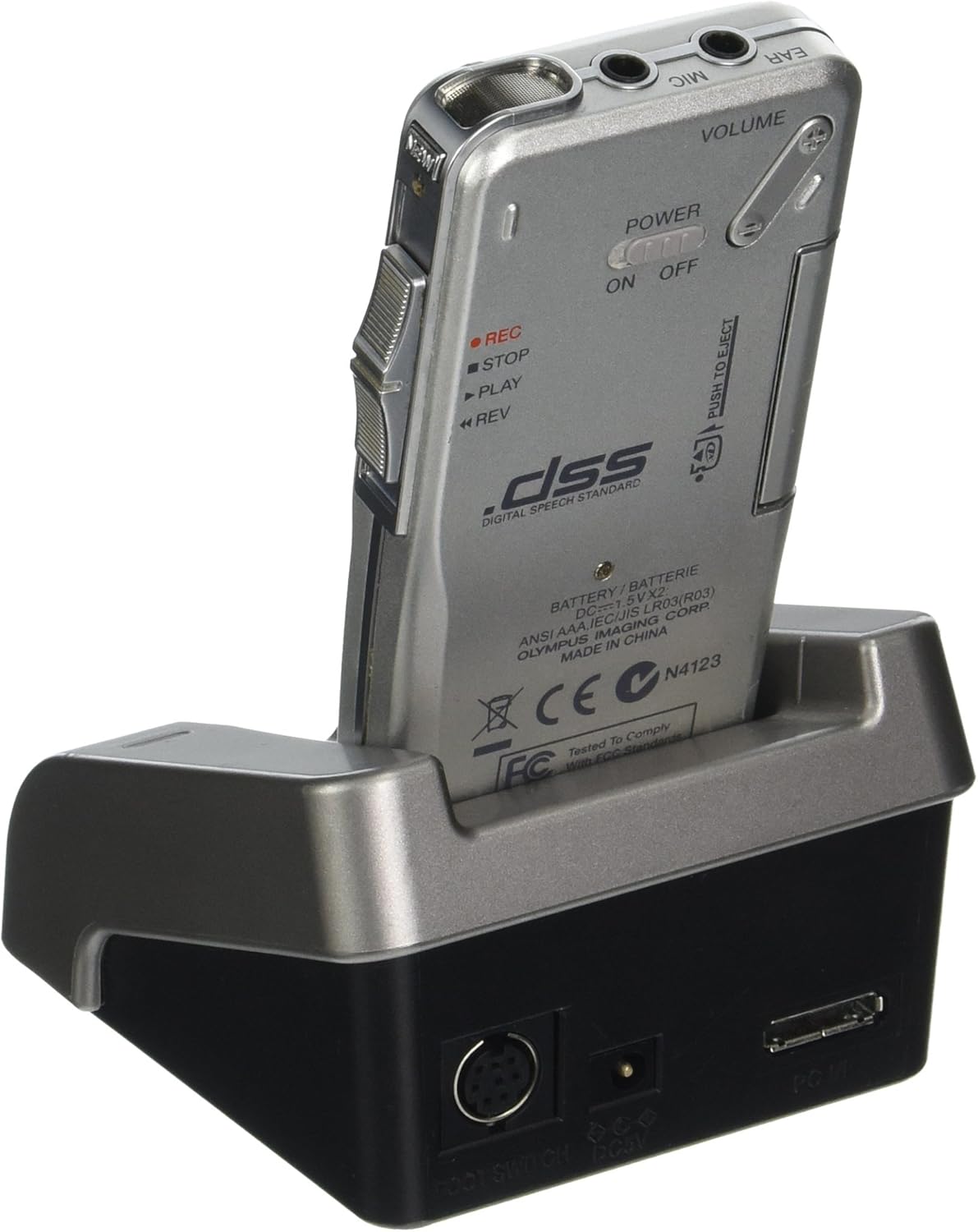
Figure 3: Rear View of DS4000 in Docking Station with Ports.
This image shows the back of the Olympus DS4000 digital voice recorder while it is docked. Visible features include the battery compartment, the power switch (ON/OFF), and various ports on the docking station, such as the USB port and a foot switch port.
2.5 Software Installation
Install the DSS Player Pro Software from the included CD or download it from the official Olympus support website. This software is essential for managing your recorded files, transferring them to your computer, and utilizing advanced features.
3. Operation
3.1 Basic Controls
Familiarize yourself with the main controls on the DS4000:
Power Switch: Located on the side, slides to ON/OFF.
REC Button: Initiates recording.
STOP Button: Halts recording or playback.
PLAY Button: Starts playback of a selected file.
REW (Rewind) Button: Rewinds during playback or navigates menus.
FF (Fast Forward) Button: Fast forwards during playback or navigates menus.
MENU Button: Accesses device settings and options.
ERASE Button: Deletes selected files.
Volume Control: Adjusts playback volume.
Slide Switch: For quick control of recording, stopping, and playing.
3.2 Recording Audio
Ensure the device is powered ON.
Select a folder (A-G) using the menu to organize your recordings. The DS4000 supports 7 separate folders, each holding up to 199 files.
Press the REC button or slide the control switch to the record position to begin recording. The recording indicator will illuminate.
The built-in Variable Control Actuator (VCVA) can automatically start and stop recording when sound is detected, conserving memory and battery life. This feature can be enabled or disabled in the settings.
To pause recording, press the STOP button briefly. To resume, press REC again.
To stop recording completely, press the STOP button.
You can insert up to 16 index marks per recording to quickly identify important sections during playback.
3.3 Playing Back Audio
Navigate to the desired folder and select the file you wish to play using the navigation buttons.
Press the PLAY button or slide the control switch to the play position.
Adjust the volume using the volume control.
Use the REW and FF buttons to navigate within the file.
To stop playback, press the STOP button.
The Alarm Playback function allows you to set a specific time for a selected file to play.
3.4 File Management
The DS4000 allows for various file management operations directly on the device:
Move: Relocate files between folders.
Erase: Delete individual files or all files within a folder.
Overwrite: Record over an existing file.
Lock: Protect files from accidental deletion or modification.
For more advanced file management, connect the device to your computer and use the DSS Player Pro Software.
3.5 PC/Mac Connectivity and Software Use
When connected to a computer via the USB docking station, the DS4000 can function as a USB speaker for audio output or as a USB microphone for voice recognition software. The DSS Player Pro Software facilitates:
Transferring recorded files to your computer.
Organizing and archiving files.
Converting files to .WAV or .DSS formats.
Integration with popular digital speech recognition packages such as Dragon Naturally Speaking and IBM Via Voice.
4. Maintenance
4.1 Cleaning
To maintain the performance and appearance of your DS4000, follow these cleaning guidelines:
Wipe the exterior of the recorder and docking station with a soft, dry cloth.
For stubborn dirt, slightly dampen the cloth with water or a mild, non-abrasive cleaning solution. Do not use strong chemicals or solvents.
Avoid getting moisture into any openings or ports.
Clean the LCD screen gently with a microfiber cloth to prevent scratches.
4.2 Battery Care
Proper battery care extends the life of your device:
If using rechargeable batteries, ensure they are fully charged before extended use.
Remove batteries if the device will not be used for a prolonged period to prevent leakage.
Dispose of old batteries according to local regulations.
4.3 Storage
Store the DS4000 in a cool, dry place, away from direct sunlight, extreme temperatures, and high humidity. Use the provided carrying case for protection during transport.
5. Troubleshooting
This section addresses common issues you might encounter with your Olympus DS4000. If the problem persists after trying these solutions, please contact Olympus customer support.
Problem
Possible Cause
Solution
Device does not power on.
Batteries are dead or incorrectly inserted.
Replace batteries or ensure correct polarity. Recharge if using rechargeable pack.
Cannot record.
Memory card full or not inserted correctly; device in playback mode.
Check memory card capacity and reinsert if necessary. Ensure device is in record mode.
Poor audio quality.
Microphone obstructed; recording environment too noisy; incorrect recording settings.
Ensure microphone is clear. Record in a quieter environment. Adjust microphone sensitivity or recording mode. Utilize noise canceling technology.
Cannot transfer files to computer.
USB cable or docking station not connected properly; DSS Player Pro Software not installed or running.
Verify all connections. Ensure DSS Player Pro Software is installed and open. Try a different USB port.
LCD display is blank or dim.
Power saving mode active; low battery; display settings.
Press any button to wake. Check battery level. Adjust backlight settings in the menu.
6. Specifications
The following are technical specifications for the Olympus DS4000 Digital Voice Recorder:
Feature
Detail
Model Number
DS-4000
Product Dimensions
2.76 x 1.57 x 0.79 inches
Item Weight
1.98 pounds
Batteries
2 AAA batteries required
Memory Storage Capacity
32 MB (xD Card)
Hardware Interface
USB
Microphone Form Factor
Built-In
Recording Format
WAV, DSS
Headphones Jack
3.5 millimeters
Screen Size
2.4 inches (Backlit LCD Display)
Recording Time (32MB)
Up to 660 minutes (Long Play mode); 310 minutes (Standard Play mode)
Folders
7 separate folders (199 files per folder)
Noise Canceling
Yes
Compatible Devices
Personal Computer (PC and Mac Compatible)
Figure 4: Size Comparison of the DS4000.
This image illustrates the compact size of the Olympus DS4000 digital voice recorder by showing it held in a human hand. A graphic overlay indicates its height as 5.2 inches (13 cm).
7. Warranty & Support
7.1 Warranty Information
Specific warranty terms and conditions for the Olympus DS4000 are provided by the manufacturer at the time of purchase. Please refer to the warranty card included with your product or visit the official Olympus website for detailed information regarding warranty coverage, duration, and claims procedures.
7.2 Customer Support
For technical assistance, service, or additional support, please contact Olympus customer service. You can find contact information, FAQs, and software updates on the official Olympus support website.
Ask about setup, troubleshooting, compatibility, parts, safety, or missing instructions. Manuals+ will review the question and use this page’s manual context to help answer it.