
1. Introduction
The Omron HJ-720ITC Pocket Pedometer is an advanced activity tracker designed to monitor your daily physical activity. Utilizing unique dual sensor technology, it accurately counts steps whether carried in a pocket, bag, or clipped to clothing. This device helps you track various metrics including steps, aerobic steps, aerobic minutes, calories burned, and distance walked. It features a 7-day history log and automatic midnight reset for convenient daily tracking.
This manual provides detailed instructions for setting up, operating, maintaining, and troubleshooting your Omron HJ-720ITC Pedometer to ensure optimal performance and accurate activity monitoring.
2. Setup
2.1. Battery Installation
The Omron HJ-720ITC Pedometer uses a replaceable battery. To install or replace the battery:
- Locate the battery compartment cover on the back of the pedometer.
- Use a small coin or screwdriver to open the cover.
- Insert the new battery, ensuring the correct polarity (+/-) as indicated inside the compartment.
- Replace the battery compartment cover and secure it.
2.2. Initial Settings
Upon first use or after battery replacement, you will need to set the initial parameters:
- Time and Date: Use the SET button to navigate and the MODE/EVENT button to adjust the time (12-hour or 24-hour format) and current date.
- User Profile: Enter your personal data, including:
- Weight: For accurate calorie calculation.
- Height: For accurate stride length estimation.
- Stride Length: For precise distance measurement. You may manually measure your stride length for better accuracy.
Refer to the on-screen prompts and the detailed instructions in the full manual for specific button sequences.
2.3. Software Installation and Data Transfer
The HJ-720ITC includes PC software for tracking your exercise progress over time. To install the software and transfer data:
- Install the Omron Healthcare management software from the provided CD or download it from the official Omron website.
- Connect the pedometer to your computer using the supplied USB cable.
- Launch the Omron software. The software will guide you through the data transfer process.
- Ensure the pedometer is properly connected and recognized by your computer before attempting data transfer.
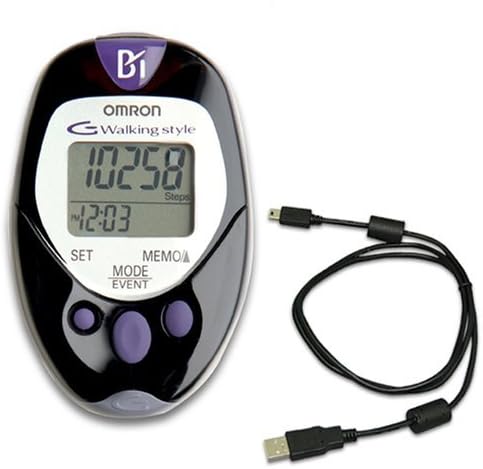
Image: Omron HJ-720ITC Pedometer shown alongside its USB connection cable, used for data transfer to a computer.
3. Operation
3.1. Wearing the Pedometer
The Omron HJ-720ITC features dual sensor technology, allowing flexible placement:
- Pocket or Bag: The pedometer can be carried in your pocket or a bag without affecting accuracy.
- Belt Clip: For secure attachment, use the detachable belt holder and security strap to clip the pedometer to your waistband or belt. Ensure it is positioned vertically for best results.

Image: The Omron HJ-720ITC Pedometer with its attached security strap, designed to prevent accidental loss when clipped to clothing.
3.2. Display and Modes
The large display shows various metrics. Use the MODE/EVENT button to cycle through different display modes:
- Steps: Total steps taken.
- Aerobic Steps & Minutes: Displays steps and duration of continuous activity lasting more than 10 minutes.
- Calories: Estimated calories burned.
- Distance: Total distance walked.
- Clock: Current time.
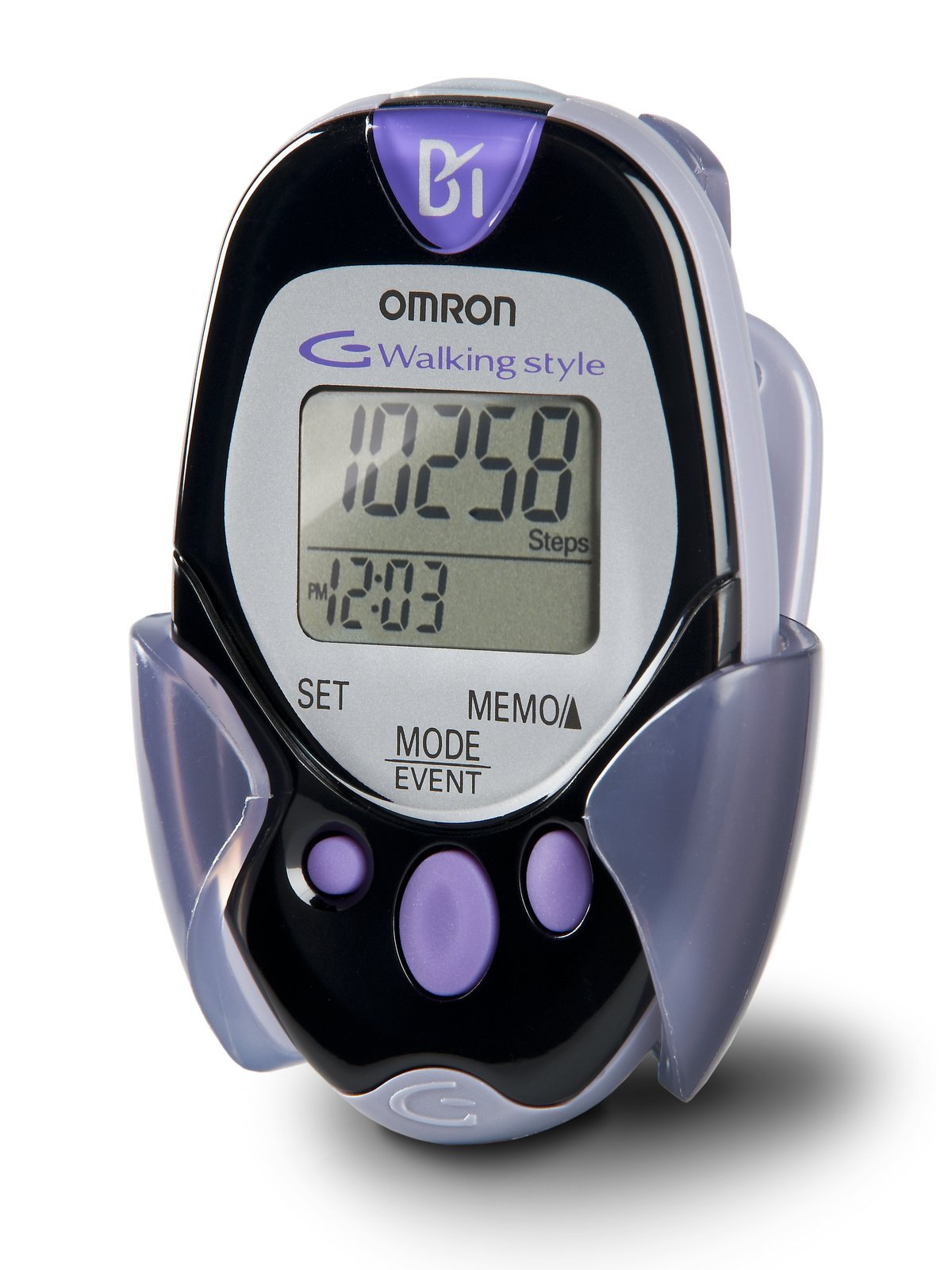
Image: A close-up view of the Omron HJ-720ITC Pedometer's digital display, showing a step count of 10,258 and the current time as 12:03 PM.
3.3. Daily Tracking and History
- Automatic Reset: The pedometer automatically resets all daily data at midnight, preparing it for the next day's tracking.
- 7-Day History: You can review your activity data for the past seven days directly on the device. Use the MEMO button to access historical data.
4. Maintenance
4.1. Cleaning
To maintain your pedometer, wipe it regularly with a soft, dry cloth. Do not use abrasive cleaners or immerse the device in water.
4.2. Battery Replacement
When the battery indicator appears on the display, replace the battery as described in Section 2.1. Prompt battery replacement ensures continuous and accurate tracking.
4.3. Storage
Store the pedometer in a cool, dry place away from direct sunlight and extreme temperatures when not in use for extended periods.
5. Troubleshooting
| Problem | Possible Cause | Solution |
|---|---|---|
| Display is blank or dim. | Low or dead battery. | Replace the battery (refer to Section 2.1). |
| Inaccurate step count. | Incorrect stride length setting; improper placement; unusual movement patterns. | Verify stride length setting (Section 2.2). Ensure pedometer is worn correctly (Section 3.1). Avoid jerky movements that may be misinterpreted as steps. |
| Pedometer not connecting to PC. | Faulty USB cable; software not installed correctly; driver issues. | Try a different USB port or cable. Reinstall the Omron software. Check device manager for driver issues. |
| Data not resetting at midnight. | Incorrect time setting. | Verify and correct the time setting (Section 2.2). |
If you encounter issues not listed here, please contact Omron customer support for assistance.
6. Specifications
- Model: HJ-720ITC
- Manufacturer: Omron
- Dimensions: 8 x 6.7 x 2 inches
- Weight: Approximately 0.01 ounces (excluding battery)
- Tracking Metrics: Steps, Aerobic Steps, Aerobic Minutes, Calories, Distance
- History: 7-day memory
- Connectivity: USB for PC data transfer
- Power Source: Replaceable battery (type not specified in provided data, assume common coin cell)
7. Warranty & Support
For warranty information, please refer to the warranty card included with your product or visit the official Omron Healthcare website. Omron provides customer support for product inquiries, technical assistance, and service requests.
Omron Healthcare Official Website: www.omronhealthcare.com
Please have your model number (HJ-720ITC) and purchase date ready when contacting support.


