
Introduction
This manual provides detailed instructions for the setup, operation, maintenance, and troubleshooting of your Microsoft Reclusa Gaming Keyboard. Please read this manual thoroughly to ensure proper use and to maximize your gaming and computing experience.
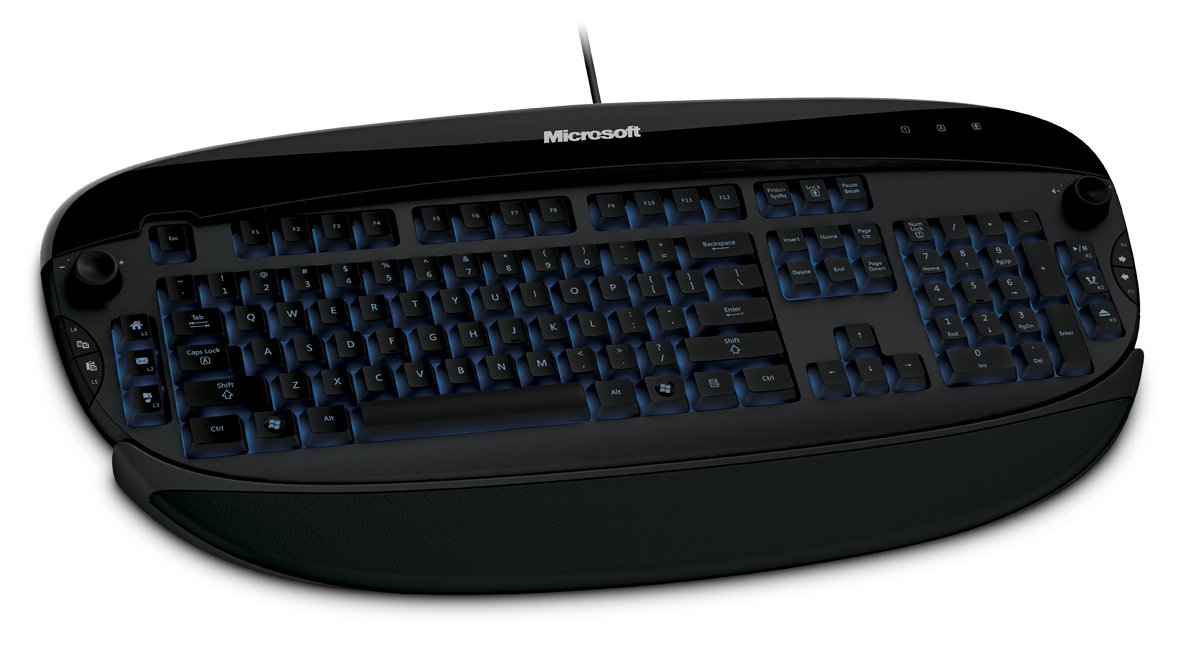
Figure 1: Microsoft Reclusa Gaming Keyboard. This image displays the full keyboard from an elevated angle, showcasing its ergonomic design, blue ambient backlighting on the keys, and the integrated wrist rest. The Microsoft logo is visible at the top center.
Setup
1. Connecting the Keyboard
The Microsoft Reclusa Gaming Keyboard connects to your computer via a standard USB port.
- Locate an available USB port on your computer.
- Plug the USB connector from the keyboard into the USB port.
- The operating system will automatically detect and install the necessary drivers.
The keyboard features a smart cabling system, allowing you to manage the USB cable length by stowing away excess cable when not in use or shortening it as needed.
2. Attaching the Wrist Rest
For enhanced comfort during extended use, the Reclusa keyboard includes a detachable wrist rest.
- Align the wrist rest with the bottom edge of the keyboard.
- Gently push the wrist rest until it clicks securely into place.
- To remove, apply gentle pressure and pull the wrist rest away from the keyboard.
3. Software Installation (Razer Reclusa Configurator)
To unlock the full customization capabilities of your Reclusa keyboard, install the Razer Reclusa Configurator software. This software allows for macro programming and profile management.
- Insert the provided installation CD into your computer's optical drive, or download the latest software from the official Microsoft support website.
- Follow the on-screen instructions to complete the installation.
- Once installed, launch the Razer Reclusa Configurator to begin customizing your keyboard settings.
Operating the Keyboard
1. Key Features Overview
- Ambient Backlighting: The keys feature cool blue ambient backlighting, ensuring visibility in low-light conditions. This backlighting is always active when the keyboard is connected.
- Hyperesponse Gaming Key Action: Designed for maximum response with minimal latency, providing a tactile and efficient typing and gaming experience.
- Integrated USB Ports: Two gold-plated USB connector ports are built into the keyboard, maximizing connectivity and maintaining transmission integrity for peripherals.
2. Programmable Buttons and Profiles
The Reclusa keyboard features 12 custom-programmable buttons, including two 360-degree jog-dials and two bumper buttons conveniently located on each side of the keyboard. These can be configured using the Razer Reclusa Configurator software.
Figure 2: Left side programmable buttons. This close-up view highlights the programmable L1-L5 buttons and a jog-dial located on the left side of the keyboard, designed for quick access to macros and functions.
- Customization: Use the Razer Reclusa Configurator to assign macros, key functions, or application shortcuts to the 12 programmable buttons.
- Profiles: Store up to five different profiles within the software. Each profile can have a unique set of button assignments, tailored for different games or applications.
- On-the-Fly Gaming Detection: The software can automatically switch to the appropriate profile when a specific game or application is launched, providing seamless transitions between your customized settings.
- Jog-Dials: The two 360-degree jog-dials can be programmed for various functions, such as volume control, scrolling, or macro activation.
Figure 3: Right side jog-dial and numeric keypad. This image focuses on the right side of the keyboard, showing the numeric keypad and the additional jog-dial, which can be customized for various functions.
Maintenance
Proper care and maintenance will extend the life of your Microsoft Reclusa Gaming Keyboard.
- Cleaning:
- Disconnect the keyboard from your computer before cleaning.
- Use a soft, lint-free cloth slightly dampened with water or a mild cleaning solution to wipe the surface of the keyboard.
- Avoid using harsh chemicals, abrasive cleaners, or solvents, as these can damage the finish.
- Use compressed air to remove dust and debris from between the keys.
- Storage: When not in use for extended periods, store the keyboard in a clean, dry environment away from direct sunlight and extreme temperatures.
- Liquid Spills: In case of a liquid spill, immediately disconnect the keyboard from your computer. Turn it upside down to drain any liquid and allow it to dry completely before reconnecting. Do not attempt to use the keyboard while it is wet.
Troubleshooting
If you encounter issues with your Microsoft Reclusa Gaming Keyboard, refer to the following common solutions:
| Problem | Possible Solution |
|---|---|
| Keyboard is not responding. |
|
| Backlighting is not working. |
|
| Programmable buttons/macros are not working. |
|
| Keys are sticky or unresponsive. |
|
If these solutions do not resolve your issue, please contact Microsoft Support for further assistance.
Specifications
| Feature | Detail |
|---|---|
| Model Number | 9VU-00001 |
| Brand | Microsoft |
| Connectivity Technology | USB |
| Keyboard Description | QWERTY |
| Special Features | Lighting, Programmable Keys, Detachable Wrist Rest |
| Color | Black |
| Material | Plastic |
| Product Dimensions | 21.69"L x 9.29"W x 2.4"H (approx. 55.1 x 23.6 x 6.1 cm) |
| Item Weight | 4.28 pounds (approx. 1.94 kg) |
| Included Components | Reclusa Gaming Keyboard, Detachable Wrist Rest |
Warranty and Support
Microsoft products are designed with quality and reliability in mind. For information regarding the warranty coverage for your Microsoft Reclusa Gaming Keyboard, please refer to the warranty card included with your product or visit the official Microsoft support website.
For technical assistance, driver downloads, or further inquiries, please visit the official Microsoft Support website or contact their customer service department. Keep your product model number (9VU-00001) handy when seeking support.
Microsoft Support Website: support.microsoft.com


