
Olympus VN-1100
Olympus VN-1100 PC Dictation Machine User Manual
Model: VN-1100
1. Introduction
The Olympus VN-1100 PC Dictation Machine is a portable digital voice recorder designed for clear audio capture and easy transfer to a personal computer. It features built-in memory, voice activation, and a user-friendly interface for efficient dictation and note-taking.
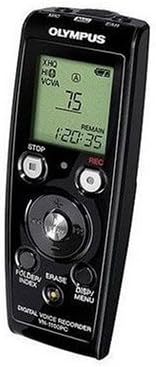
Figure 1: Front view of the Olympus VN-1100 PC Dictation Machine, showing the LCD screen, control buttons (Stop, Rec, Folder/Index, Erase, Disp/Menu), and navigation pad.
2. Setup
2.1. Battery Installation
The VN-1100 operates on two AAA batteries (not included). To install:
- Locate the battery compartment cover on the back of the device.
- Slide the cover downwards to open.
- Insert two AAA batteries, ensuring correct polarity (+/-) as indicated inside the compartment.
- Close the battery compartment cover by sliding it upwards until it clicks into place.
2.2. Initial Power On
Press and hold the POWER button (usually located on the side or top) until the LCD screen illuminates. The device will perform a brief self-check.
2.3. Connecting to a PC
To transfer files, connect the VN-1100 to your computer using a compatible USB cable (not included). The device will typically appear as a removable storage device.
3. Operating Instructions
3.1. Recording
To begin recording:
- Ensure the device is powered on.
- Press the REC button (red button). The recording indicator will illuminate, and the recording time will start counting on the LCD.
- To pause recording, press the REC button again. Press it once more to resume.
- To stop recording, press the STOP button. The recorded file will be saved automatically.
3.2. Playback
To play back a recorded file:
- Navigate to the desired file using the navigation buttons (e.g., FOLDER/INDEX or arrow keys).
- Press the PLAY button (often integrated with the navigation pad).
- To adjust volume, use the volume control buttons (if available, typically on the side).
- To stop playback, press the STOP button.
3.3. Voice Activation (VCVA)
The Voice Control Voice Actuator (VCVA) function allows the recorder to start and stop recording automatically in response to sound. This feature helps conserve memory and battery life.
- To enable/disable VCVA, access the menu by pressing DISP/MENU.
- Navigate to the VCVA setting and select 'ON' or 'OFF'.
- Adjust the VCVA sensitivity level if available, to control how loud the sound needs to be to trigger recording.
3.4. Erasing Files
To delete a file:
- Select the file you wish to erase.
- Press the ERASE button.
- Confirm the deletion when prompted on the LCD screen.
4. Maintenance
4.1. Cleaning
Wipe the device with a soft, dry cloth. Do not use liquid cleaners or abrasive materials. Keep the microphone and speaker grilles free of dust and debris.
4.2. Battery Care
Remove batteries if the device will not be used for an extended period to prevent leakage. Dispose of used batteries according to local regulations.
5. Troubleshooting
| Problem | Possible Cause | Solution |
|---|---|---|
| Device does not power on. | Dead or incorrectly inserted batteries. | Replace batteries or check polarity. |
| No sound during playback. | Volume too low; headphones not connected properly; corrupted file. | Increase volume; re-insert headphones; try another file. |
| Cannot connect to PC. | Faulty USB cable; incorrect USB port; driver issue. | Try a different USB cable/port; restart PC; check Olympus support for drivers. |
| Recording quality is poor. | Microphone obstructed; recording distance too far; low battery. | Ensure microphone is clear; record closer to source; replace batteries. |
6. Specifications
- Model: Olympus VN-1100 PC
- Storage Medium: Built-In Memory
- PC Connection: Yes
- Voice Activation (VCVA): Yes
- Power Source: AAA Batteries
- Dimensions: Approximately 213 x 142 x 40 mm (8.4 x 5.6 x 1.6 inches)
- Weight: Approximately 335 g (0.74 lbs)
- Compatible Devices: Personal Computer
- Format: MP3 Audio
7. Warranty and Support
This product is covered by Olympus's standard limited warranty. For detailed warranty terms, technical support, or service inquiries, please visit the official Olympus support website or contact their customer service department.
Official Olympus Website: www.olympus-global.com
Related documentsVN-1100


Ask a question about this manual
Ask about setup, troubleshooting, compatibility, parts, safety, or missing instructions. Manuals+ will review the question and use this page’s manual context to help answer it.